Calculating a single payslip
Most of the time you calculate a whole batch. Calculating one payslip is for the exceptions — the employee whose record you just fixed, the late amendment, the joiner added after the run started.
Where: Payroll › the payroll run › Payslips › the employee's payslip You need: payroll rights for that batch cycle
When to use this, and when not to
| You want to | Do this |
|---|---|
| Produce figures for the whole run | Calculate payroll on the batch |
| Produce figures for one employee added late | Calculate payslip |
| Refresh one employee after fixing their record | Recalculate payslip |
| Refresh everyone after a settings change | Recalculate batch |
The distinction that matters is not one-versus-many, it is Calculate versus Recalculate. A batch calculation only picks up payslips still in Pending; anything already calculated is skipped. So once a payslip has figures, re-running the batch will not touch it — you have to recalculate it deliberately.
That is a safety feature, and it is also the reason a fix sometimes appears not to have worked.
How to calculate one payslip
- Open the payroll run and find the employee on the Payslips tab.
- Open their payslip.
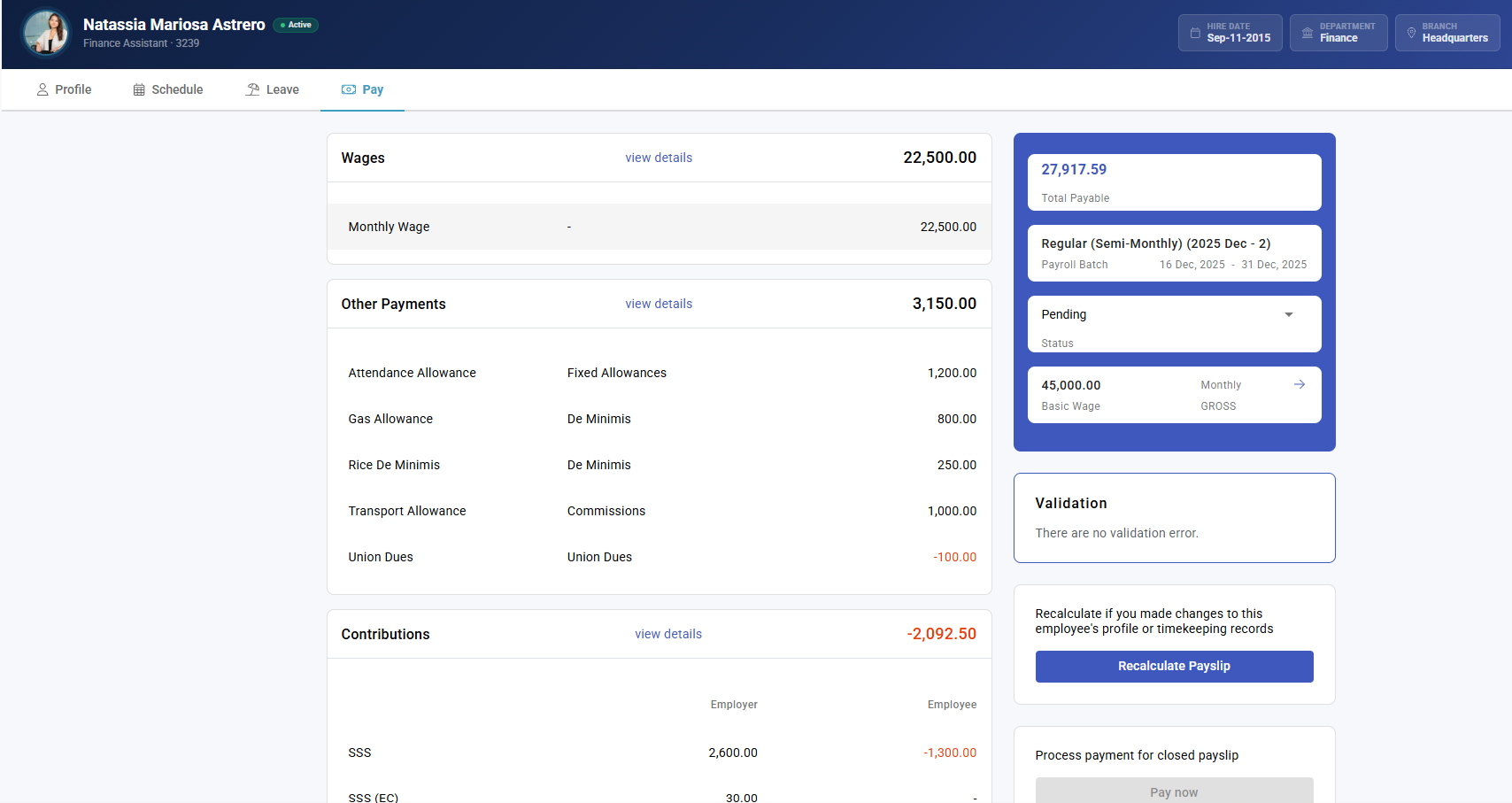
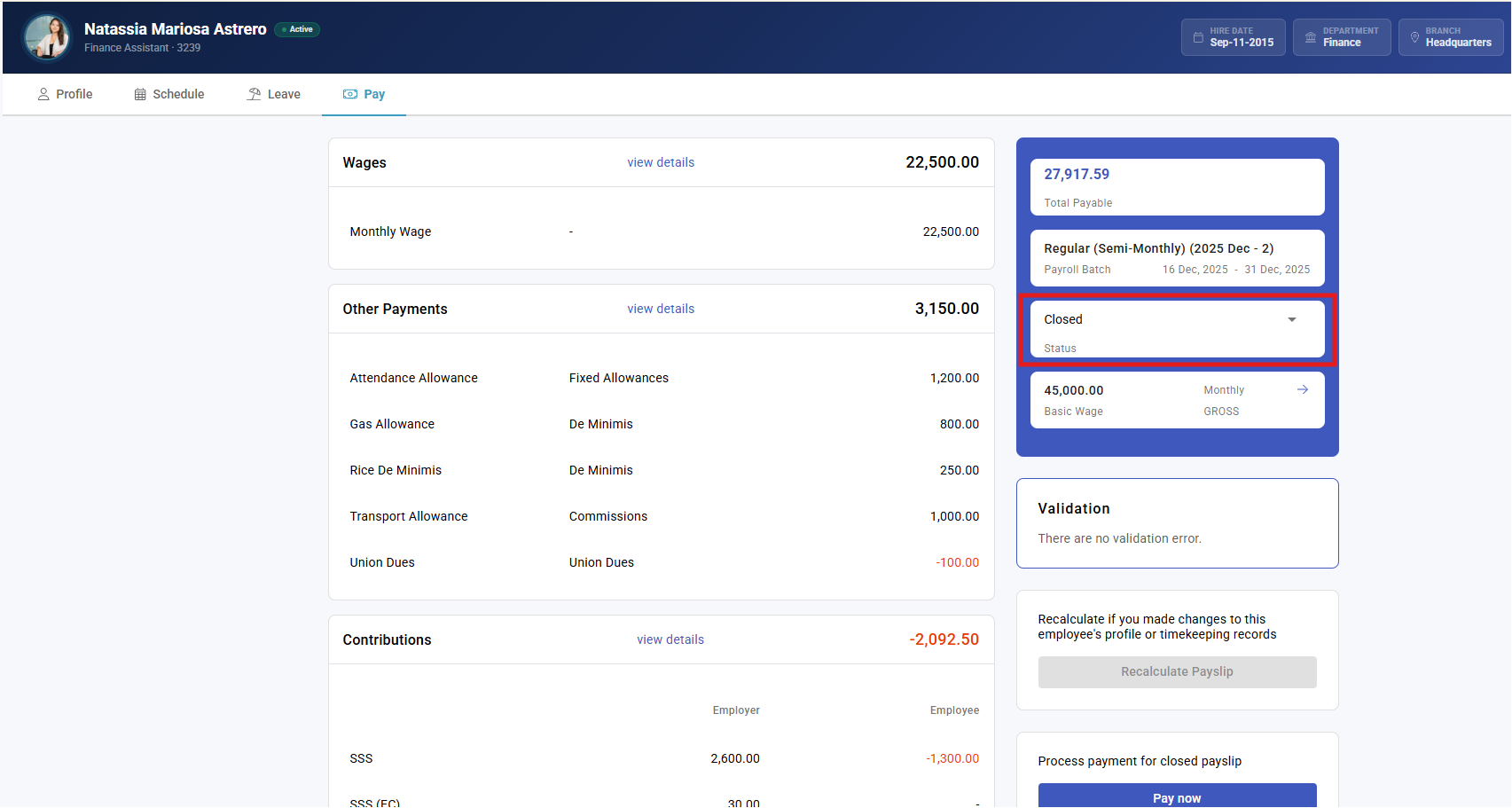
- Choose Calculate payslip, or Recalculate payslip if it already has figures.
- Check the result before moving on — the rates first, then the lines.
What recalculating destroys
⚠️ Recalculating discards the stored figures and rebuilds them from source. Any manual adjustment made to that payslip since the last calculation is gone, without a prompt. If someone hand-entered a correction, recalculating throws it away.
The safe order is always: fix the source — profile, timekeeping, other payments — then recalculate, then adjust if anything still needs it. Adjusting before recalculating wastes the adjustment.
What Happens Next
- The payslip is rebuilt from the employee's profile, their timekeeping for the period, other payments, and the statutory rules as they stand now.
- Its status returns to the start of the review flow, so it needs verifying and approving again.
- Tax is recomputed on an annual basis, so a change here can shift the employee's tax for the remaining periods of the year — see Payslip tax details explained.
- Nothing else in the run is affected. Other payslips keep their figures.
Tips
- Recalculate immediately after fixing the record, while you still remember what you changed and why.
- Check the rate, not just the total. If the daily or hourly rate is wrong the total will be wrong in a way that looks plausible.
- Note why you recalculated. A payslip that changed after approval invites a question later, and the payslip history is the place that answers it.
- If several employees need the same fix, fix the setting and recalculate the batch rather than working through them one at a time — you will miss one.
Troubleshooting / FAQ
Q: I fixed the employee's profile and re-ran the batch, but their payslip is unchanged. Batch calculation only processes payslips in Pending. Theirs already had figures, so it was skipped. Recalculate it directly.
Q: Recalculating removed a correction someone had entered. Expected — recalculation rebuilds from source. Re-enter it, and do not recalculate that payslip again.
Q: The payslip went back to needing approval. Yes. New figures need reviewing; the previous approval was of different numbers.
Q: An employee was added to the company after the run was created. Do they have a payslip? Not automatically for a run already under way. Check they appear in the run, then calculate their payslip.
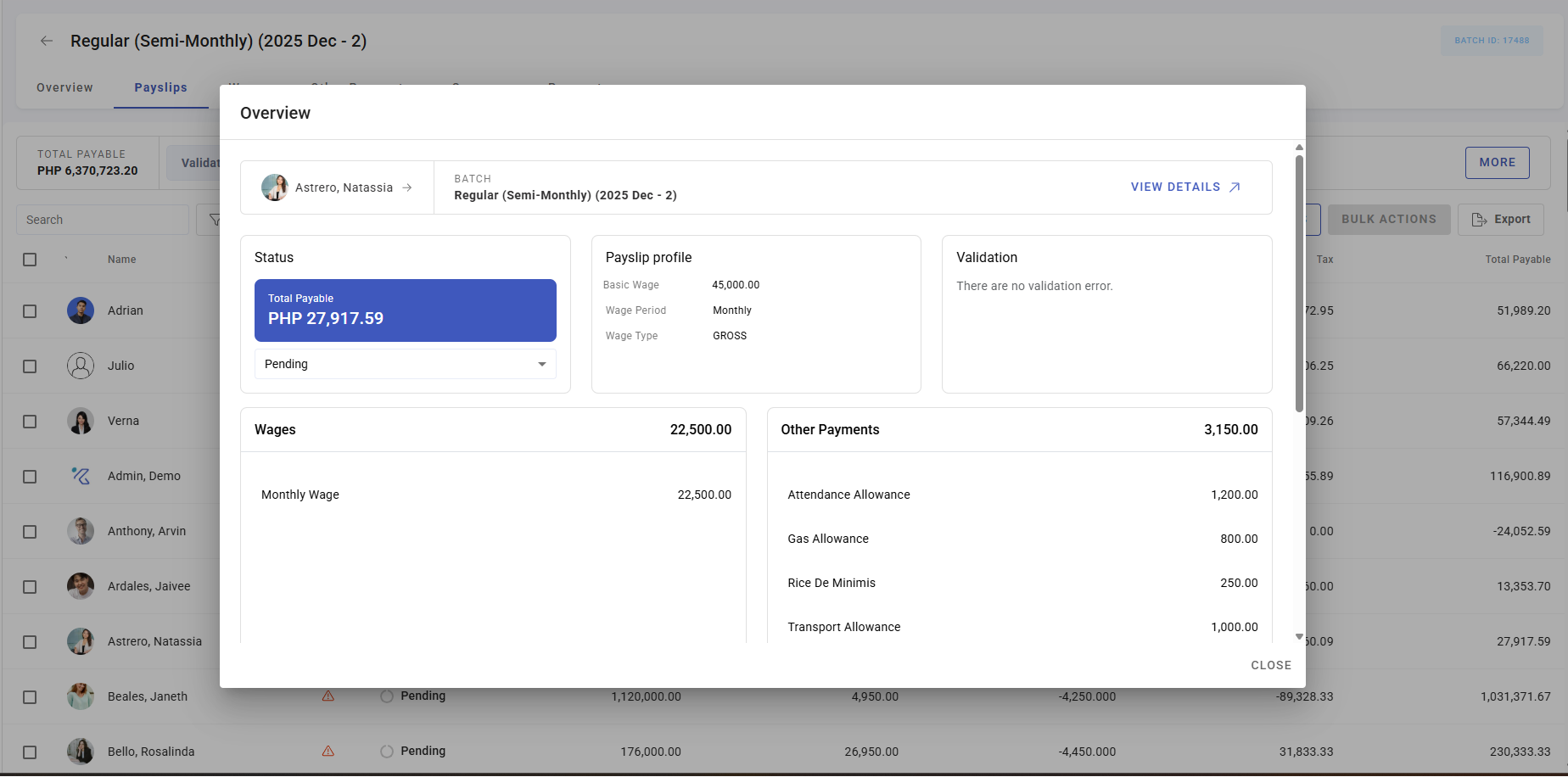
Screenshots
These screenshots came from our previous help centre and may show an earlier version of the interface.