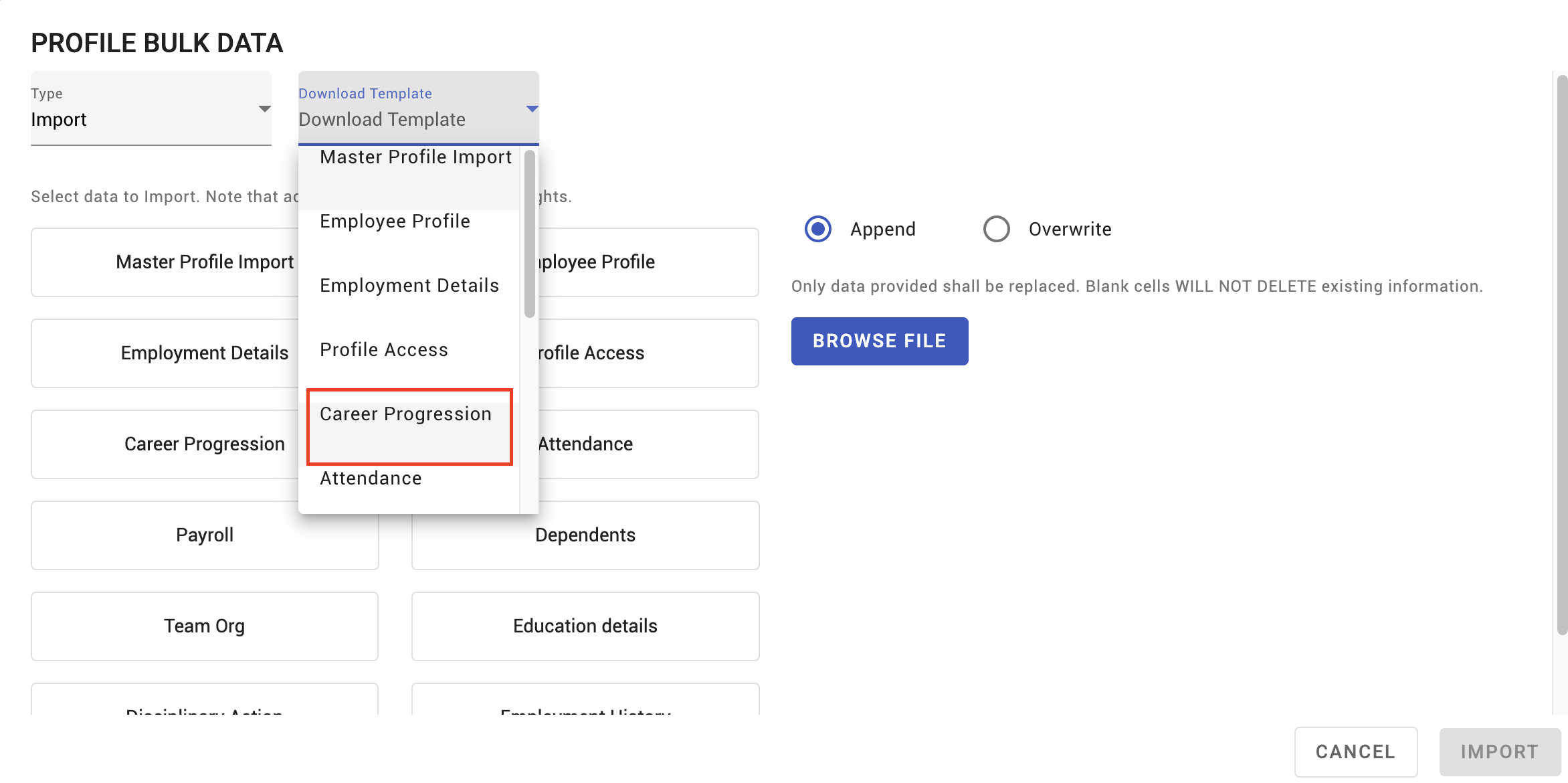
Importing career progression data
Career progression is the record of how someone's role, pay and placement have changed over time. Importing it is how you bring that history across when you move to KAMI — so an employee's record starts with their career, not with the day you switched systems.
Where: My Team › Settings › Employee Bulk Data
You need: the bulk data right, plus the rights for the data being imported 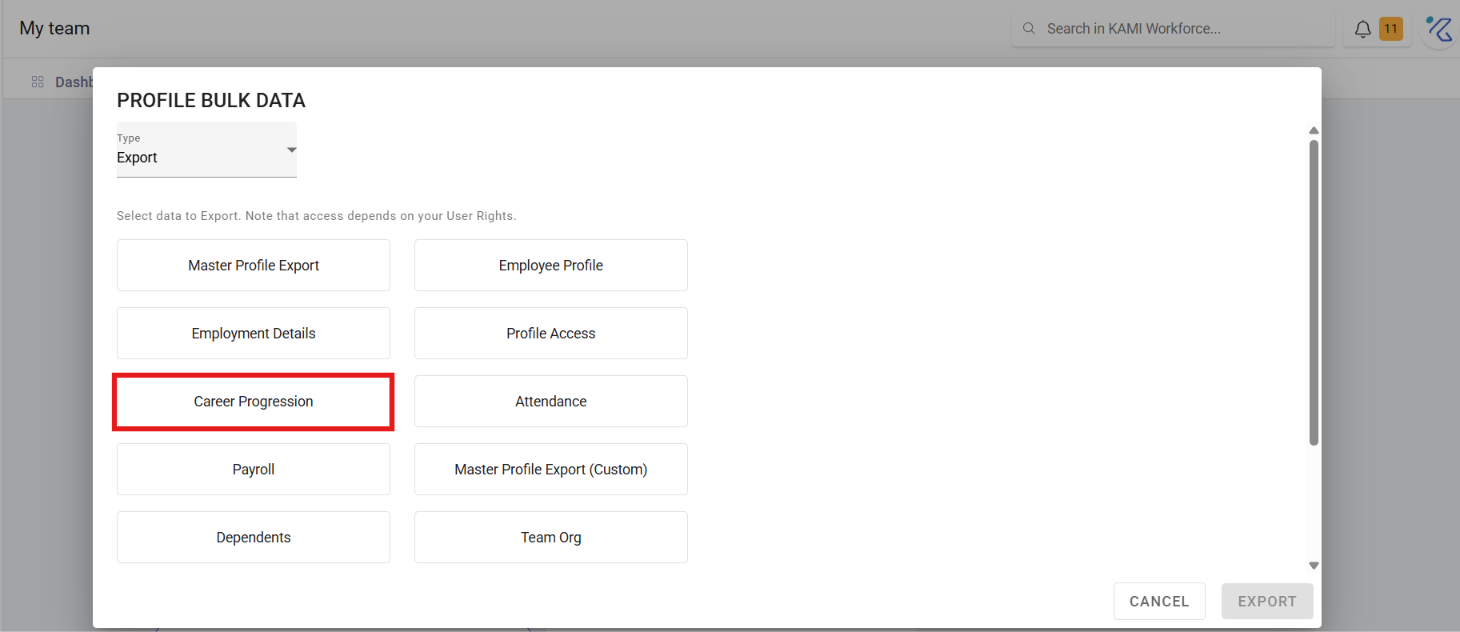
When to use this, and when not to
| You want to | Use |
|---|---|
| Load historical role and pay changes | Career progression import |
| Record a change happening now | The employee's profile, or Profile Manager |
| Load current details rather than history | The main bulk data import |
Before You Start
Decide how far back to go. Full history is ideal and rarely available; the practical answer is usually current role plus the last change or two, which is enough for tenure-in-role questions without a migration project.
Have the dates right. Career progression is a dated series, and entries with wrong or missing dates produce a history that reads plausibly and is wrong — worse than no history at all.
How to import
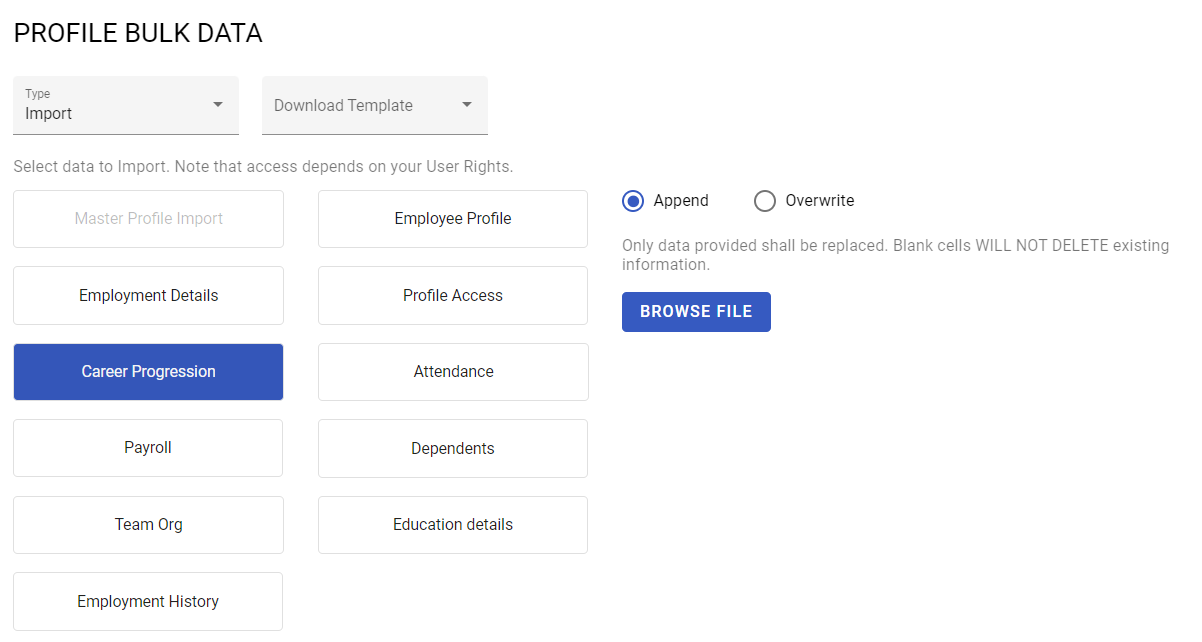
- Open My Team › Settings › Employee Bulk Data › Import and access the career progression template.
- Complete the template — each row is one change, with its date and the values that changed.
- Import the template.
- Review the import results before assuming it worked.
What Happens Next
- Imported entries appear on employees' records as their progression history.
- The history is a record: it does not change their current role, pay or placement, which are the profile's own fields. Importing history and setting current values are two separate jobs.
- Rows whose employee identifier does not match are skipped, and the import reports success for the rest.
Tips
- Import ten people first and read their records. A date format or column mismatch shows up immediately on ten and hides on four hundred.
- Compare the imported row count against your file. Skipped rows are the quiet failure mode of every KAMI import.
- Check one person you know well. Does their history read correctly, in the right order, with the right dates? That single check catches most systematic errors.
- Keep the source file. It is the only record of where the history came from when someone queries it later.
- Do not import history you cannot vouch for. An inaccurate career record is worse than a short one, because people rely on it for promotion and pay decisions.
Troubleshooting / FAQ
Q: The import ran but some employees have no history. Their identifiers did not match, so those rows were skipped.
Q: History imported but the employee's current role is unchanged. Expected — history and current values are separate. Update current values via the profile or Profile Manager.
Q: The entries are in the wrong order. Check the dates in your source file. Progression is ordered by date, not by row.
Screenshots
These screenshots came from our previous help centre and may show an earlier version of the interface.