Payroll reports
Payroll reports pull payslip data out of KAMI — for finance, for statutory filing, for an auditor, or to answer a question about one employee. The report you build once and reuse is worth far more than the one you export and edit by hand each month.
Where: Payroll › Reports You need: payroll rights, including access to the batch cycles you want to report on
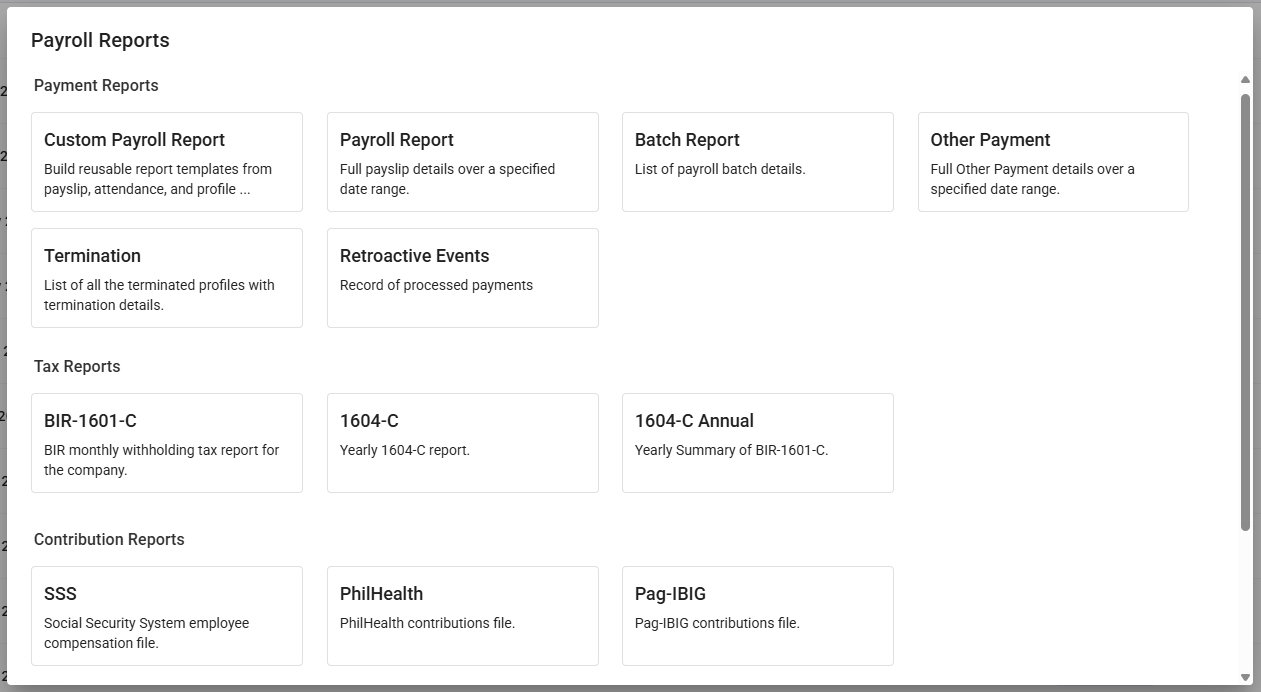
The reports available
| Report | Covers |
|---|---|
| Payroll | Full payslip detail across a date range |
| Batch | A specific batch cycle |
| Contributions | Statutory contributions, employee and employer |
| Taxes | Tax withheld |
| Other payments | Allowances, bonuses and deductions |
| Termination | Final pay for leavers |
| Retroactive events | Retroactive payments made |
| Journal entry | The accounting journal — see The accounting journal |
| Services | Service-related reporting |
The status filter changes the answer
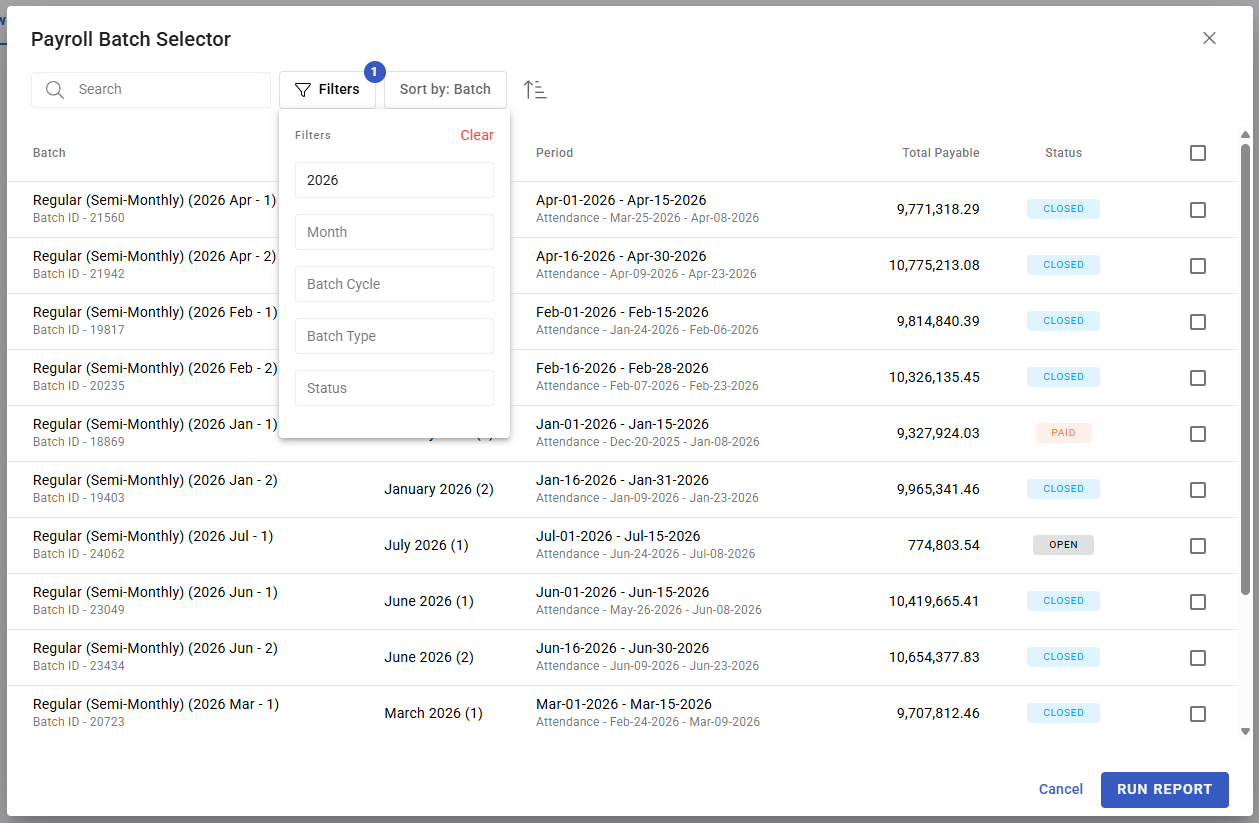
Reports are filtered by payslip status — Pending, Closed, Paid, or Closed & Paid. This is the setting most likely to make two people disagree about the same month.
| Status | Gives you |
|---|---|
| Pending | Calculated but not yet approved — a draft view |
| Closed | Finalised, not necessarily paid |
| Paid | Money actually released |
| Closed & Paid | Both |
⚠️ For anything that leaves the building — a filing, a finance reconciliation, an auditor — report on Paid or Closed & Paid. A report run on Pending is a draft and will change.
Building your own report
The template builder lets you define the columns you want and reuse them. A saved template is repeatable, which matters more than it sounds: a report rebuilt by hand each month is a report that quietly differs each month.
- Open Payroll › Reports and go to the template list.
- Create a template and choose the columns.
- Save it, and run it against the batches you need.
- Export as XLSX or CSV.
What Happens Next
- A generated report records the columns as they were when it ran. Editing the template later does not change a report you have already generated, which is what makes an old export defensible.
- Reports record who generated them and when.
- Row counts and totals are stored with the report, so an export can be checked against what KAMI thought it produced.
Tips
- Standardise on saved templates. Ad-hoc exports are where month-to-month inconsistencies come from.
- Always state the status filter when you send a report to someone. "March payroll" means different numbers on Pending and on Paid.
- Reconcile the report total against the run total before sending it. If they differ, the filter or the batch selection is not what you thought.
- Keep the export. Regenerating months later can produce different figures if payslips were corrected in between; the original is the record of what you reported.
- Give finance their own template. They need different columns from HR, and building it once ends the monthly request.
Troubleshooting / FAQ
Q: Two reports for the same month disagree. Check the payslip status filter on each. It is nearly always this.
Q: An employee is missing from the report. Their payslip is probably in a status the filter excludes — on hold, or still pending.
Q: The totals do not match the payroll run. Confirm the batch selection and the status filter match the run you are comparing against.
Q: We changed a template — did old reports change? No. Generated reports keep the columns they were produced with.
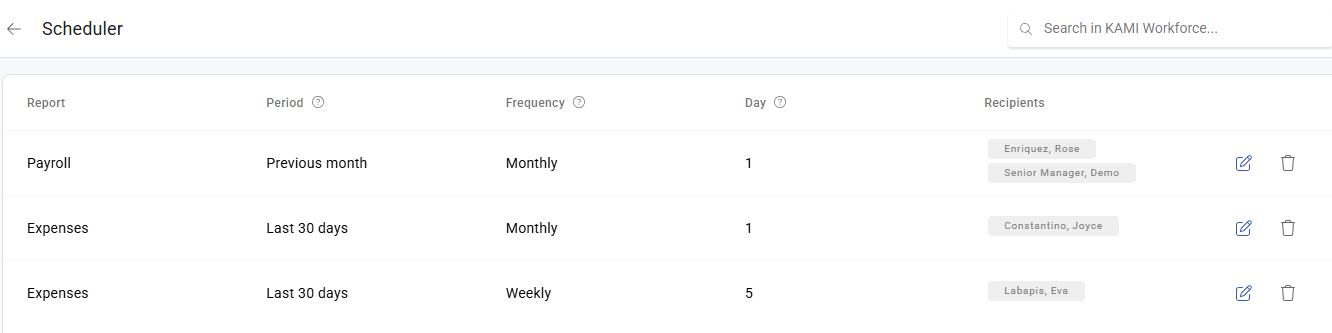
Q: Can I schedule this instead of running it? Yes — see Scheduling payroll reports.
Screenshots
These screenshots came from our previous help centre and may show an earlier version of the interface.