The expense dashboard
The dashboard is the working view of Expenses: what is waiting on a decision, what is waiting on payment, and what is outstanding. It is where a claim backlog becomes visible before anyone complains about it.
Where: Expenses (My Expenses if you only submit claims, Team Expenses if you also approve or pay them).
You need: expense rights. Rights control two things: which employees' claims you see, and — for claims specifically — which cards appear on your screen at all. (Advances work differently — see below.)
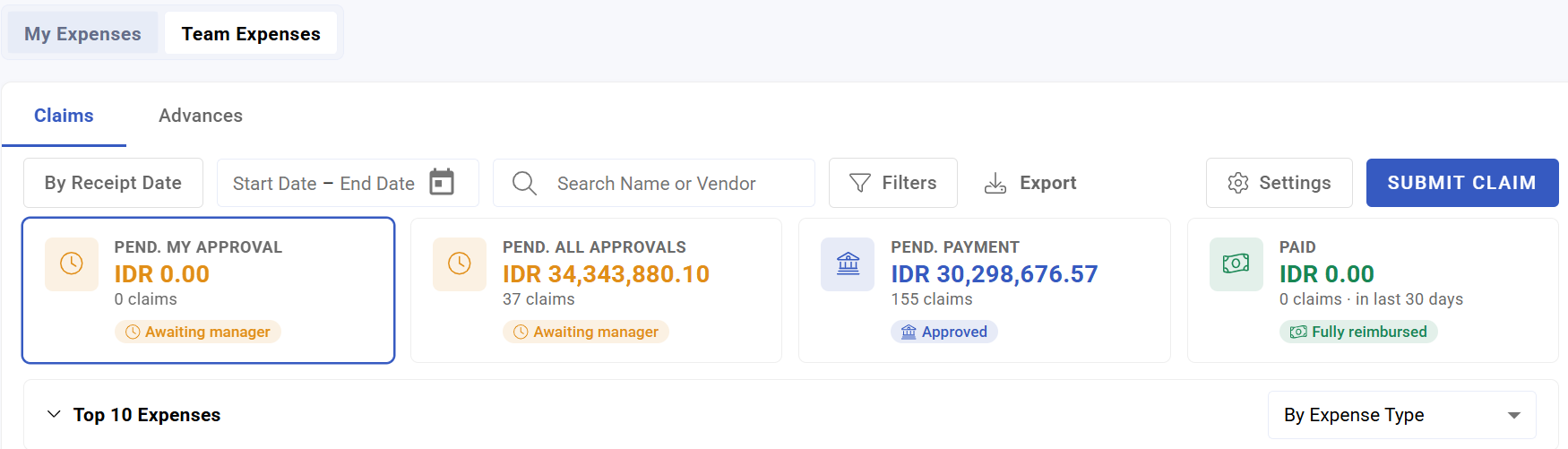
What to look at, in order
Pending approvals. Claims waiting on a decision. These are people who have already spent their own money, so this queue has a human cost that a purchase-order queue does not. On screen this is labeled "Pend. My Approval" (your own queue) or "Pend. All Approvals" (everyone's, if you have payer or admin rights).
Approved but unpaid. People who have been told yes and have not been paid. This is the queue most likely to be forgotten, because from the approver's side the job looks finished. On screen: "Pend. Payment" on Team Expenses, "To Be Paid" on My Expenses.
Advances outstanding. Disbursed but not liquidated — company money currently with employees. Nothing chases these on your behalf. This is only one stage of a four-stage flow.
💡 Those three queues are the whole job. Everything else on the page is context.
Why "approved" and "paid" are separate
They are distinct states, gated by distinct rights — approving needs Expense Approver access, paying needs Expense Payer access, and one person often doesn't hold both. A claim can sit approved for weeks without anyone noticing, because the approver has done their part and the payer never saw it.
If your dashboard consistently shows a pile of approved-but-unpaid claims, the problem is usually that nobody owns the payment step — see Reimbursement and payment.
What you can see
Your expense rights determine which employees appear. Two people in the same company can legitimately see very different dashboards, and a claim "missing" from yours is usually somebody else's to approve.
What Happens Next
- Opening a claim or advance shows its receipt, its type and its history.
- Approving moves it toward payment (or disbursement); it does not pay it.
- You don't have to do this one at a time. Select multiple rows on Team Expenses and use the bulk action menu to approve, decline, pay, disburse, or liquidate several at once — the normal way to clear a large queue, not a shortcut.
- Payers can reverse a payment marked in error, as long as it hasn't been picked up by a payslip yet.
- Advances stay visible until liquidated.
Tips
- Check it on a fixed day each week. Expense queues do not announce themselves, and the people waiting rarely chase.
- Clear approvals before payments. An unapproved claim cannot be paid, so the approval queue gates everything downstream.
- Watch the outstanding-advance figure as a trend, not a number. Rising means advances are going out faster than they are being accounted for.
- If a claim is not on your dashboard, check the approval route for that expense type before assuming it was never submitted — types can override the normal approvers.
- High volume week? Use bulk actions. Select and clear claims in batches instead of opening each one.
Troubleshooting / FAQ
Q: An employee says they submitted a claim I cannot see. Check the expense type's approval route, and whether your rights cover that employee. Also check the Advances tab — a claim filed against an advance shows there as "To Liquidate," not in the normal Claims queue.
Q: A claim shows approved but the employee has not been paid. Approved and paid are separate steps. Check whether it was marked for payment.
Q: The dashboard totals differ from a colleague's. Rights limit which employees each of you can see.
Q: An advance has been outstanding for months. It has not been liquidated. That is company money outstanding — see Managing advances.
Q: My "Paid" total dropped even though nothing changed. It only counts claims paid in the last 30 days by default. Older paid claims are still there — use a specific date filter to see them.
Q: I marked a claim as paid by mistake. If it hasn't been picked up by a payslip yet, a Payer can reverse the payment from the claim.