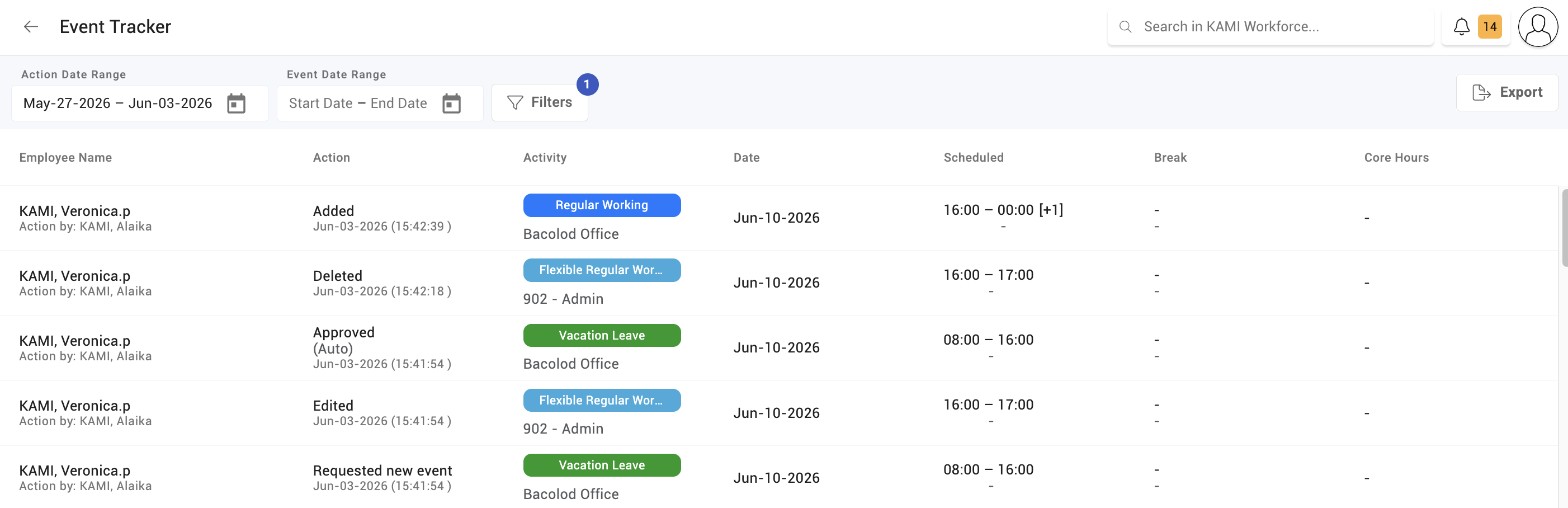
Event tracker
The event tracker follows attendance records through their states — what has been raised, what is waiting, what has been settled. Where the Events page shows you the records themselves, the tracker shows you the flow: whether attendance is being kept current, or quietly accumulating unfinished days.
Where: Calendar › Reports › Event tracker You need: the attendance reports right
When to use this, and when not to
| The question | Where to look |
|---|---|
| Is our attendance data being kept current? | Event tracker |
| What is wrong with this specific day? | Events |
| What is waiting on my decision? | Approvals |
| What are we about to pay? | Timesheet |
| How much of scheduled time is being worked? | Attendance reports |
The tracker is a management view, not a correction tool. It tells you where to intervene; the fixing happens elsewhere.
What it shows
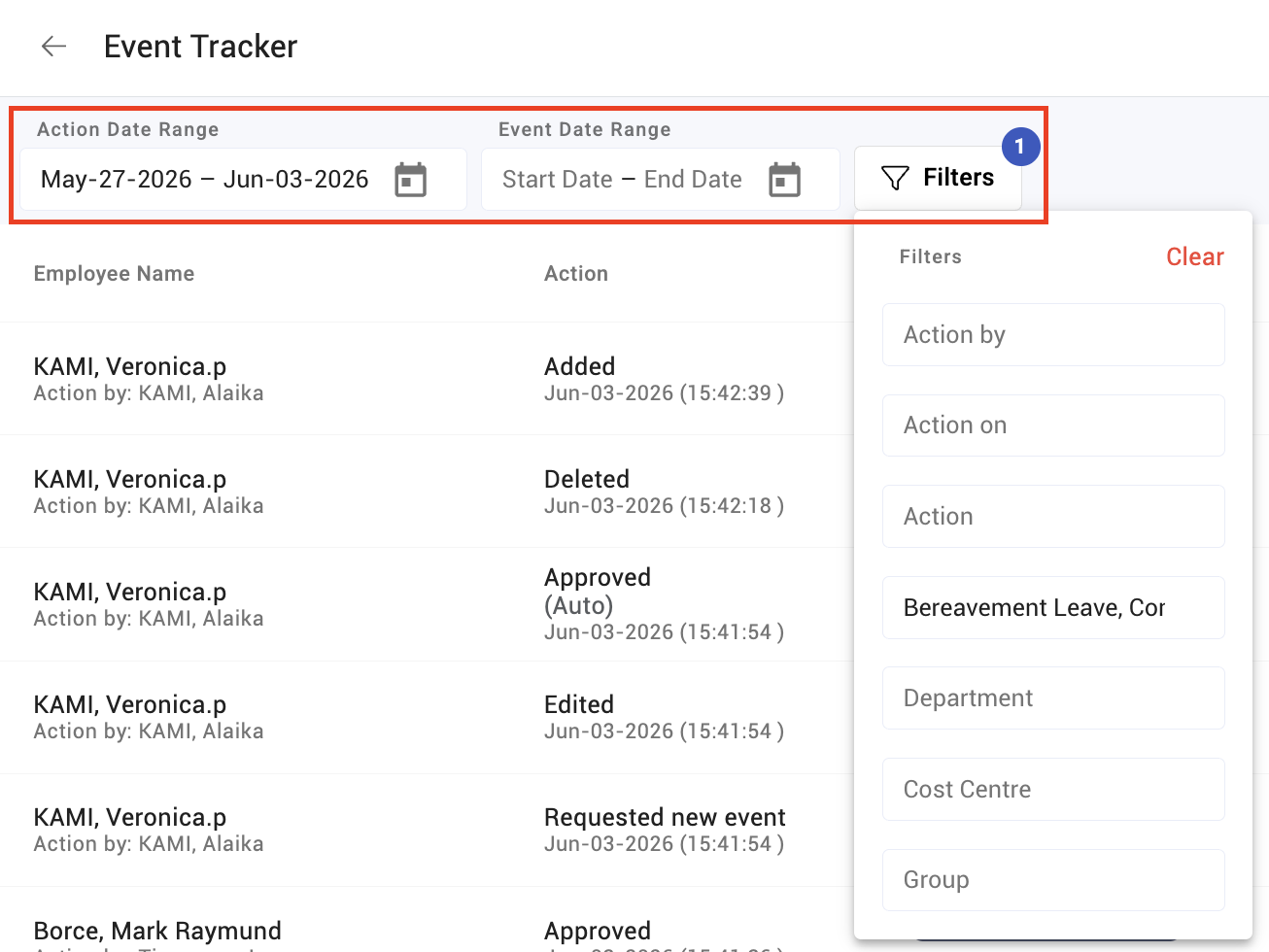
Attendance records grouped by state, over a period you choose, filterable by branch, department, position, cost centre and group.
The states are the four an event can hold — valid, missed start, missed end and absent — plus the requests attached to them: raised, awaiting approval, approved, declined.
Reading it
Three patterns are worth recognising, because each has a different cause and a different fix:
A rising count of unfinished events. Days are being raised and not resolved. Usually an approvals backlog — someone is not working their queue, and the attendance lock is going to close on those days whether or not they are settled.
Invalid events clustering on one date. That is an incident, not thirty individual mistakes: a device outage, a holiday handled wrongly, a shift misconfigured. Fix the cause and refresh, rather than approving thirty corrections one at a time.
Invalid events clustering on one team or site. Usually a device or a habit. A tablet that drops connection, or a team that has not been told breaks must be tapped.
What Happens Next
The tracker changes nothing by itself. What it produces is a shortlist:
- Backlogs go to whoever owns the approvals queue — see Approving attendance and leave requests.
- Clusters by date go to whoever owns the setting or device that caused them.
- Persistent invalid events go into the pre-payroll check, because they will otherwise reach the timesheet as they are.
Tips
- Read it weekly, not at payroll. Its whole value is showing a problem while there is still time to fix it cheaply. At cut-off, the same information is just bad news.
- Look at trend, not total. The absolute number of unfinished events depends on your headcount and how strict your rules are. A number that is climbing means something is not being worked.
- Empty is not automatically good. No invalid events across a whole site can mean flawless attendance, or it can mean nobody is scheduled and there is nothing to be invalid. Check profiles with no EWH on the Events page alongside it.
- Pair it with the device error reports. The tracker tells you records are failing; the mobile and tablet check-in error reports usually tell you which device is causing it.
Screenshots
These screenshots came from our previous help centre and may show an earlier version of the interface.