Logging and managing disciplinary actions
Disciplinary actions let you formally record a warning or offence against an employee, attach the supporting document, optionally suspend leave accrual, and notify them automatically. This is sensitive, confidential data and access is tightly controlled.
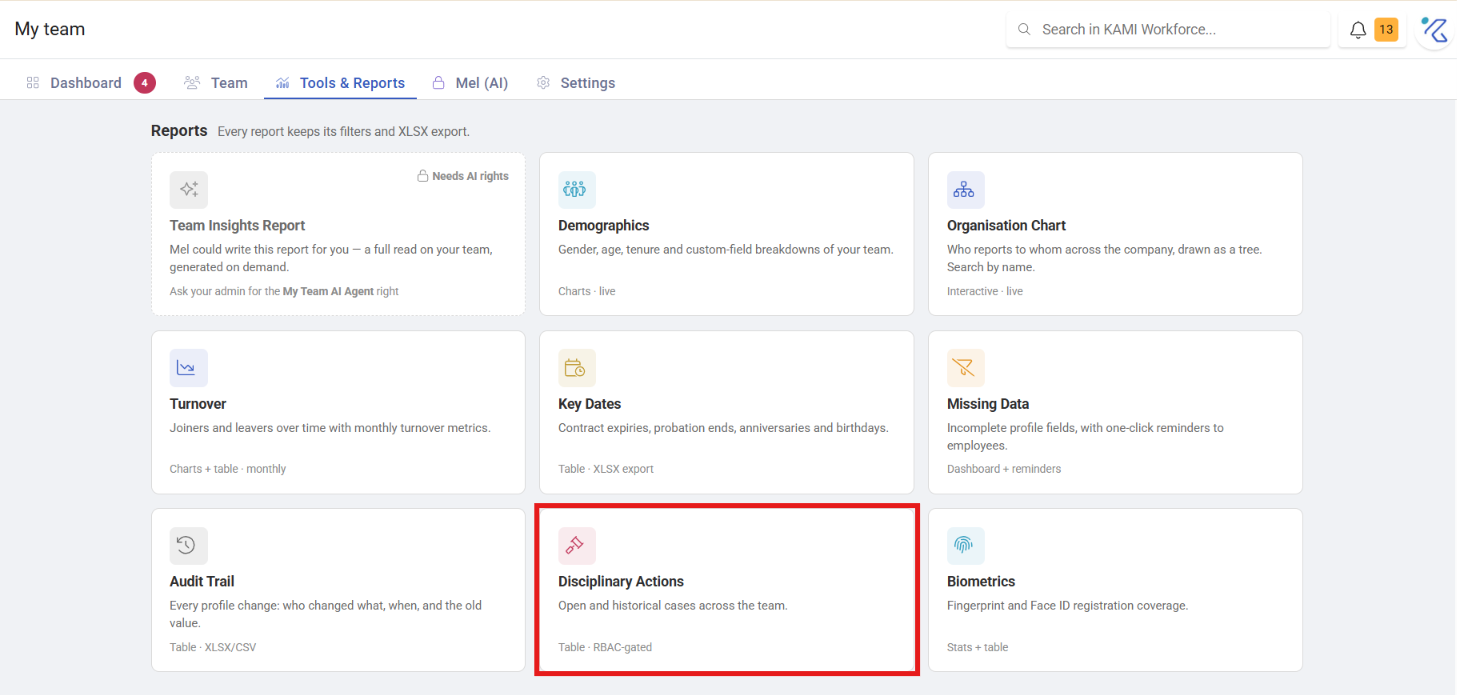
Where: My Team › Tools & Reports › Disciplinary Actions, or the employee's profile › Employment
You need: the Employment write right (EMPLOYMENT_INFO_DETAILS) to issue;
Confidential Documents access (EMPLOYEE_MODAL_CONFIDENTIAL_DOCUMENTS) to view; SETTINGS_DISCIPLINE_TYPE to set up types
Before You Start
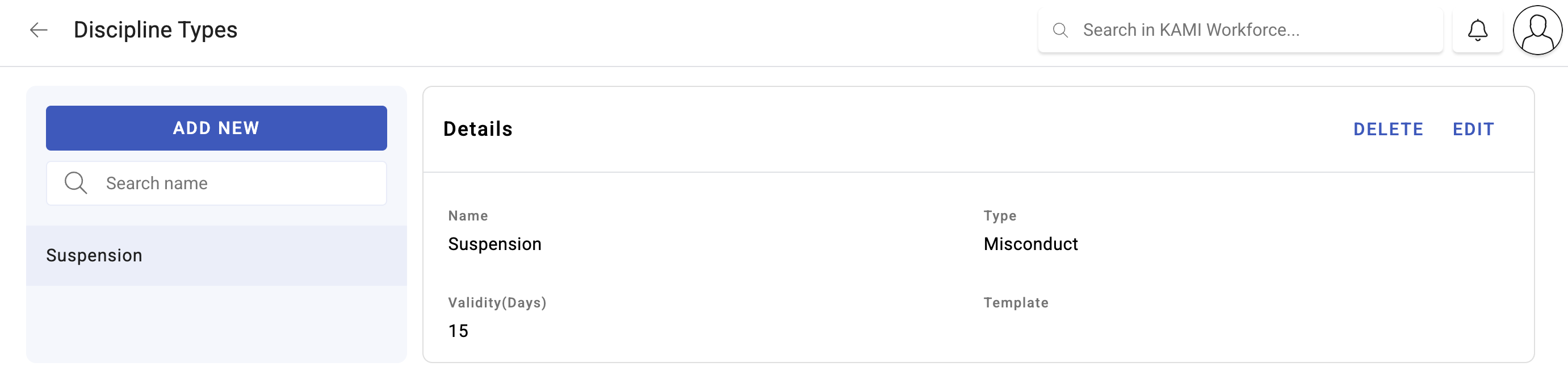
Your company needs discipline types defined before anything can be issued. Set them up in My Team › Settings › Discipline Types — see Discipline Types.
Employees can see their own disciplinary records, but nobody else's.
Issuing an action
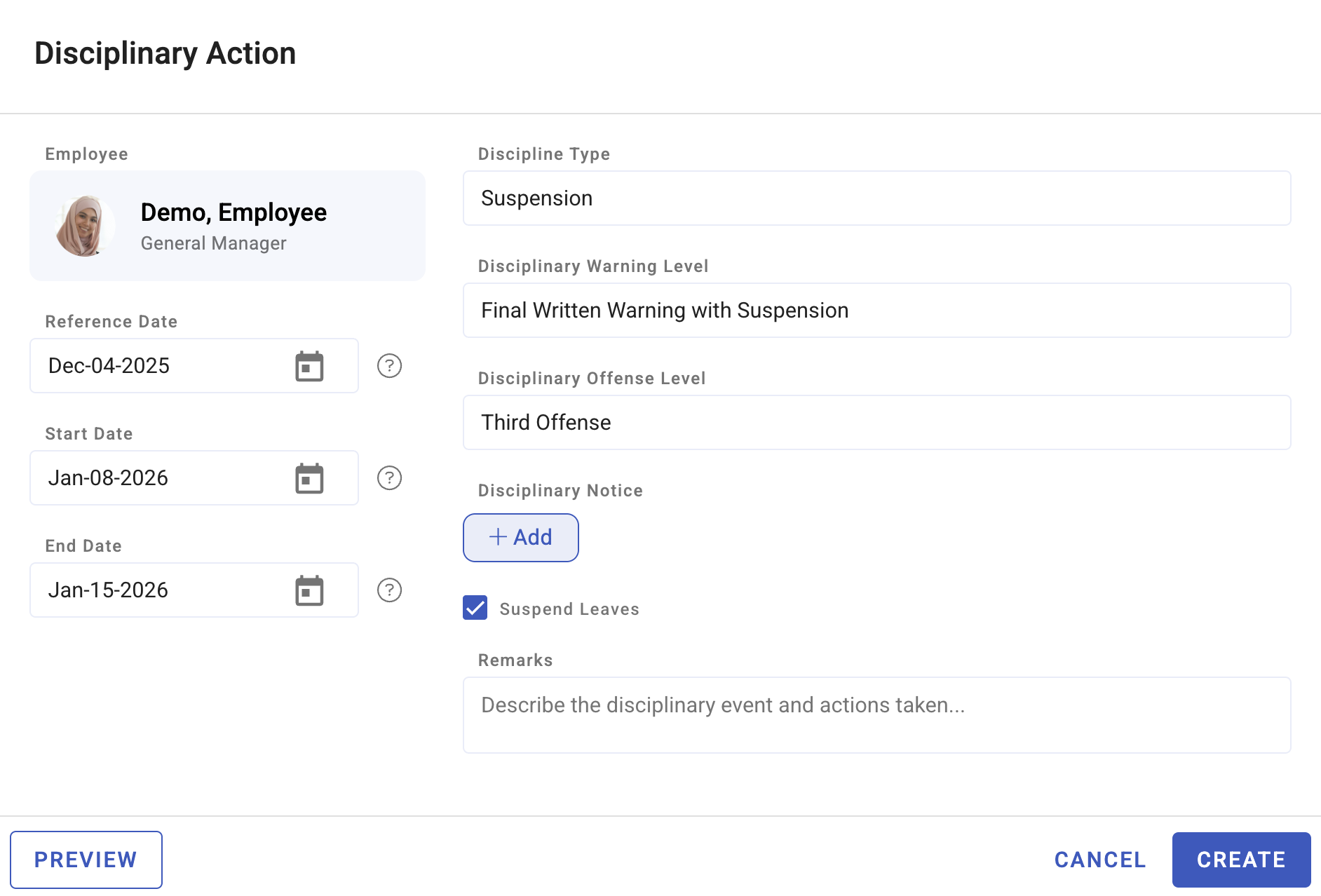
From My Team › Reports › Disciplinary Actions, choose Add action — or use the same button on the employee's profile under Employment › Disciplinary Actions. Both open the same dialog.
| Field | What it does |
|---|---|
| Employee | Who the action is against; pre-filled from a profile |
| Discipline Type | One of your configured types |
| Offense Level and Warning Level | Severity and stage — first, second, final. Both come from your country configuration, not free text |
| Reference Date | The date of the incident or notice |
| Start Date and End Date | The period the action applies for |
| Remarks | What happened. This is the record people read later |
| Leave suspension | Suspends leave accrual for the period |
| Disciplinary Notice / Letter | The supporting documents |
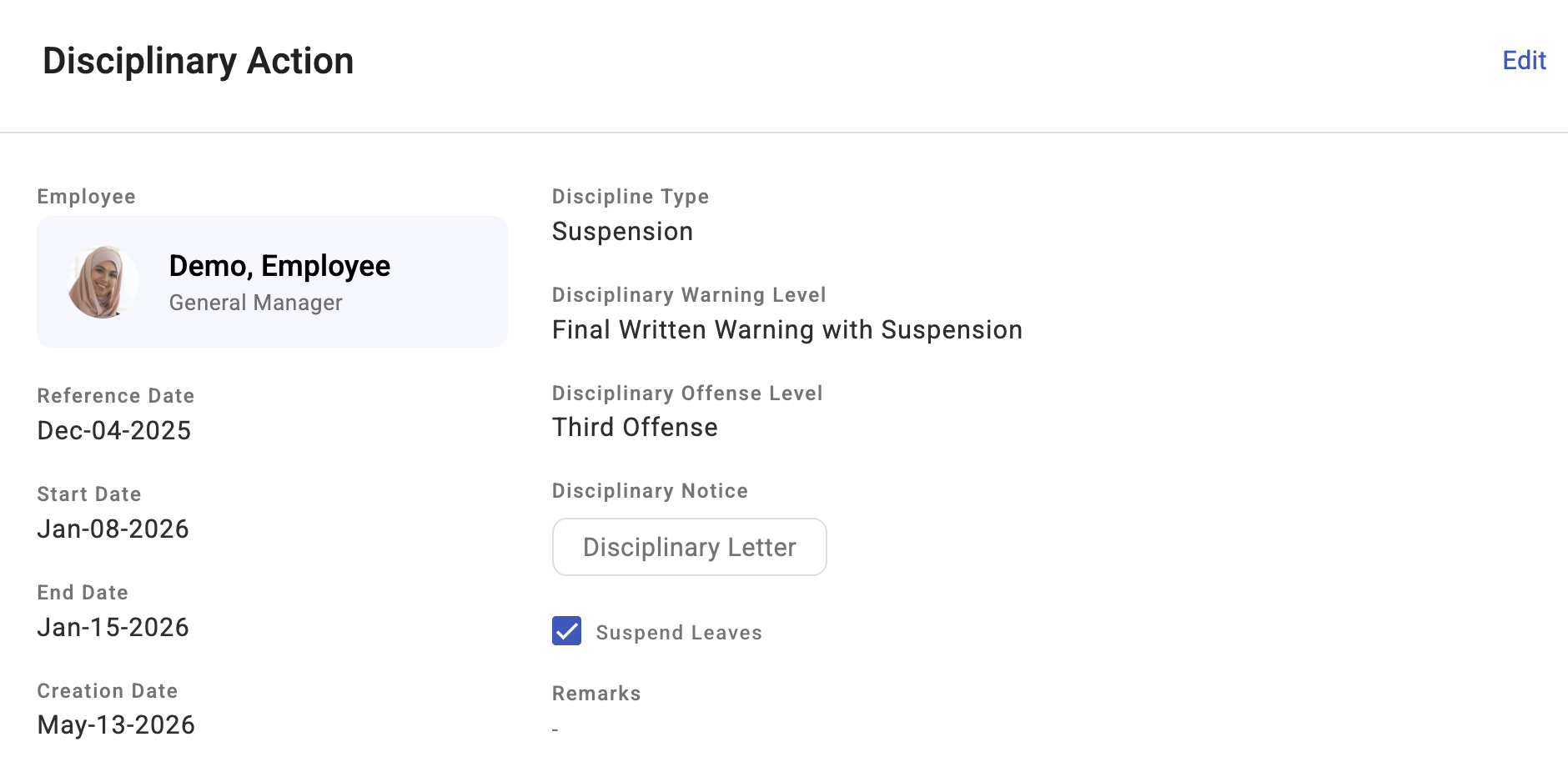
KAMI records who issued it and when it was created automatically.
What Happens Next
- The employee is emailed automatically — but only if their profile is active. The email shows the warning/offence level and attaches the generated document if one is linked. Deactivated employees are not emailed.
- The employee shows an "Under disciplinary" badge in the My Team list for the duration.
- With leave suspension on, the record shows "Suspended for this period" rather than "Continues to accrue", and the employee stops accruing leave for those dates.
- The action is stored as a confidential record — only people with confidential-document access can see it.
Reading the report
The Disciplinary Actions report shows the pattern rather than the individual case. Pick a Period and it summarises:
| What it tells you | |
|---|---|
| Employees involved | How many people, and how many have more than one |
| At final warning | People whose next step is termination — the number to read first |
| Suspensions | How many actions suspended leave accrual |
| Most common | The type you issue most |
Every action is listed with type, offence, warning level, reference date, who issued it, when recorded, remarks, and the period and its length. Filter by Types and by Escalation — single action versus repeat — which is the fastest way to separate a one-off from a pattern.
Open any row for full detail, including whether leave accrual was suspended. Where someone has reached the top of your ladder, the detail says so: "This employee is at [level] — next step is termination."
Tips
- Write remarks for someone who was not there. This record may be read in a tribunal, by someone with no memory of the incident. Dates, facts, what was said — not characterisation.
- Attach the documents at the time. Reconstructing which notice went with which action months later is exactly when it matters most.
- Check the employee is active before relying on the email. Deactivated employees are not notified, silently.
- Read the report quarterly, by escalation. Repeat actions against one person, or one type dominating, is information about management or working conditions as often as about individuals.
- Treat "at final warning" as a prompt, not an instruction. KAMI tells you someone has reached the last stage of your ladder; the decision and the process remain yours.
Rules and things to watch
- Disciplinary records are confidential. Even users who can otherwise manage employees cannot see them without the confidential-documents right. Grant it deliberately.
- The "Under disciplinary" badge is time-bound — it shows only while today falls within the start–end dates, then clears automatically. The record remains.
- Warning and offence levels are country-specific, from your company's country configuration.
- Disciplinary actions can be bulk-imported (import type Disciplinary Action), needing the same confidential-documents right.
Troubleshooting / FAQ
Q: The Add action button is not there. Issuing needs the Employment write right. KAMI hides rather than disables, so a missing button means a missing right.
Q: A manager cannot see a disciplinary record. They need Confidential Documents access on top of normal employee-management rights.
Q: I issued an action but the employee got no email. The automatic email only sends to active employees. Check their status.
Q: The "Under disciplinary" flag disappeared — was it deleted? No. The badge shows only within the action's date range. Open the report or their history.
Screenshots
These screenshots came from our previous help centre and may show an earlier version of the interface.