Deactivating, terminating and rehiring employees
Offboarding is more than flipping a switch: depending on how you do it, it clears someone's schedule, removes them as an approver across your whole company, and triggers a final-pay calculation. This article walks each path and the rules attached to it.
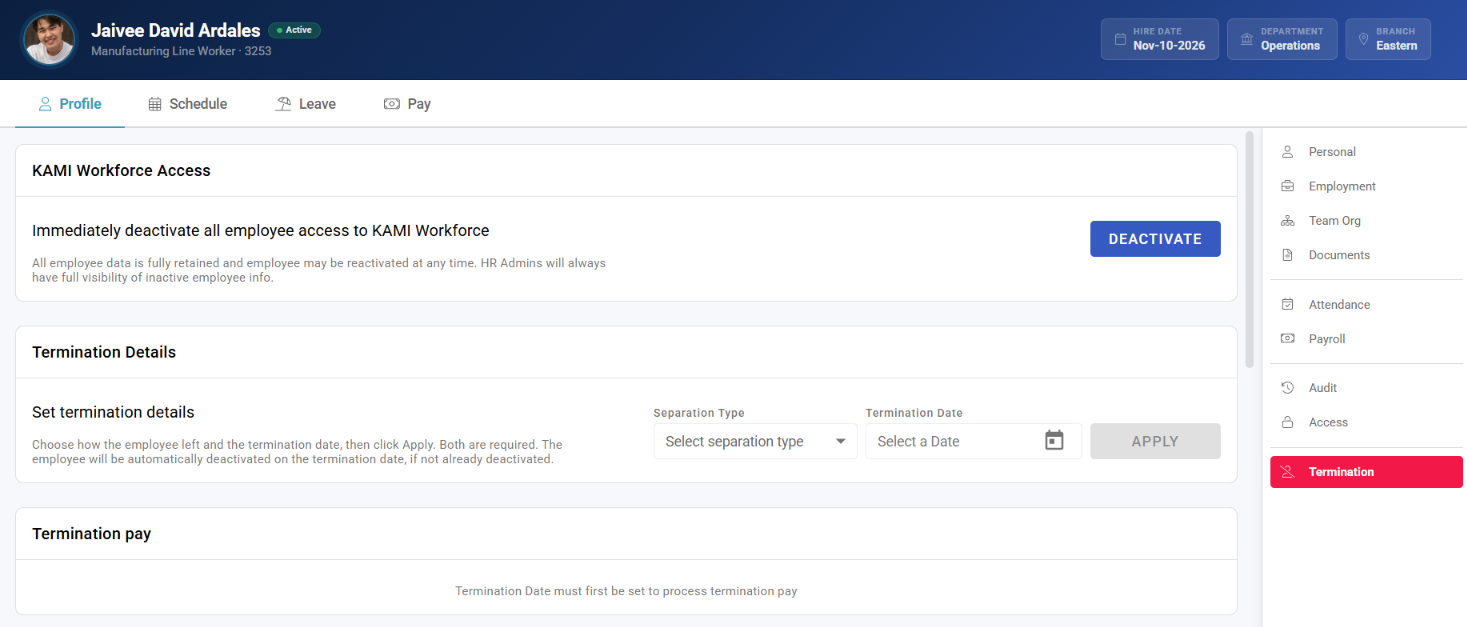
Where: the employee's profile › Termination tab
You need: the Terminate Employee right (EMPLOYEE_DEACTIVATE); termination pay needs EMPLOYEE_TERMINATION_PAY
Which action, when
| The situation | Use | Why |
|---|---|---|
| Someone leaves, no payout through KAMI | Deactivate | A status change |
| You are processing final pay in KAMI | Termination pay | A payroll process |
| They leave on a future date | Set termination details | KAMI deactivates them automatically |
| The record should not exist at all | Delete — rarely right | Removes history and payslips |
Deactivate, do not delete. Deletion is a separate admin-only right and removes the record; deactivation keeps history, payslips and reporting intact. Almost everyone reaching for delete wants deactivate.
You cannot offboard yourself, even as an admin.
Recording the exit
Rather than deactivating on the spot, use Set termination details. Two fields are required, and you click Apply:
- Separation type — how the person left
- Termination date — the effective last day
Once the termination date passes, KAMI automatically deactivates the employee if they are not already. You do not have to come back and do it.
When you set or clear a termination date, KAMI asks: "Do you want to keep the schedule cleared during the termination period?" Answer based on whether they are working out notice — keep the schedule if they are still expected in, clear it if they have stopped.
Separation type and reason for termination are not the same field
These sit next to each other and are constantly confused:
| Field | What it is for |
|---|---|
| Separation type | Classifies the exit for HR reporting |
| Reason for termination | The statutory input to the separation pay calculation |
The practical consequence: separation type is what your Turnover report reads. An exit with no separation type still counts as a leaver and still moves your turnover rate, but cannot be attributed to voluntary or involuntary — it shows as Not classified.
Reason for termination only matters when running termination pay. Leaving it blank does not affect reporting; leaving separation type blank does.
Deactivating immediately
- Open the employee from My Team.
- Go to the Termination tab.
- Under KAMI Workforce Access, choose Deactivate.
You are warned first: "This will immediately deactivate the employee and revoke their access to KAMI Workforce." That is accurate — there is no grace period.
Running termination pay
- Open the employee → Termination tab.
- Fill in batch, reason, and last bonus date.
- Click Calculate. KAMI works out length of service and available payout options.
- Review; for payment-in-lieu you can edit the amount per option.
- Click Confirm to finalise.
Confirmed payments are automatically added to the payroll batch you chose, as Termination payments — you do not add them yourself.
To reverse, use Cancel termination payments — possible only while the linked payslip is still pending.
Any company assets assigned to the employee are listed here too, so you can track what needs returning.
Rehiring
If a deactivated employee returns, do not create them from scratch. On their Termination tab, under KAMI Workforce Access, choose Activate. History stays intact — hire date, documents, payslips and past records all remain.
Reactivating does not restore their approval roles. Deactivation stripped them out of every approval chain; if they are returning to a role that approves things, rebuild that in the approval matrix.
What Happens Next
- The person loses access immediately on deactivation.
- They are removed as an approver everywhere — approval matrix, company approvers, and individual profiles. Chains they were part of need fixing.
- With a termination date set, auto-deactivation runs in the branch's local timezone, checked hourly — expect up to an hour's lag, not instant.
- Confirmed termination pay lands in the chosen payroll batch.
Tips
- Reassign approvals before deactivating, not after. This is the step most often forgotten, and the symptom — requests piling up with nobody — appears days later and looks unrelated.
- Set the separation type every time, even for straightforward exits. It costs a click and it is the difference between a turnover report that explains attrition and one that just counts it.
- Check leave balances before the final payroll, while encashment is still simple.
- Use a future termination date rather than remembering to deactivate. The automation is more reliable than a calendar reminder.
Troubleshooting / FAQ
Q: Why will KAMI not let me deactivate this person? They still manage or approve someone. Move their direct reports and approver roles first.
Q: My turnover report shows leavers as "Not classified". Those exits have no separation type. Set it on each person's Termination tab.
Q: I set a termination date — do I still deactivate manually? No. KAMI does it once the date passes, in the branch's timezone, checked hourly.
Q: I ran termination pay by mistake. Use Cancel termination payments, but only while the linked payslip is still pending.
Screenshots
These screenshots came from our previous help centre and may show an earlier version of the interface.