Expense reports
Expense reports tell you what was spent, by whom, on what, and what is still outstanding. If expenses are more than a handful of claims a month, this is what turns them from a queue into something you can manage.
Where: Expenses › Reports You need: the expense reports right, covering the employees reported on
Access & Requirements
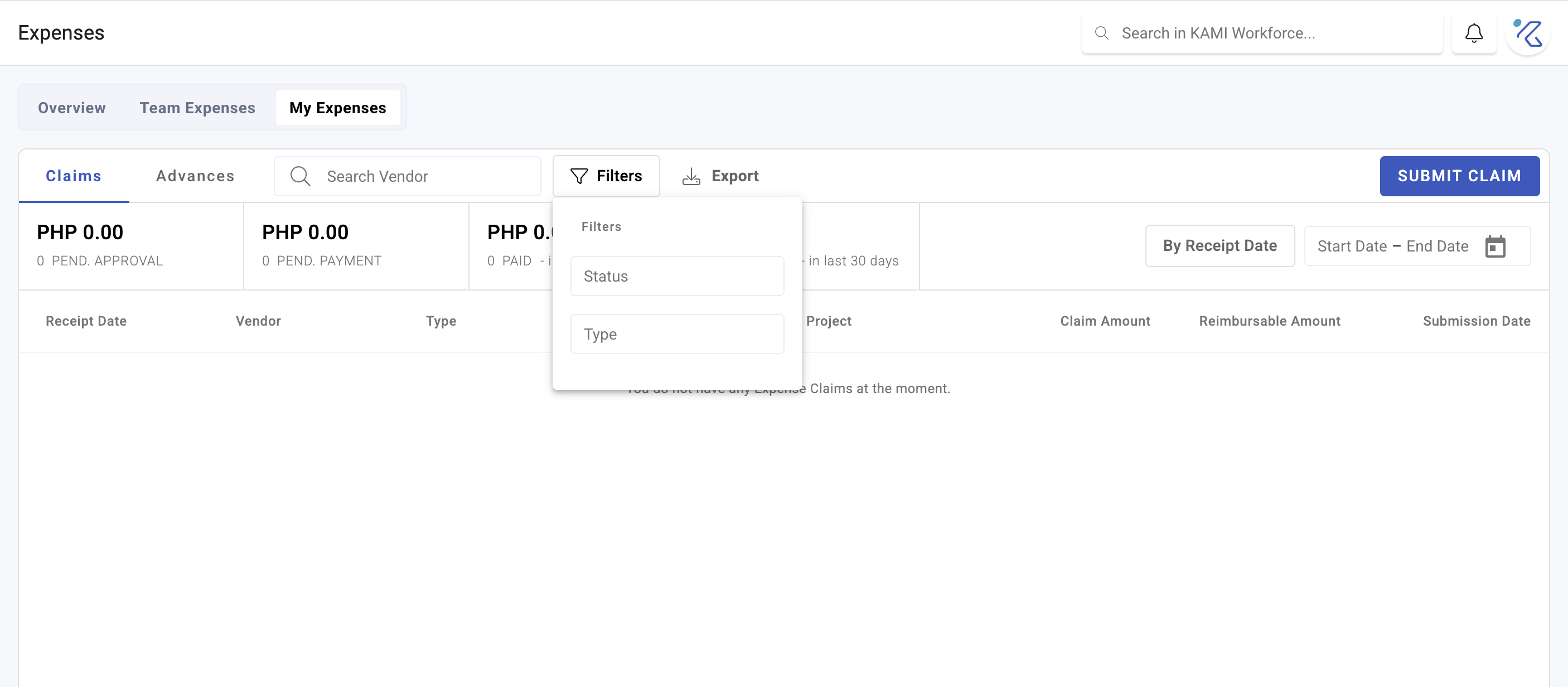
Location: Expenses › Team Expenses. There used to be a separate page called "Reports", but it has been retired. Old links now redirect automatically: administrators to Team Expenses, everyone else to My Expenses.
Required permission: the Expense Reports right, plus one of Expenses Administrator, Expense Manager, Claim Approver, or Advance Payer. Without one of these four, the Expense Reports right alone will not open the page.
Key Report Insights
Spend by Expense Type. Shows where money is actually allocated. Types consistently at their limit may indicate underfunding or misuse.
Spend by Cost Centre. Reconciliation data for finance, derived from expense type configuration. Note: there is no "spend by classification" report. Classification only appears when exporting Expense Type settings, not when exporting claim data.
Outstanding Advances. Disbursed but unliquidated advances, meaning company funds currently held by employees. The most important number in the module.
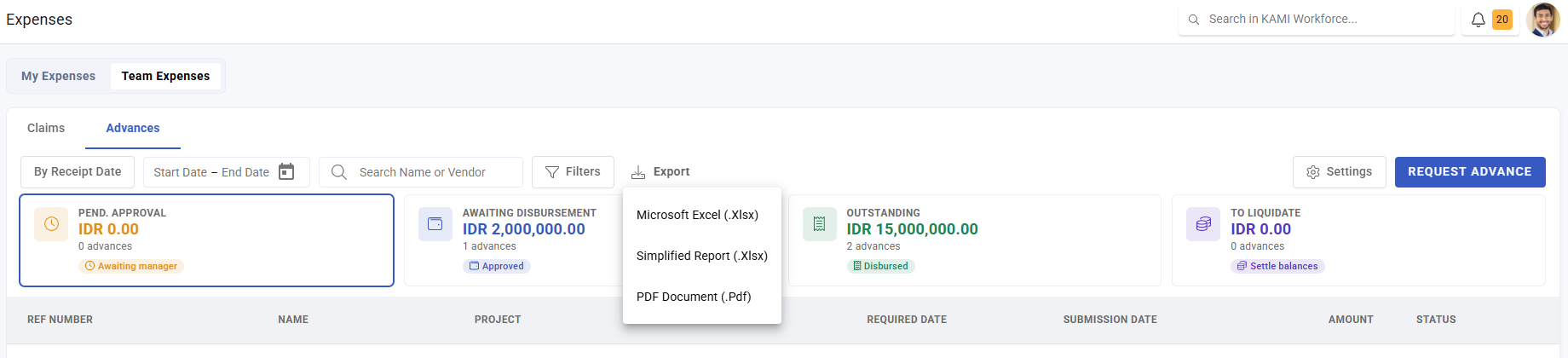
Approved but Unpaid. Approved claims awaiting payment. Check this before every payment cycle. The on-screen card is labeled Pend. Payment (on Team Expenses) or To Be Paid (on My Expenses).
Running a Report
- Go to Expenses › Team Expenses, then select the Claims or Advances tab.
- Choose the date basis (Receipt, Submission, Approval, or Paid), then set the period. Note: selecting "By Approval Date" automatically filters the view to approved claims only.
- Read the stat cards and the chart, or click Export to download.
Troubleshooting / FAQ
Q: My totals differ from a colleague's. Expense rights limit which employees each of you can see.
Q: My report totals don't match our bank records. Check for claims marked paid but never actually processed, or payments made outside the system.
Q: Why don't advances show up in my spend figures? An advance is not counted as an expense until it is liquidated. Until then, it is an outstanding balance.
Q: I clicked an old link to the Reports page and landed somewhere else.? That page has been retired. The link now redirects automatically: administrators to Team Expenses, everyone else to My Expenses.
Screenshots
These screenshots came from our previous help centre and may show an earlier version of the interface.