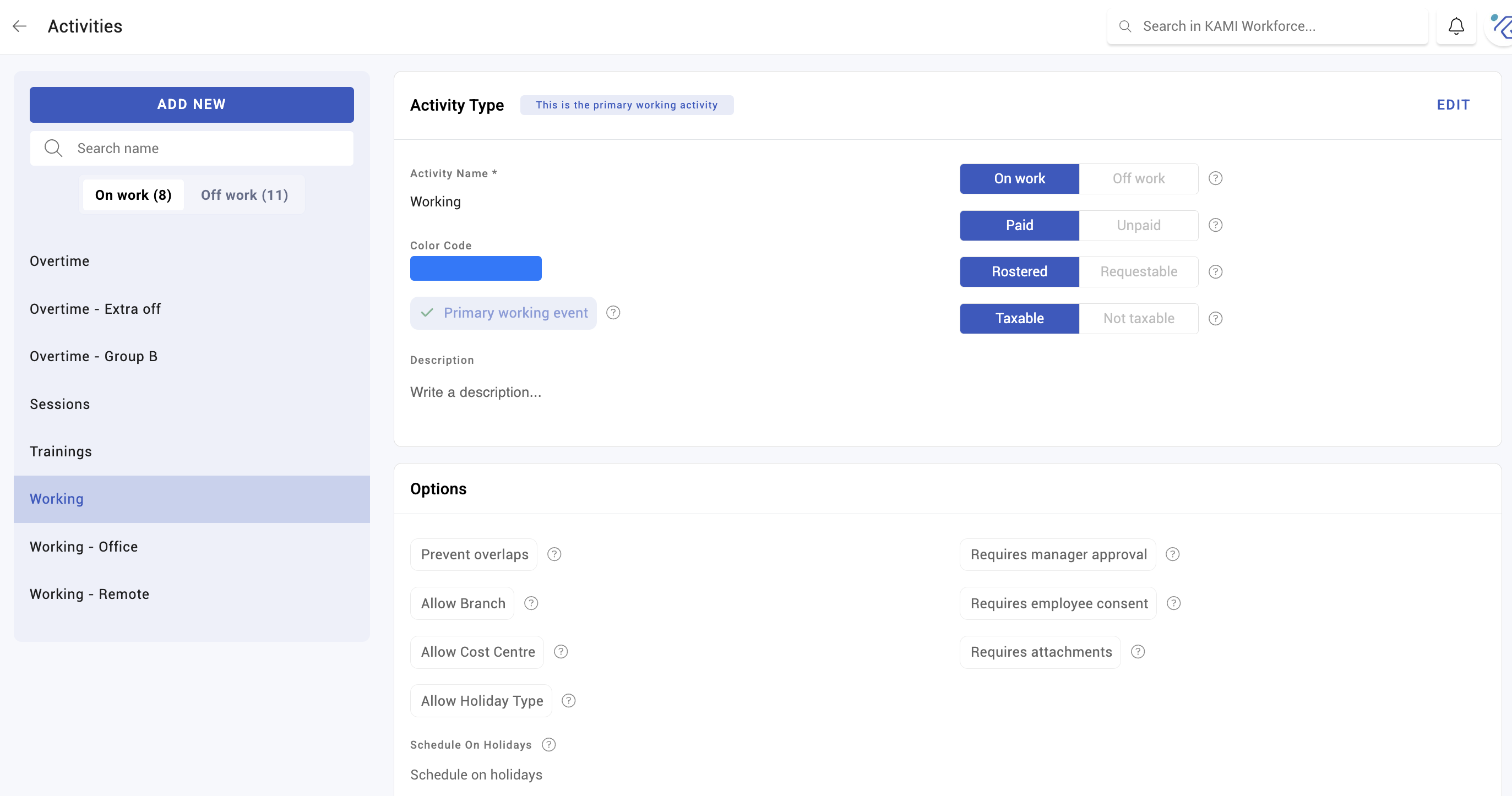
Activities and how they pay
An activity is what a block of time is — regular work, overtime, night shift, a type of leave — and how it is paid. Activities are where attendance turns into money, which makes this the most consequential settings page in the module: an error here does not produce a wrong screen, it produces a wrong payslip for everyone on that activity, every period, until someone notices.
Where: Settings › Calendar › Activities You need: the calendar settings right
When to use this, and when not to
| You want to | Use |
|---|---|
| Define a kind of time and what it pays | An activity — here |
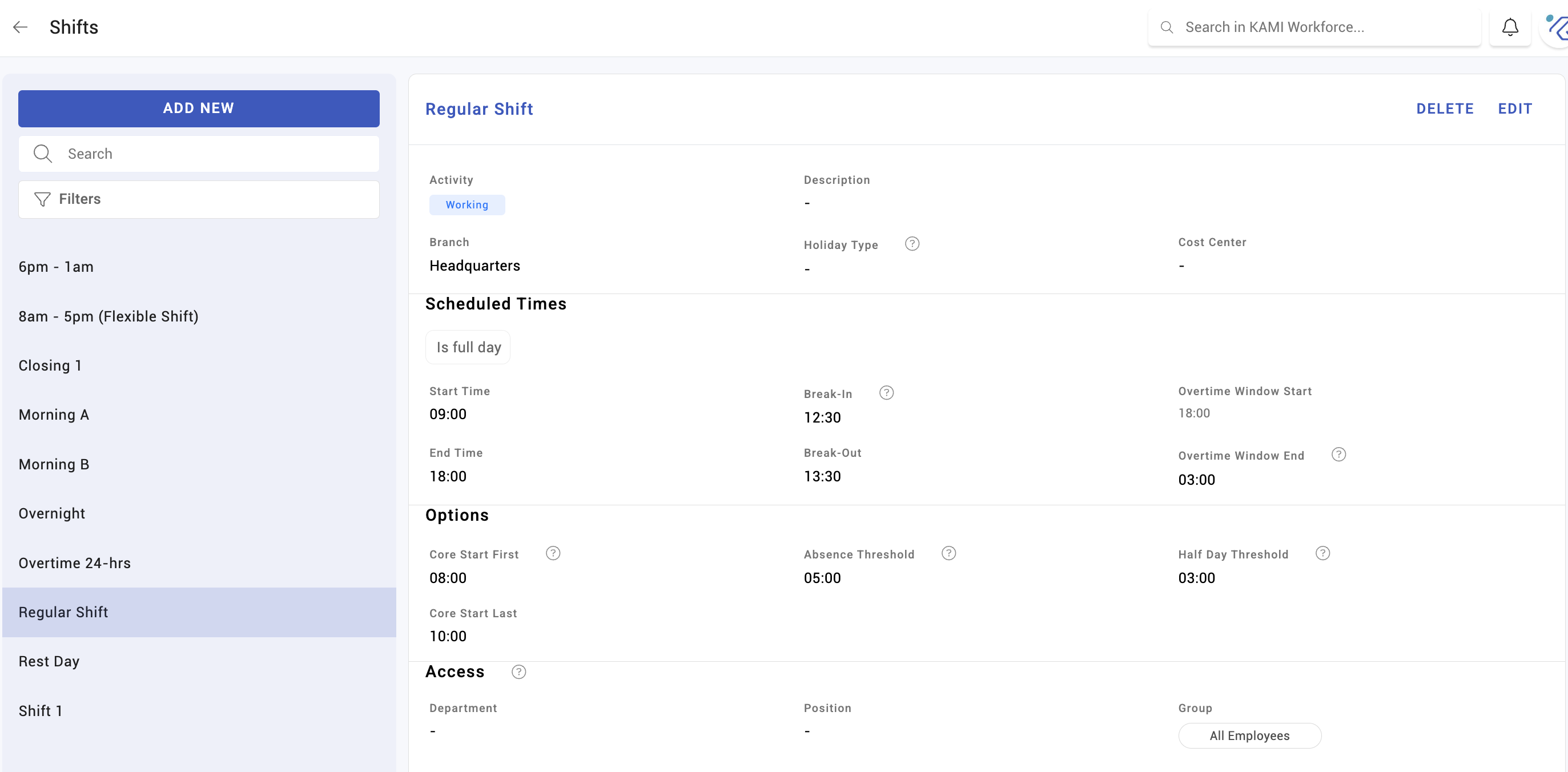
| Define when people work | A shift |
| Define a reusable one-off day | An event template |
| Create a kind of leave | A leave activity — see Leave types and policies |
| Change what one person is expected to work | Their profile |
Shifts and activities are often confused. The shift says when; the activity says what it is and what it costs. A night shift is a shift; night differential is an activity setting.
Before You Start
Know the answers to three questions before creating anything, because each maps to a setting that is hard to change once events exist:
- Is this time paid, and on what basis — the employee's wage, or a fixed amount?
- Which hours count — all of them, only those beyond the schedule, or something else?
- What does payroll call this? Every activity carries a tag that decides which payslip line it lands on.
Paid or unpaid, and how
Every activity is paid or unpaid. Paid activities need a payment type:
| Payment type | What it means |
|---|---|
| Wage | Paid at the employee's own wage rate |
| Fixed | A fixed amount, regardless of wage |
| Range – Rate | A rate applied across defined thresholds |
| Range – Fixed | A fixed amount across thresholds |
| Range – EWH Fixed | Fixed, based on expected working hours |
The range types exist for tiered arrangements — the first two hours of overtime at one rate, subsequent hours at another. They take a list of thresholds in hours with a rate for each.
For wage-based activities, the wage basis decides what "a day" is worth: basic or gross, daily or hourly. Gross includes allowances that basic does not, so this single choice can change the cost of an activity by 20–30%.
How duration is counted
The duration type decides which hours the activity pays for, and the options are not interchangeable:
- Limited — up to a cap
- Excess — only hours beyond the scheduled amount
- Excess less scheduled break — the same, with the scheduled break removed
- Actual hours (no tardy) — hours actually worked, ignoring tardiness
For an overtime activity, "excess" and "actual hours" produce materially different pay for the identical day. Choose against your written policy, not by what sounds reasonable.
Premiums that apply automatically
Three settings pay extra without anyone requesting it:
- Night differential — automatically adds a premium rate to hours worked within the defined night period, which starts at 22:00 by default
- Holiday pay — automatically applies the wage rates below when this activity falls on various holidays or rest days, across Rest Day, Holiday, Double Holiday, Rest Day & Holiday and Special Holiday
- Overtime window — overtime allowed automatically inside defined times, optionally rounded down to the nearest 30 minutes
Because these are automatic, an error is silent and recurring. It will not raise an exception; it will just pay the wrong amount every period.
Tardy behaviour
Activities carry their own tardiness settings, which combine with the employee's profile:
- Tardy grace period — how late someone may check in before being counted tardy. Where the profile also defines one, KAMI uses the larger of the two, not the stricter.
- Grace period deduction — whether the grace minutes are themselves deducted once the person is tardy.
- Tardy deduction — whether tardiness is deducted from wages at all.
- Tardy rounding — how far tardy values are rounded before reaching the calendar and payslip.
Tags, and why payroll cares
Every activity carries a tag telling payroll what kind of money this is: basic salary, holiday pay, overtime pay, hazard pay, night shift pay or leave pay.
The tag is what makes payslips and statutory reporting break down correctly. An activity with the wrong tag pays the right amount under the wrong heading — the class of error that survives until an audit, because nobody is underpaid and nothing looks wrong.
Other settings worth knowing
- Check-in required — an activity can waive check-in for everyone on it, overriding the profile setting.
- Requires consent — whether the employee must consent before the company schedules this activity for them.
- Restrict to a gender, for legally gender-specific leave types.
- Access and branch scope — who can use this activity at all.
What Happens Next
- The activity becomes available for scheduling, on shifts, event templates and the calendar.
- Every event created against it inherits its settings — and stores its own copy of them. Changing the activity later does not change events already calculated; refresh them to apply it. See How timekeeping is calculated.
- Hours flow into the timesheet under the activity's tag, and from there into payroll.
Tips
- Test on one person before releasing. Create the activity, schedule a single day, and check the resulting event and the payslip line. This takes ten minutes and is the only reliable way to catch a wrong wage basis or tag.
- Write the policy down first. "Overtime is paid at 125% of basic hourly for hours beyond the schedule" translates directly into payment type, wage basis and duration type. Without it, you are guessing at four settings independently.
- Review activities before each year's first payroll, particularly holiday rates, which change with legislation.
- Do not create near-duplicates. Two overtime activities differing by one setting is how a team ends up on the wrong one for a year. Use the scope settings instead.
- After any change, refresh the affected events and check the next timesheet before it becomes a payslip.
Troubleshooting / FAQ
Q: Overtime was worked but not paid. Check the overtime window — overtime outside it is not automatic. Then check the activity's duration type: "excess" pays only hours beyond the schedule.
Q: Holiday pay did not apply. Check the holiday's class and its branch scope in Holiday rules, then that the activity has rates configured for that class.
Q: The amount is right but it is on the wrong payslip line. The activity's tag is wrong.
Q: I changed the rate and the timesheet is unchanged. Existing events keep the settings they were calculated with. Refresh them.
Screenshots
These screenshots came from our previous help centre and may show an earlier version of the interface.