KAMI ClockSmart
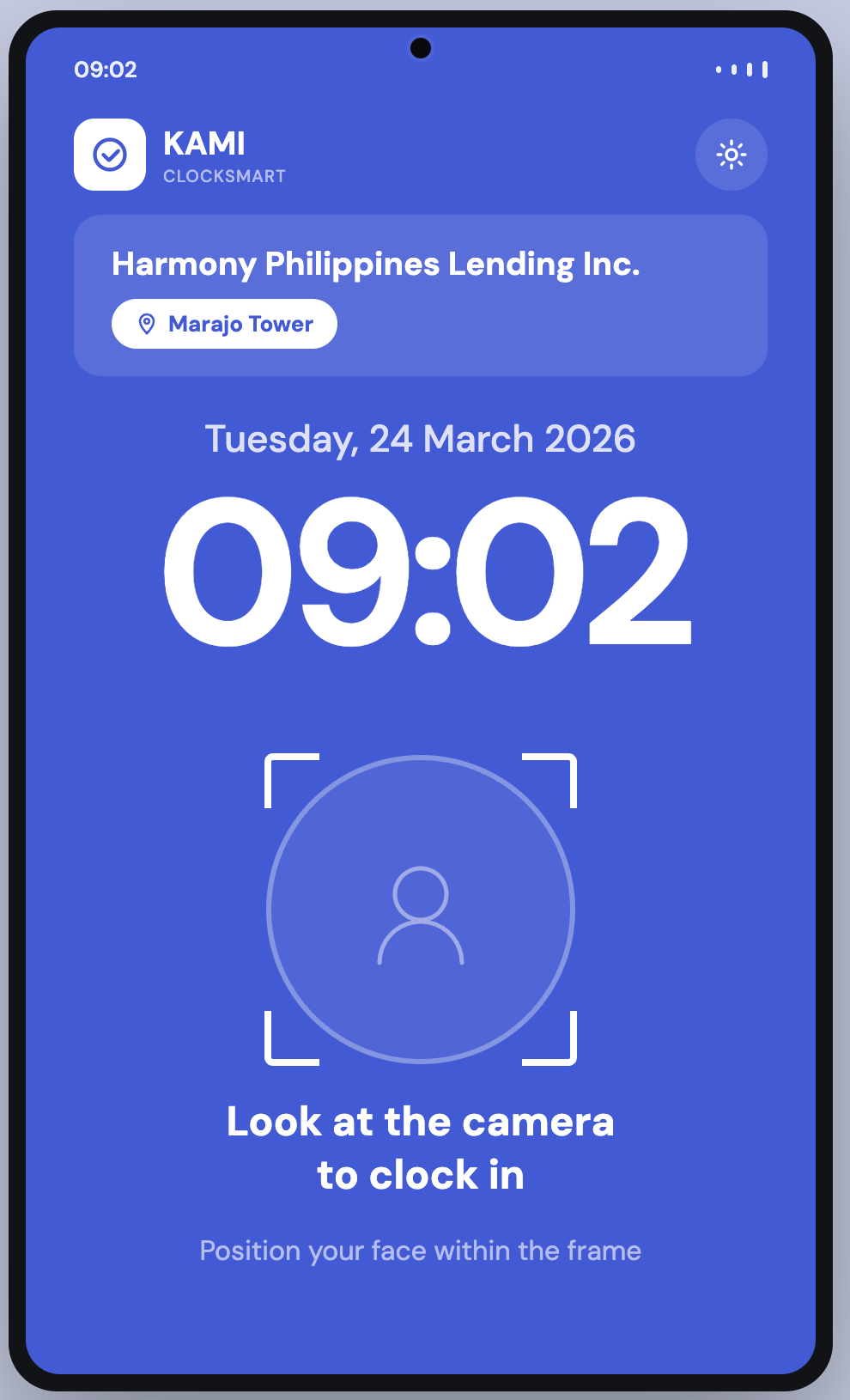
ClockSmart is KAMI's tablet check-in app: employees clock in and out at a device by the door, identified by face and optionally a passcode. It exists because a shared device at the entrance is the only method that works for staff who do not carry a work phone or sit at a desk.
Where: the ClockSmart app on a tablet, set up by an admin You need: an admin KAMI account to set the tablet up; employees need a registered face
⚠ VERIFY: this article describes the setup flow and authentication modes as documented. The exact on-screen wording of each step should be confirmed against a live tablet before treating labels as literal.
When to use this, and when not to
| The situation | Use |
|---|---|
| Shared entrance, staff without work phones | ClockSmart on a tablet |
| Staff who work away from any fixed site | Remote check-in on mobile |
| Field staff whose location matters | Checkpoints and geo-tracking |
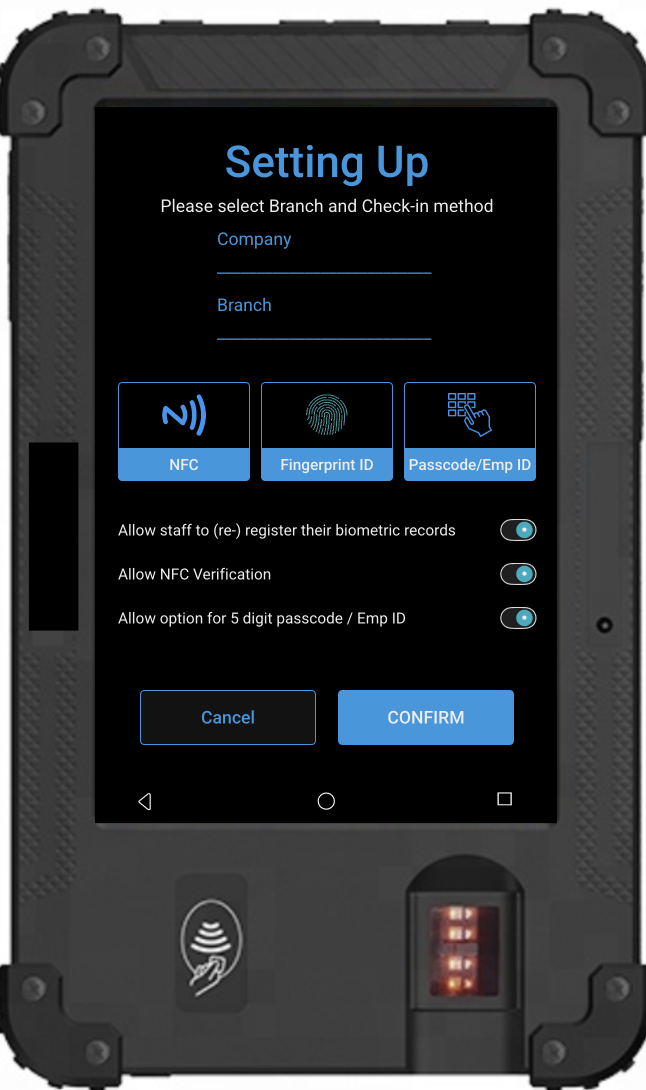
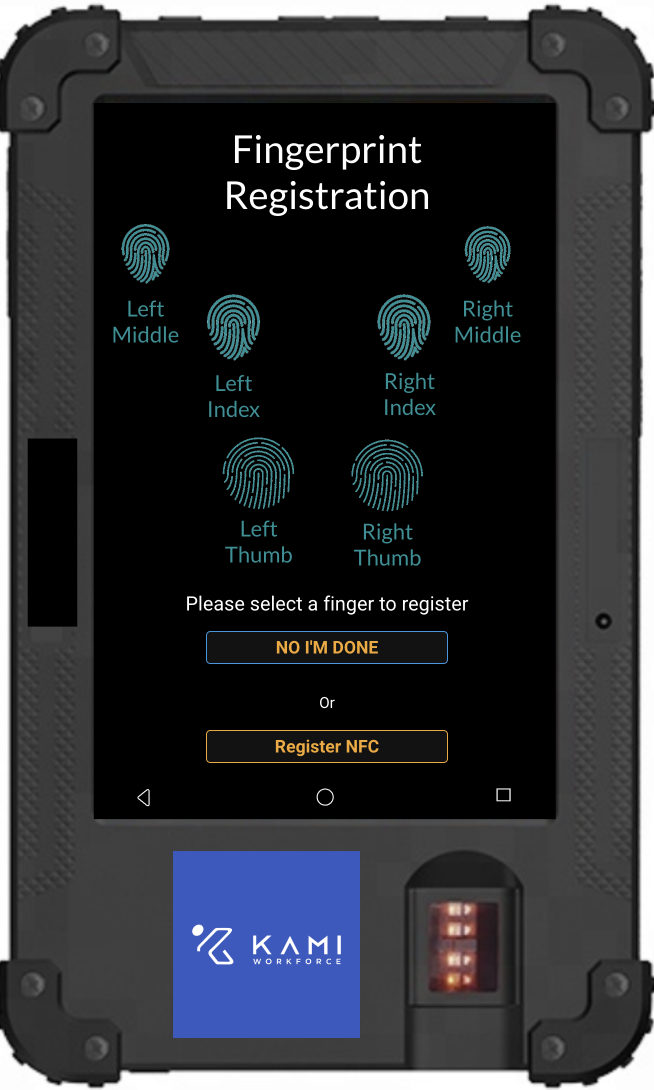
| Existing biometric hardware already installed | The biometric tablet — a different device with its own setup |
Choosing an authentication mode first
This is the decision to make before touching the tablet, because it changes both the setup and what employees do every day.
| Mode | How it identifies someone | Trade-off |
|---|---|---|
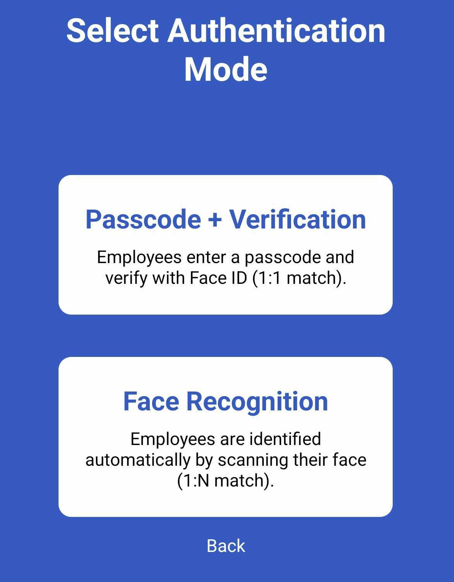
| 1:N — Face ID only | The employee stands in front of the device and it finds them among all registered faces | Fastest for the employee; nothing to remember or forget |
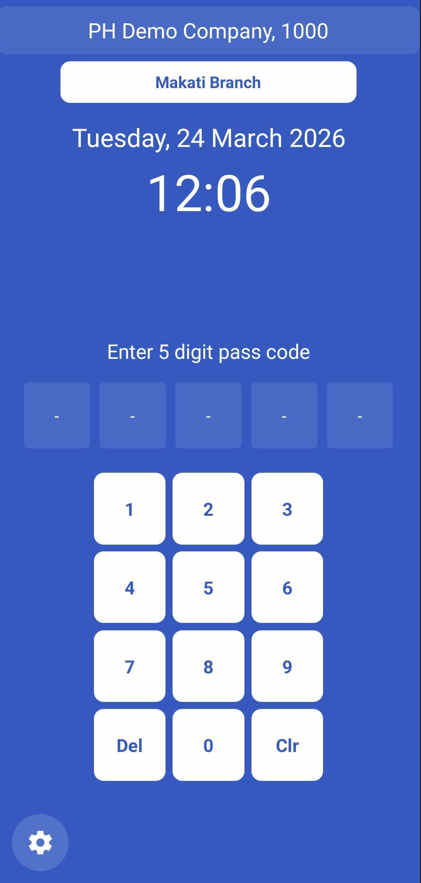
| 1:1 — Passcode + Face ID | The employee enters a 5-digit passcode, then the device confirms their face matches that person | Slower, but far more robust with large headcounts or similar-looking faces |
Choose 1:N for speed at a busy door with a modest headcount. Choose 1:1 where headcount is large, because matching one face against hundreds is a harder problem than confirming one face against one claimed identity — and a queue at 8am is a real cost.
Setting up the tablet (admin)
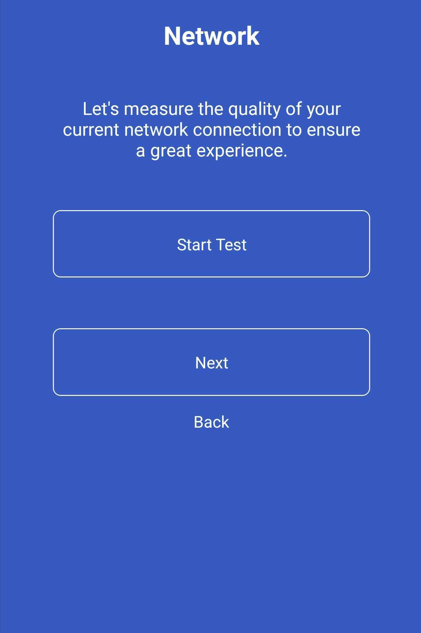
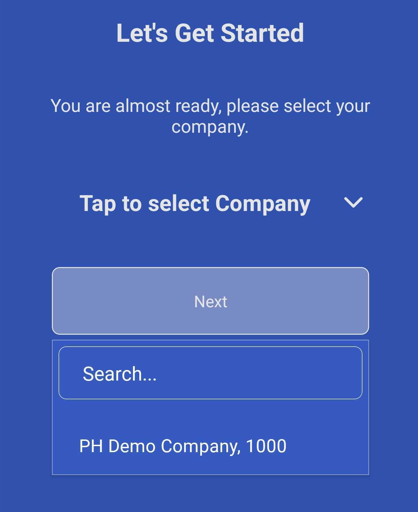
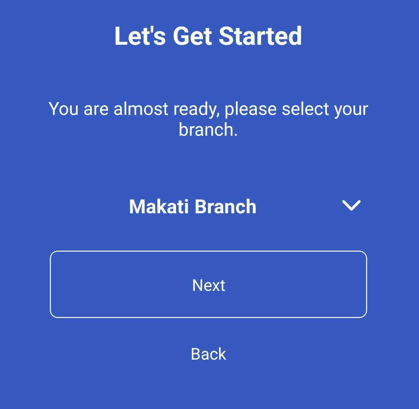
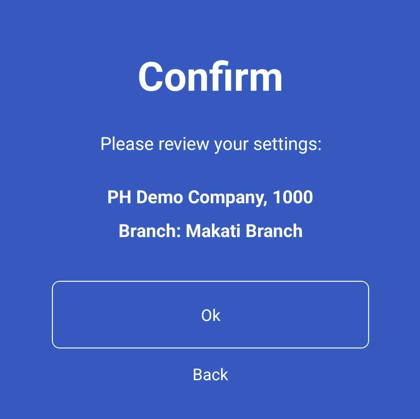
The app walks through setup in order:
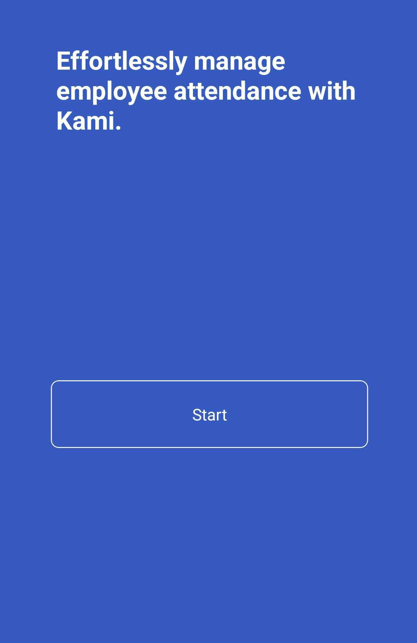
- Start the app on the tablet.
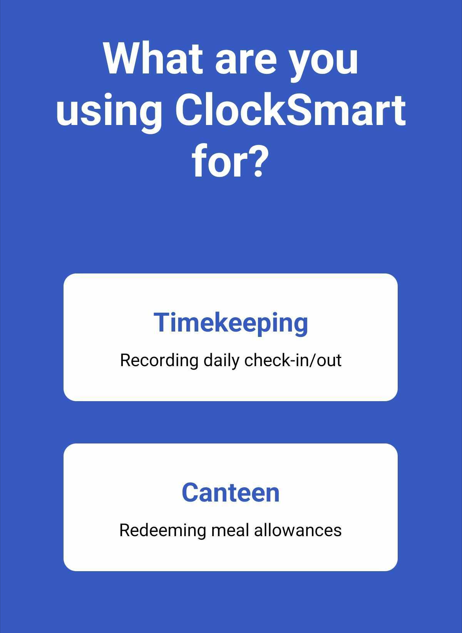
- Select the usage type.
- Select the authentication mode — the decision above.
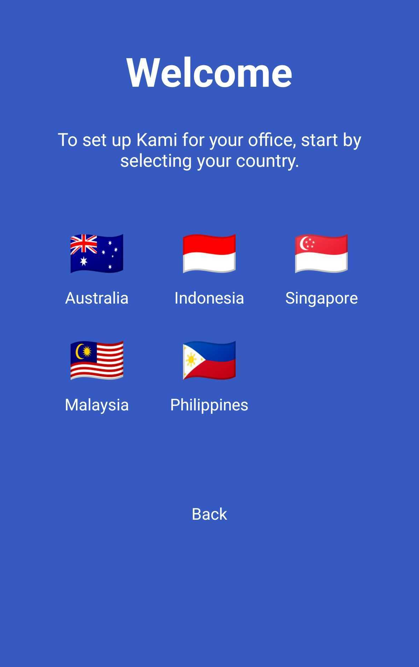
- Select your country.
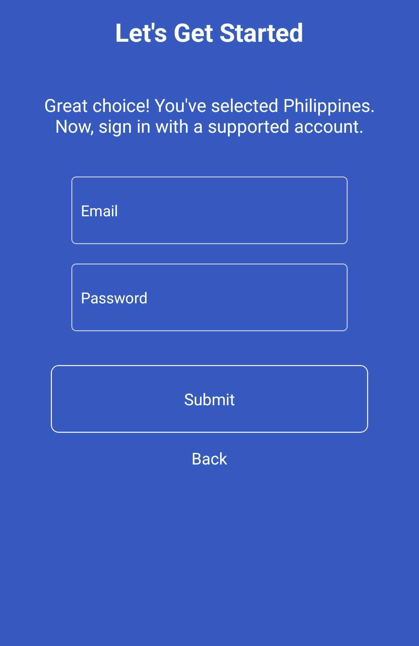
- Log in to your KAMI account with admin credentials.
- Test the internet connection.
- Select your company.
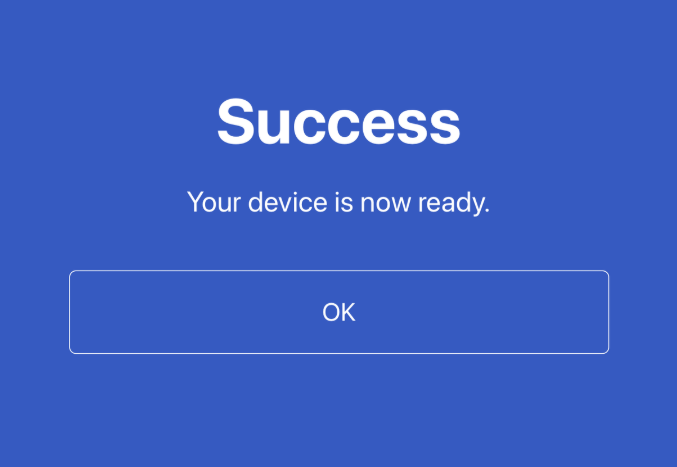
Once set up, the tablet is bound to your company and ready to register employees.
Registering employees
There are two routes, and most companies use both:
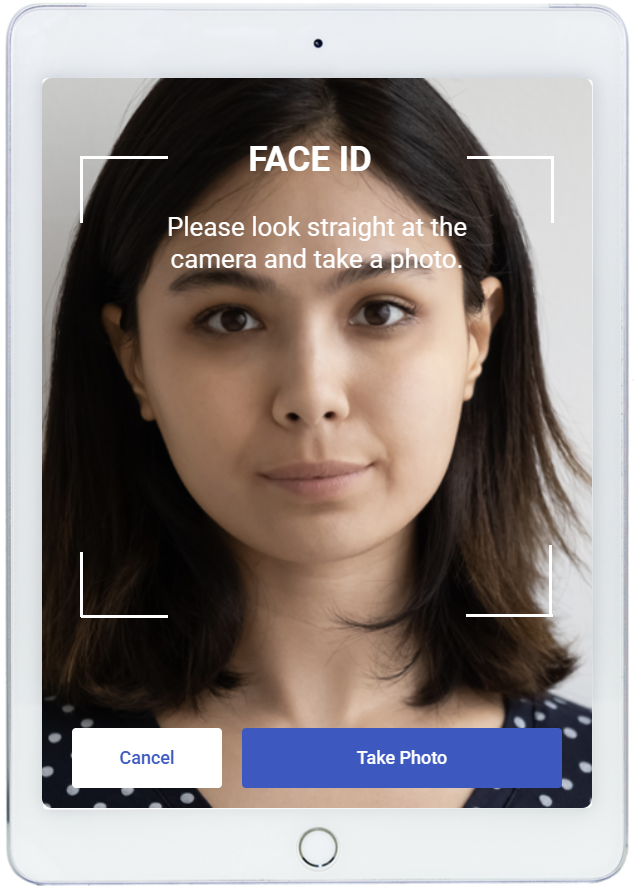
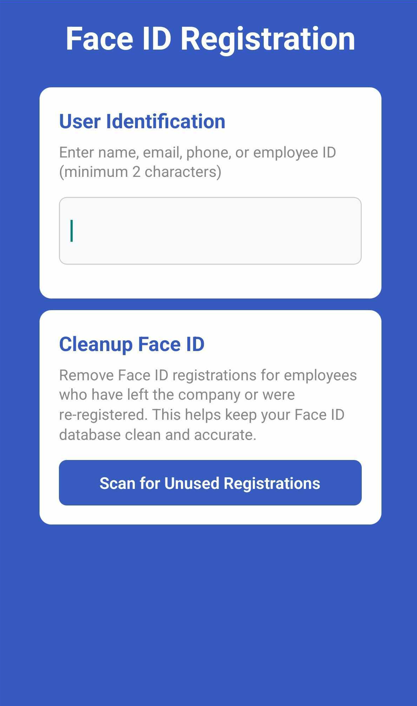
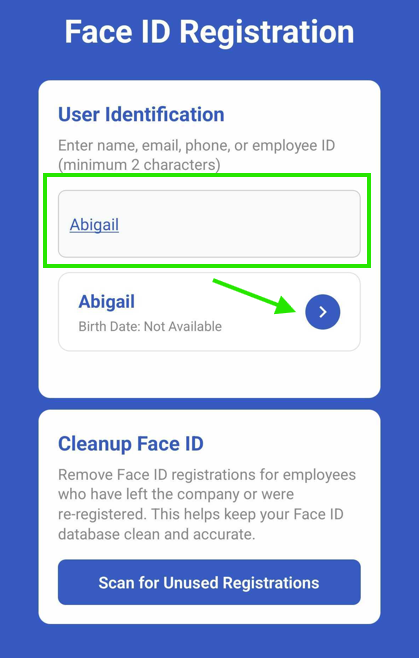
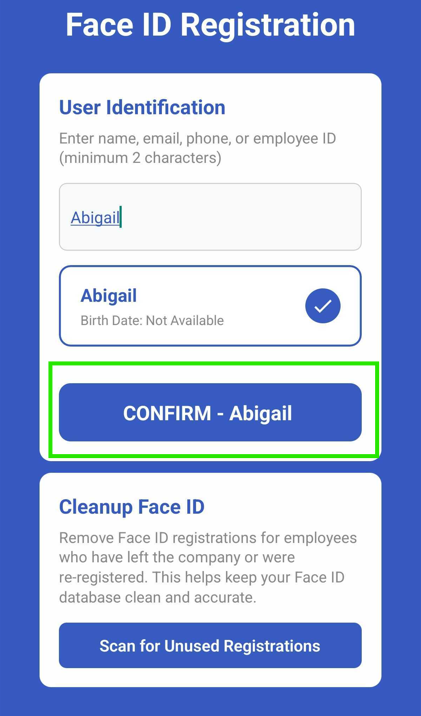
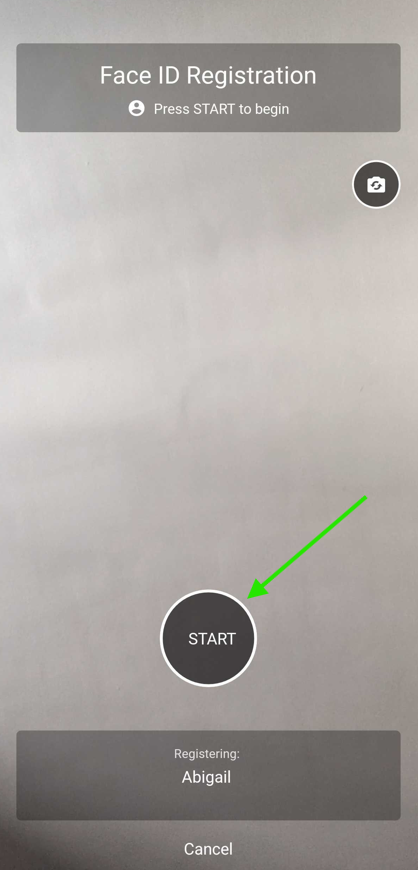
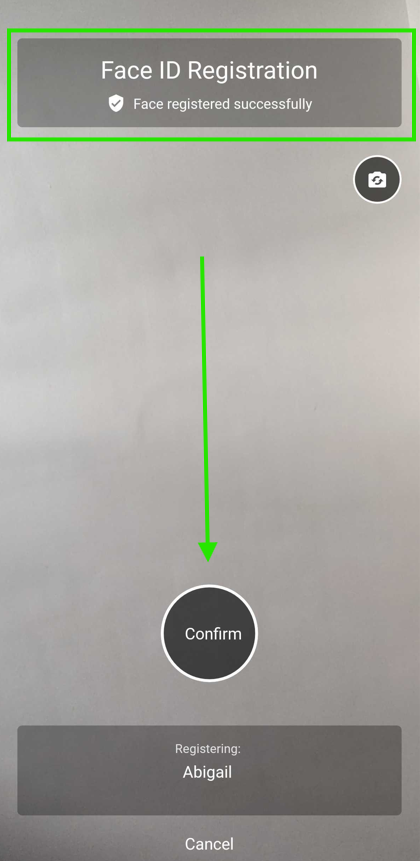
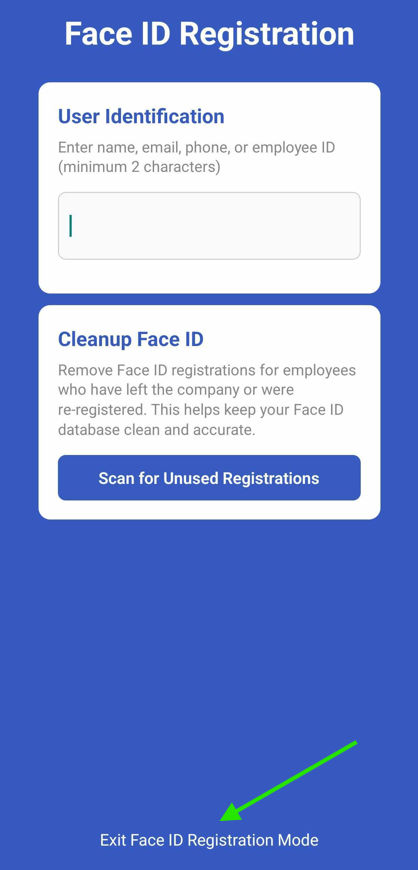
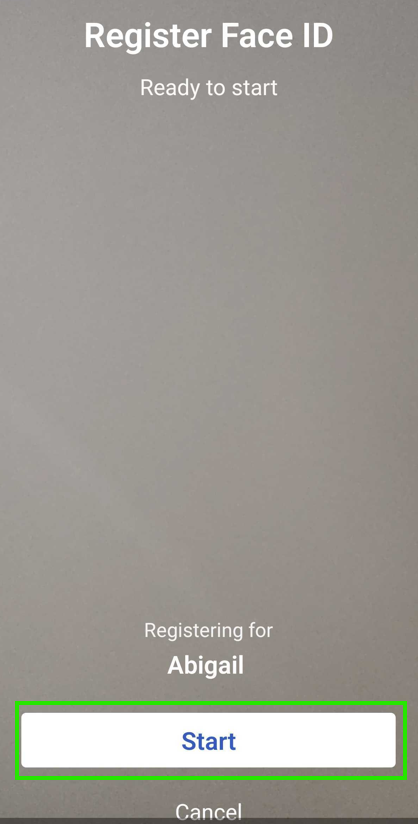
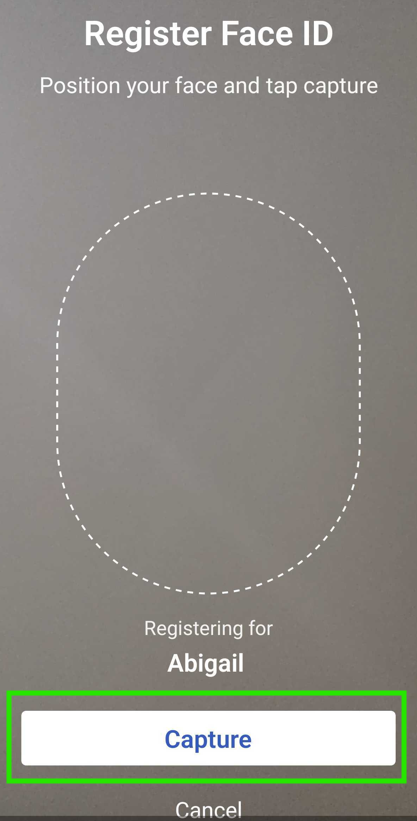
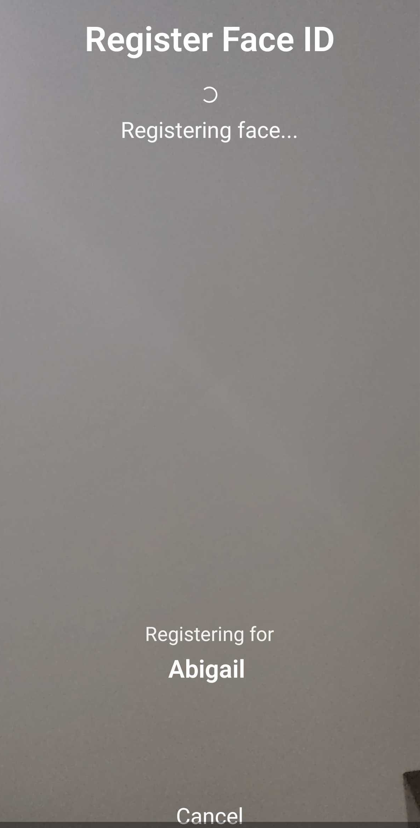
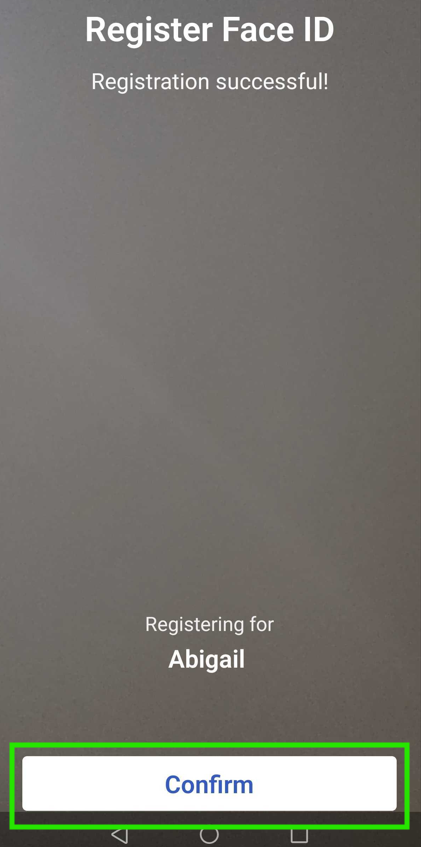
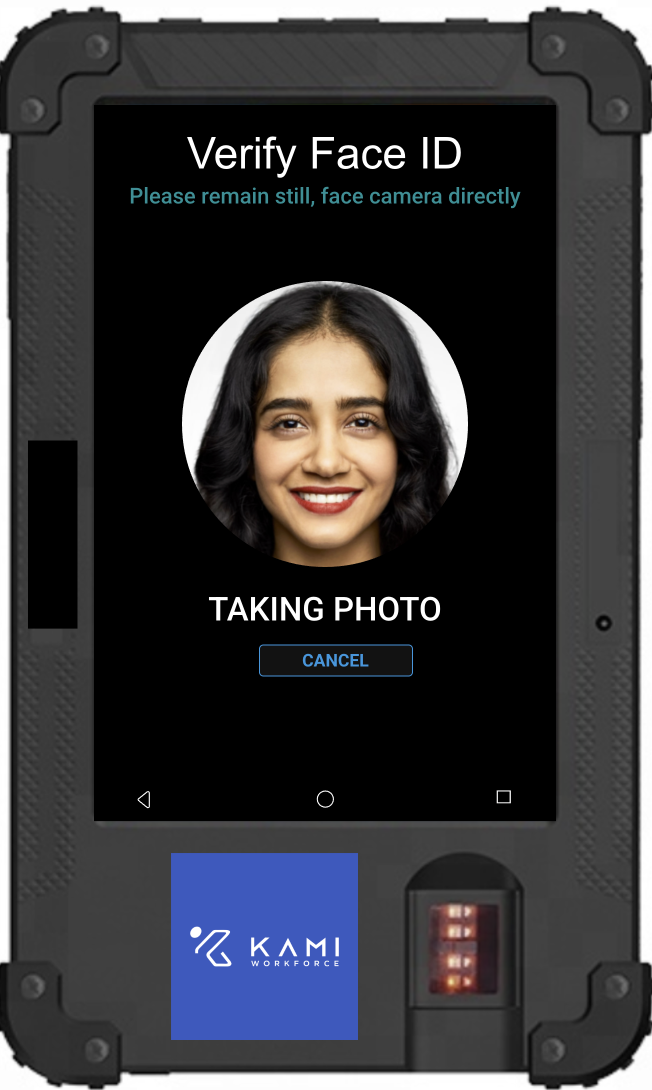
Admin registration at the tablet. The admin opens admin settings, enables Face ID registration mode, finds and selects the employee, and captures their face. Then continues to the next employee or exits registration mode. This is the efficient route for onboarding a whole site in one session.
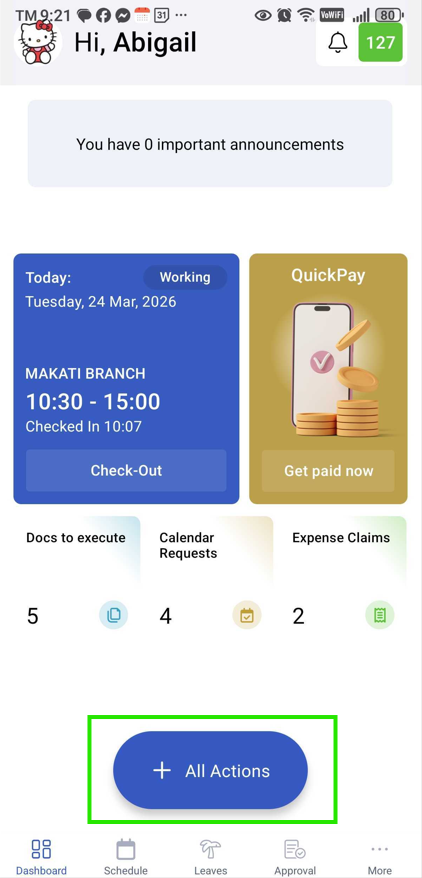
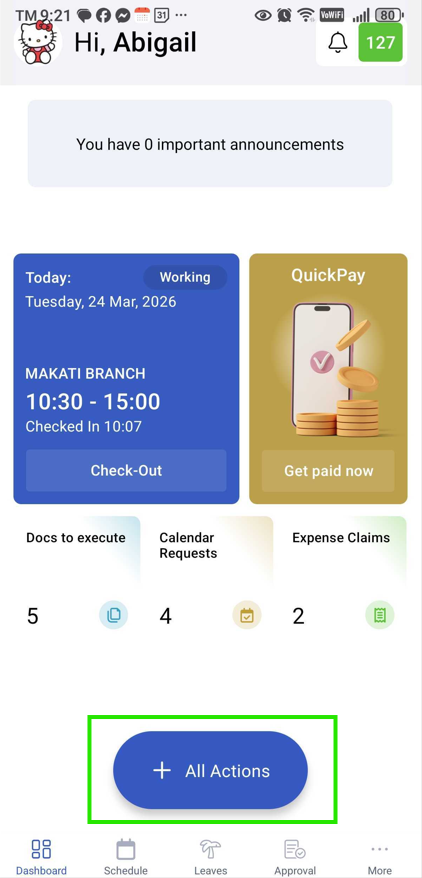
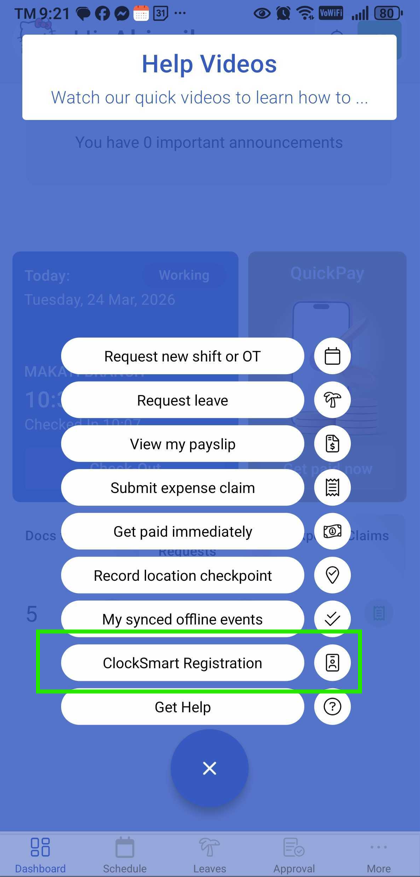
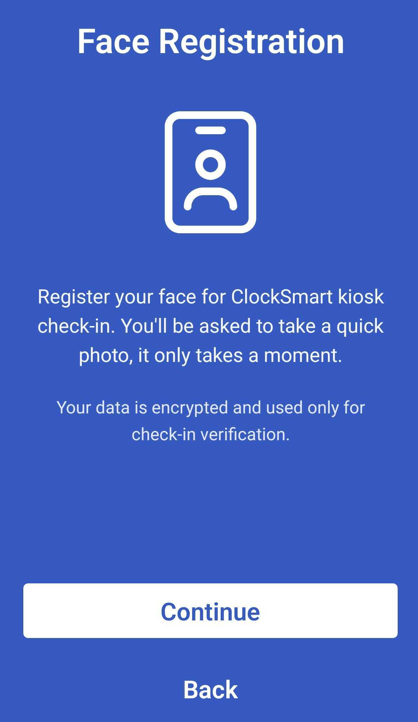
Employee self-registration in the KAMI mobile app. The employee navigates to ClockSmart registration and captures their own face. This suits new joiners arriving after the initial rollout, and avoids booking admin time for one person.
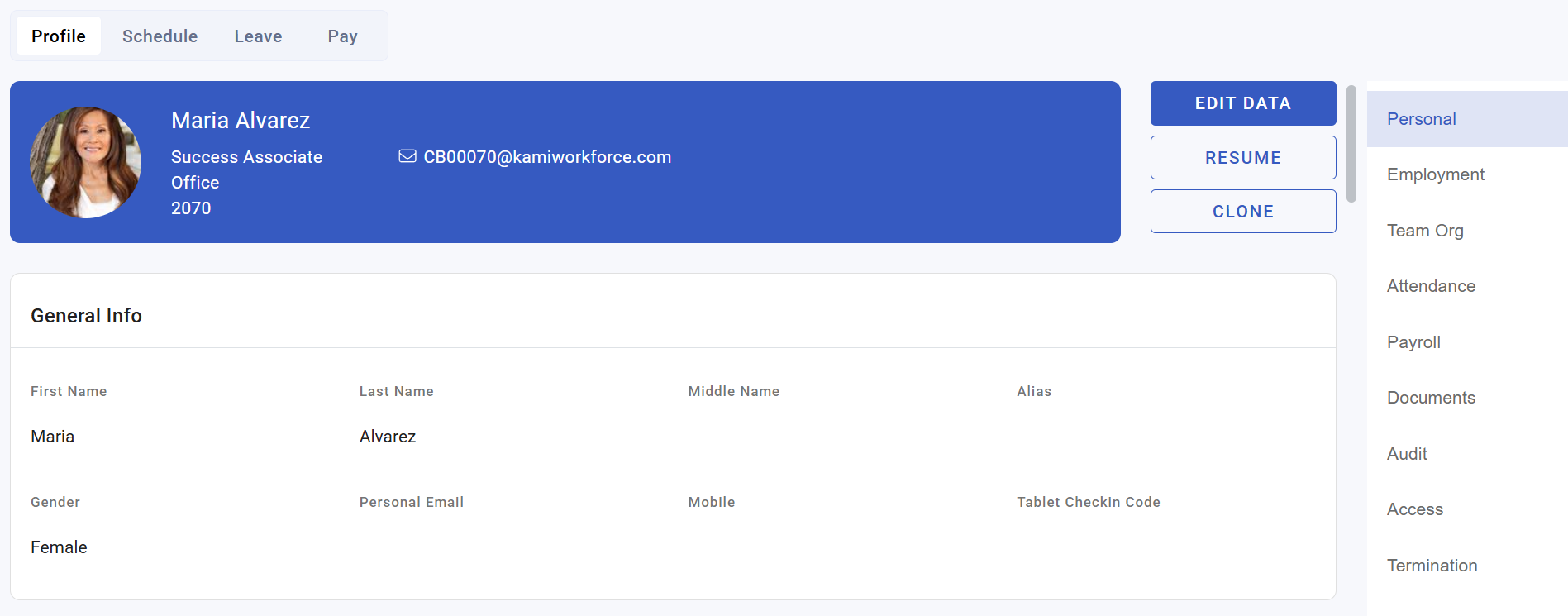
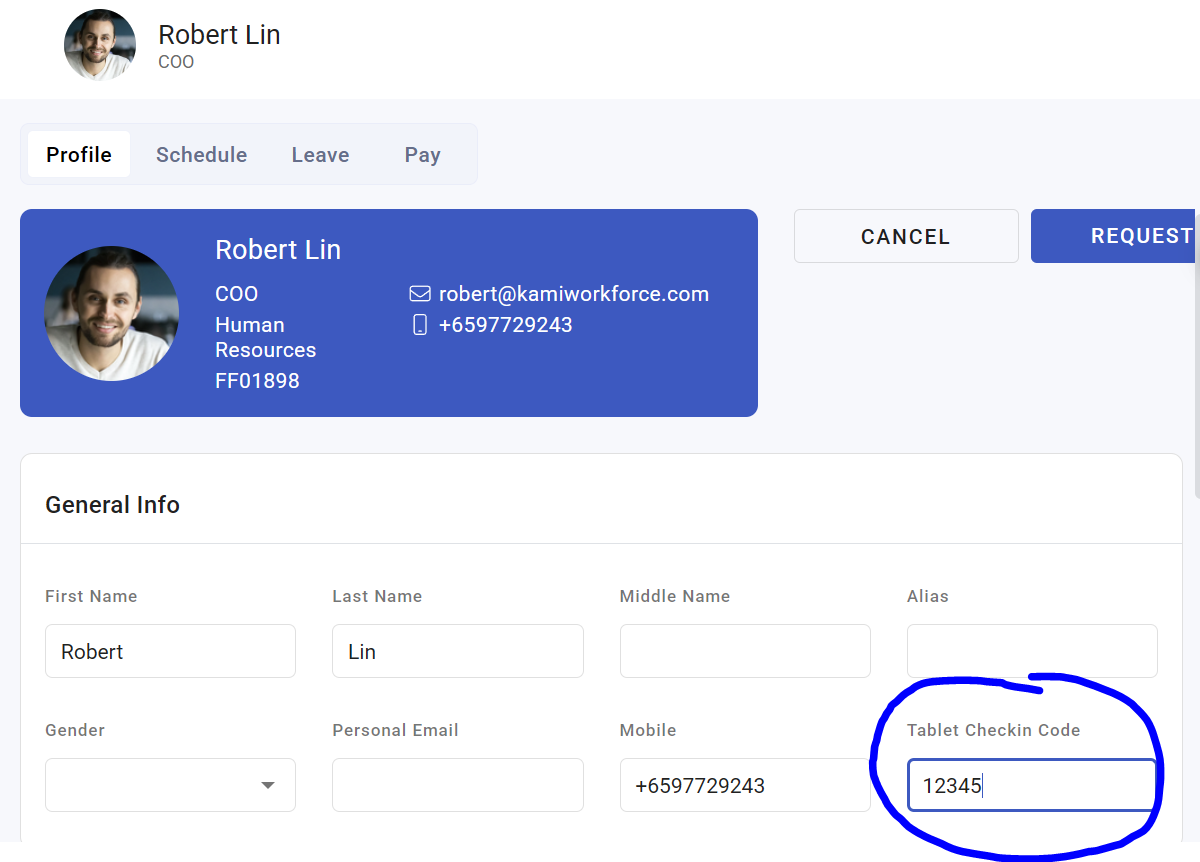
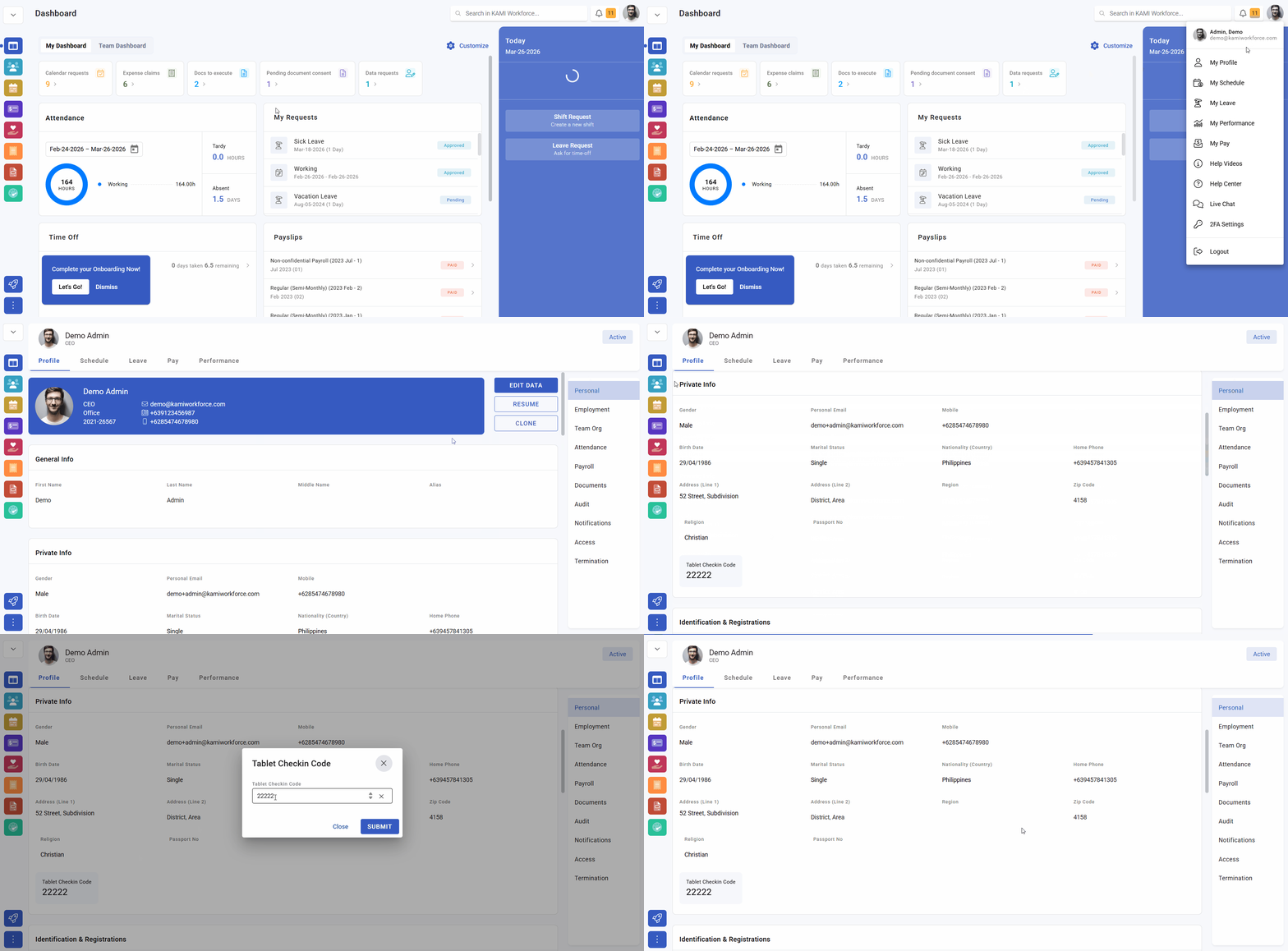
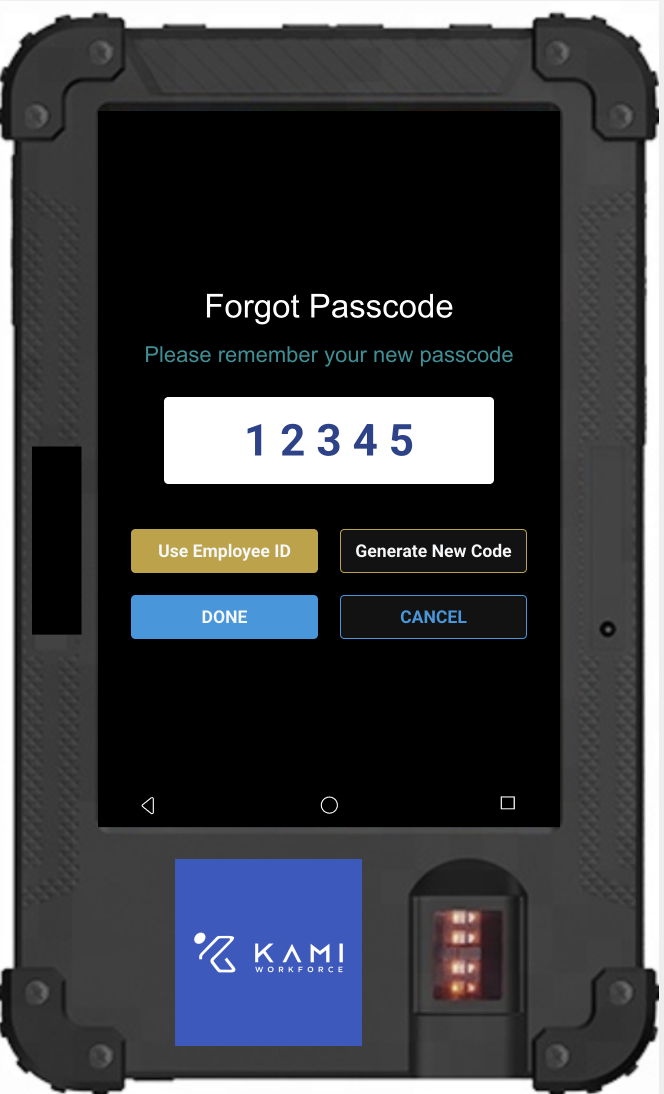
In 1:1 mode the employee also creates a 5-digit passcode — entered and saved once, then used before each face scan.
Daily use
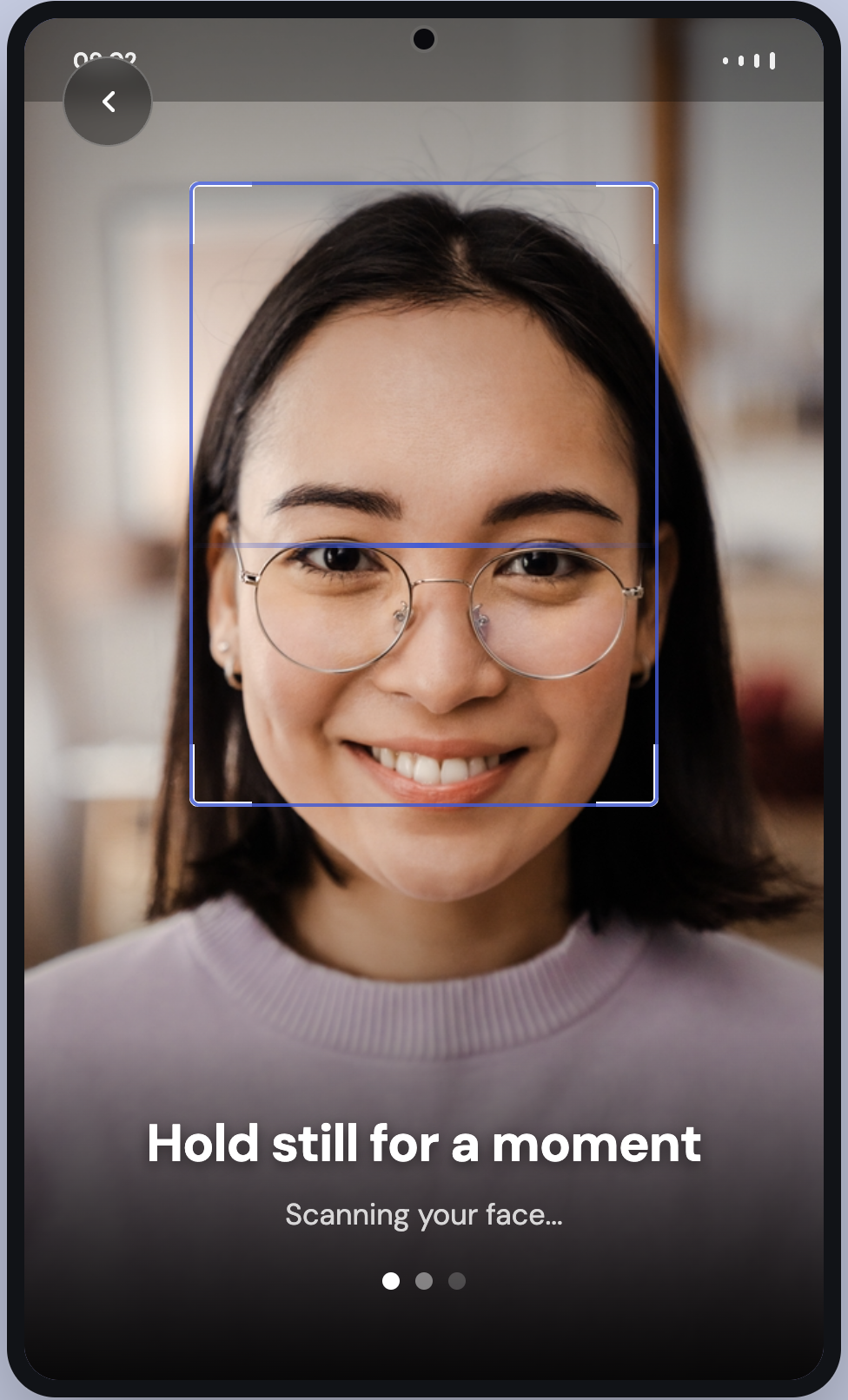
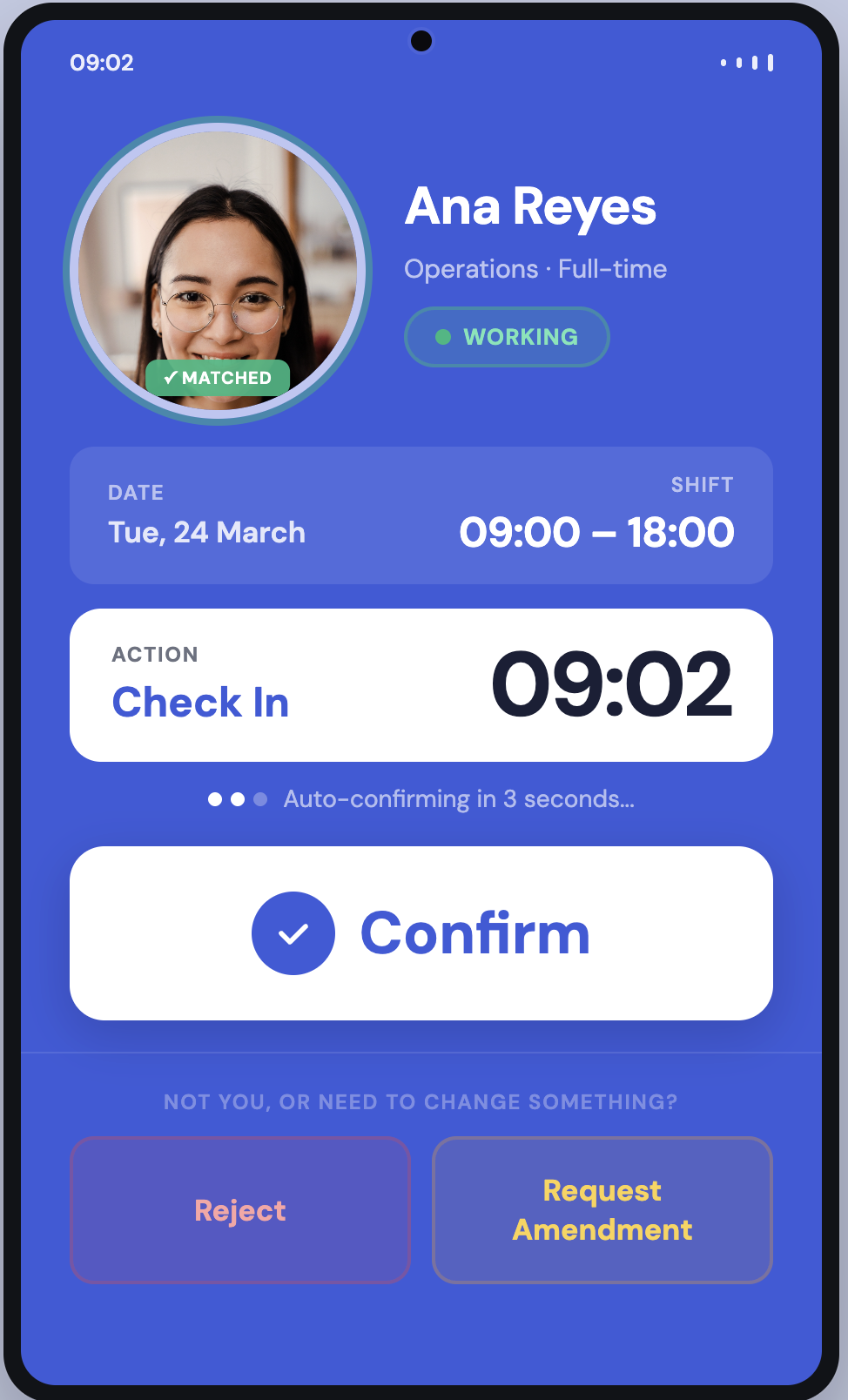
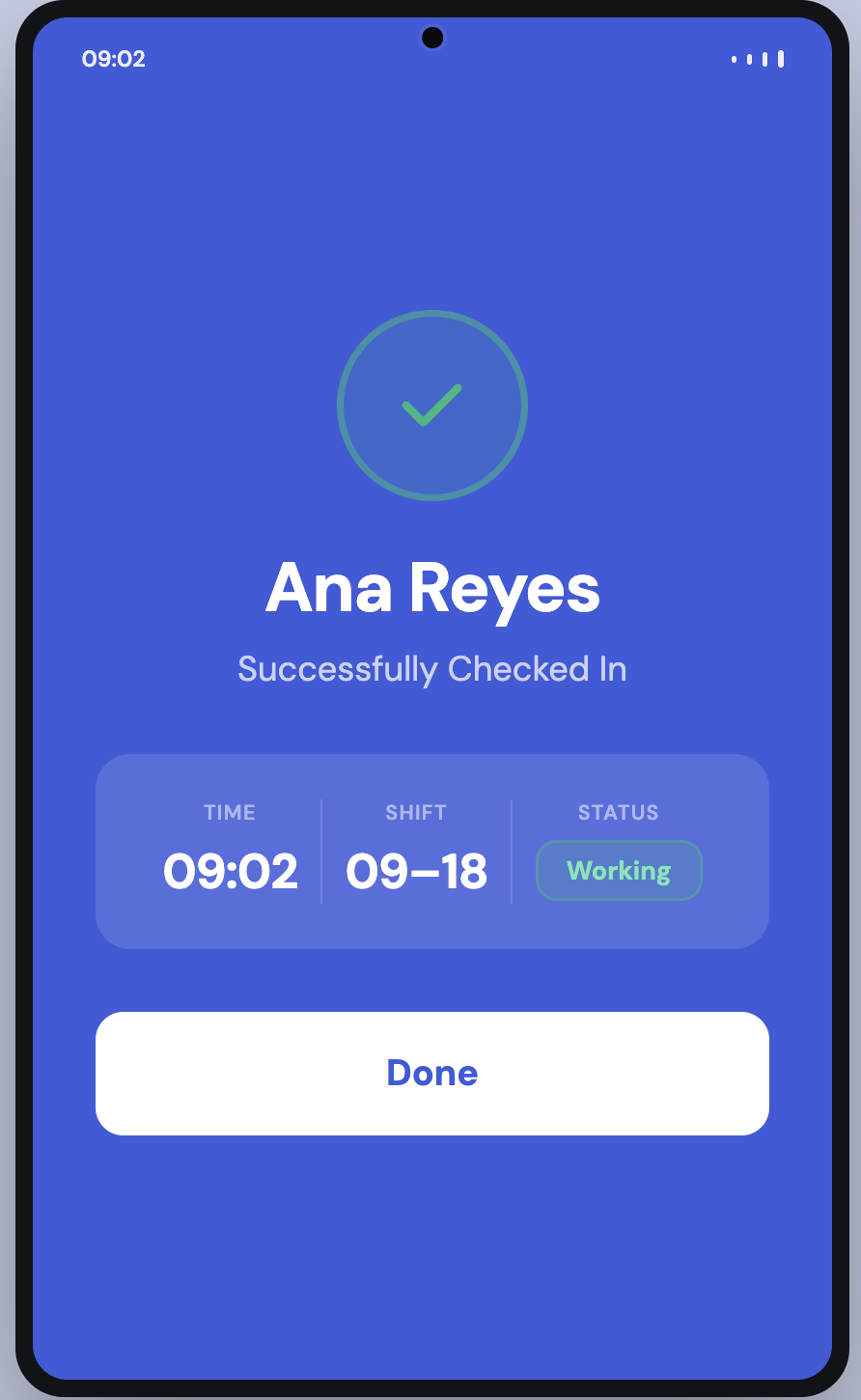
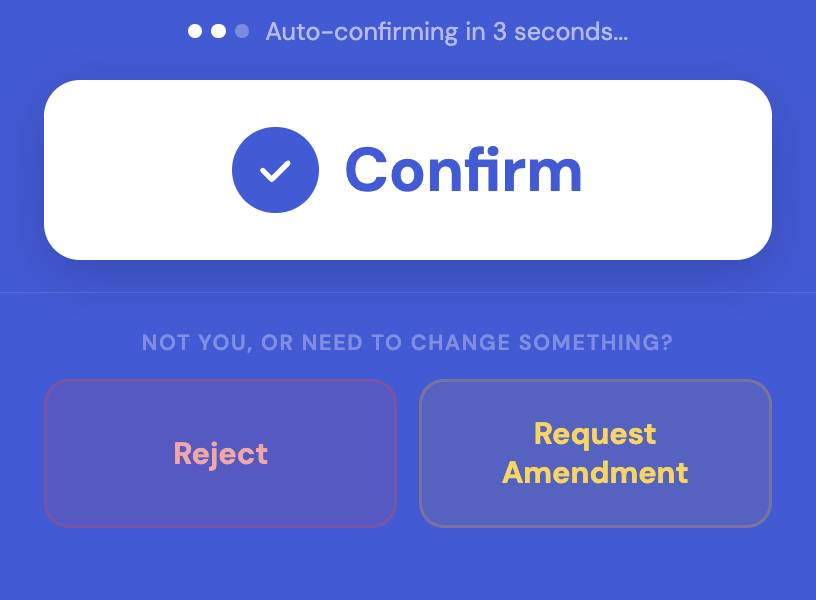
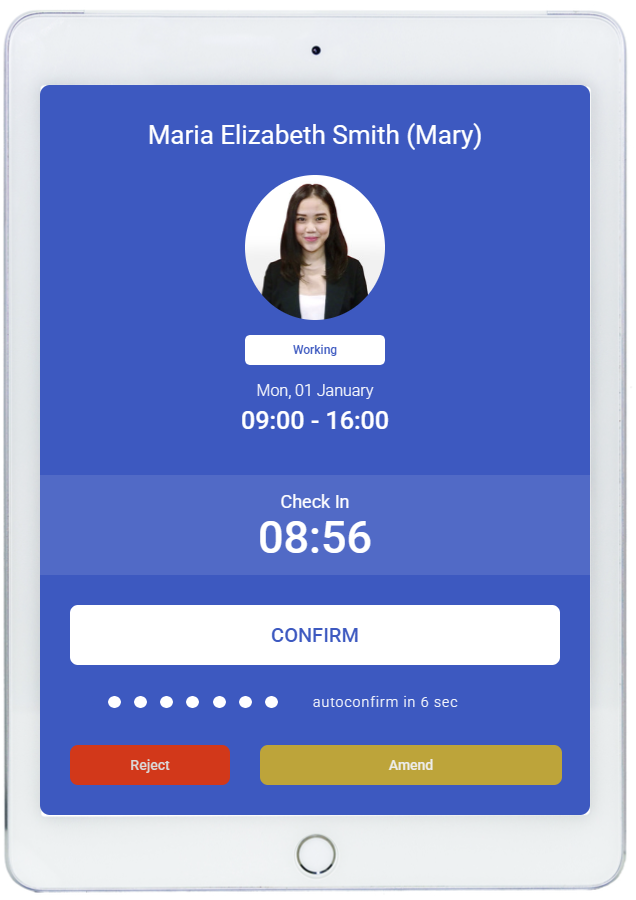
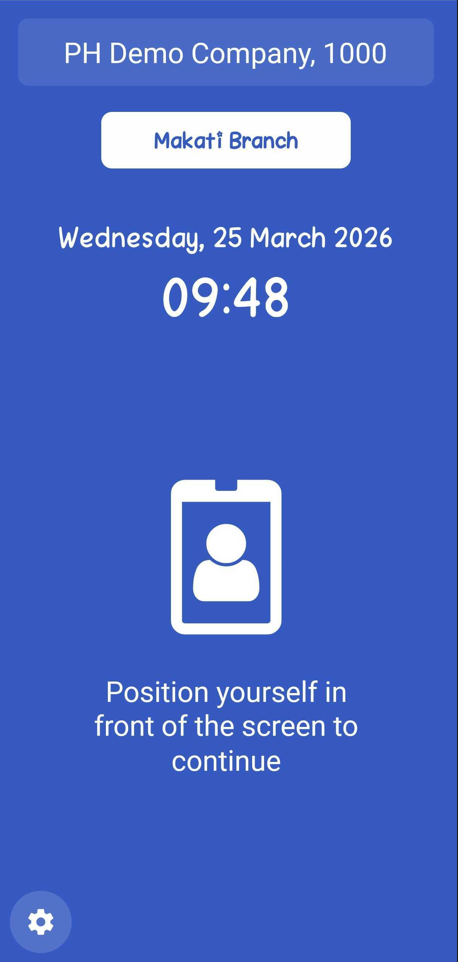
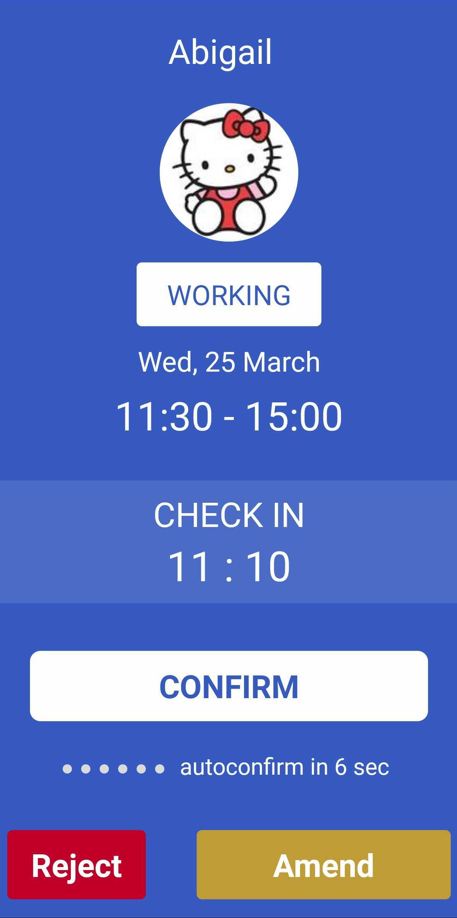
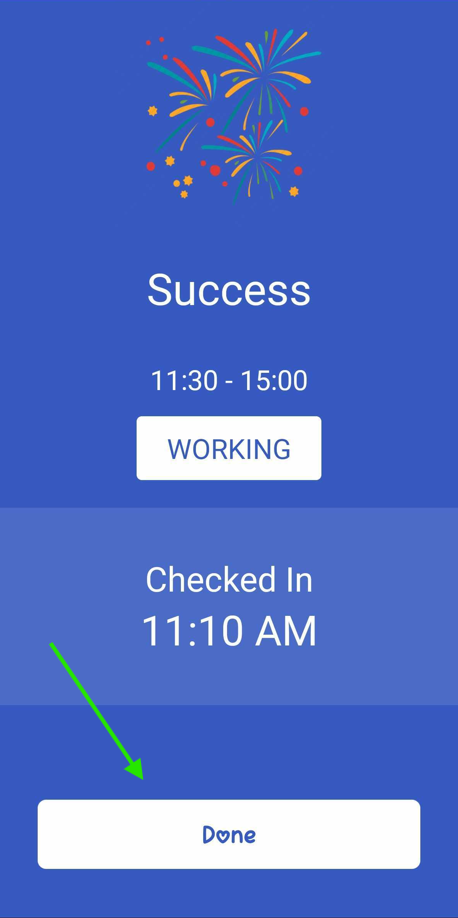
The employee stands in front of the device — entering their passcode first in 1:1 mode — and the device performs a live face scan. They then review and confirm their details before the record is submitted.
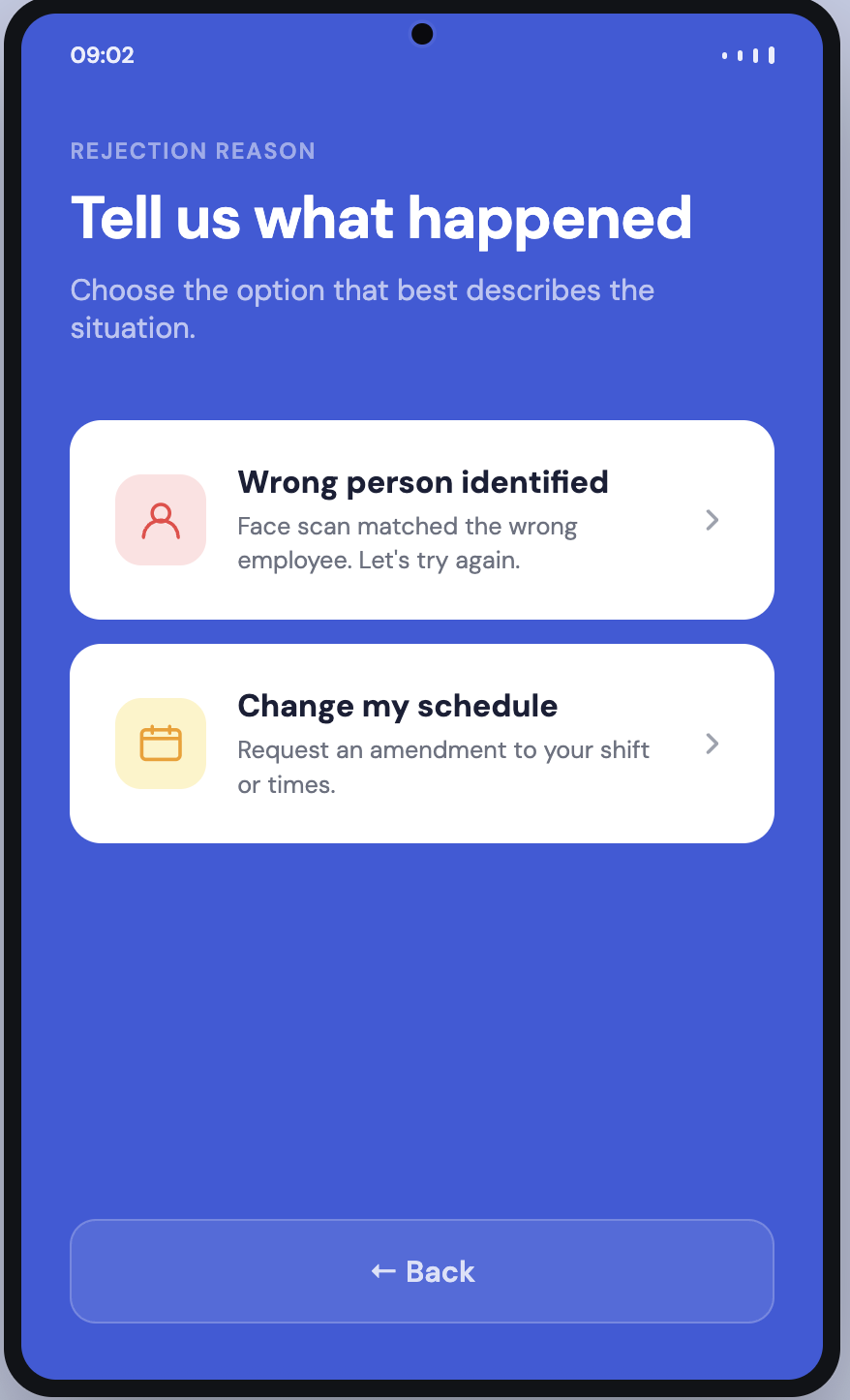
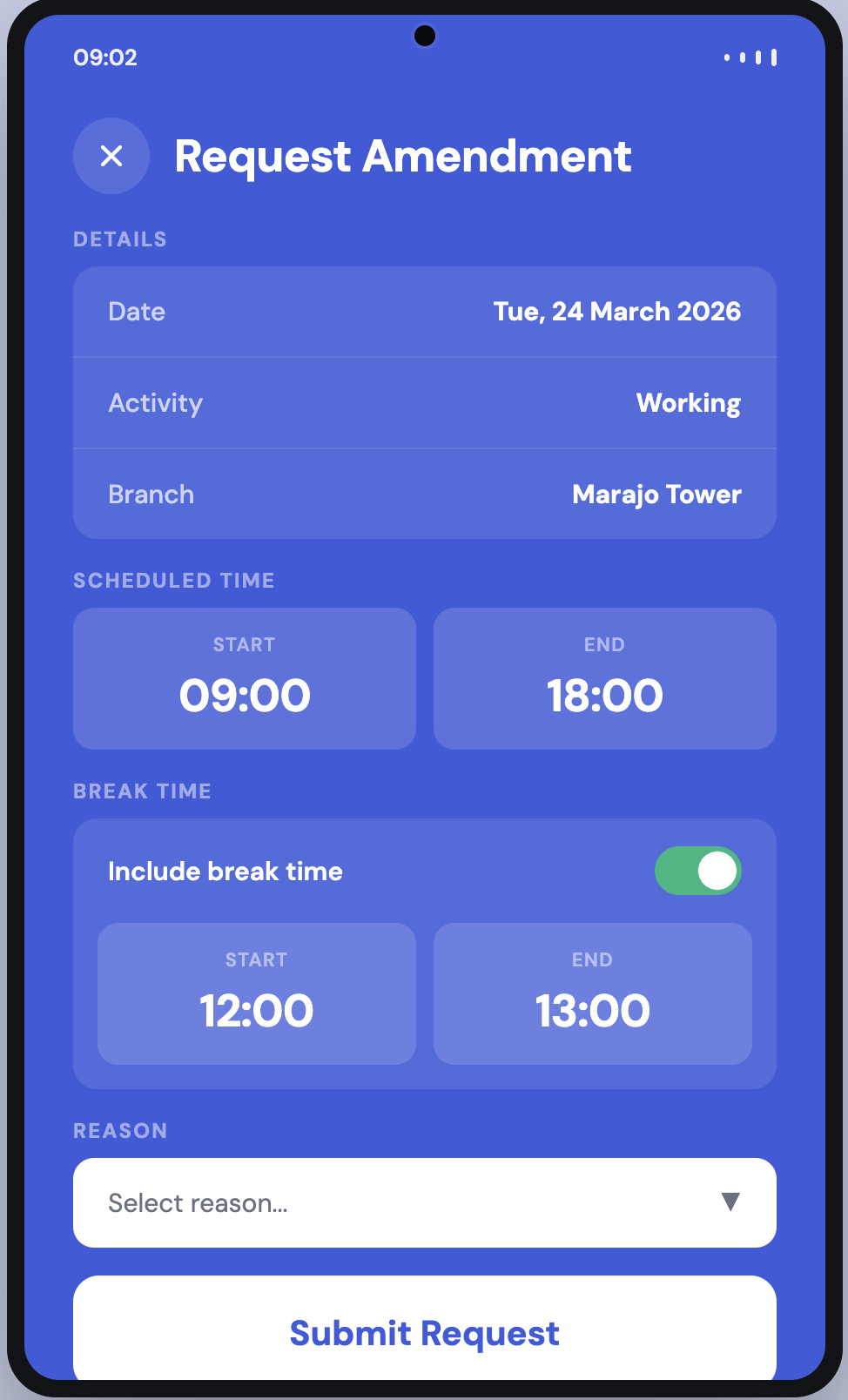
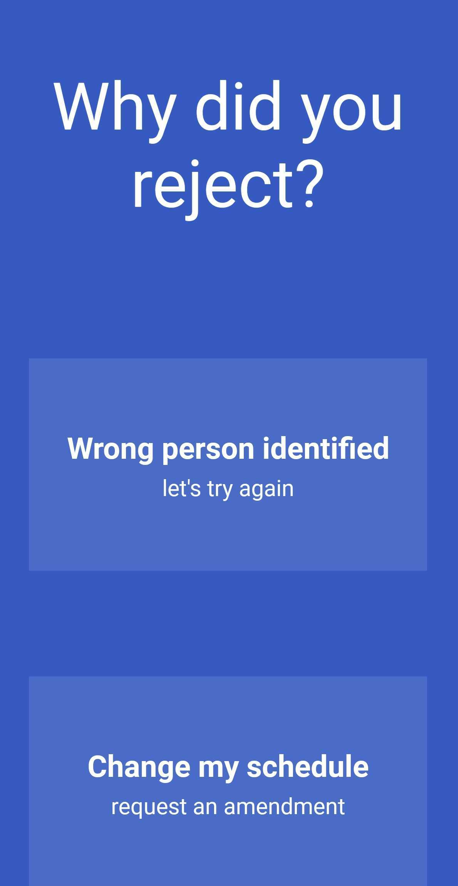
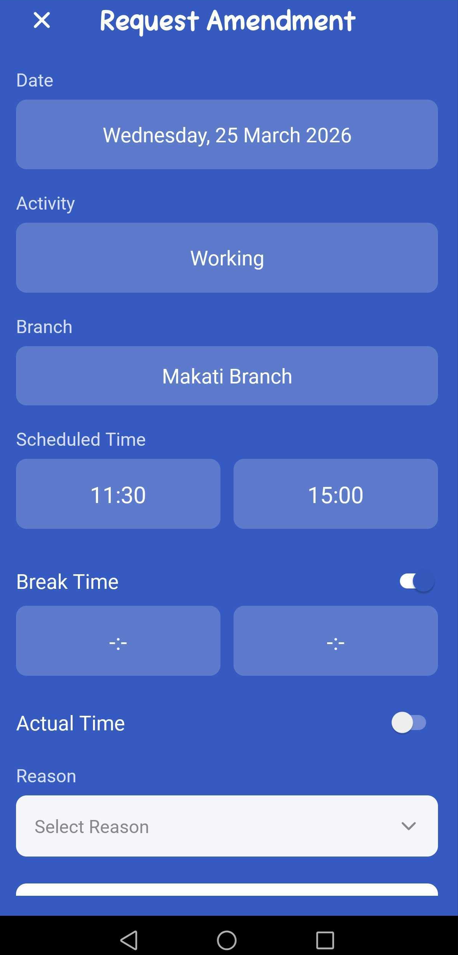
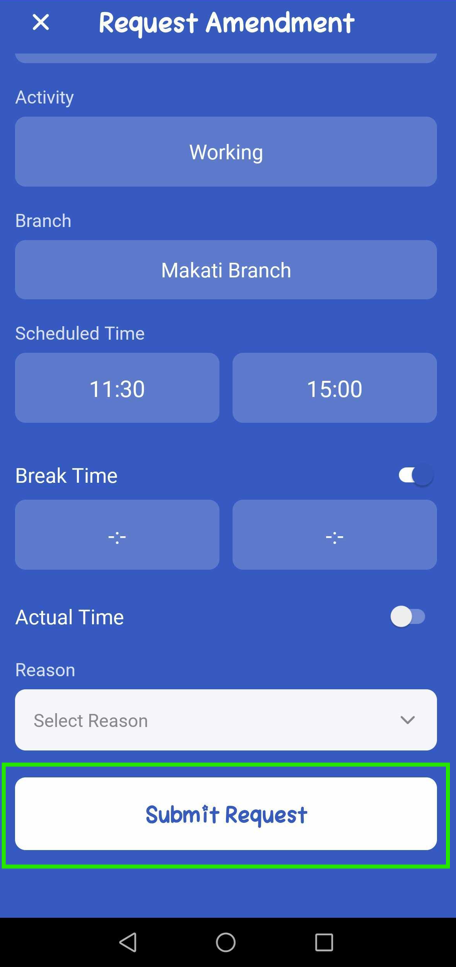
Where the record is wrong, ClockSmart can raise a correction from the device itself: either reject the reading, or amend it, which submits an amendment request that routes to an approver like any other. See Correcting attendance.
What Happens Next
- Each tap becomes a time log, which builds the day's attendance event.
- Records made without a connection are stored and synced later, flagged as offline and subject to review — see Offline and remote check-ins.
- Corrections raised at the device appear in the approvals queue.
- Everything flows to the timesheet and then payroll.
Tips
- Register everyone before go-live, not on the morning. A registration session for forty people is twenty minutes; forty people registering at the door at 8am is a queue and a bad first impression of the system.
- Decide the authentication mode once. Changing it later means re-registering, so make the headcount judgement up front.
- Keep the tablet on power and on a stable connection. Offline punches all work, but they arrive in a batch that someone then has to review.
- Watch the check-in error reports weekly. A failing device produces missing taps, missing taps produce invalid events, and invalid events produce a pile of amendment requests that all trace back to one tablet. See Attendance reports.
- Tell employees to check the confirmation screen. Catching a wrong reading at the device takes seconds; catching it on a payslip takes a correction, an approval and a fortnight.
Screenshots
These screenshots came from our previous help centre and may show an earlier version of the interface.
Getting Started with the KAMI ClockSmart App


Passcode + Face ID Registration for ClockSmart (1:1 Mode)
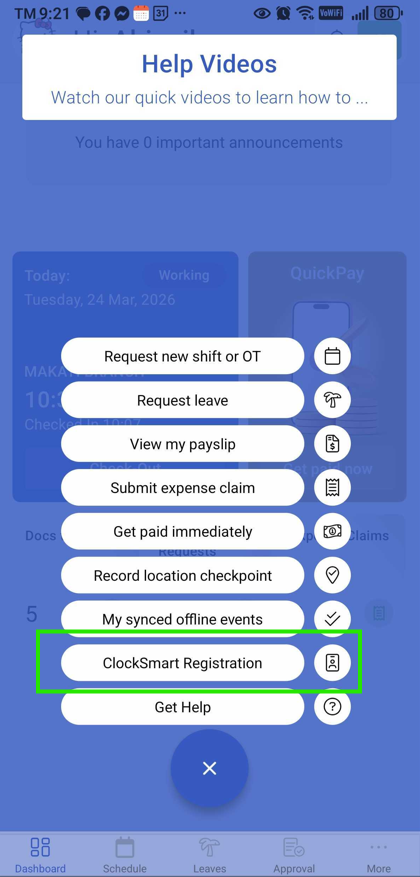
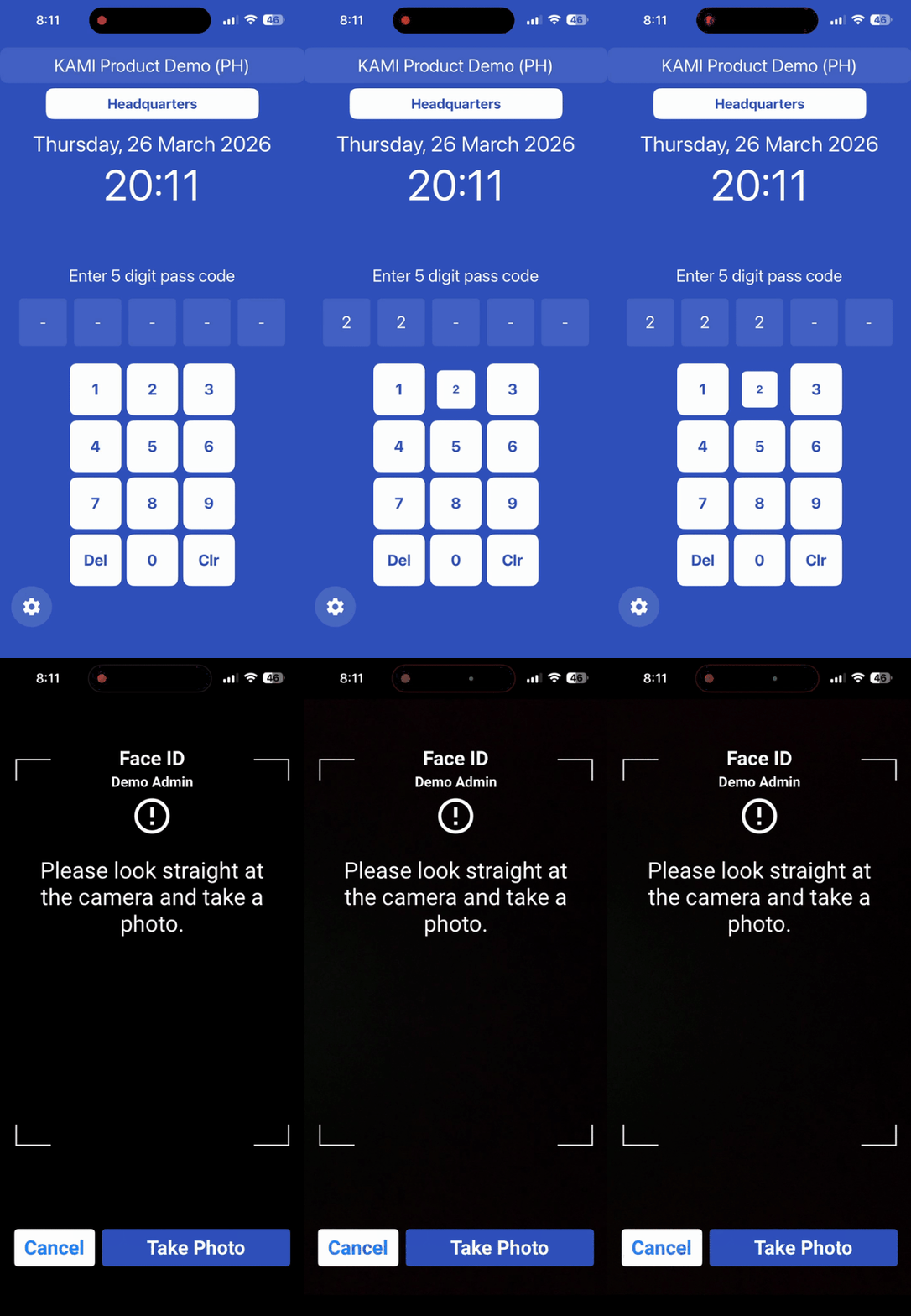
Face ID Registration for ClockSmart (1:N Mode)
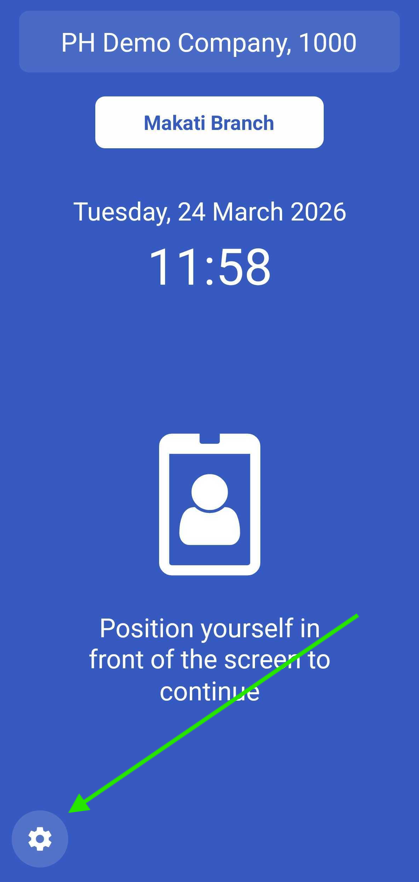
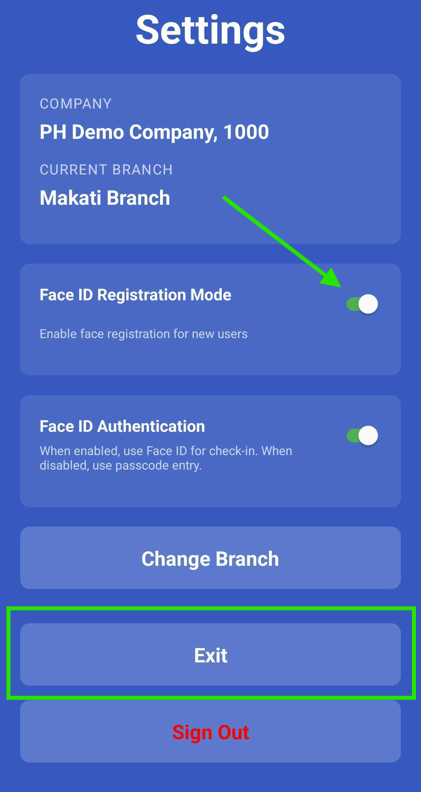
How to Clock In and Fix Attendance Records in ClockSmart
Set Up and Register Employees on the Biometric Tablet
Set Up and Register Employees on KAMI ClockSmart