Attendance reports
The reports answer the questions the day-to-day screens cannot: not "was Maria late on Tuesday" but "is lateness getting worse, and where". They are also where data-quality problems become visible before they reach payroll.
Where: Calendar › Reports You need: the attendance reports right
Which report answers what
| Report | The question it answers |
|---|---|
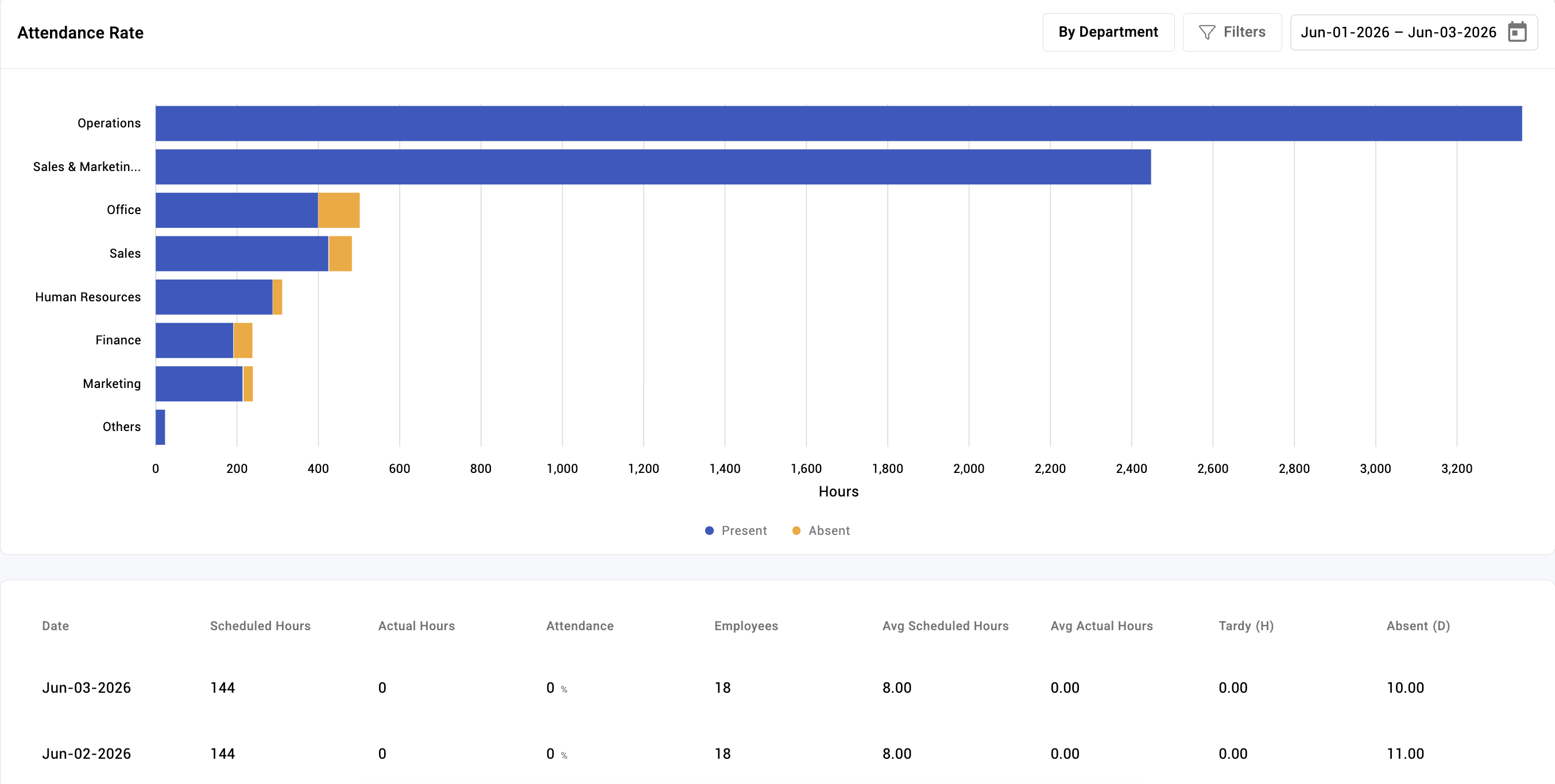
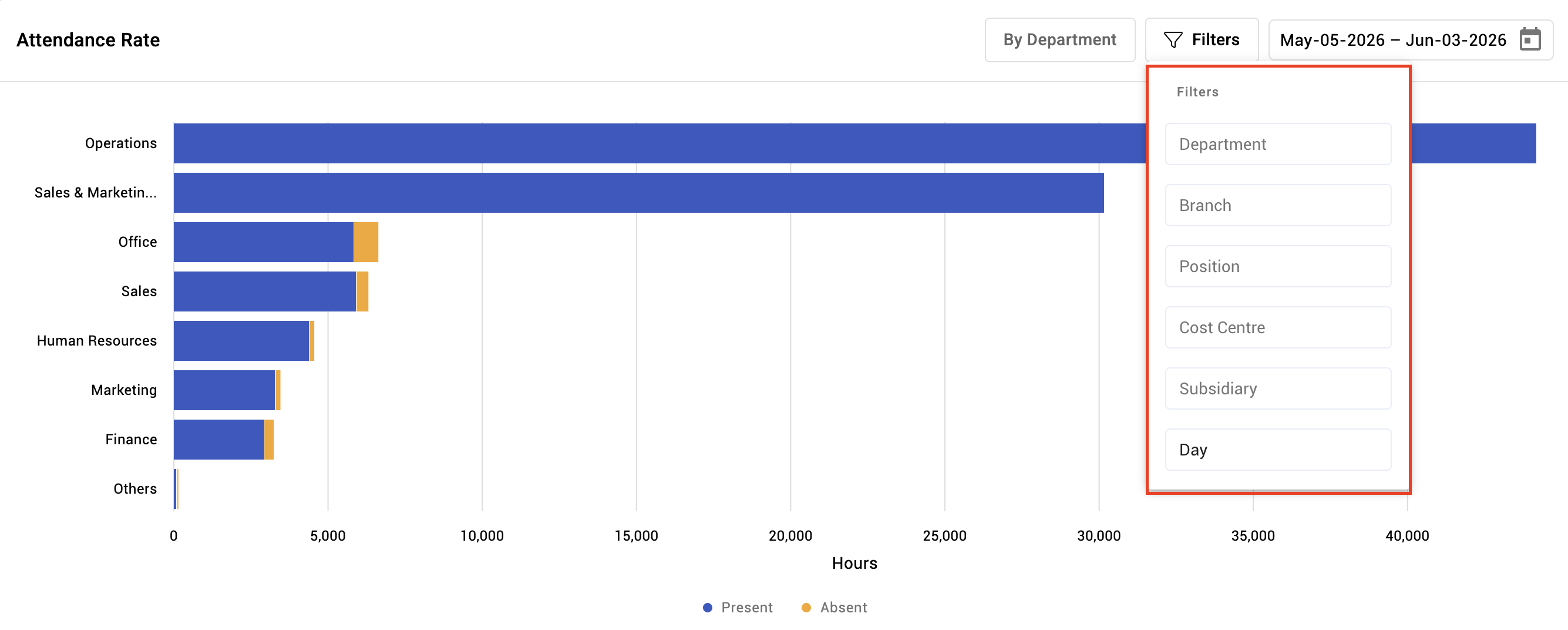
| Attendance rate | How much of scheduled time is actually being worked |
| Attendance engagement | A summary of check-ins |
| Attendance report | The general attendance detail export |
| Event tracker | Are records being resolved, or accumulating? |
| Time off balances | Where leave balances stand — see Leave balances and accrual |
| GPS mock attempts | Attempts to falsify check-in location |
| Mobile check-in errors | Check-ins that failed on mobile |
| Tablet check-in errors | Check-ins that failed on a device |
| Attendance API records | Attendance arriving through the API |
| Canteen credits | Canteen credit usage, where used |
All filter by branch, department, position, cost centre and group, and by date range, and export.
For a single day or a single person, use Events instead — these reports are for patterns.
The two error reports deserve a routine
Mobile check-in errors and tablet check-in errors are the reports nobody opens until something has been wrong for a fortnight.
They are worth a weekly glance, because the chain is predictable: a failing device produces missing taps, missing taps produce invalid events, invalid events produce a pile of amendment requests — and all of it traces back to one broken tablet by the door. Finding it in the report costs two minutes; finding it through thirty approvals costs a week.
The heatmap
Separately from the reports list, the heatmap (Calendar › Heatmap) shows attendance patterns across the team over a period. It is the view for spotting shape rather than detail — a department consistently short on Mondays, a site whose lateness clusters around a shift change.
What Happens Next
Reports change nothing themselves. What they should produce is a short list of actions:
- A rate that has moved → find out what changed, in the team or in the settings
- Device errors → fix the device, before the corrections arrive
- GPS mock attempts → a conversation, and possibly a policy
- Unresolved records → work the approvals queue
Tips
- Read them before payroll, not after. Every one of these is cheaper acted on early.
- Watch trend, not absolute values. What counts as a normal absence rate depends entirely on your thresholds; a rate that moved is the signal.
- Check "profiles with no EWH" alongside any rate. Employees without expected hours cannot be absent, so they silently improve every rate they appear in — a beautiful attendance rate can mean nobody is scheduled.
- Ask what changed in settings before concluding the team changed. A jump in absences after a shift threshold was edited is a configuration event, not a behavioural one.
- Export the period you paid from and keep it. It answers disputes months later without reconstruction.
Troubleshooting / FAQ
Q: The attendance rate looks impossibly good. Check how many people have no expected working hours. They cannot be absent, so they lift every rate.
Q: Absences jumped this month with no obvious cause. Check whether a shift's absence threshold changed, and whether events were refreshed afterwards. See Shifts.
Q: A report shows fewer people than I expect. A filter, or your access scope. See Attendance user rights.
Screenshots
These screenshots came from our previous help centre and may show an earlier version of the interface.