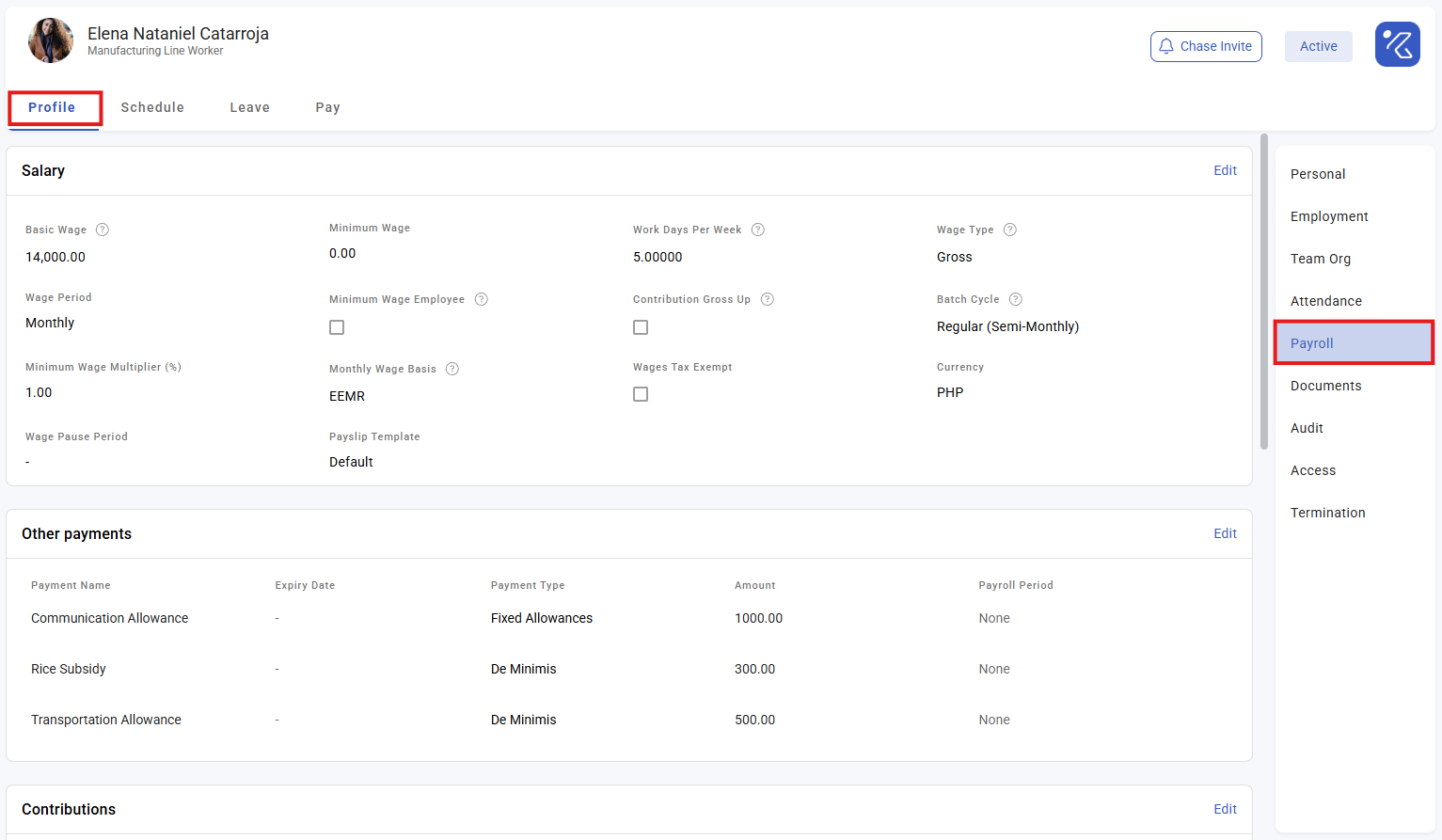
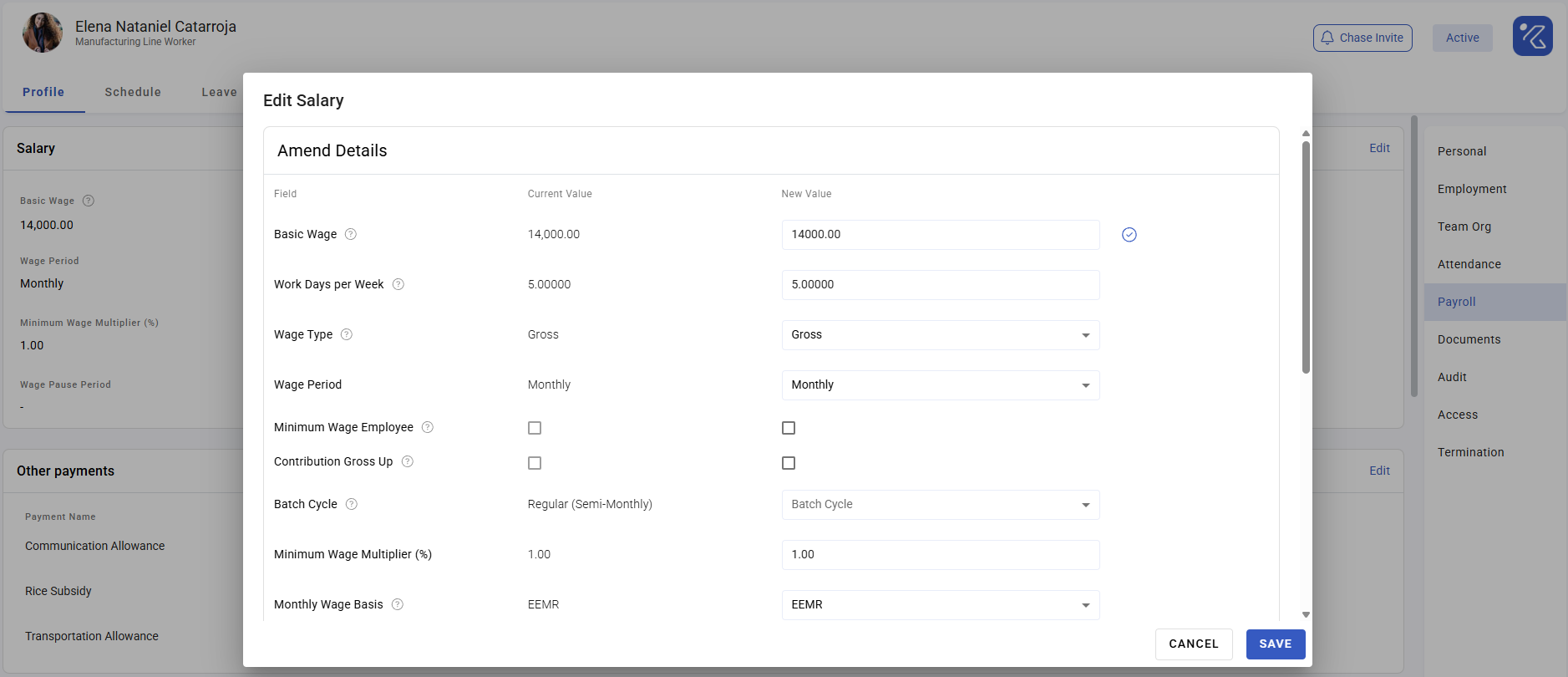
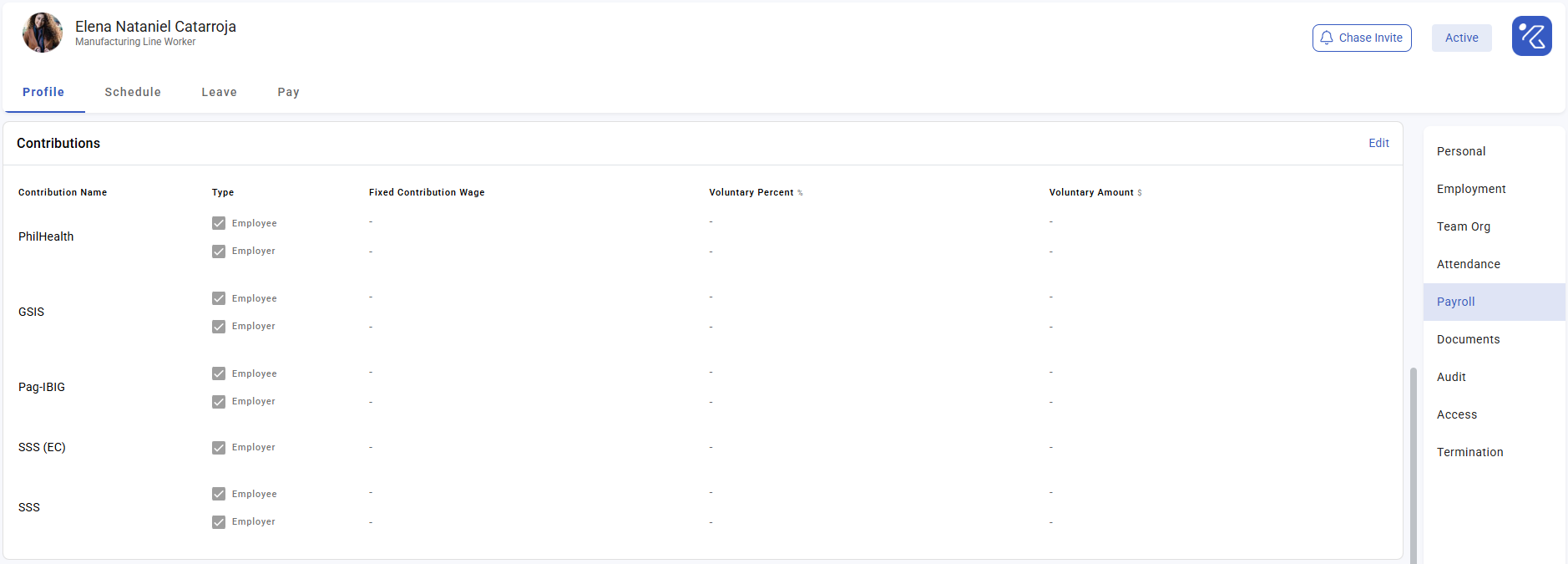
Employee payroll settings
An employee's payroll settings decide how their pay is calculated: what they are paid, how often that figure is expressed, how it converts to a daily rate, and which tax and contribution rules apply. Almost every "why is this payslip wrong" question ends here.
Where: My Team › the employee › Payroll settings You need: the rights to edit employee payroll settings
The settings that change the money
| Setting | Decides |
|---|---|
| Wage | The amount |
| Wage period | Whether that amount is hourly, daily or monthly |
| Wage type | Gross, Nett or Gross Up — who bears the tax |
| Monthly wage basis | How the monthly wage converts to a daily rate |
| Work week | The days per week the basis is calculated from |
| Batch cycle | Which payroll run they appear in |
| Income tax type | Which tax regime applies |
| Contribution settings | Which contributions apply, and any overrides |
The first four together determine every derived rate on the payslip. Get one wrong and the payslip is wrong in a way that looks internally consistent — see How wages are calculated.
⚠️ The monthly wage basis is per employee, not company-wide. Two people on identical salaries can carry different daily rates because their bases differ. That is legitimate, and it is also how an inconsistency hides for months.
Before You Start
Have the employment contract to hand. Wage, wage period and wage type all come from it, and all three are contractual — not administrative defaults.
Know whether the agreed figure is gross or take-home. For Nett and Gross Up, the wage you enter is the take-home figure; entering a gross salary there overpays the employee substantially.
How to configure an employee
- Open the employee in My Team and go to Payroll settings.
- Enter the wage, and set the wage period and wage type from their contract.
- Set the monthly wage basis and work week.
- Assign the batch cycle.
- Set the income tax type and their contribution settings.
- Calculate their first payslip and check the rates by hand before verifying it.
What Happens Next
- Settings are read at calculation and the resulting rates are stored on the payslip. Changing a setting does not alter payslips already calculated.
- An employee with no batch cycle gets no payslip at all — they are simply absent from the run.
- Changes made mid-period take effect at the next calculation, which may not split the period unless mid-cycle wage change is enabled.
Tips
- Check the first payslip by hand, always. Take the wage, divide by the monthly wage days you expect, and compare with the daily rate shown. This one check catches the majority of setup errors.
- Set these before the employee's first run, not after. Correcting a paid payslip is a much worse experience than configuring a profile.
- Be consistent about the monthly wage basis across people doing the same job. Different bases for the same role is unexplainable to the employees involved.
- Review payroll settings on promotion or a contract change. A new salary with an old wage period or wage type produces a confidently wrong payslip.
- For automation, use the payroll details automation rules rather than editing everyone by hand — see Payroll automation rules.
Troubleshooting / FAQ
Q: An employee has no payslip in the run. They are not assigned to that batch cycle, or the cycle excludes inactive employees.
Q: Their daily rate is not what we expect. Check the monthly wage basis and work week on their profile. Both are per employee.
Q: Their take-home is not the figure we agreed. Check the wage type. On Gross, the figure you entered is treated as gross pay.
Q: We changed their salary but the payslip did not change. Recalculate the payslip. Nothing re-reads the profile on its own.
Q: Their contributions differ from a colleague on the same salary. Check their contribution settings and any overrides, and their income tax type.
Screenshots
These screenshots came from our previous help centre and may show an earlier version of the interface.