Profile Automations
Profile Automations apply the right settings automatically when someone is placed in a given department, branch or position — groups, approval matrix, schedule — instead of you setting each by hand for every joiner and every move.
Where: My Team › Settings › Automation › Profile Automations
You need: the Team organisation right 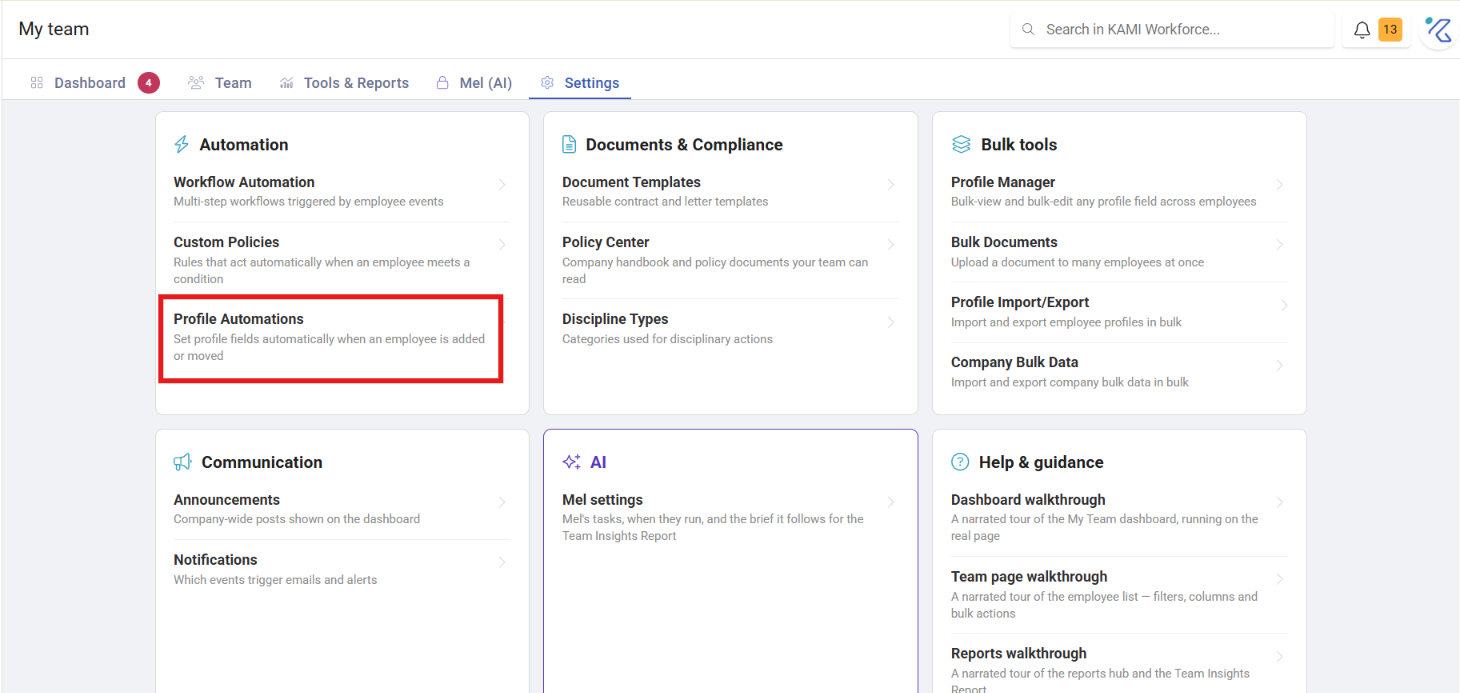
When to use this, and when not to
| You want | Use |
|---|---|
| Settings applied automatically on placement, forever | Profile Automations |
| To change settings on people who already exist | Profile Manager |
| To move people between groups once | Bulk Assignments |
| Something to happen when an event occurs | Workflow Automation |
The test: are you doing the same thing every time someone joins a particular team? If so it is an automation. If it is a one-off correction across existing people, it is Profile Manager.
Before You Start
Automations key off placement, so your organisation structure needs to exist and be named consistently first. An automation pointed at "Finance" does nothing for people placed in "Finance Dept".
What they set
A rule matches a placement — department, branch, position or combination — and applies:
- Groups the employee should belong to
- The approval matrix their requests route through
- Their standard schedule
What Happens Next
- When someone is added or moved into a matching placement, the settings apply immediately.
- In the Add Employee wizard, steps 4, 5 and 6 show as Auto-assigned and are locked, so nobody can override the rule by accident. Extra groups can still be added on top.
- Where no automation matches, the wizard says so and asks the person to choose — that message is the useful part, because it usually means a placement has no rule yet.
- Moving an existing employee into a matching placement re-applies the automation. That is the intent, but it means a department move can change someone's schedule and approvers — worth knowing before moving a group.
Tips
- Write one per real team, not per person. Automations that match a single individual are settings with extra steps.
- Set them up before a bulk intake. Forty joiners with automations is a spreadsheet; forty without is forty sets of manual configuration and at least one mistake.
- Watch for the "no automation applies" message during onboarding — it is free feedback about which placements are not covered.
- Review after any reorganisation. New departments have no rules, and renamed ones silently stop matching.
- Check what a move will change before relocating a group of people. The automation will do what it is told, promptly.
Troubleshooting / FAQ
Q: A new joiner did not get their groups. No automation matches their placement, or the placement was set after the profile was created. Check the department and branch names match the rule exactly.
Q: Someone's schedule changed when we moved their department. An automation for the new department applied. That is intended behaviour.
Q: The wizard has locked the Groups step and I need something different. The lock prevents accidental override. Add extra groups on top, or adjust the automation if the rule itself is wrong.