My Team for administrators

My Team for administrators

My Team is where you manage the people in your company: their profiles, your organisation structure, who approves what, and the reports that tell you whether your employee data is in good shape.

This article is the map. It covers what each part of My Team is for and which permission opens it, so you know where to go before you go looking. Each area has its own article with the step-by-step detail.

If you manage a team but don't administer the company, read My Team for managers instead — you'll see a smaller set of tabs.

Before you start

My Team shows you only the parts you have rights to. Tabs are not greyed out; they simply don't appear. So if a colleague can see something you can't, the difference is your user rights, not a bug.

The rule is straightforward: a tab appears when you can open at least one thing inside it. Two admins with different rights can see the same five tabs and still find different things inside Settings.

The one exception is Mel, which stays visible with a padlock when your company doesn't have AI access — so you can see the feature exists rather than wondering whether it's missing.

The five tabs

TabWhat it's forYou need
DashboardYour approval queue — what's waiting on you right nowEveryone
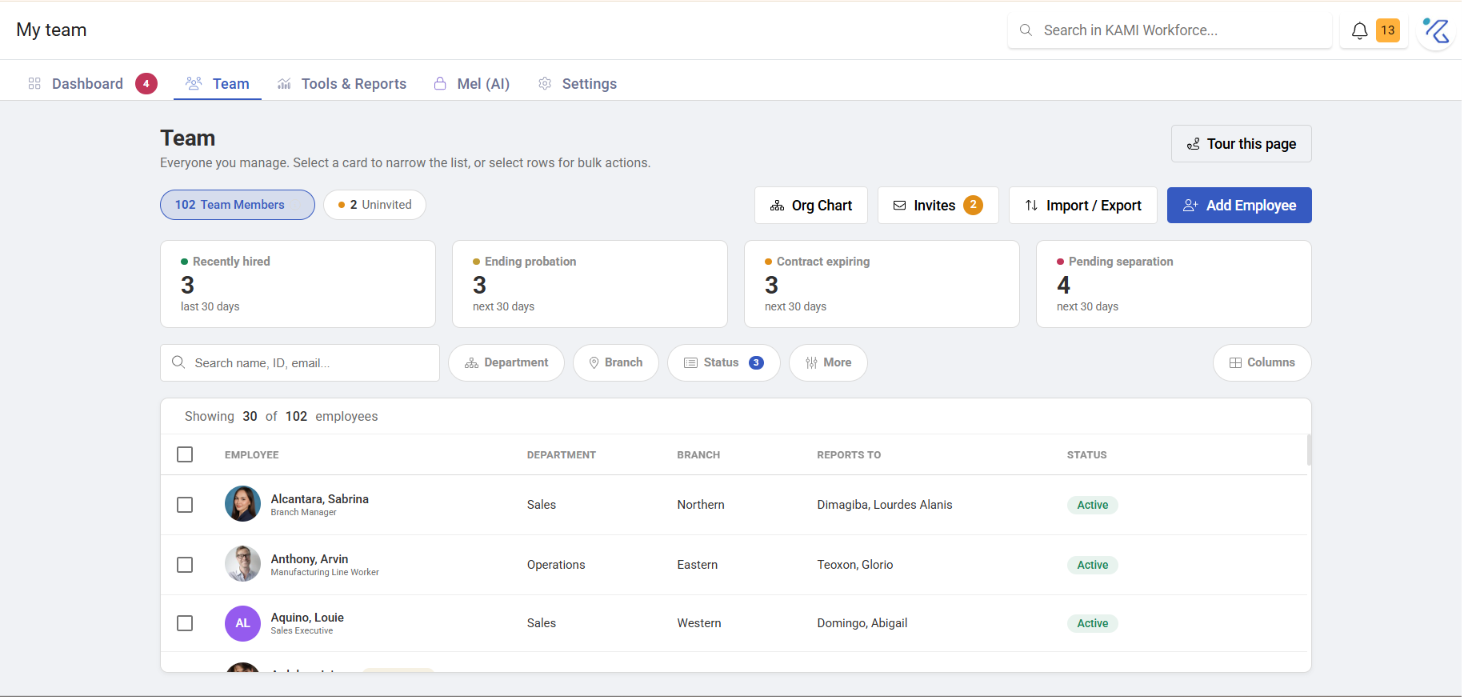
TeamThe employee list and individual profilesManage others, or Employee profile
ReportsWorkforce reporting and data-quality checksAny one report right
MelKAMI's AI assistant for My TeamKAMI AI and My Team AI Agent
SettingsOrganisation structure, approvals, automations, bulk toolsAny one settings right

Dashboard

The Dashboard is what you land on, and it exists to answer one question: what is waiting for me?

It collects four queues:

  • New employee requests — profiles someone has created that need approval
  • Data change requests — edits to existing profiles awaiting sign-off
  • Document approvals — uploaded documents needing review
  • Documents for you to sign

The number on the tab counts only decisions you can personally make. This is worth knowing, because it's easy to assume it reflects everything outstanding in the company. It doesn't — an admin who could approve nothing would see no badge even with a hundred requests open elsewhere. If you want the company-wide picture, use Reports.

Team

The employee list, and the route into any individual profile. This is where you add people, edit their details, and deactivate or terminate them.

The two things most likely to trip you up are covered separately:

path clears, and what it triggers

Reports

Reports answer both "who works here" and "is our data trustworthy":

ReportTells you
DemographicsHeadcount broken down by your organisation structure
TurnoverWho left, when, and at what rate
Key DatesUpcoming milestones — probation ends, contract expiries, anniversaries
Missing DataProfiles with gaps, before those gaps break payroll
Audit TrailWho changed what, and when
Disciplinary ActionsLogged cases across the company
Invites & ActivationWho has been invited and who has actually logged in
BiometricsEmployee biometric enrolment

Missing Data is the one to run first in a new company. Most payroll problems on a first run trace back to a profile field nobody filled in, and it is much cheaper to find those here than in a pay run.

Mel

Mel is the AI assistant for My Team. It needs both KAMI AI on your company and the My Team AI Agent right on your profile — the tab shows with a padlock if either is missing.

Settings

Settings is grouped by what you're configuring rather than by screen, so most of these you touch once during setup and rarely again.

Organisation — the structure everything else hangs off: Subsidiaries, Branches, Departments, Positions, Cost Centers, and Groups & Teams.

Approvals & Access — who can do what, and who signs off:

  • Approval Matrix — the approval routes for requests
  • New Employee Approvers — who approves a newly created profile
  • User Rights — what each role can see and do
  • Profile Automations — assign settings automatically based on placement

(see My Team automation rules)

  • Bulk Assignments — move many employees between groups at once
  • Workflow Automation

Onboarding — the Onboarding Wizard that new joiners complete.

Documents & Compliance — Document Templates, Custom Policies, Policy Center, Discipline Types, and Biometrics.

Data & bulk tools — for changes too large to make one profile at a time:

  • Profile Manager — edit many profiles in a grid

(see Bulk-editing employees with Profile Manager)

  • Bulk Documents — upload documents against many employees
  • Bulk Data — import and export employee data as a spreadsheet

Setting up a new company

If My Team is empty and you're starting from nothing, this order avoids the most rework:

  1. Organisation first — branches, departments, positions. Employees are assigned

to these, so building them first saves editing every profile later.

  1. User Rights — decide who administers what before you invite anyone.
  2. Approvals — the Approval Matrix and New Employee Approvers, so requests have

somewhere to go from day one.

  1. Add employees — a handful by hand to check your structure holds up, then

bulk import the rest.

  1. Profile Automations — once you can see the patterns in how people are placed,

automate them.

  1. Run Missing Data — before payroll does it for you.

Related articles