Holiday rules
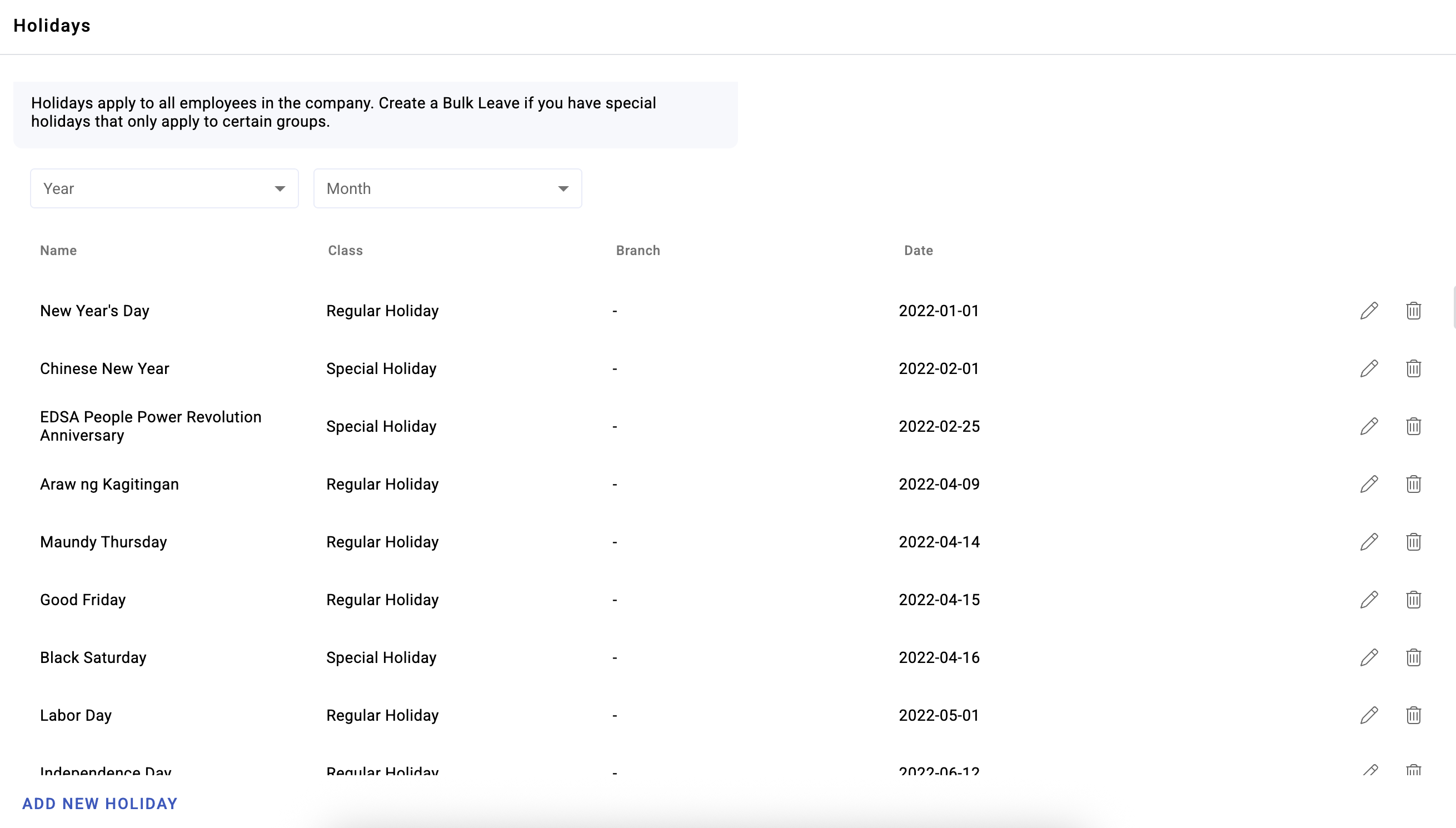
Holiday rules tell KAMI which days are holidays, what class each one is, and where it applies. Because holiday class drives holiday pay automatically, this page has a direct line to payroll — and in the Philippines the classes correspond to genuinely different statutory rates.
Where: Settings › Calendar › Holiday rules You need: the calendar settings right
When to use this, and when not to
| You want to | Use |
|---|---|
| Declare a date a holiday | A holiday rule — here |
| Give the whole company a day off that is not a public holiday | Bulk leave, also here |
| Set what a holiday pays | The activity's holiday rates |
| Give one team a day off | Leave, or a scheduled non-working day |
| Change how a shift behaves on holidays | The shift's holiday designation |
The division to hold on to: holiday rules say which days are holidays and of what class; activities say what those classes pay. Both must be right for the payslip to be.
Adding a holiday
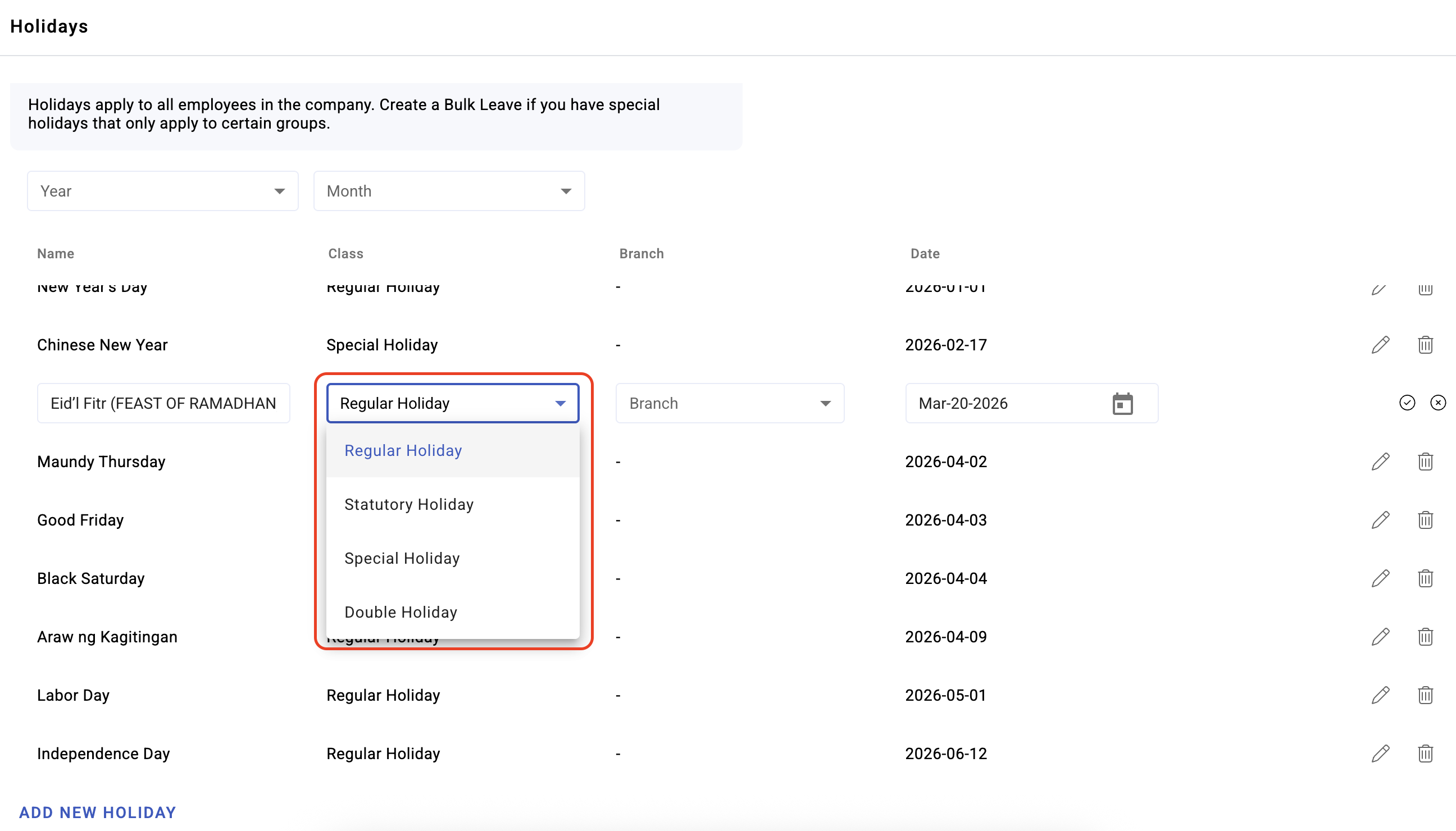
A holiday rule needs a date, a holiday class, and the branches it applies to.
The branch scope matters more than it looks. Holidays are frequently local — a regional or city holiday applies to some branches and not others — and getting it wrong pays the wrong people, or fails to pay the right ones. It is the most common holiday error and it is invisible until payroll.
The page shows affected events, so you can see what a rule will touch before committing to it.
Holiday classes
The class is what activities read when applying holiday pay:
Rest Day · Holiday · Double Holiday · Rest Day & Holiday · Special Holiday
These are not labels. Each carries its own wage-rate treatment inside activities. A regular holiday recorded as a special holiday underpays; the reverse overpays.
Double Holiday and Rest Day & Holiday exist for days that are two things at once. Those combinations have their own rates, and this is how you express them rather than picking one and hoping.
Conversion rules and bulk leave
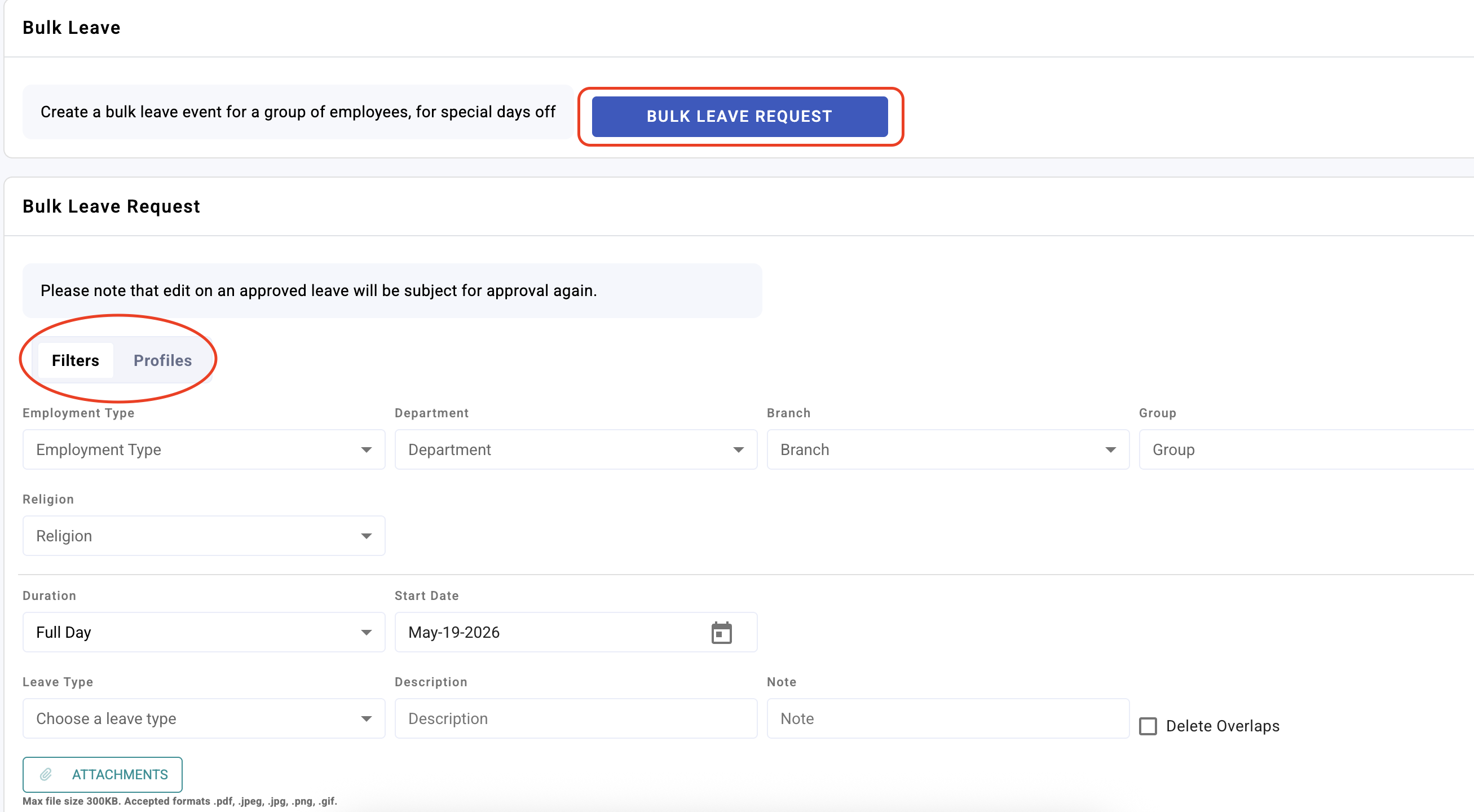
Holiday rules also cover conversion rules — how events convert when a holiday lands on them — and bulk leave: create a bulk leave event for a group of employees, for special days off.
Bulk leave is the tool for a company shutdown day, an anniversary, or a local event. Use it rather than asking everyone to file leave individually: individual filing produces dozens of approvals, inconsistent leave types, and a handful of people who forget.
What Happens Next
- Scheduled days falling on the holiday are treated according to its class, for the branches in scope.
- Activities with holiday rates configured apply them automatically — nobody requests holiday pay.
- Existing events do not update themselves. After adding or changing a rule, refresh the affected events or the old treatment stands. See Events.
- The result reaches the timesheet and then payroll.
Tips
- Enter the year's holidays before the year starts. Entered ahead, everything works. Entered mid-year, every affected event needs refreshing and some will already have been paid.
- Check branch scope on every rule, every time. It is the error that costs money and shows up last.
- Confirm classes against the official proclamation each year. Which holidays are regular and which are special changes, and the rates differ.
- Do a spot-check after the first holiday of the year. Take one employee who worked it and one who did not, and confirm both payslips. That ten-minute check validates the whole configuration.
Troubleshooting / FAQ
Q: Holiday pay did not apply for some employees. Branch scope. The rule applies to the branches you selected, and staff elsewhere are unaffected.
Q: The holiday is there but nobody was paid extra. The rule declares the day; the activity pays for it. Check the activity has rates for that holiday class.
Q: We added a holiday after the fact and nothing changed. Refresh the affected events. Existing events keep the treatment they were calculated with.
Screenshots
These screenshots came from our previous help centre and may show an earlier version of the interface.