Mel, your My Team AI assistant
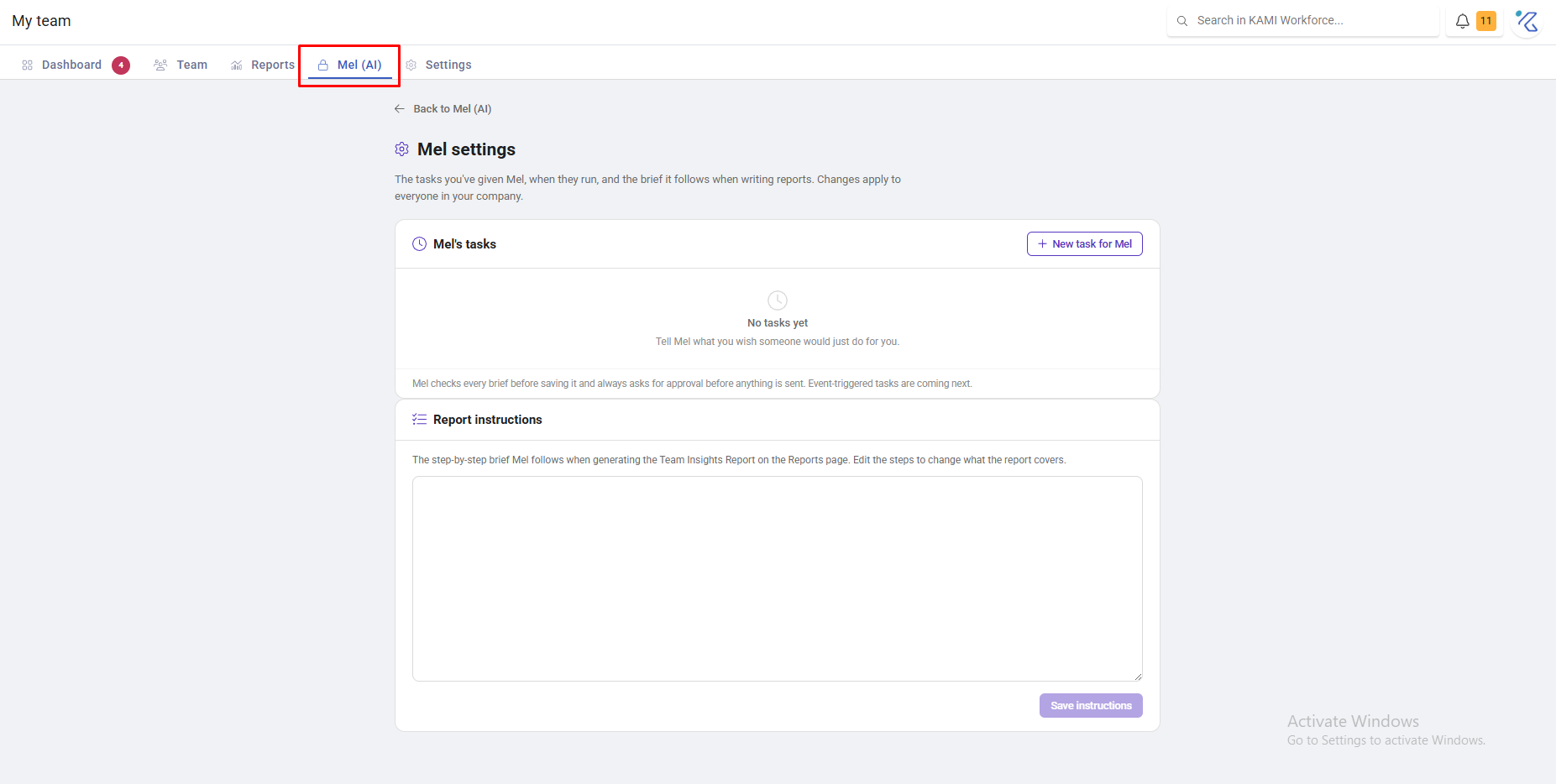
Mel is the AI assistant in My Team — described in the product as your My Team AI employee: handling what does not need you, and queuing up what does. It answers questions about your people and takes on the routine work that would otherwise sit in someone's queue.
Where: My Team › Mel
You need: the AI agent right
When to use this, and when not to
| You want | Use |
|---|---|
| An answer about your people, now | Ask Mel |
| Something to happen automatically on an event | Workflow Automation |
| Settings applied by placement | Profile Automations |
| A specific figure for a report | The relevant report — it is the auditable source |
Mel and automations look similar and are not. An automation fires on an event and does one defined thing; Mel reasons across your data and answers questions you did not anticipate. Use automations for the predictable, Mel for the exploratory.
What it does
Mel reads your My Team data and works with it — answering questions, surfacing what needs attention, and handling routine tasks so they do not queue up for a person.
Access is controlled by the AI agent right, granted separately from other My Team permissions. That separation is deliberate: an assistant that can read every employee record is a meaningful grant.
What Happens Next
- Answers come from your actual employee data, so they reflect what your records hold — including their gaps.
- Where Mel acts rather than answers, the change appears in the Audit Trail like any other.
- Mel does not change what someone is allowed to see: its answers respect the asker's access scope.
Tips
- Check important figures against the report. For anything leaving the building — a board pack, a statutory return — the report is the auditable source. Mel is for working it out, not for citing.
- Remember it can only read what is recorded. A question about tenure is answered from hire dates; employees missing them are simply absent from the answer. Pair it with Missing Data before trusting a company-wide number.
- Grant the AI right deliberately. It is separate from other rights because it is a broad one.
- Ask it the questions you would otherwise not bother asking. Its real value is the query that was never worth building a report for.
Troubleshooting / FAQ
Q: Mel's answer does not match a report. Check what each is counting — commonly deactivated employees, or a different date range. The report is the source of record.
Q: I cannot see Mel. The AI agent right is granted separately. KAMI hides what you cannot use.
Q: Mel does not know about someone. Their record is probably incomplete for the field being asked about.