User rights and access control
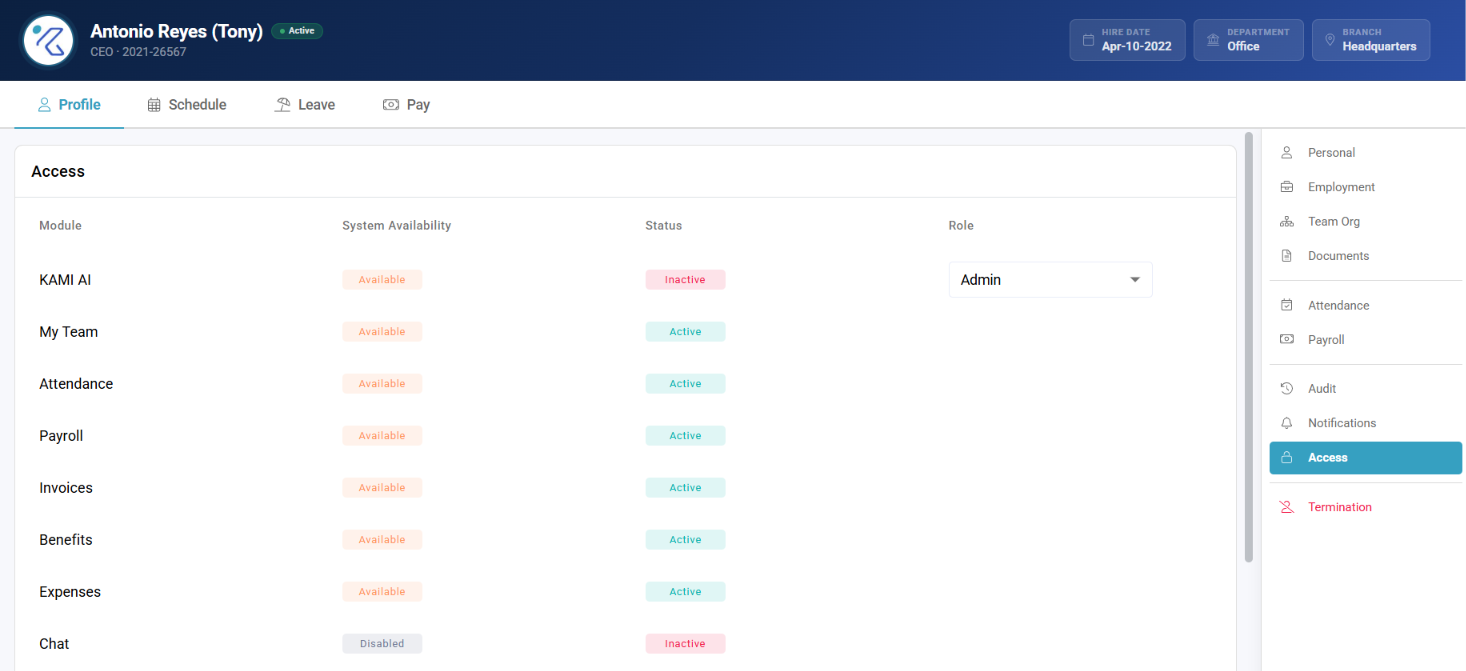
User rights decide what each person sees and can do in KAMI. Almost every "why can't they see this?" question comes back here — and almost every one of them is answered by understanding that access is two settings, not one.
Where: My Team › Settings › Approvals & Access › User Rights
You need: the user rights permission 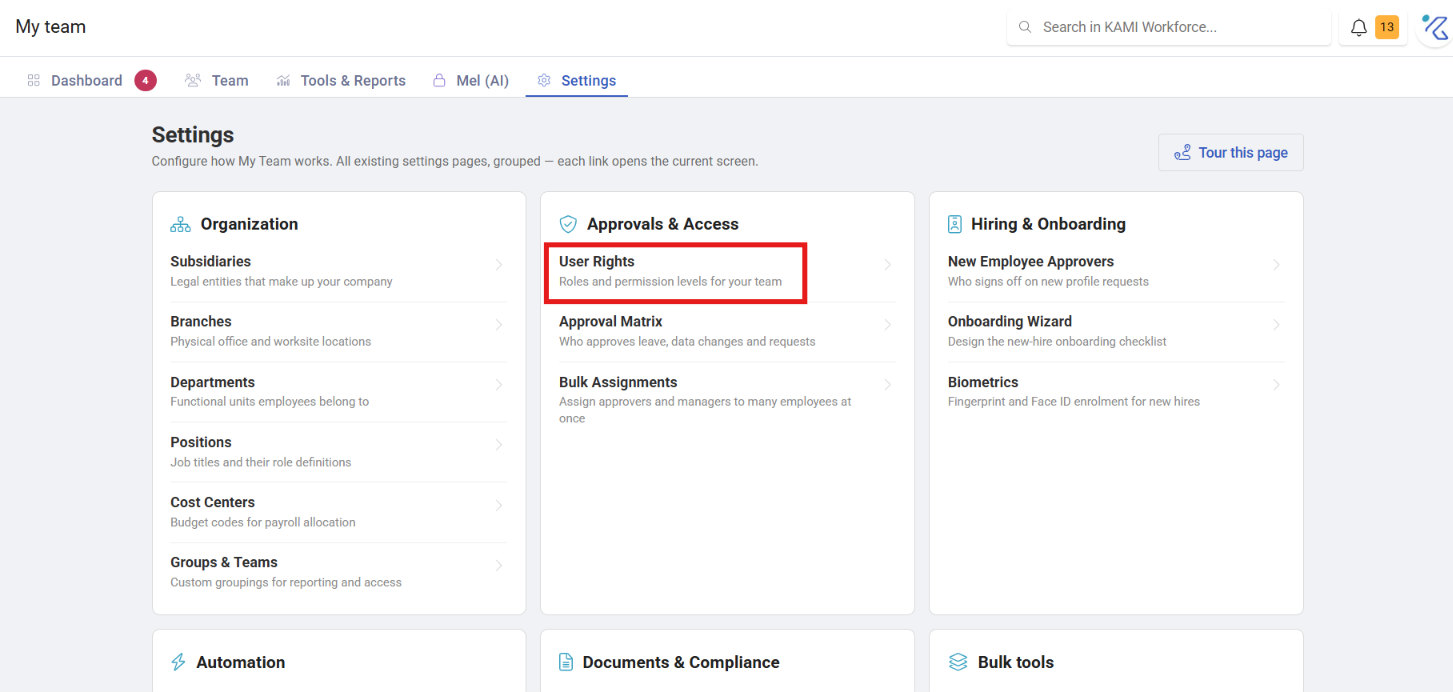
Two questions, not one
A right answers what someone can do. A separate scope answers whose data they can do it to. Both must be correct, and confusing them causes most access problems.
Someone can hold a right and still see nothing, because their scope is limited to themselves. Someone else can have broad scope and still be blocked, because they lack the right.
When access looks wrong, work out which of the two is missing before changing anything. Granting a right to someone whose scope is the problem does nothing except widen their permissions for no reason.
What the rights cover
| Group | Governs |
|---|---|
| Access rights | Whose records this person can reach |
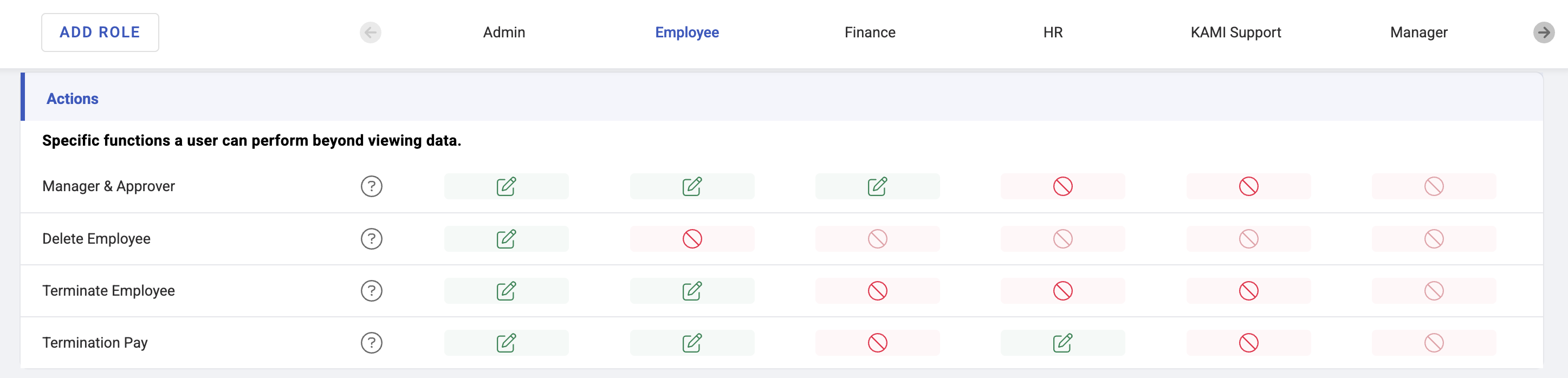
| Actions | What they can do to a record — create, deactivate, delete |
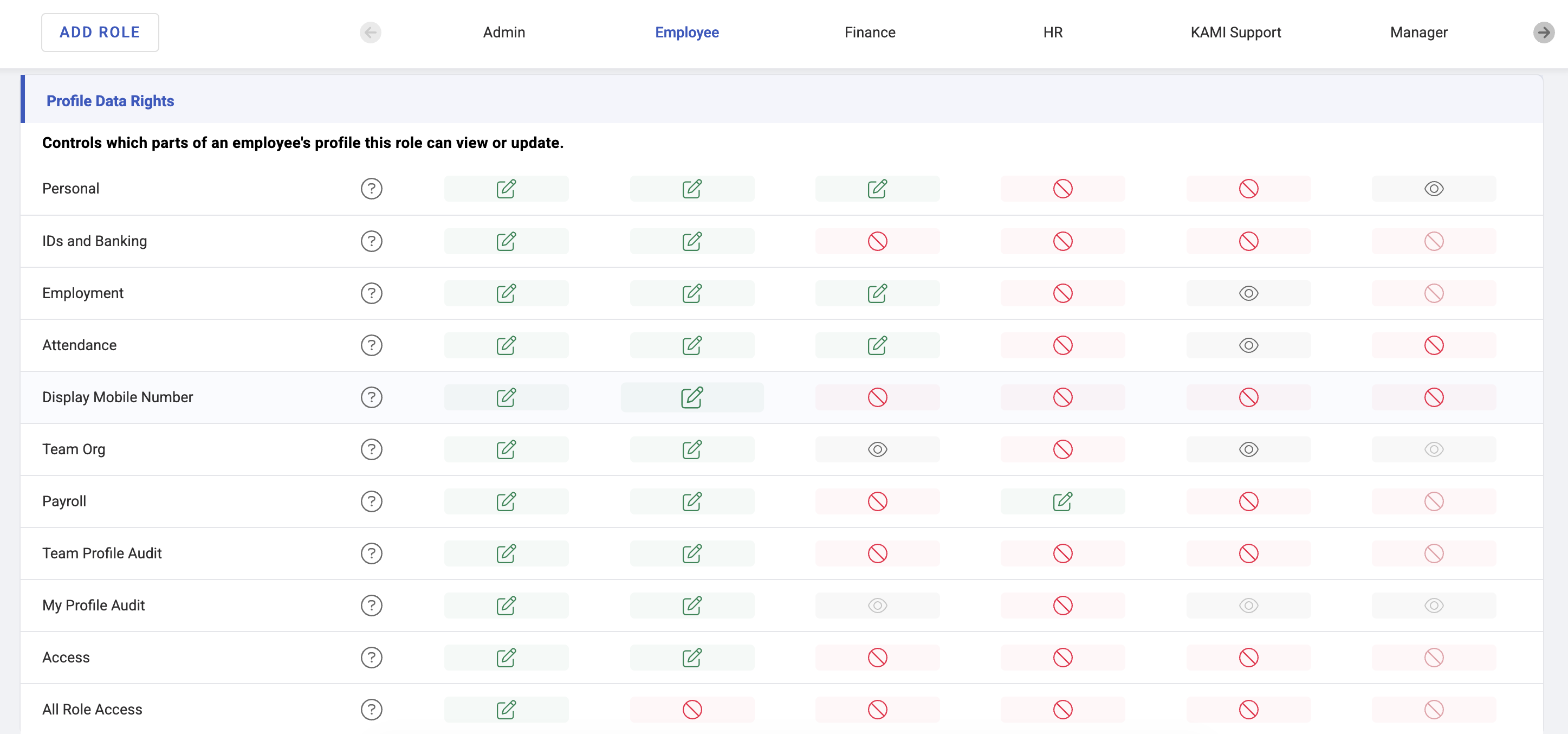
| Profile data rights | Which fields they can see, including sensitive ones |
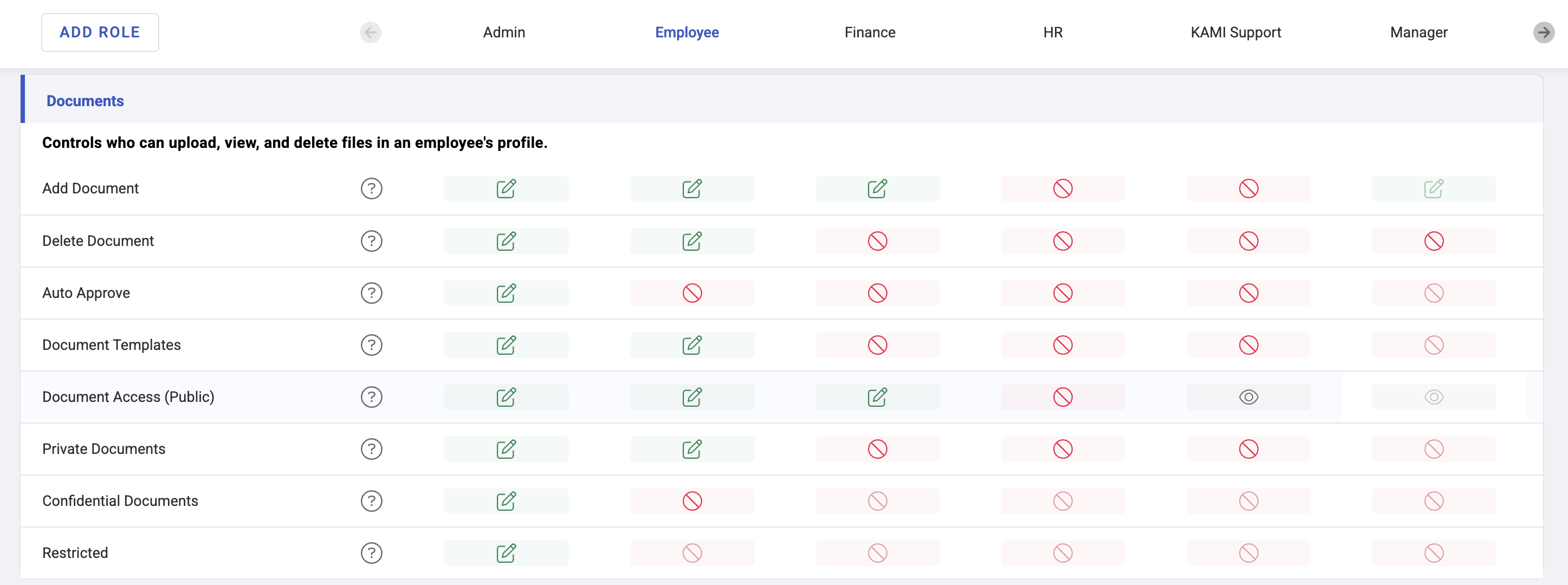
| Documents | Viewing, adding, deleting and auto-approving documents |
| Company policies | Managing policies |
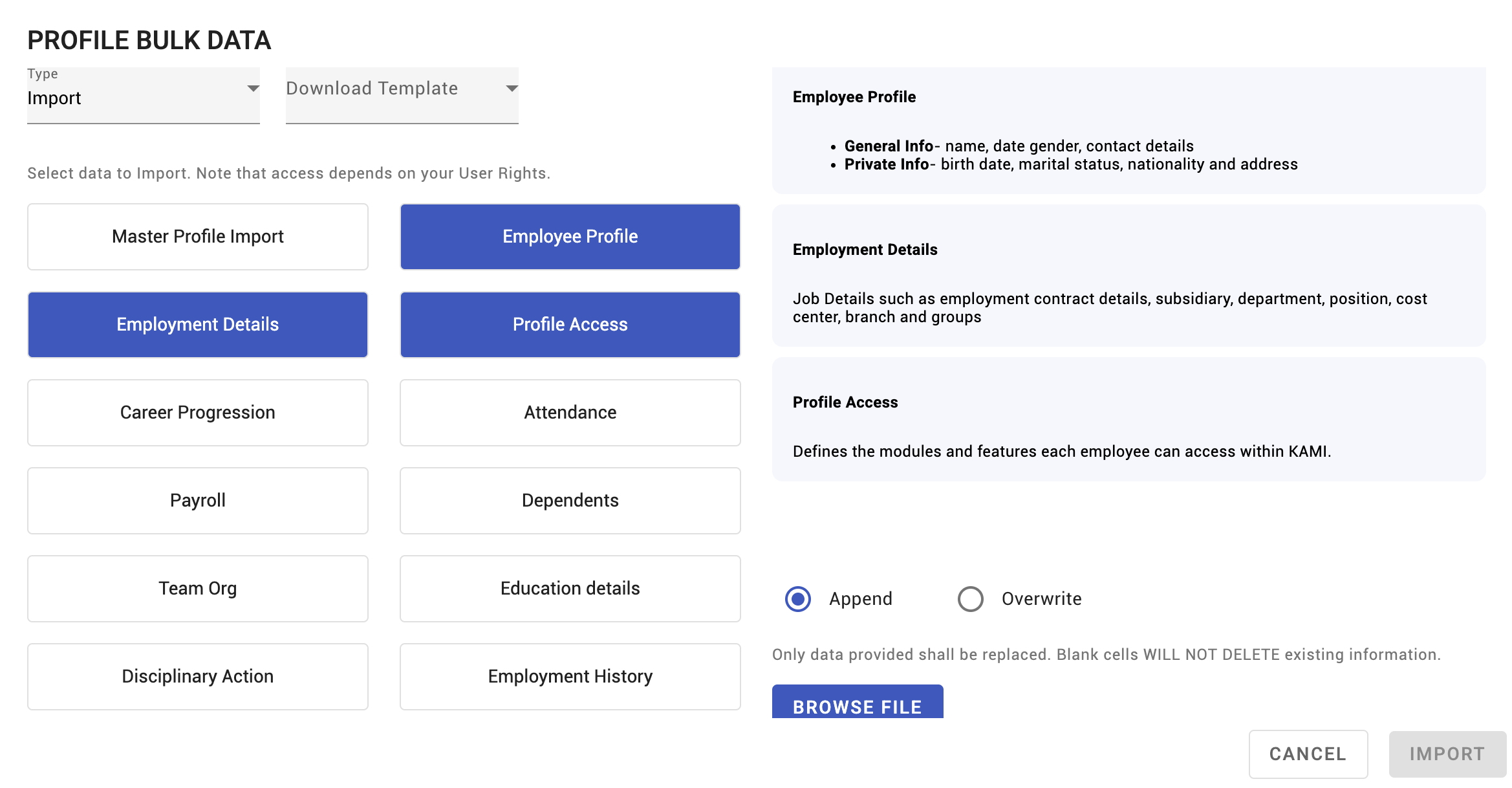
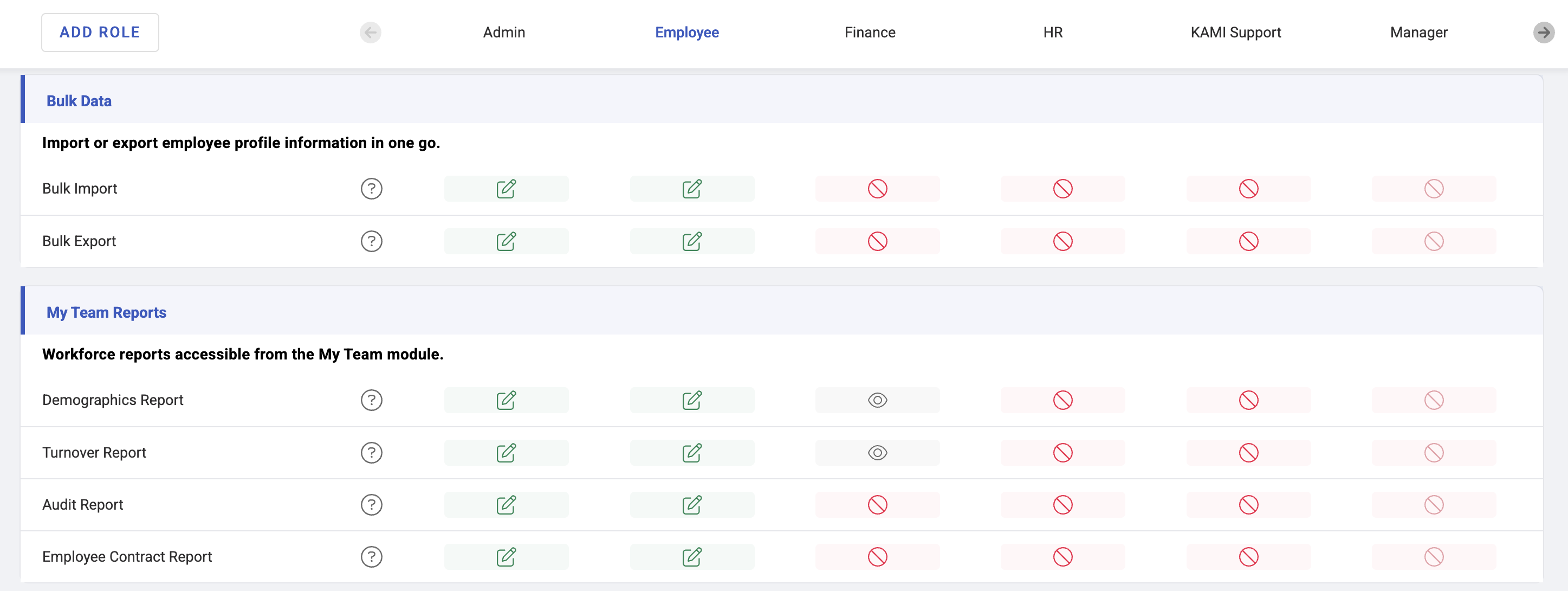
| Bulk data | Import and export |
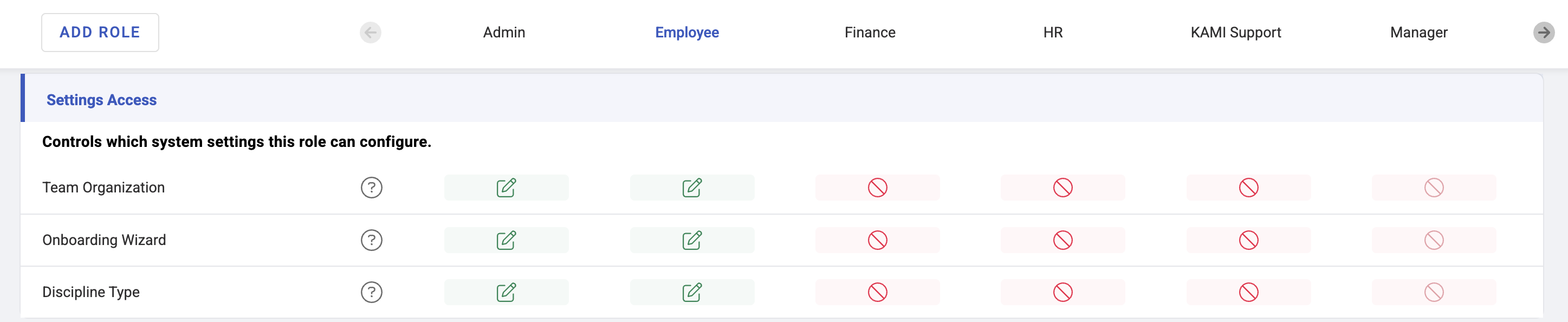
| Settings | Configuring the company |
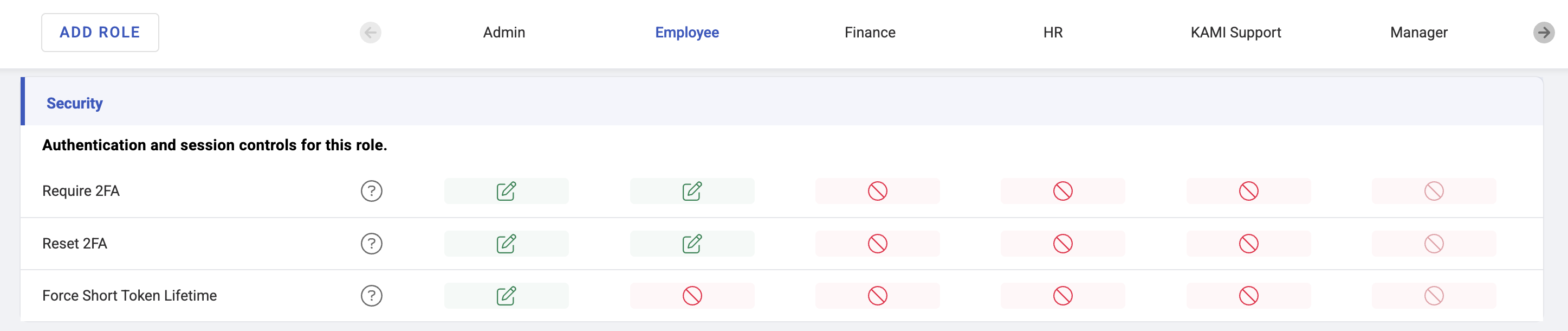
| Security | Security-related controls |
| AI agent | Access to Mel |
Rights worth understanding before you grant them
Some are wider than their name suggests:
- Access all employees removes the scope limit entirely. It is the difference between a manager seeing their team and seeing everybody, including salaries if they hold the field rights. Grant it deliberately.
- Delete employee is not deactivating. Deactivation is the normal path for someone leaving; deletion removes the record and its history. Most people who need to offboard need deactivate — see Deactivating, terminating and rehiring employees.
- Auto-approve documents skips the approval queue entirely. Reasonable for a trusted HR team, wrong for most managers, because it removes the review step rather than speeding it up.
- Banking and ID fields are a separate right from general profile data, because they are the fields that matter most if the wrong person sees them.
- Bulk data includes export. Someone with it can take the whole employee table out of the system in one click.
Why a tab or menu is missing
KAMI hides what you cannot use rather than greying it out. A missing tab means a missing right, not a fault.
Two consequences that surprise people:
- A tab appears if you can open at least one thing inside it. Two people can both see Settings and find different contents.
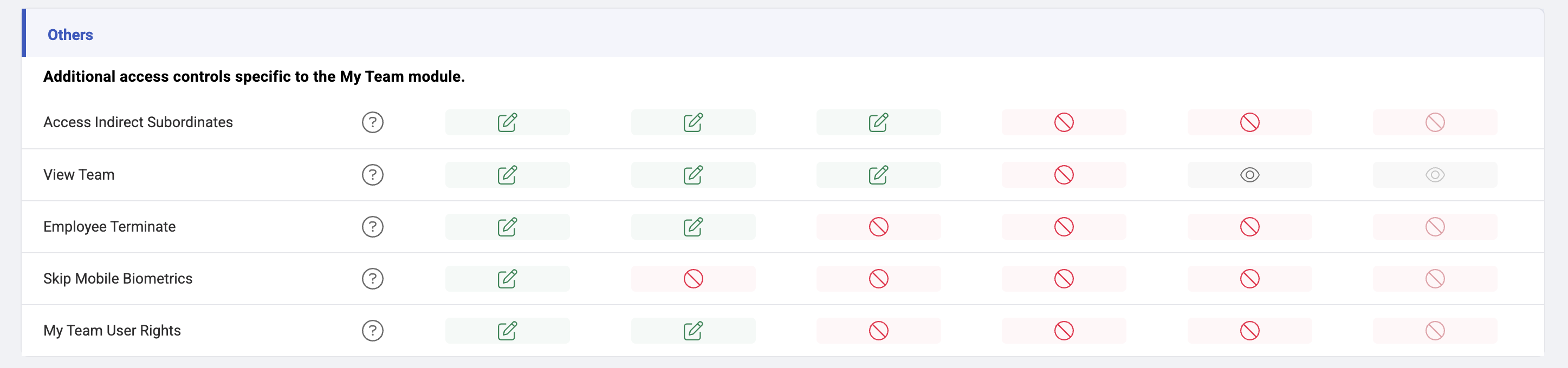
- A tab can appear and be nearly empty. Managers commonly see Reports and Settings with a single item, because the rest needs admin-level rights. That is expected — see My Team for managers.
What Happens Next
- Rights are read when a session loads. Someone whose rights change must sign out and back in before anything appears. This is the explanation for "you gave me access and nothing happened".
- Widening scope makes historical records visible too, not only new ones.
- Removing a right hides the feature immediately on next login; it does not undo anything already done.
Working out an access problem
In this order:
- Check the right. Do they have the specific permission for that feature?
- Then check scope. Can they reach that employee's record at all, or only their own?
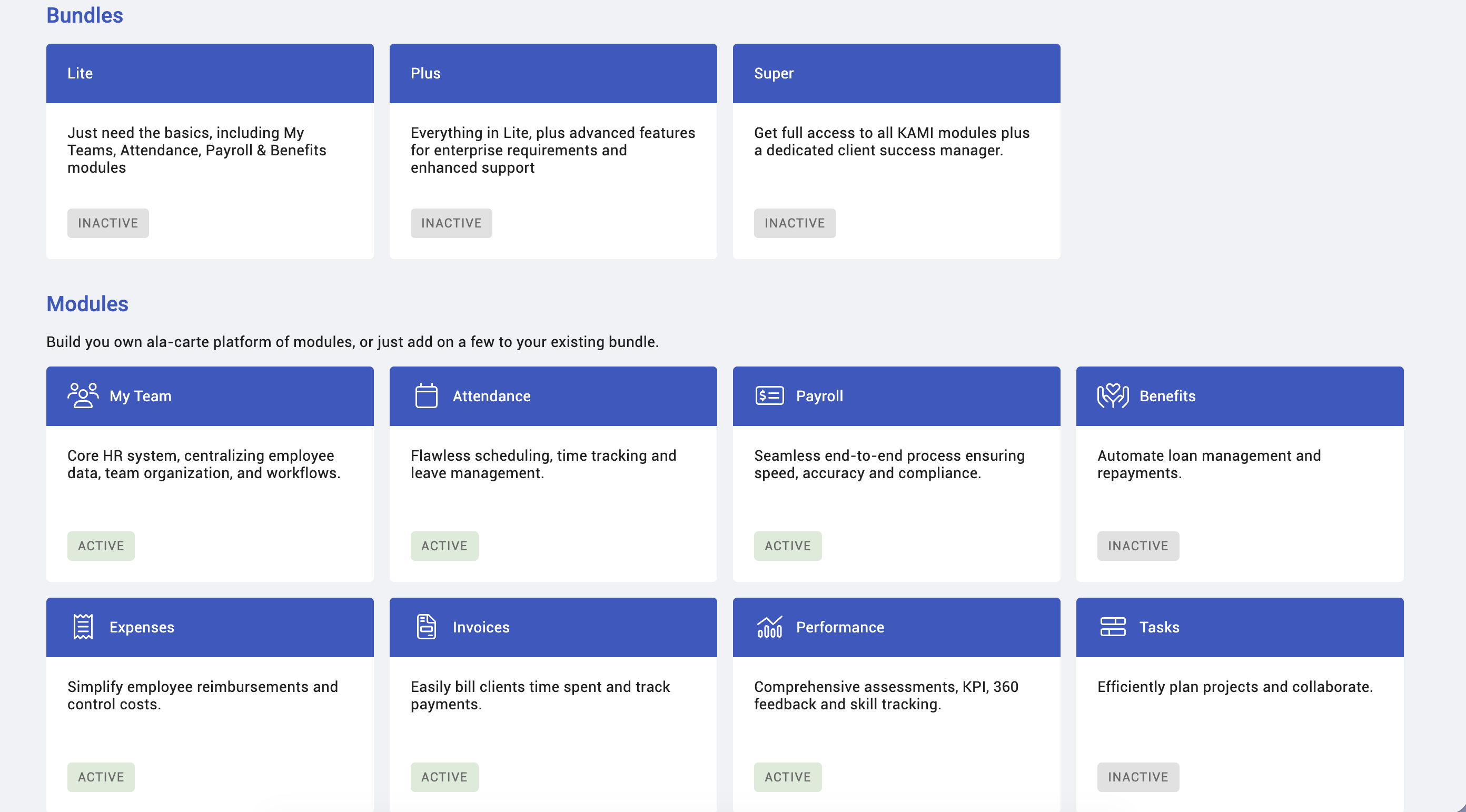
- Then check the module. A right cannot grant access to a module your company does not have enabled.
- Then have them sign out and back in.
Tips
- Start narrow. It is easier to add a right than to discover months later that half the company could see salaries.
- Grant to roles, not individuals. Rights set per person drift, and nobody remembers why a particular user has an unusual permission.
- Review after any reorganisation. People who change role keep whatever they were given in the old one — and scope usually follows the org structure, so a department move silently changes whose records someone can reach.
- Separate the sensitive field rights deliberately. Banking, ID and salary are the ones that cause real harm; treat granting them as a decision, not a default.
- Audit "access all employees" holders twice a year. It is the single widest right in the system.
Screenshots
These screenshots came from our previous help centre and may show an earlier version of the interface.
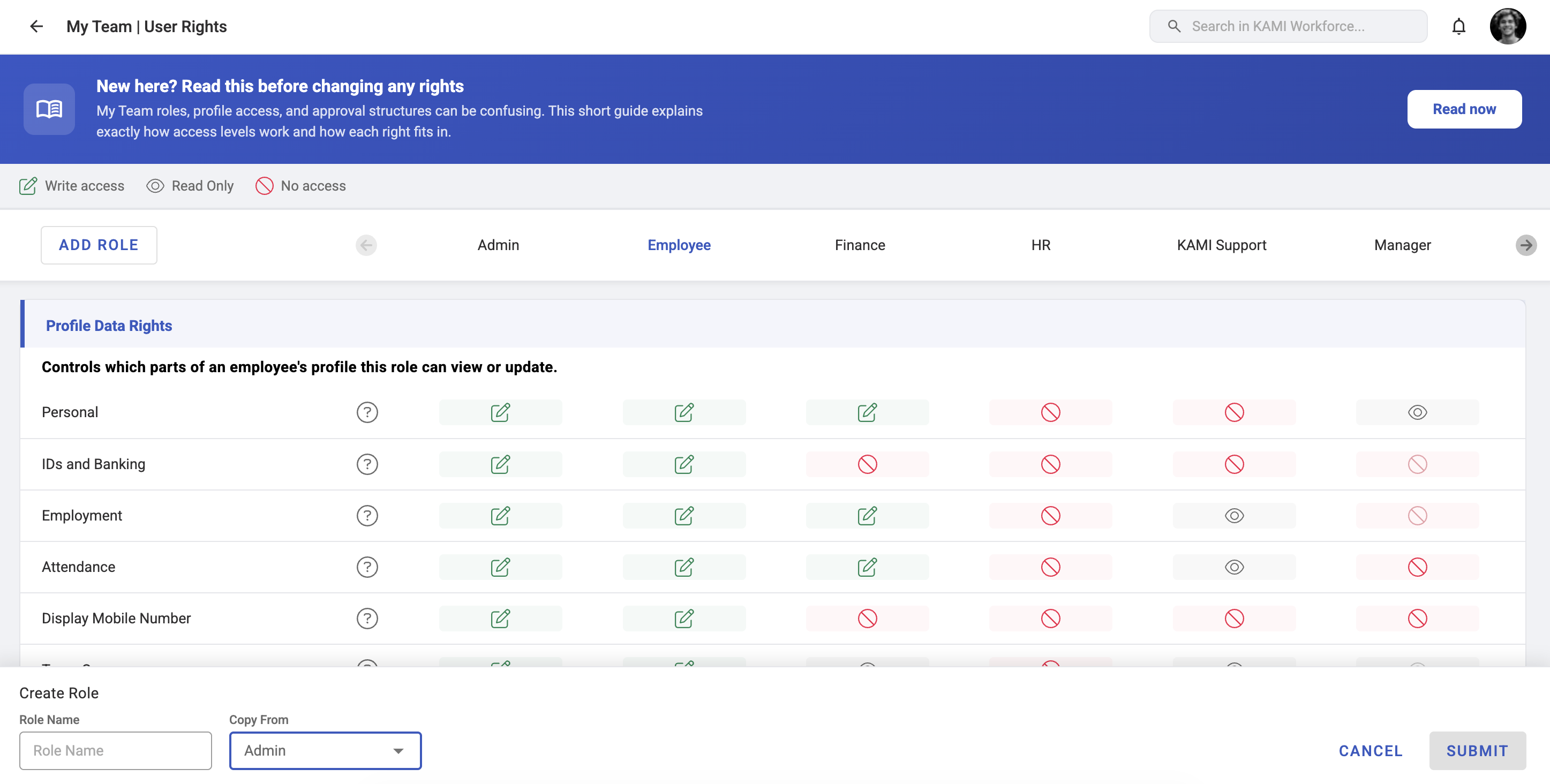
Configuring My Team User Rights
Manage User Rights and Access Control