Managing team loans
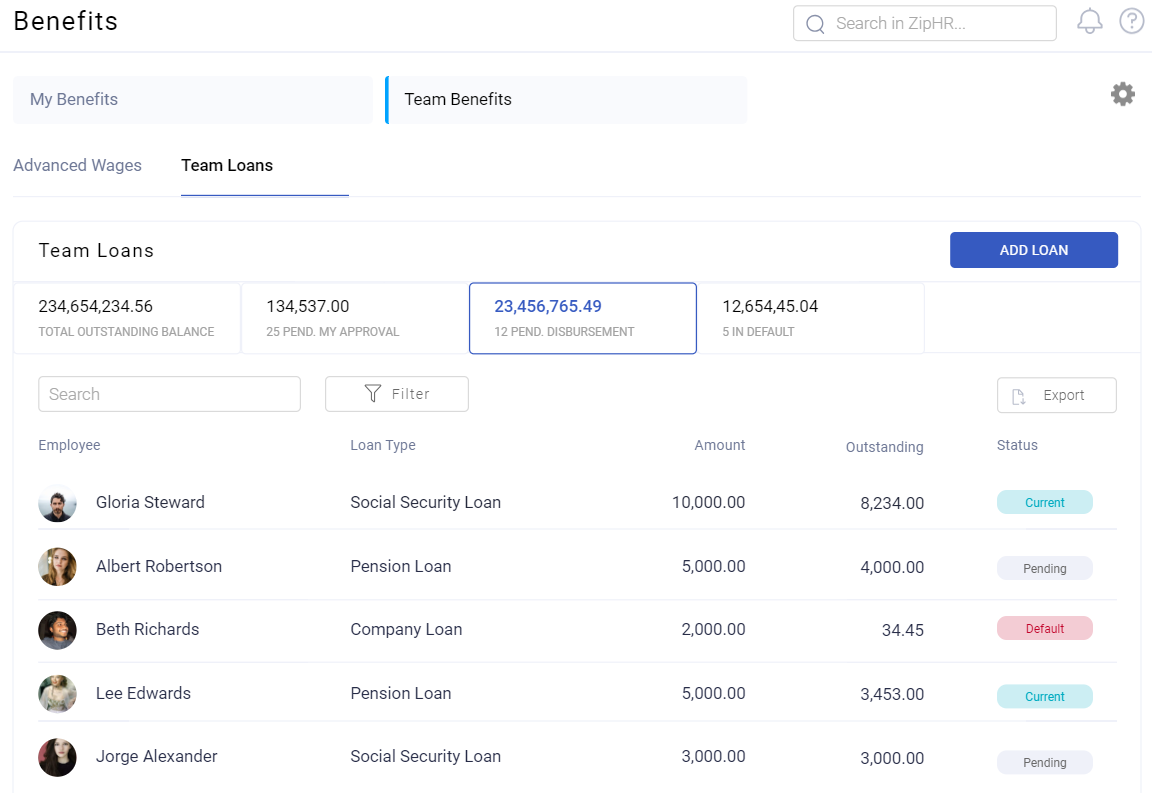
Team loans is where you see every loan across your people, move requests through approval, and deal with the ones that are not going to plan. It is the working view of the module.
Where: Benefits › Team loans You need: benefits rights covering the employees concerned
The statuses a loan moves through
| Status | Means |
|---|---|
| Pending data | Started, missing information |
| Pending approval | Awaiting a decision |
| Pending contract | Approved, contract not yet in place |
| Pending disbursement | Contracted, money not yet released |
| Live | Disbursed and being repaid |
| Payment update | A repayment change is being applied |
| Paid off | Fully repaid |
| Rejected / Declined | Not granted |
| Expired | Lapsed before completion |
| Error | Something failed and needs attention |
💡 The four Pending statuses are the useful part of this list. A loan sitting in one of them is a person waiting, and each pending status names exactly who is holding it up — the requester, the approver, whoever issues contracts, or whoever releases money.
What to do here
Work the pending queue first. Anything in Pending approval or Pending disbursement is someone waiting for a decision or for money. These are the statuses with a human cost attached.
Check the Error status. A loan in Error is not repaying and is not visible to anyone else. It will not resolve itself.
Watch outstanding balances, especially for anyone leaving. An outstanding loan on a leaver is recovered from final pay, and only if someone notices in time.
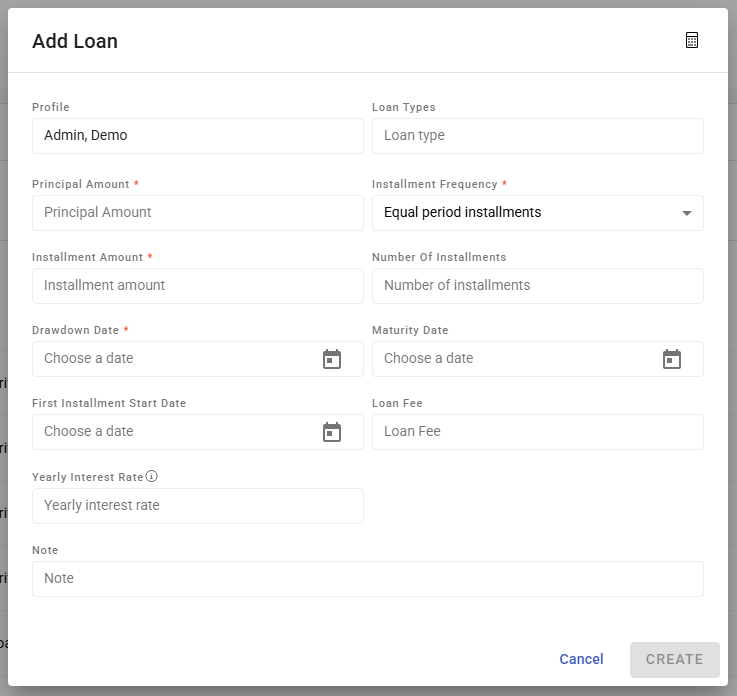
How to create a loan for an employee
- Open Benefits › Team loans.
- Create the loan, selecting the employee and the loan type.
- Enter the amount and term within the type's limits.
- Review the generated schedule — instalment amount, first instalment date, total repayable.
- Move it through approval, contract and disbursement.
The schedule is the thing to check. It is what the employee will actually pay, and it is far easier to discuss before disbursement than after.
What Happens Next
- Once live, instalments are deducted through payroll on the schedule — see Loan instalments and repayment.
- The outstanding balance reduces as instalments are paid and appears in benefit reports.
- If circumstances change, the loan can be restructured rather than defaulted — see Restructuring a loan.
- An unpaid balance on a leaver flows into final pay.
Tips
- Review the pending queue on a fixed day each week. Loans stall silently, and the employee usually will not chase.
- Show the employee the schedule before disbursing. Almost every later dispute is about the total repayable, and it is visible from the start.
- Check affordability against the instalment, not the loan amount. An affordable loan with an unaffordable instalment is a hardship case waiting to happen.
- Deal with Error status the day it appears. It means repayment is not happening.
- Reconcile outstanding balances before every leaver's final pay.
Troubleshooting / FAQ
Q: A loan is approved but the employee has no money. It is probably Pending contract or Pending disbursement. Nothing is released until disbursement — see Disbursing loans.
Q: An instalment did not come off the payslip. Check the loan is Live, that the instalment was scheduled for that period, and that the payslip was calculated after the loan went live.
Q: An employee wants to repay early. Handle it as a repayment against the outstanding balance, then confirm the schedule reflects it.
Q: An employee is leaving with a balance outstanding. Settle it from final pay. Recovering it afterwards is much harder.
Q: A loan shows Error. Something in the schedule or repayment failed. Open it and resolve it — it is not repaying while it sits there.
Screenshots
These screenshots came from our previous help centre and may show an earlier version of the interface.
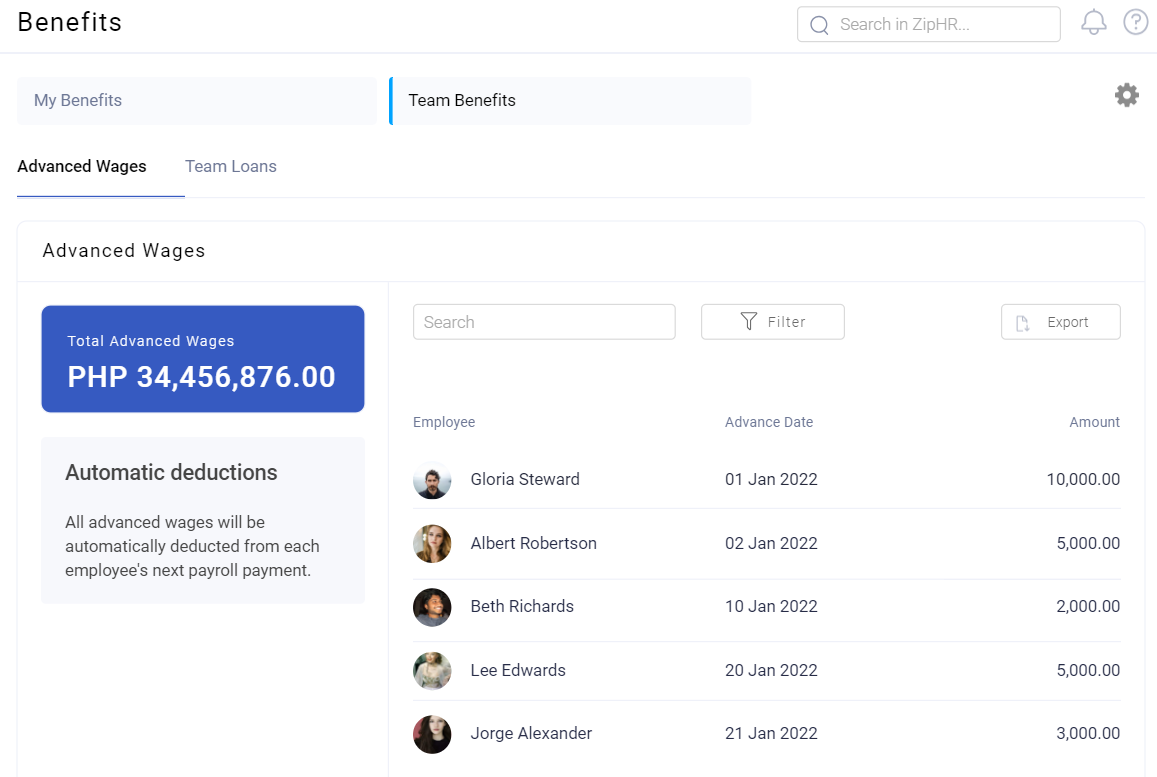
Manage Team Loans and Advance Wages
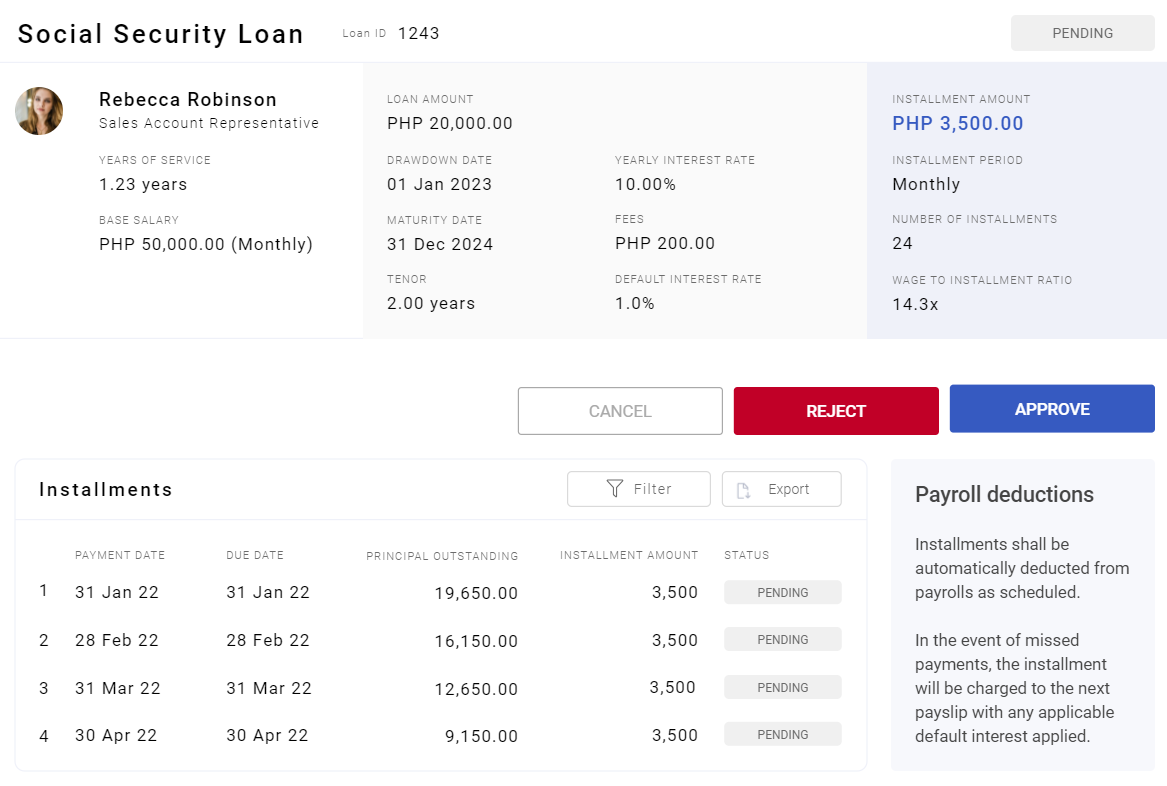

Add and Manage Team Loans