The team calendar
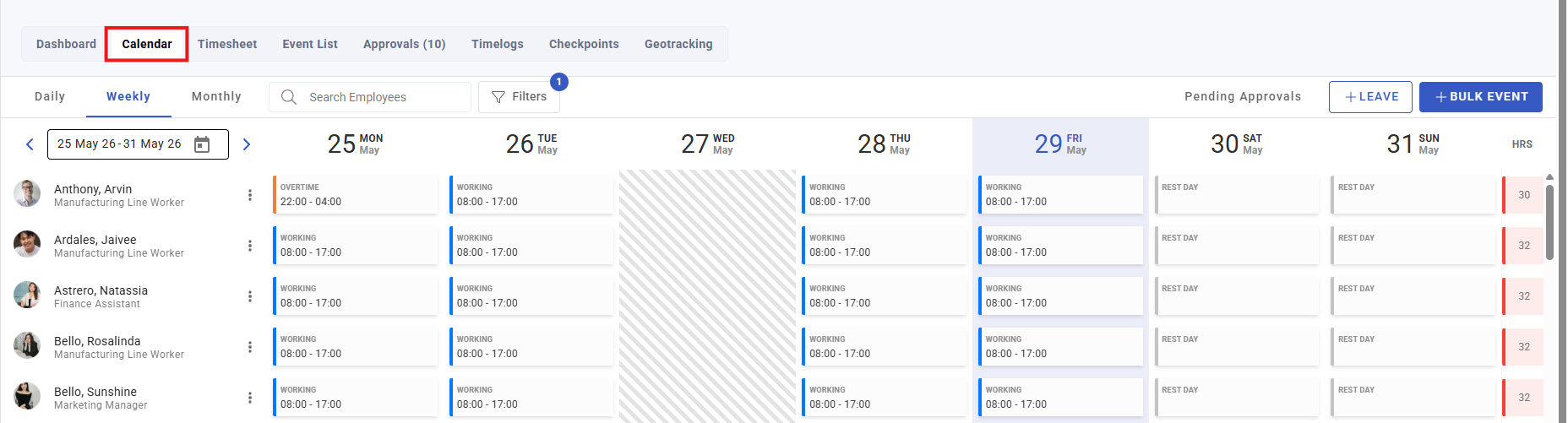
The team calendar is the visual view of who is working when — daily, weekly or monthly — and the place most scheduling actually gets done. It is also the fastest way to see coverage gaps before they become someone's problem on the day.
Where: Calendar › Team calendar You need: the team attendance rights; scheduling needs schedule management
When to use this, and when not to
| You want to | Use |
|---|---|
| See or build a rota visually | The team calendar — here |
| Attach a repeating weekly pattern to someone | A standard schedule |
| Load a large rota from a spreadsheet | Bulk schedule import — see Standard and dynamic schedules |
| Publish work for people to claim | Open shifts |
| Fix what was recorded | Events |
The calendar is for planning. Events is for correcting. Building a rota here for a team that works a fixed pattern means rebuilding it every week — make that a standard schedule instead.
The three views
- Daily — one day in detail, with AM shifts and PM shifts separated so coverage is readable at a glance
- Weekly — the standard planning view
- Monthly — the shape of a month, for spotting gaps and clashes early
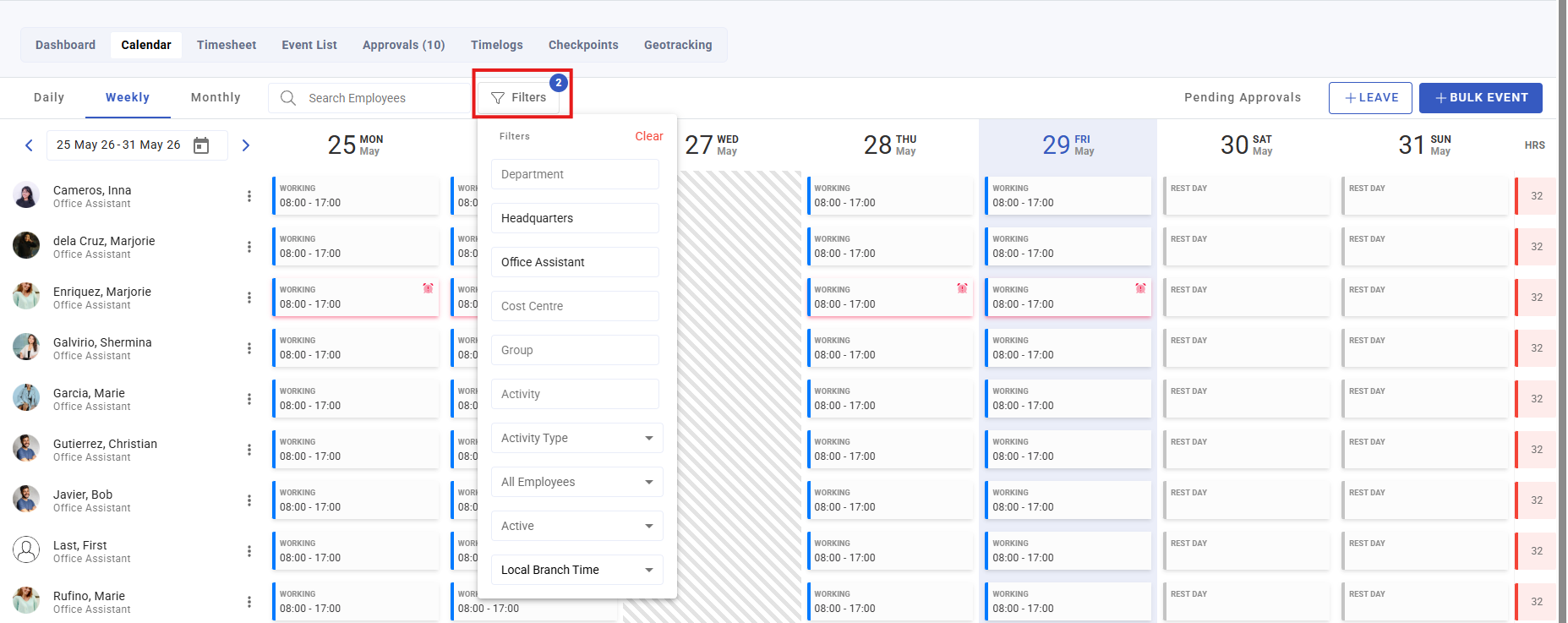
Move between periods with previous/next, and filter by branch, department, position, cost centre, group or activity type. Search employees to narrow to the people you care about, and Active only to hide deactivated staff.
Scheduling from the calendar
Assign shifts directly on the grid. For repetitive patterns, copy and paste a scheduled block onto other days or people rather than re-entering it — a rota is usually one pattern repeated, and this is how you say that once.
Bulk event creation handles the larger cases: a whole team onto the same pattern, or a period at once.
Reading it
The calendar shows scheduled hours against each person, marks leave, distinguishes working from non-working days, and surfaces pending approvals so you can see whose days are still unsettled.
A day that looks wrong here is usually a scheduling problem rather than an attendance one — the person was never scheduled, or was scheduled onto the wrong activity.
What Happens Next
- Scheduled days become events, which is what attendance is then measured against.
- Employees see their schedule in their own calendar view.
- Scheduled hours set the expectation that tardiness, under time and absence are judged against. Someone with no schedule has no expectation — they cannot be late or absent, and they quietly flatter every attendance rate. The Events page counts these as profiles with no EWH.
- Changes to a schedule apply going forward; days already recorded keep what they were calculated with until refreshed.
Tips
- Schedule ahead of the period, not during it. Attendance judged against a schedule created afterwards is bookkeeping, not management.
- Use copy and paste for rotas. Hand-entering repeated patterns is where errors enter.
- Check pending approvals before you plan. A day awaiting a decision is not yet a fact, and planning around it wastes the effort twice.
- Schedule rest days explicitly rather than leaving them blank. Blank days are what produce "why is this person absent on Sunday".
- Look at the monthly view once a week. Gaps three weeks out are staffing decisions; gaps three days out are emergencies.
Troubleshooting / FAQ
Q: An employee has no attendance record for a day they worked. They were not scheduled. Attendance attaches to an event, and no schedule means no event.
Q: The calendar is empty for a team I manage. Check the filters first, then whether you hold scope over those employees. See Attendance user rights.
Q: I changed the schedule but the recorded days did not move. Expected. Refresh the affected events.
Screenshots
These screenshots came from our previous help centre and may show an earlier version of the interface.