Managing advances
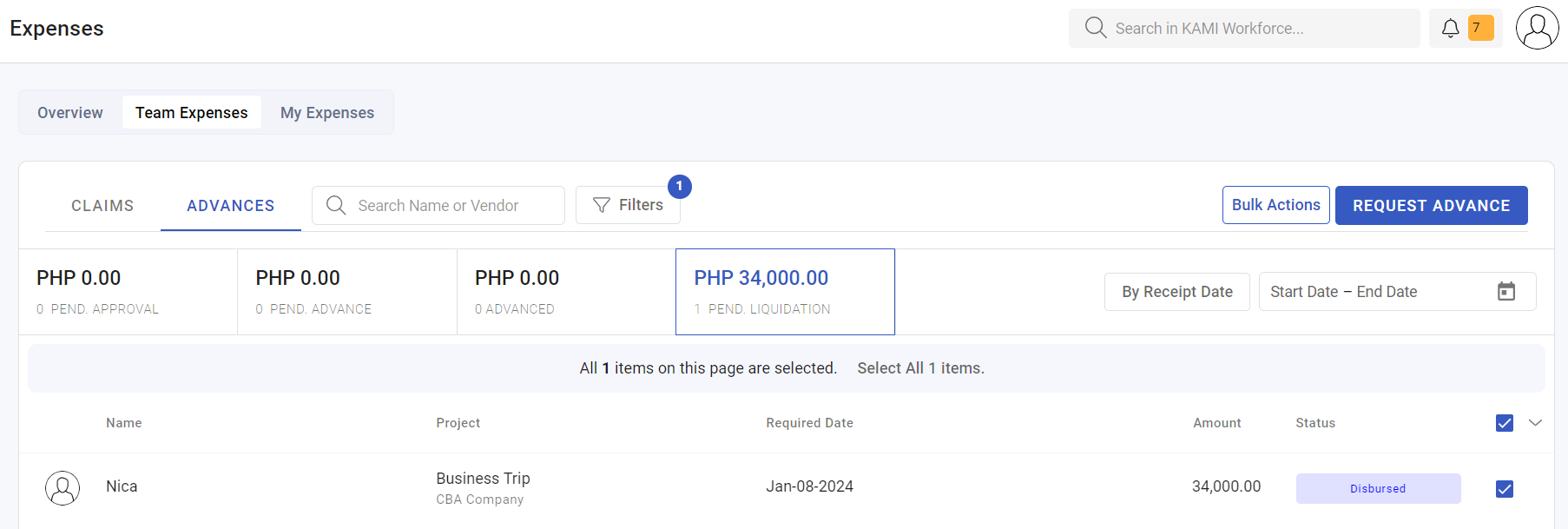
An advance puts company money in an employee's hands before anything has been spent. Managing them well is almost entirely about the back half — making sure every disbursed advance is eventually liquidated.
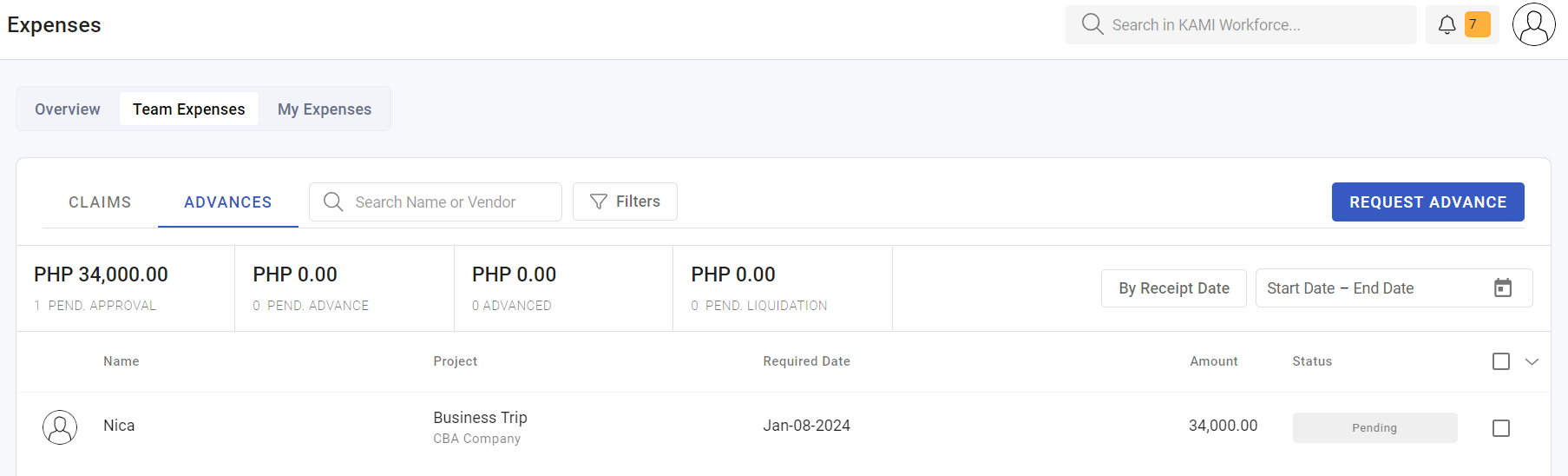
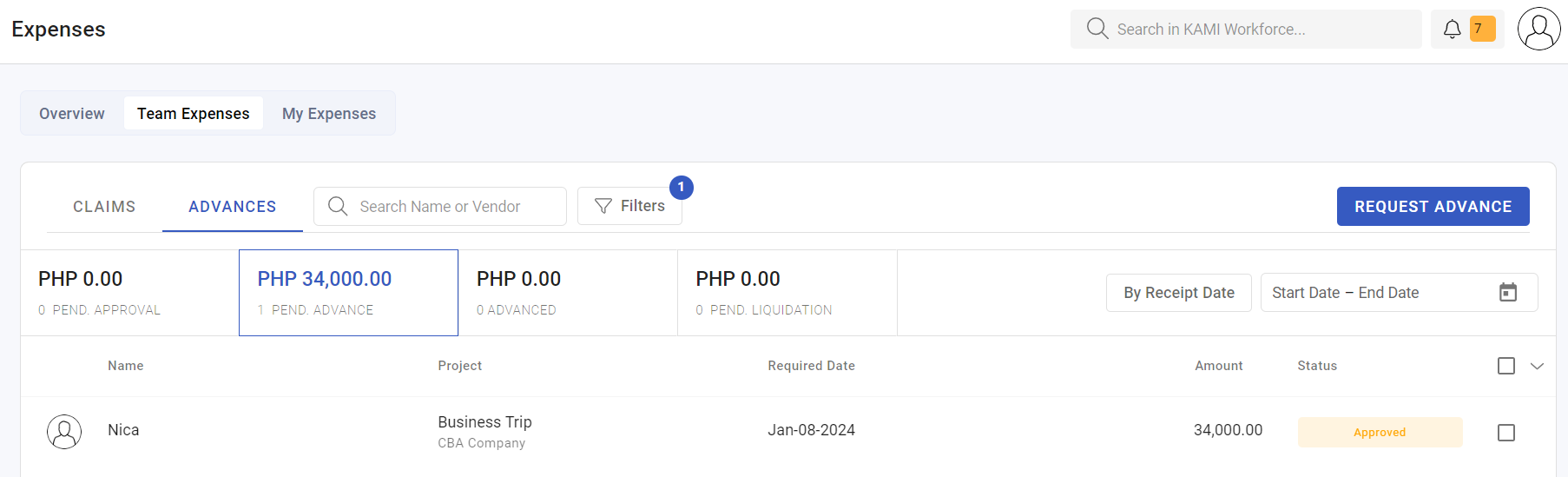
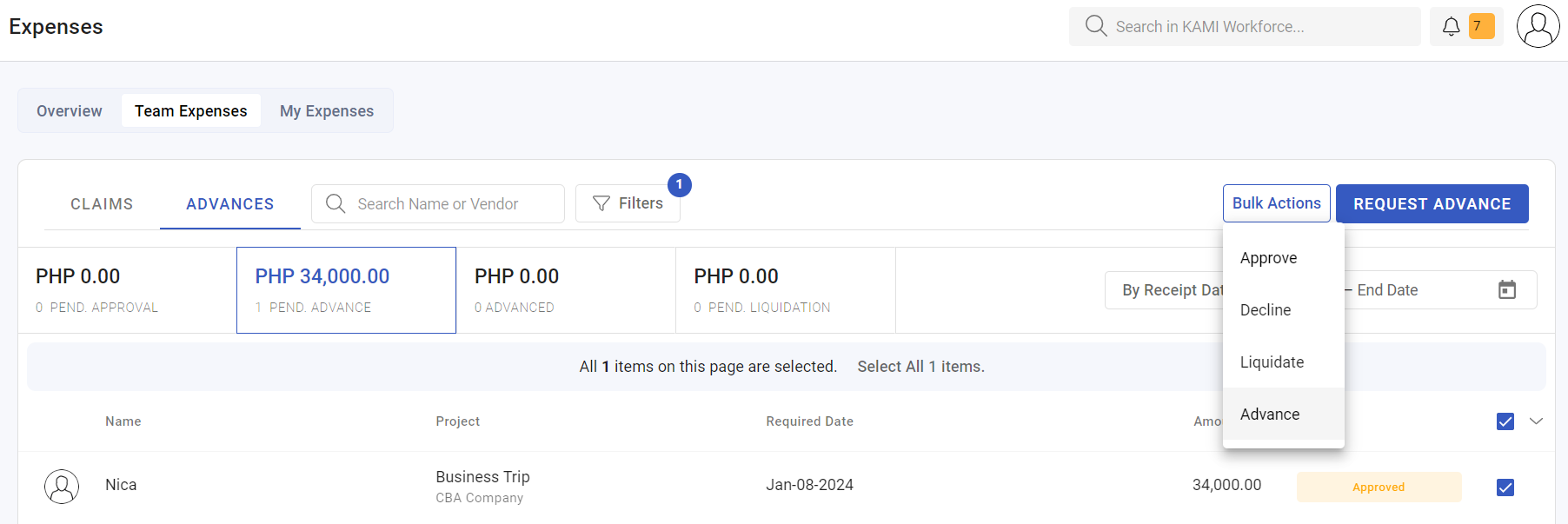
Where: Expenses › Advances
You need: expense rights covering the requesters, and the right to disburse
The lifecycle
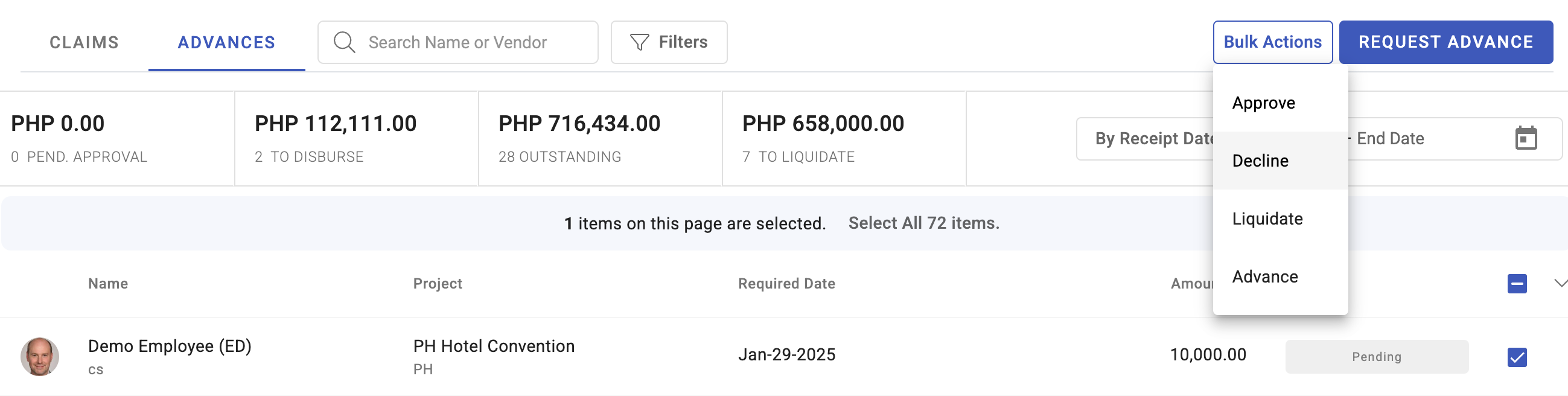
pending → approved → disbursed → to be liquidated → liquidatedwith declined and cancelled as exits, and two payment states — disbursement in progress and disbursement failed.
| Status | Means |
|---|---|
| Pending | Awaiting approval |
| Approved | Agreed, not yet paid out |
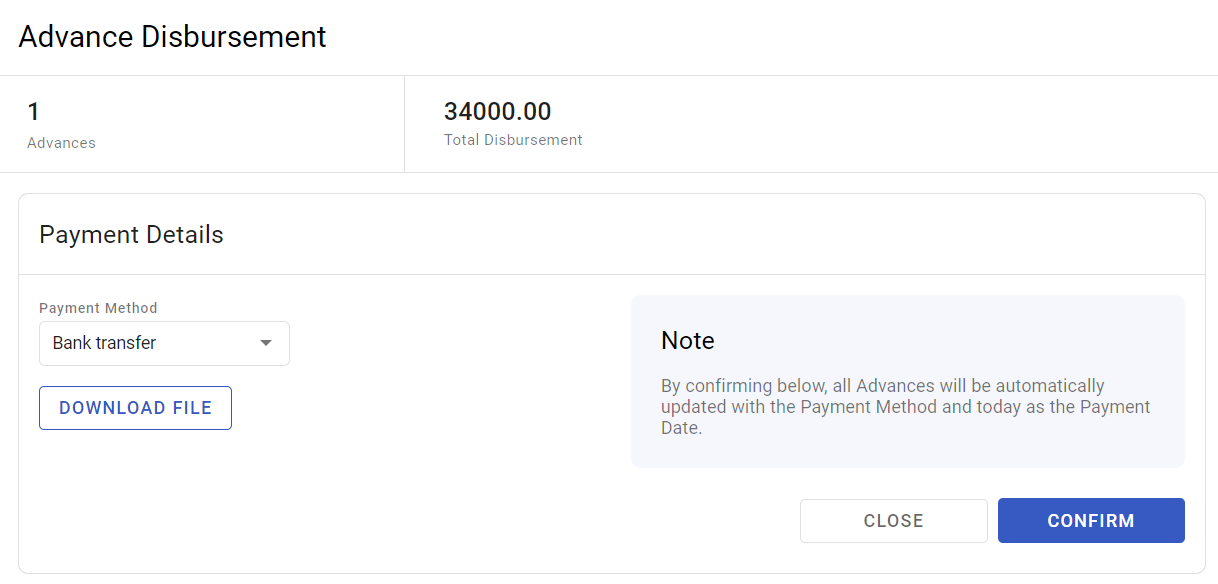
| Disbursement in progress | Payment under way |
| Disbursement failed | Payment did not complete — needs attention |
| Disbursed | Money is with the employee |
| To be liquidated | Awaiting the employee's account of the spend |
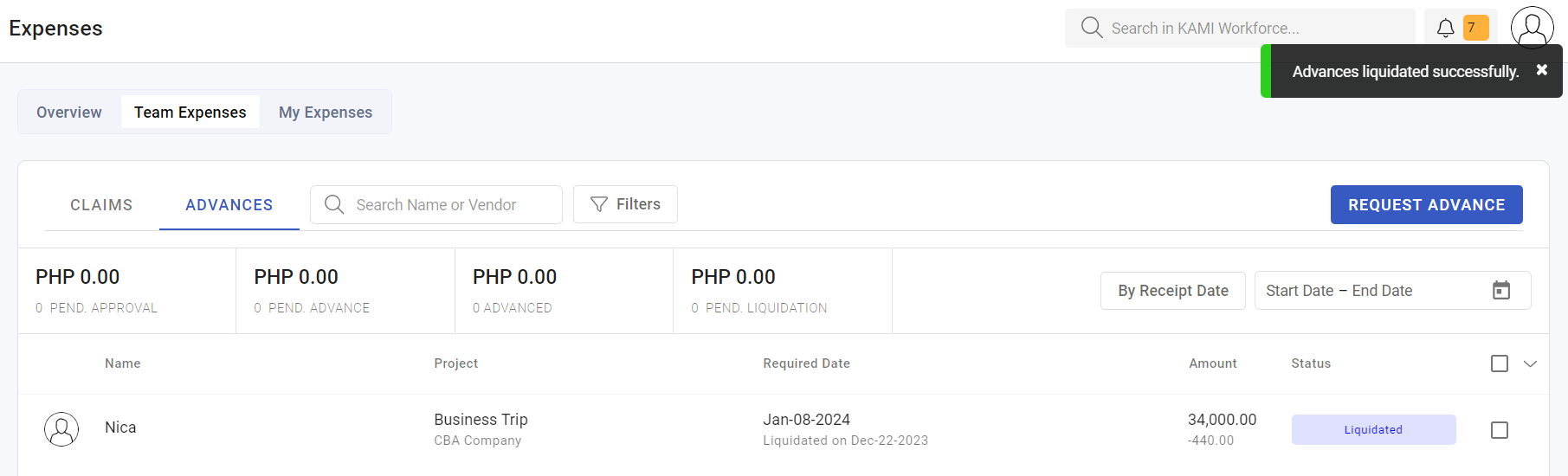
| Liquidated | Settled |
| Declined / Cancelled | Not proceeding |
The number that matters
⚠️ Total disbursed but not yet liquidated is company money outstanding with employees. It is the one figure in this module worth watching every week. Nothing prompts you — an advance can sit in to be liquidated indefinitely without anyone noticing.
An advance is not an expense until it is liquidated. Until then it is a balance, and the older it gets the harder it is to substantiate.
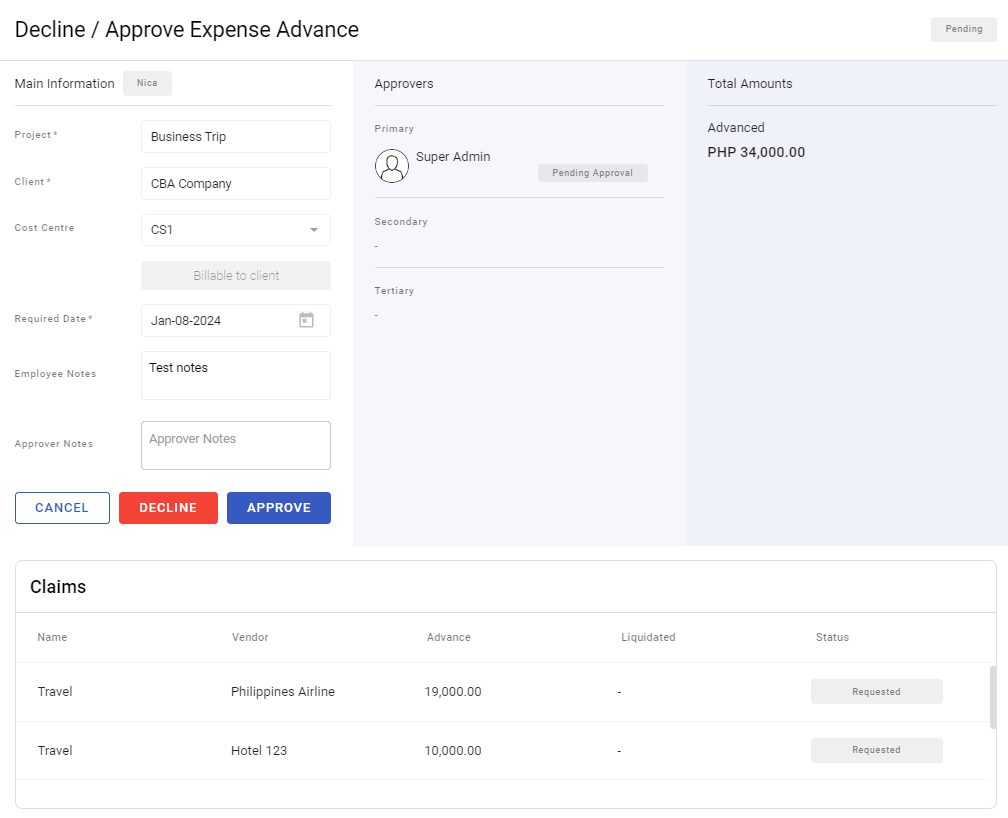
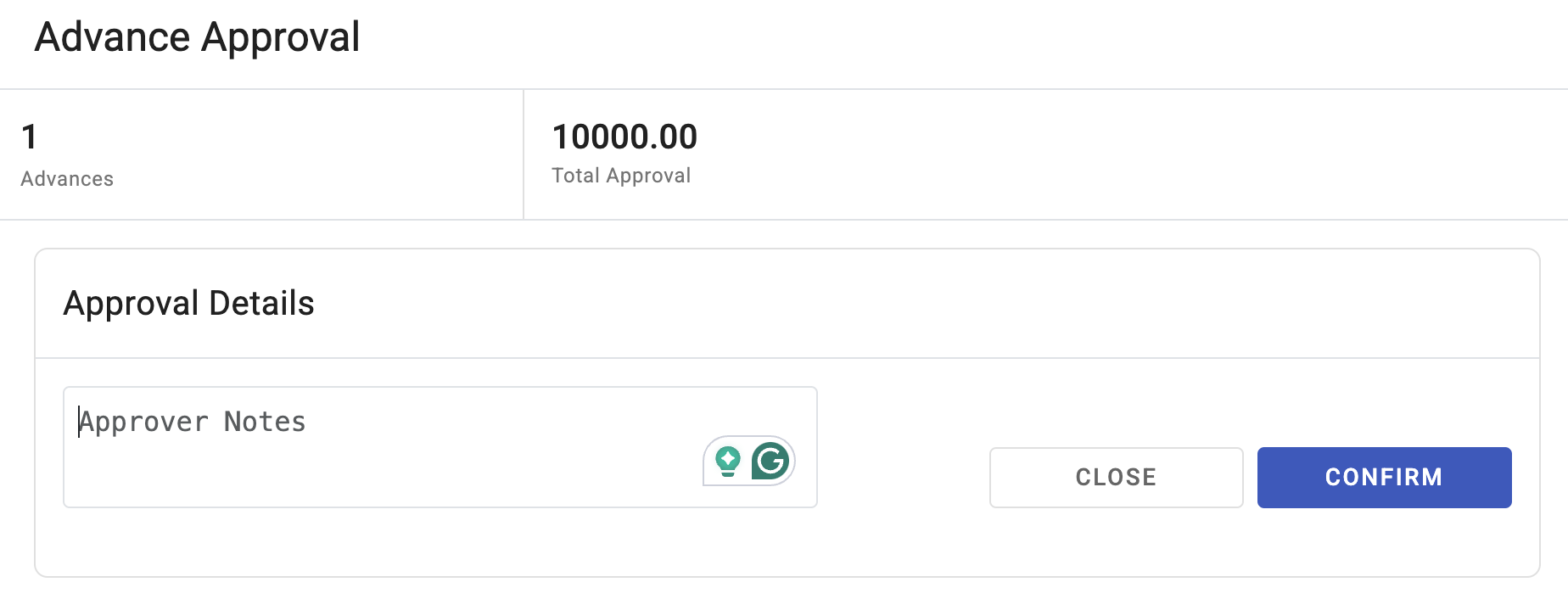
Approving an advance
The estimate is what you are agreeing to. Configuration can allow an advance to exceed the sum of estimated claims, but the default position is that it should not — if someone needs more, the estimate was wrong and is worth a conversation before the money moves.
Check:
- Is the purpose specific? "Travel" is not a purpose; "Cebu client kickoff, 3 days" is.
- Does the employee have an advance outstanding already? Stacking advances on someone who has not liquidated the last one is how balances become unrecoverable.
- Is the amount proportionate to what is actually being done?
Liquidation
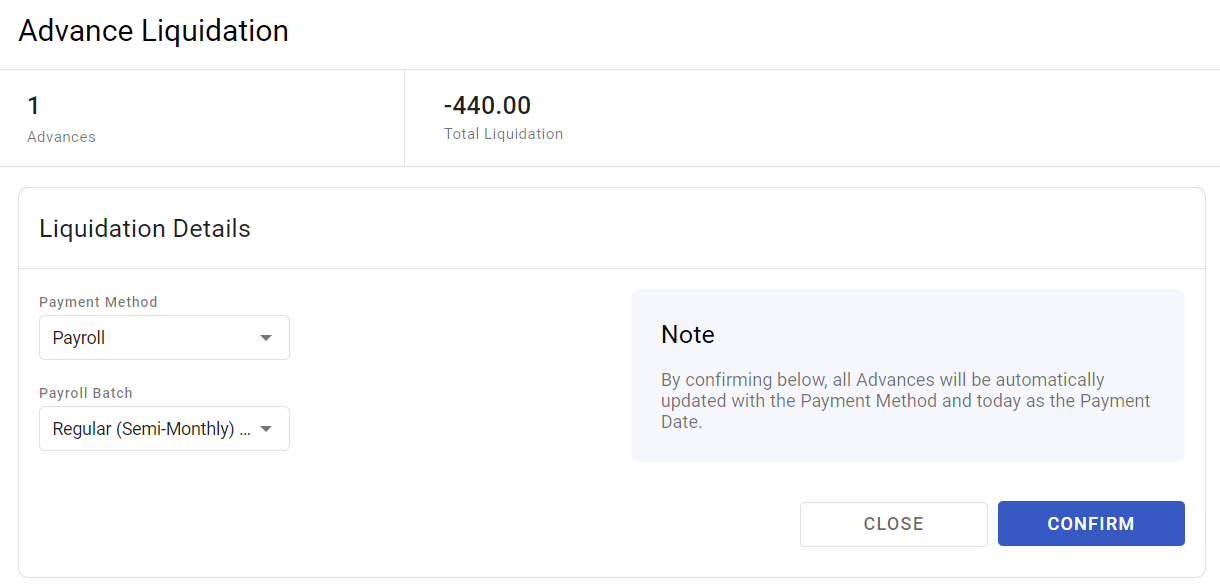
When the employee submits their receipts, you are reconciling three numbers: what was advanced, what was spent, and the difference.
| Outcome | Action |
|---|---|
| Spent = advanced | Liquidate |
| Spent < advanced | Recover the balance, then liquidate |
| Spent > advanced | The excess becomes an ordinary claim |
Receipts are checked against the expense type's rules exactly as a claim would be.
What Happens Next
- Disbursed advances create a balance against the employee until liquidated.
- A failed disbursement leaves the advance approved but unpaid — it needs resolving, not resubmitting.
- Unliquidated balances follow the employee, including into final pay if they leave.
- Liquidated advances land in your accounts through the expense types the receipts were claimed against.
Tips
- Review disbursed-but-not-liquidated every week. This is the single most valuable habit in the module.
- Set an expectation for liquidation — a number of days after the activity — and say it when the advance is approved, not when it is overdue.
- Do not approve a second advance for someone with an unliquidated first, unless you have a specific reason. It is how small balances become large ones.
- Chase failed disbursements the same day. The employee is expecting money that has not arrived and may be funding the activity themselves.
- Check leavers for outstanding advances before final pay. After they have gone, recovery is a legal matter rather than a payroll one.
Troubleshooting / FAQ
Q: An advance shows disbursement failed. The payment did not complete. Resolve the payment; do not create a second advance.
Q: An employee has not liquidated for months. The balance is outstanding against them. Escalate it as a debt, not as paperwork.
Q: The employee spent more than the advance. The excess is claimed as an ordinary expense, subject to the type's rules.
Q: The employee spent less. Recover the difference before liquidating.
Q: Can an advance exceed the estimated claims? Only if configured to allow it. The default is that it cannot.
Q: An employee is leaving with an advance outstanding. Settle it from final pay — see Final pay on termination.
Screenshots