Requesting and amending leave
Booking leave, and putting it right when plans change. Written for employees requesting their own leave and for the managers and admins who amend it afterwards.
Where: your profile's schedule area to request; Calendar › Events or Approvals to amend You need: nothing to request your own leave; amending someone else's needs the attendance rights
When to use this, and when not to
| The situation | What to do |
|---|---|
| You want time off | Request leave, below |
| Your approved leave needs changing | A leave amendment request, below |
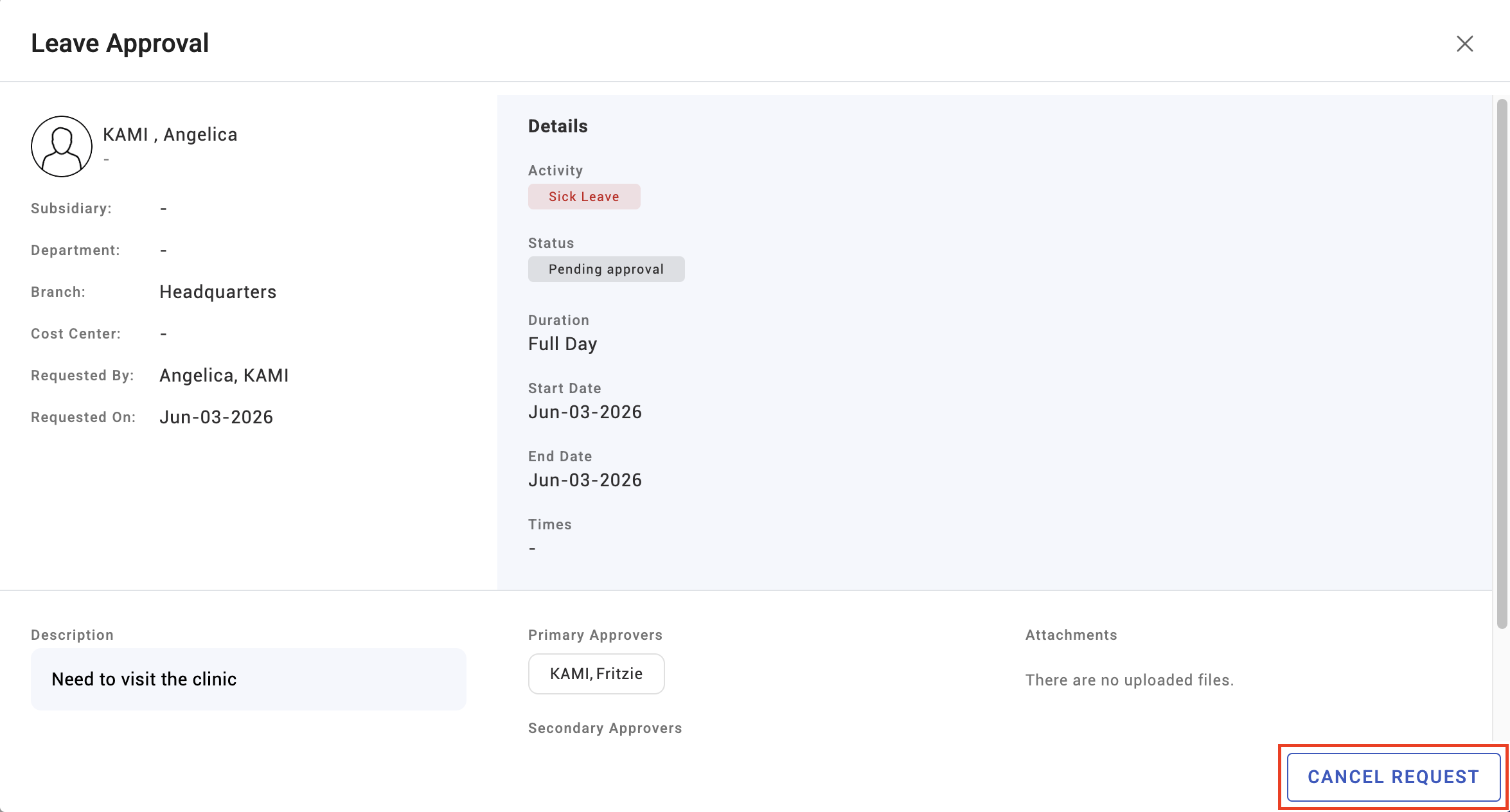
| You are cancelling entirely | Cancel the request — it returns the balance |
| Your attendance record is wrong, not your leave | An attendance amendment instead |
| A whole team needs the same day off | Bulk leave on Holiday rules — nobody should file individually |
How to request leave
From your own schedule area, choose the dates and the leave type. Depending on how the type is configured you may be able to request a full day, a half day, a partial day, or a range of dates.
Some leave types show terms you must agree to before the request goes through, and some are capped at a maximum number of days per request — that cap is on the single request, not on your balance.
Your request goes to your approver and appears under my requests while it waits. Some types are set to auto-approve and are granted immediately.
💡 Booking leave far ahead? Whether you can depends on a policy setting: some leave types check the balance you have now, others the balance you will have by then. If a December request is refused in January despite obvious entitlement, this is why — ask whoever owns the leave settings.
How to amend or cancel leave
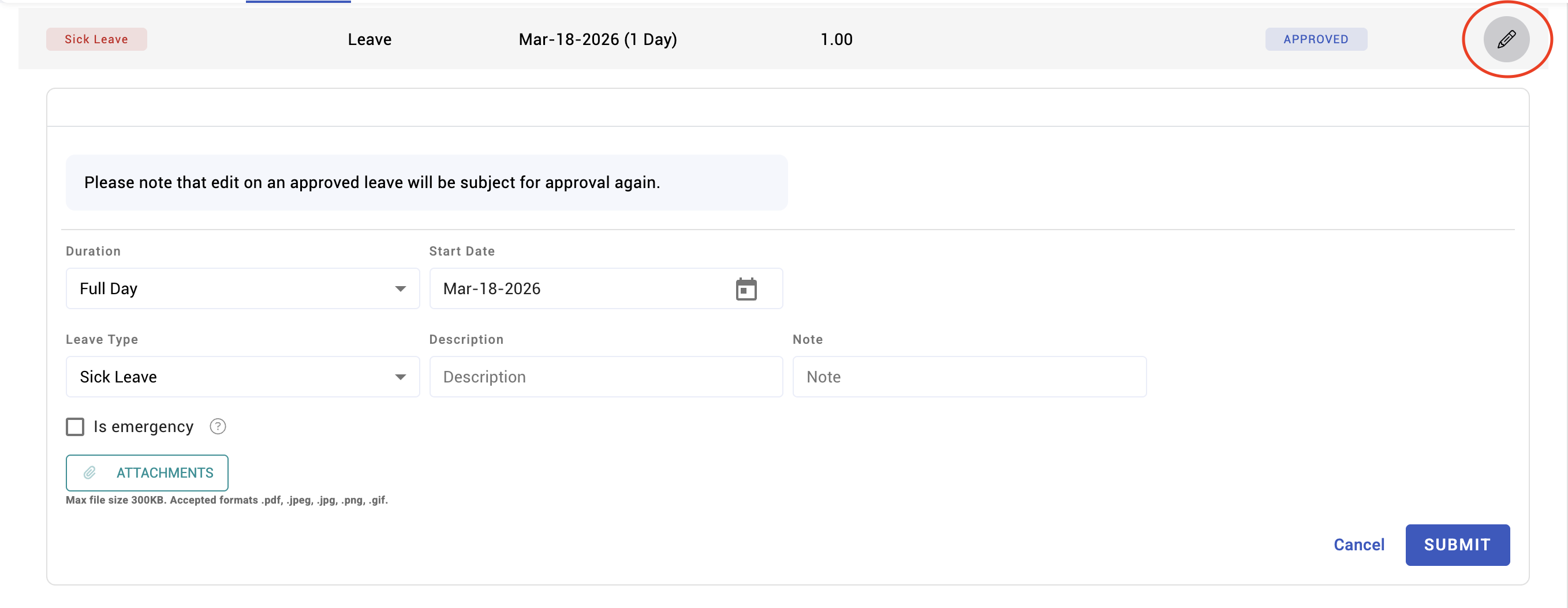
Plans change, and leave that has already been approved can be edited, cancelled or deleted.
- Cancelling returns the days to the balance.
- Editing an approved request — changing dates or duration — raises a leave amendment request, which goes back to an approver rather than applying silently.
- Managers and admins can amend leave directly from the Events page, including in bulk, with bulk leave edit and bulk leave cancel.
Where an attendance event should have been leave all along — someone was recorded absent but was actually sick — use convert to leave on the Events page rather than deleting and re-creating. It shows the conversion details before you commit.
What Happens Next
- Approved leave appears on the team calendar and is deducted from the balance.
- It flows into the timesheet, and paid leave carries its wage basis into payroll.
- Cancelled leave returns the balance immediately.
- Amendments wait in the approver's queue — the original booking stands until the amendment is approved, so the calendar keeps showing the old dates until then.
Tips
- Cancel leave you are not taking, promptly. Uncancelled leave is deducted from your balance and shows you as away — which affects rotas that other people are planning around.
- Amend rather than delete-and-rebook. An amendment keeps the history; deleting loses why the change happened.
- For managers: watch clusters of leave amendments on one date. That is usually a company event or a rota change, not five individual changes of mind, and it may be better fixed centrally.
- Approve or decline promptly. Leave sitting in a queue blocks the requester's planning and, if it crosses payroll cut-off, lands in the wrong period.
Troubleshooting / FAQ
Q: My leave request was refused for insufficient balance, but I have the days. If the leave is in the future, the policy may be checking your balance today rather than at the time of the leave. Also check probation, and the maximum days per request.
Q: I cancelled leave but my balance has not changed. Cancellation returns the balance on cancellation. If it has not, the request may be a pending amendment rather than a cancellation — check under my requests.
Q: I cannot amend leave from last month. The attendance lock has closed that period. See Calendar rules and the attendance lock.
Screenshots
These screenshots came from our previous help centre and may show an earlier version of the interface.