Events: the attendance record
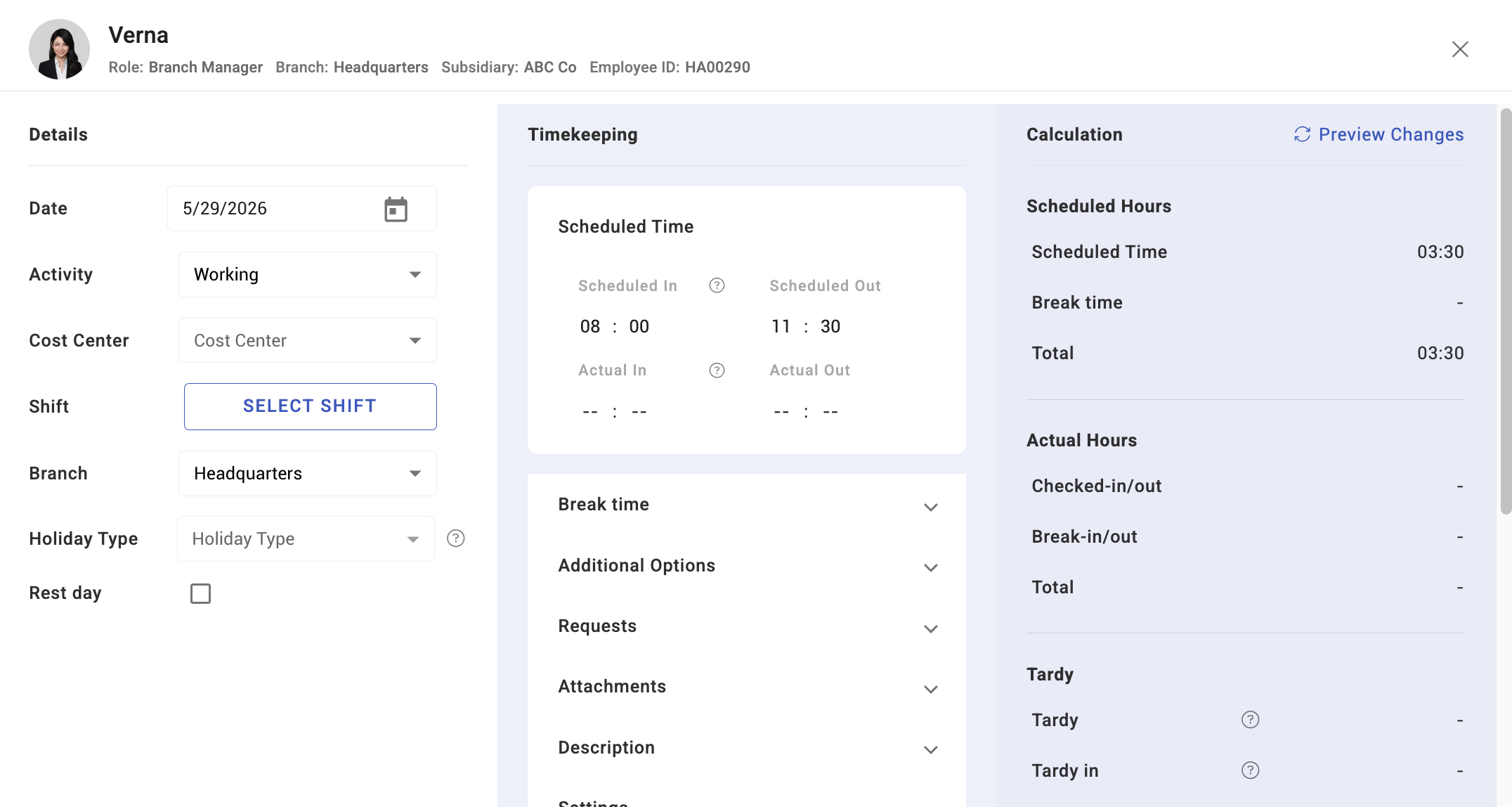
An event is one person on one day: the activity they were scheduled for, and what actually happened. The Events page is every one of those records in a table you can filter, fix and bulk-edit — the working surface of Attendance for anyone managing a team.
Where: Calendar › Events You need: the team attendance rights; bulk actions need edit rights
When to use this, and when not to
| The question | Where to go |
|---|---|
| What is wrong with these specific days? | Events — here |
| What is waiting on my decision? | Approvals |
| What are the raw taps? | Time logs |
| What are we about to pay? | Timesheet |
| Is attendance being kept current overall? | Event tracker |
Events is the page for fixing. The others are for deciding, investigating and reporting.
What a row tells you
Each row carries the employee, date, activity, scheduled hours, actual hours, and the event's status:
| Status | Meaning |
|---|---|
| Valid | Complete and sound |
| Missed start | No check-in recorded |
| Missed end | No check-out recorded |
| Absent | Counted absent — including where the person checked in and out |
Alongside those sit the flags that explain a day: tardy, break tardy, holiday and its type, whether the check-in was remote or offline, and any OT window.
Filter by date range, employee, branch, department, position, cost centre or group, search by name, and open any employee's profile from a row.
The two counters worth watching
At the top of the page, two numbers do more work than they look like:
- Invalid events — records not in a valid state. This is the daily to-do list; a rising number means corrections are not being processed.
- Profiles with no EWH — people with no expected working hours. These produce nonsense downstream: without expected hours there is nothing to measure against, so tardiness and absence cannot be judged and payroll has no baseline. They also silently flatter every attendance rate, because someone who cannot be absent never is. Fix these first.
Bulk actions
Events supports bulk work, which is what makes a month of mess tractable:
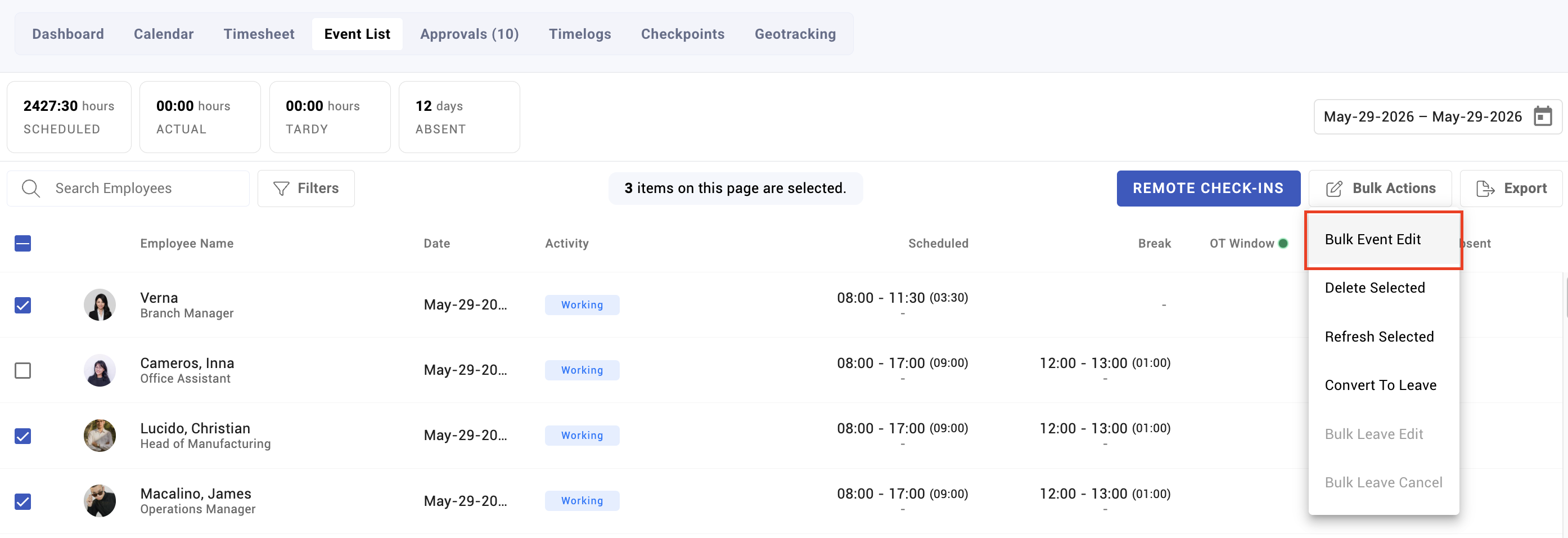
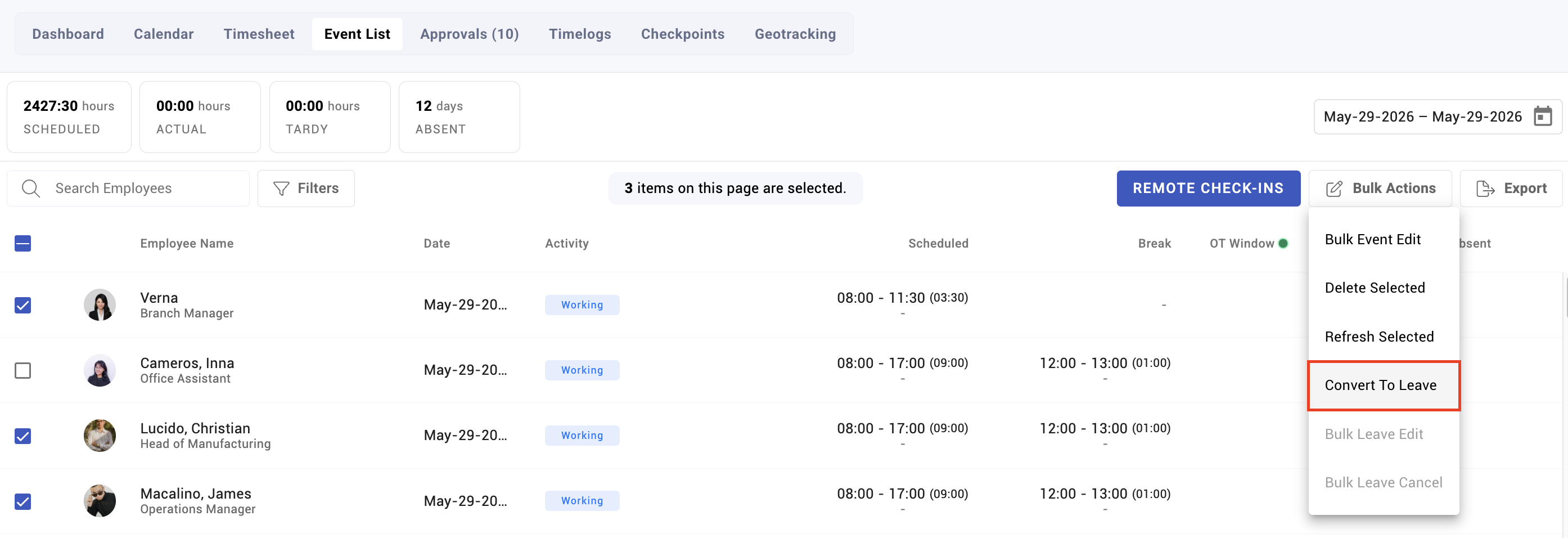
- Bulk event edit — change many events at once
- Bulk leave edit and bulk leave cancel
- Convert to leave — turn attendance events into leave, with conversion details shown before you commit
- Refresh selected — recalculate the selected events
- Delete selected
Selection spans pages, and KAMI tells you when items on this page are selected versus the whole result set. Read that line before pressing anything destructive — a bulk action across an unintended filter is the fastest way to damage a month of records.
Refresh versus edit — the distinction that matters
Refresh recalculates an event from its current inputs: shift, activity, time logs, rules. Because events store their own copy of the settings used to calculate them, a settings change does not reach existing days until they are refreshed. This is the tool for "I changed the shift and nothing happened".
Editing overrides the record itself.
Prefer refresh wherever the underlying data is right and only the calculation is stale. Editing hides the cause; refreshing fixes it.
What Happens Next
- Corrected events flow into the timesheet and then payroll.
- Refreshed events pick up current settings and may change what someone is paid — which is the point, and worth checking.
- Events remain visible in reports and history; fixing is not deletion.
Tips
- Work the invalid-events count daily, not at payroll. Every invalid event is an unfinished record that will otherwise reach a payslip as it is.
- Look for clusters before fixing individuals. Twenty broken days on one date is one incident — a device outage, a misconfigured holiday — and one fix, not twenty.
- Fix the evidence, not the conclusion. Where a tap is wrong, amend the time log and let KAMI recalculate. Overriding the event conceals a cause that will recur.
- Audit "profiles with no EWH" monthly. It is the single cheapest data-quality check in the module.
- Refresh after every settings change, for the affected period, before the timesheet is read.
Troubleshooting / FAQ
Q: A day shows absent but the person clearly worked. Check hours against the shift's absence threshold. KAMI marks a day absent on hours under time, even with both taps present.
Q: A bulk action affected more people than I expected. Selection spans pages. The line above the table distinguishes this page from the whole result set.
Q: I fixed the setting but the events are unchanged. Refresh them. Events keep the settings they were calculated with.
Screenshots
These screenshots came from our previous help centre and may show an earlier version of the interface.