Viewing and validating payslips
The Payslips tab is where a payroll run is actually checked. Validating well is the difference between catching a wrong figure now and explaining it to an employee after payday.
Where: Payroll › the payroll run › Payslips You need: payroll rights for that batch cycle
What a payslip holds
A payslip is one employee's pay for one run. Until it is calculated it is an empty placeholder: it exists, it is attached to the employee, and it carries no figures.
Once calculated it holds the derived rates, every wage line, other payments, contributions, taxes and the net payable — all stored on the payslip, not recomputed when you look at it. That is why a payslip can be internally consistent and still disagree with current settings: it is a record of what was true when it was calculated.
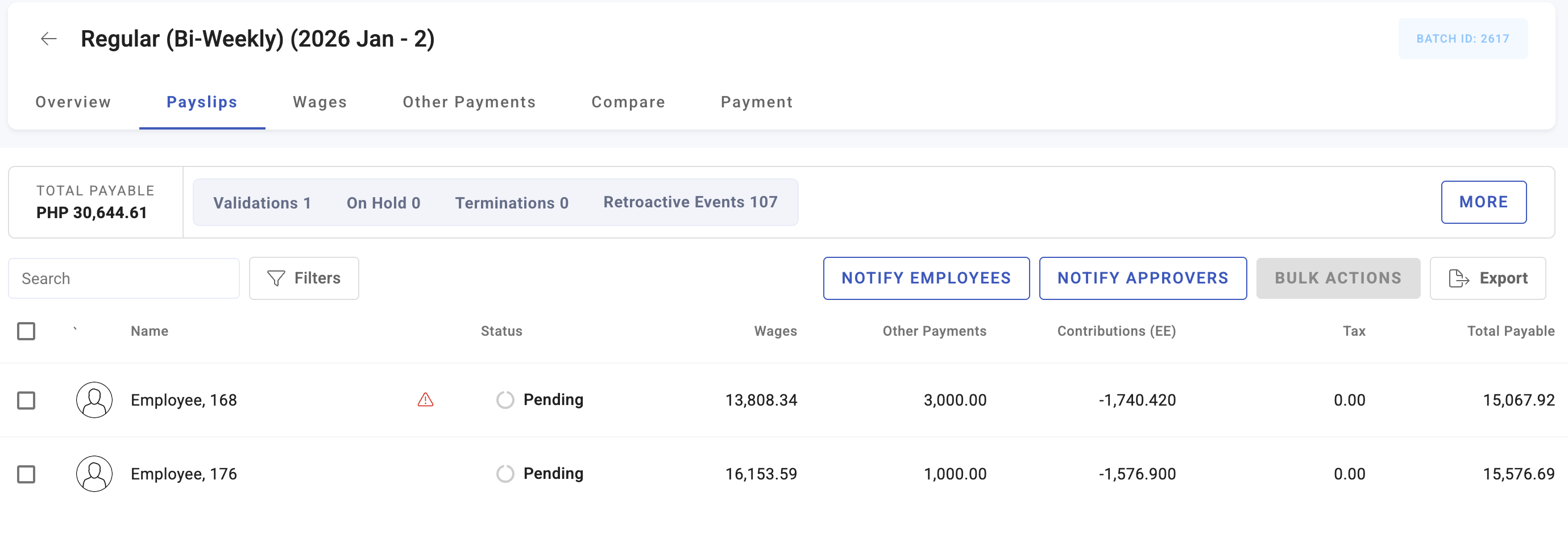
The tabs, and what each is for
| Tab | Use it to |
|---|---|
| Overview | See the run's totals and where it stands |
| Payslips | Work through employees one at a time |
| Wages | Check the wage lines — basic, overtime, premiums |
| Others | Check allowances, bonuses and deductions |
| Compare | Diff this run against the previous one |
| Payment | Process payment for closed payslips |
Compare is the highest-value screen in the module. Reading four hundred payslips individually is not a control; comparing them against last period is. Anything materially different should be a change you can name.
Payslip issues
A payslip that could not be produced cleanly is flagged. The causes are specific:
| Issue | Means |
|---|---|
| Missing company information | Something required at company level is not set |
| Missing profile information | The employee's own record is incomplete |
| Calculation error | The calculation failed unexpectedly |
| Disbursement error | Banking details are missing or wrong |
| Validation error | The payslip broke one of your validation rules |
The first two are the common ones and both are fixed at source: complete the record, then recalculate that payslip. A calculation error is worth raising with support rather than retrying blindly.
Disbursement errors do not stop the payslip being correct — they stop it being paid, and they surface late, at the payment step. Checking bank details before payday is cheaper than discovering them on it.
How to validate a run
- Calculate, then look at the run totals on Overview before any individual payslip. A total that is wildly out means something structural, and reading payslips will not find it.
- Open Compare and work through the differences against the previous run.
- Deal with flagged payslips — issues and validation-rule breaches — before anything else.
- Spot-check by hand: pick a monthly-paid employee, a daily-paid one, and anyone with overtime, and verify their rates against what you expect. See How wages are calculated.
- Check joiners and leavers individually. Prorated payslips are where proration errors hide, and there are never many of them.
- Verify the payslips you are satisfied with.
💡 Validate in that order — totals, then differences, then exceptions, then samples. Starting with individual payslips means reading hundreds of correct ones before reaching a wrong one.
Putting a payslip on hold
Hold a payslip when it should not be paid yet but the rest of the run should proceed: a disputed figure, an unresolved amendment, a leaver whose final pay is not settled.
Held payslips need review and release. They also stop the batch closing, which is usually the reason a finished-looking run refuses to close.
What Happens Next
- Verifying moves a payslip on for approval; it does not change any figure.
- Recalculating discards the stored figures and rebuilds them. Any manual adjustment made since the last calculation is lost — see Running a payroll batch cycle.
- Edits to a payslip are recorded in its history, so a changed figure can be traced to a person.
- Only closed payslips can be paid.
Tips
- Do not validate by reading every payslip. Use totals and Compare to find the few that need reading.
- Recalculate after any source change — profile, timekeeping, other payments. The payslip does not notice on its own.
- Fix at source, not on the payslip. A hand-edited payslip is correct once; a corrected profile is correct every run, and survives a recalculation.
- Look at the largest and smallest net payables in the run. Errors cluster at the extremes, and it takes a minute.
- Treat a disbursement error as urgent. It appears late and it is the one that stops people being paid on time.
Troubleshooting / FAQ
Q: A payslip has no figures at all. It has not been calculated. Batch calculation only picks up payslips in Pending.
Q: A payslip disagrees with the employee's current salary. The payslip stores what was true at calculation. If the salary changed afterwards, recalculate.
Q: I fixed the employee's record but the payslip is unchanged. Recalculate that payslip. Nothing re-reads the profile on its own.
Q: The run looks finished but will not close. Look for payslips on hold, or approved but not yet paid. Every active payslip must be paid first.
Q: Who changed this figure? The payslip's history records edits.
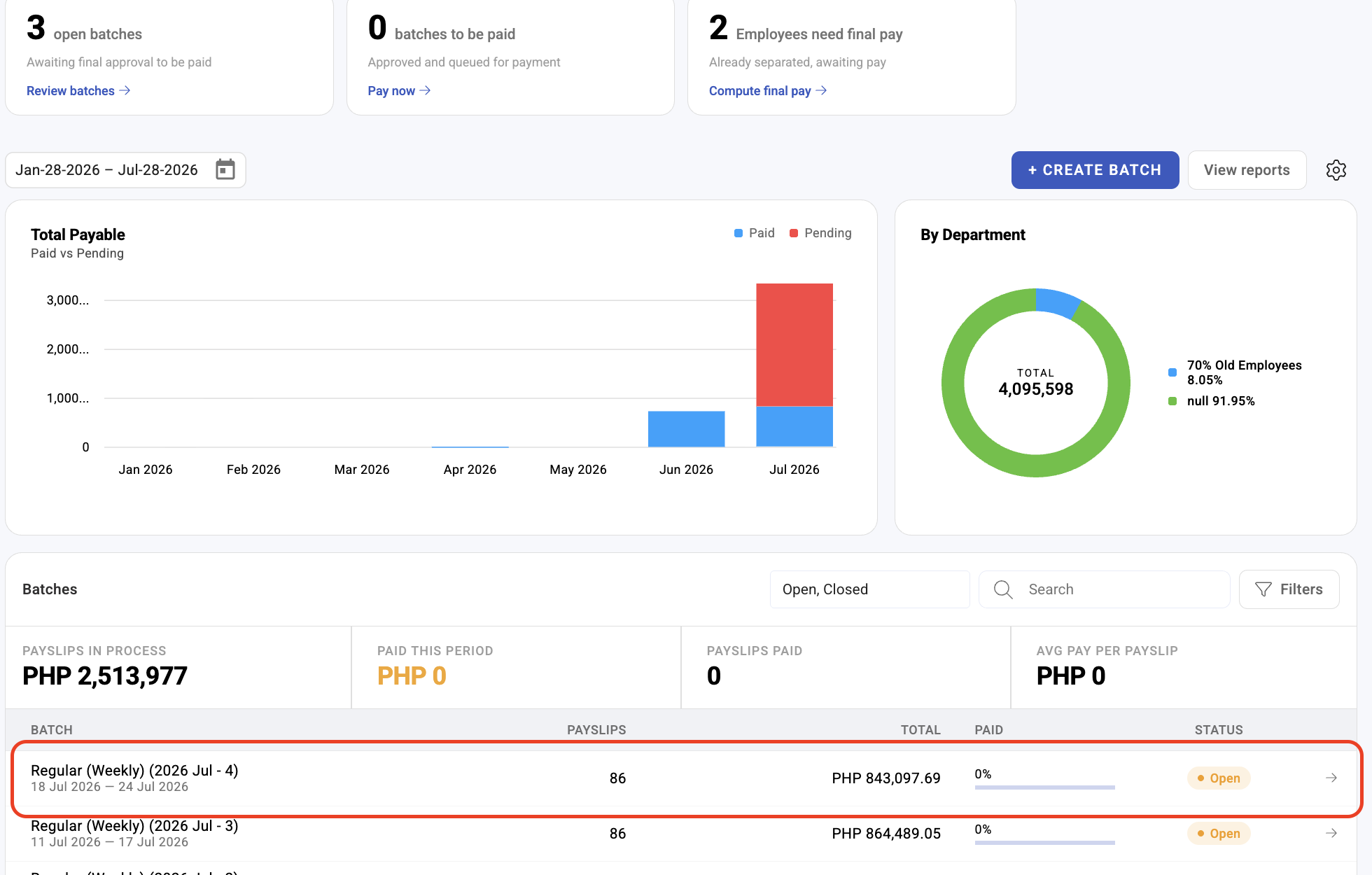
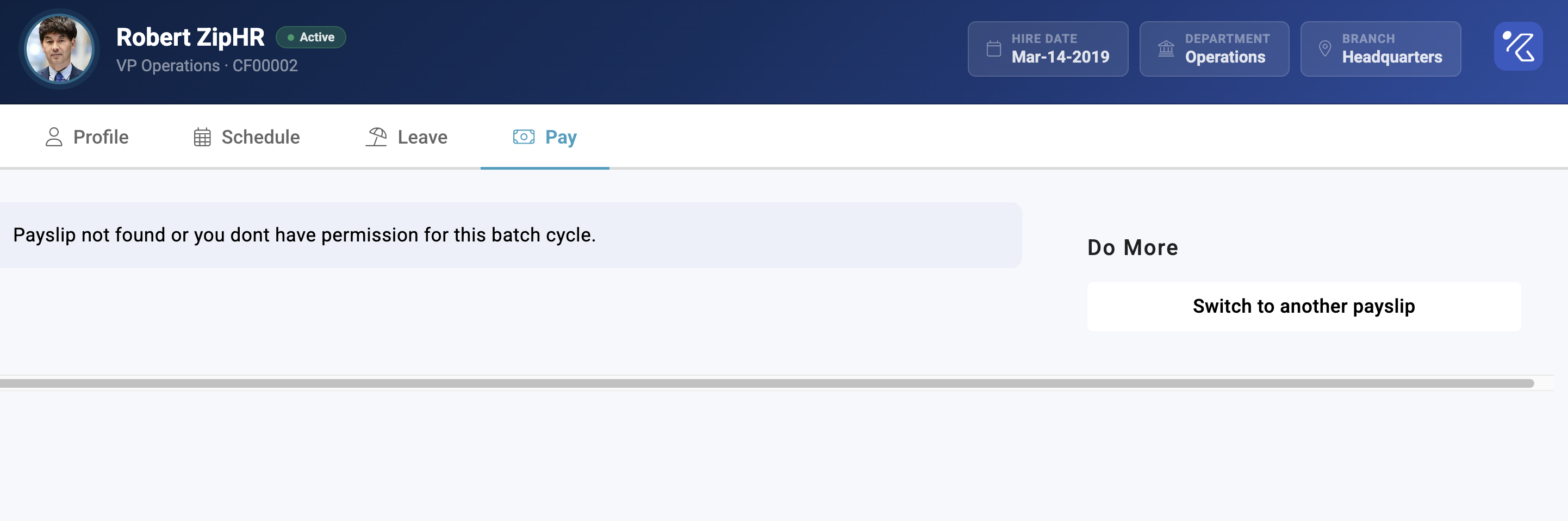
Screenshots
These screenshots came from our previous help centre and may show an earlier version of the interface.