Users and groups
People reach KAMI Tasks through two layers: users — everyone who can be assigned work — and groups, the teams they are organised into. Groups are what projects actually grant access to, which makes group membership the answer to almost every access question.
Where: Users and Groups in the main menu You need: admin rights to manage groups
When to use this, and when not to
| You want to | Do this |
|---|---|
| Give someone access to a project | Add them to a group that has it |
| Give a team a new project | Add the group to the project |
| Add a new person to KAMI Tasks | My Teams › Profile › Access settings — not here |
| Remove someone's access entirely | Remove them from the groups |
Users
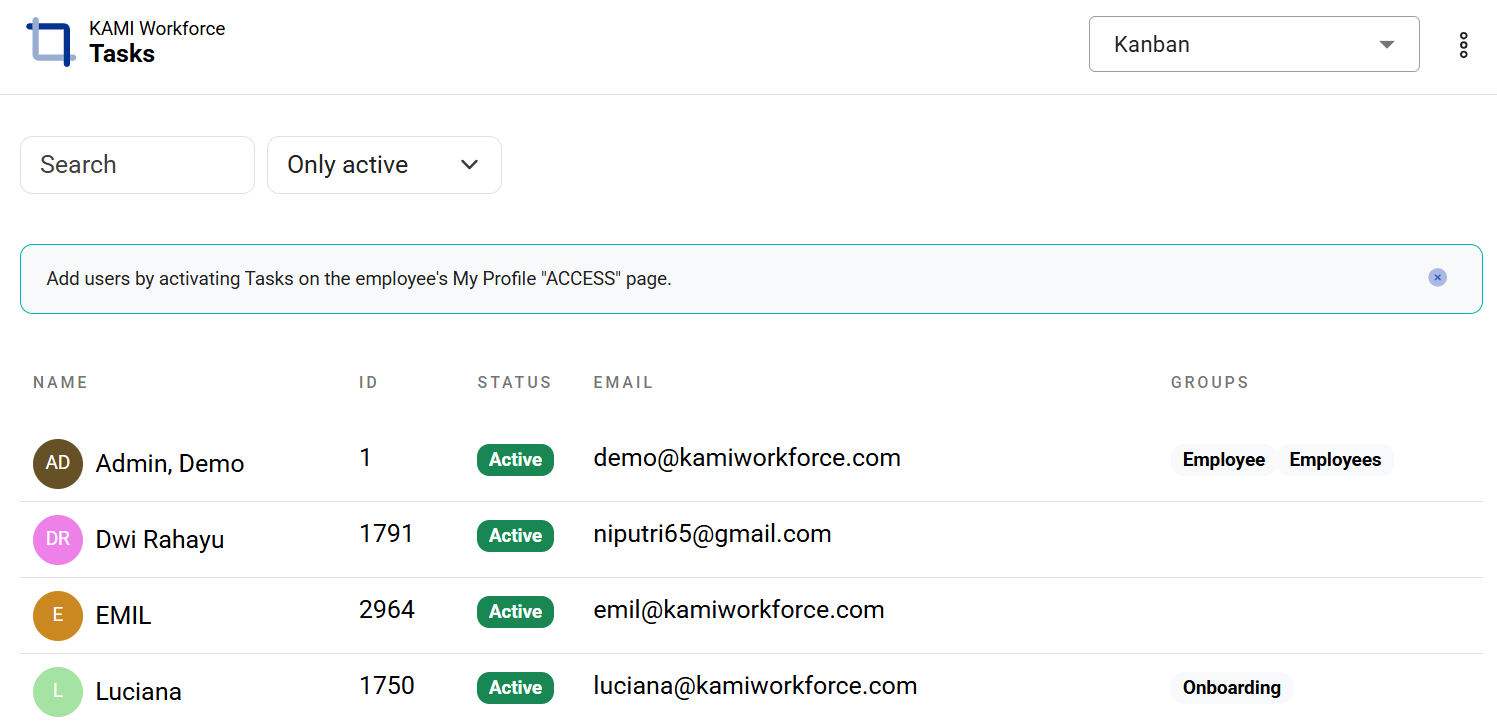
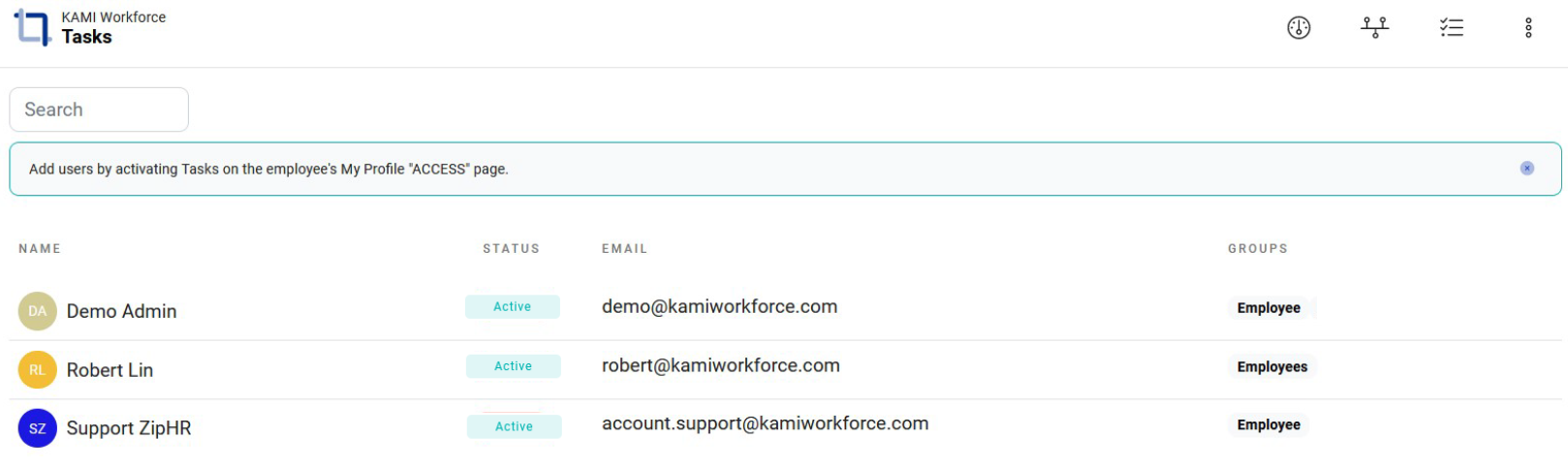
The Users page lists everyone, with their groups and status, and a search to find people.
The page is read-only, and that is deliberate. Users are not created or removed inside KAMI Tasks — they come from your main KAMI account and are managed under My Teams › Profile › Access settings. One place decides who is in the company; Tasks inherits it.
So when a new joiner cannot be found here, the fix is in My Teams, not in Tasks. Once their access includes Tasks, they appear.
Groups
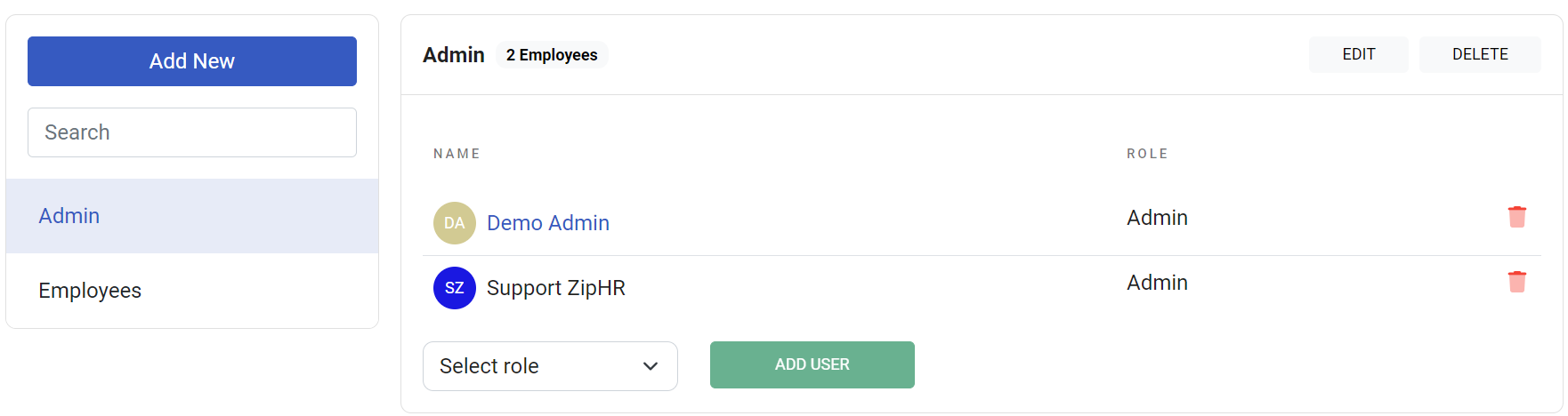
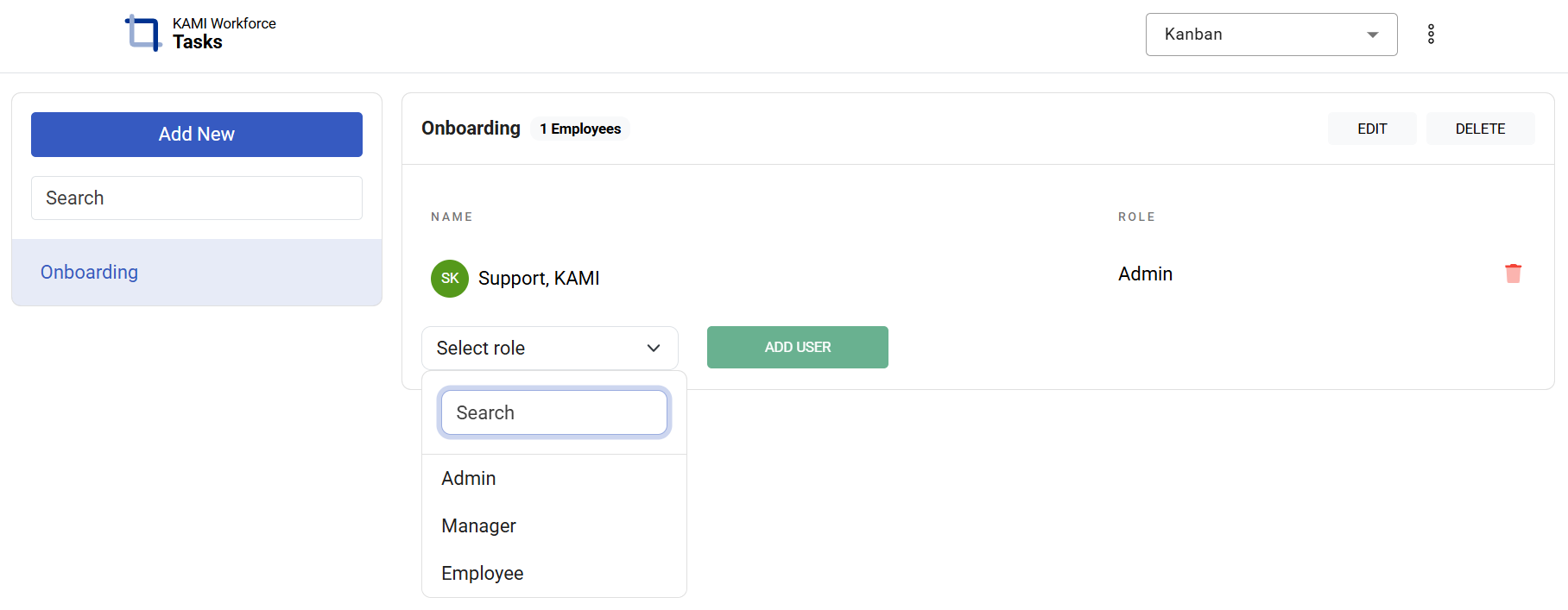
Groups organise people into teams — a squad, a department, a working group — and each member is added with a role in that group. Create a group, name it, and add members.
The reason groups matter is access: projects grant access to groups, not to individuals. Everyone in a granted group can see and work the project.
That makes group membership the lever for everything:
- New joiner cannot see the project → add them to the team's group
- Whole team needs a new project → add the group to the project, once
- Contractor finished → remove them from the group, and every project it carried goes with it
What Happens Next
- Adding someone to a group gives them every project that group can reach, immediately.
- Removing them takes all of it away just as immediately — including projects they may be mid-ticket on.
- Group changes do not touch ticket assignment: someone removed from a group keeps their name on tickets, they just cannot open them.
⚠️ Before removing someone from a group, check what they are assigned. Tickets assigned to a person who can no longer see the project are invisible to them and easy to lose.
Tips
- Keep groups meaning teams. A group per real team stays maintainable; a group per project inverts the idea and you end up managing the same people a dozen times.
- Add people to groups on day one, as part of onboarding. Access requested ad hoc is access granted inconsistently.
- Review groups after a reorganisation. People who change team keep whatever their old group carried, which is how access quietly accumulates.
- Reassign before removing. Sweep a leaver's tickets with bulk edit first, then remove them from groups.
Troubleshooting / FAQ
Q: A new employee is not in the Users list. They have not been given Tasks access in My Teams. This page only reflects that.
Q: Someone is in the right group but still cannot see a project. Check that the group itself has been granted the project — membership and project access are two steps.
Q: We removed someone and their tickets disappeared. The tickets are fine; that person can no longer see the project. Reassign them.
Screenshots
These screenshots came from our previous help centre and may show an earlier version of the interface.
Adding Task Group

Activate Task Users
Adding a Task Group
Activating Task Users