Payroll user rights
Payroll rights are deliberately separate from the rest of KAMI's permissions, and more granular. Payroll is the module where access controls both privacy — everyone's salary — and money leaving the company.
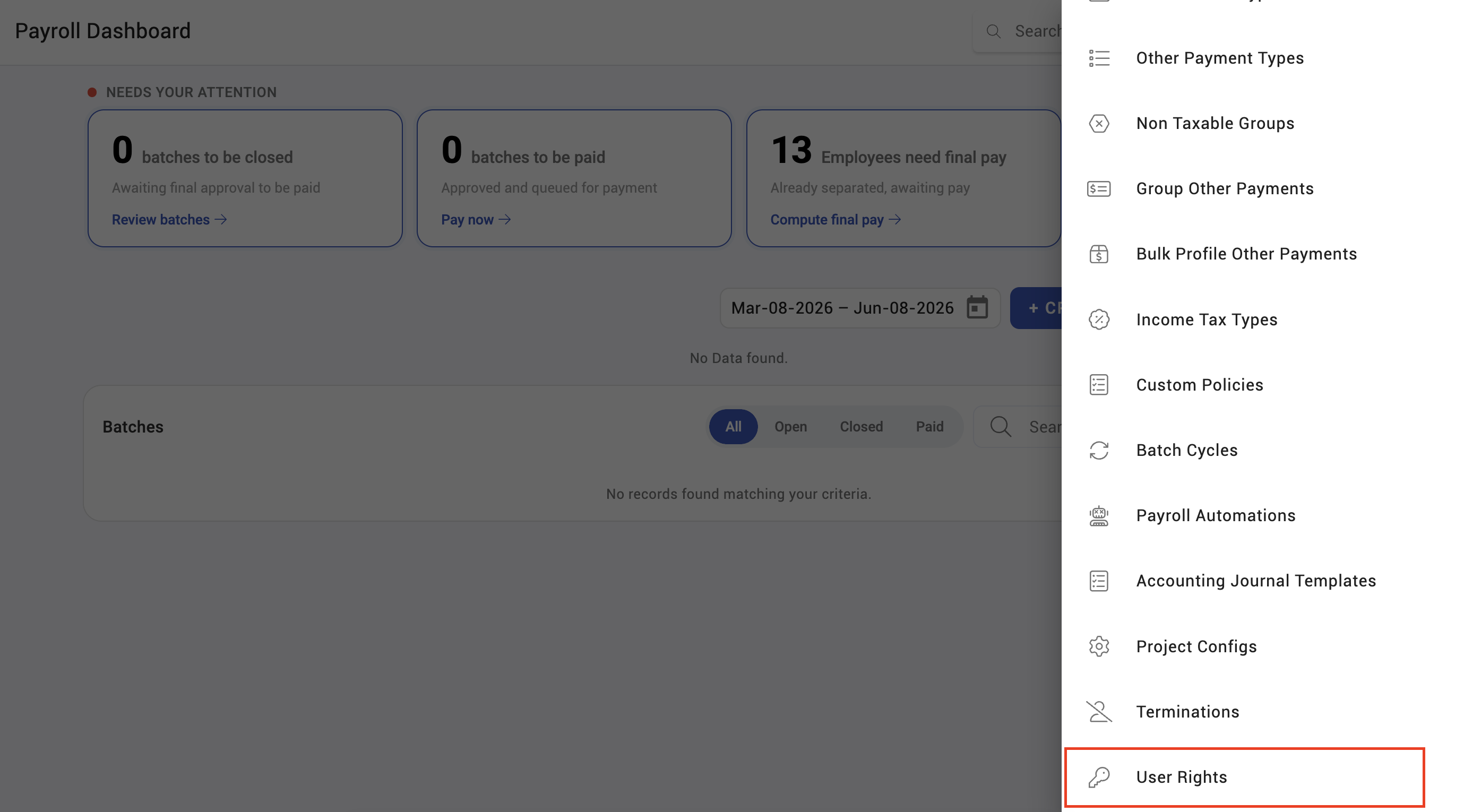
Where: Payroll › User rights You need: the payroll user rights permission
The rights, and what each allows
| Right | Allows |
|---|---|
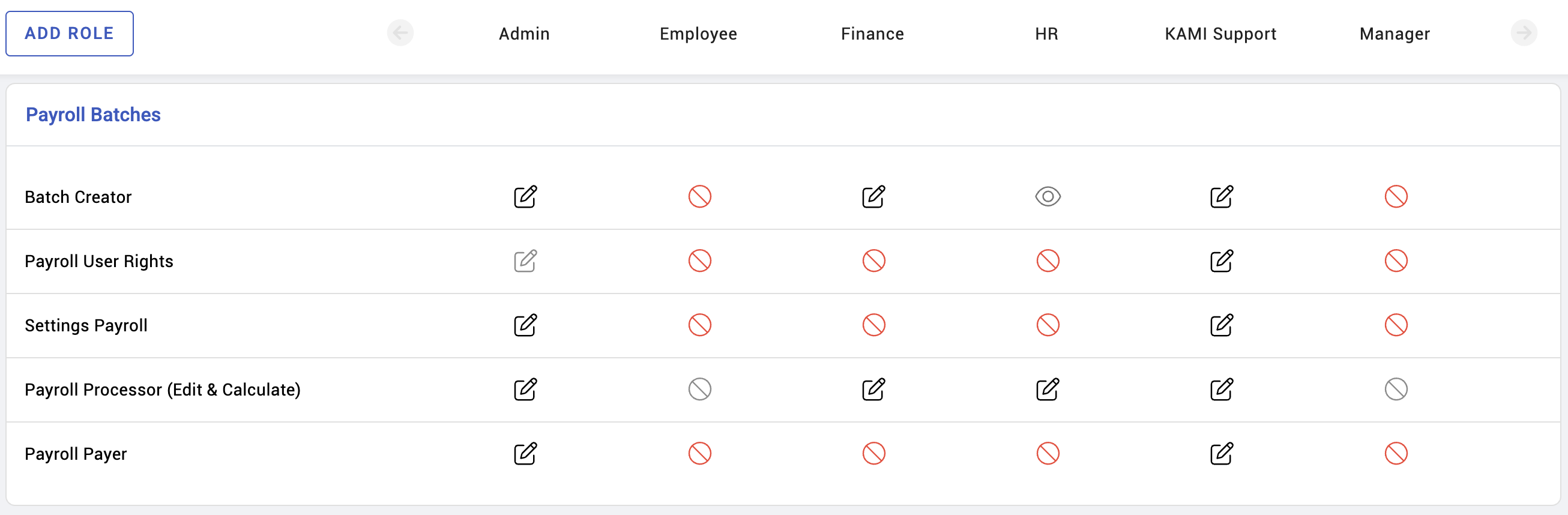
| Payroll processor | Preparing and calculating runs |
| Payroll payer | Processing payment and disbursement |
| Payroll batch | Access to specific batch cycles |
| Payroll settings | Changing payroll configuration |
| Payroll user rights | Granting payroll rights to others |
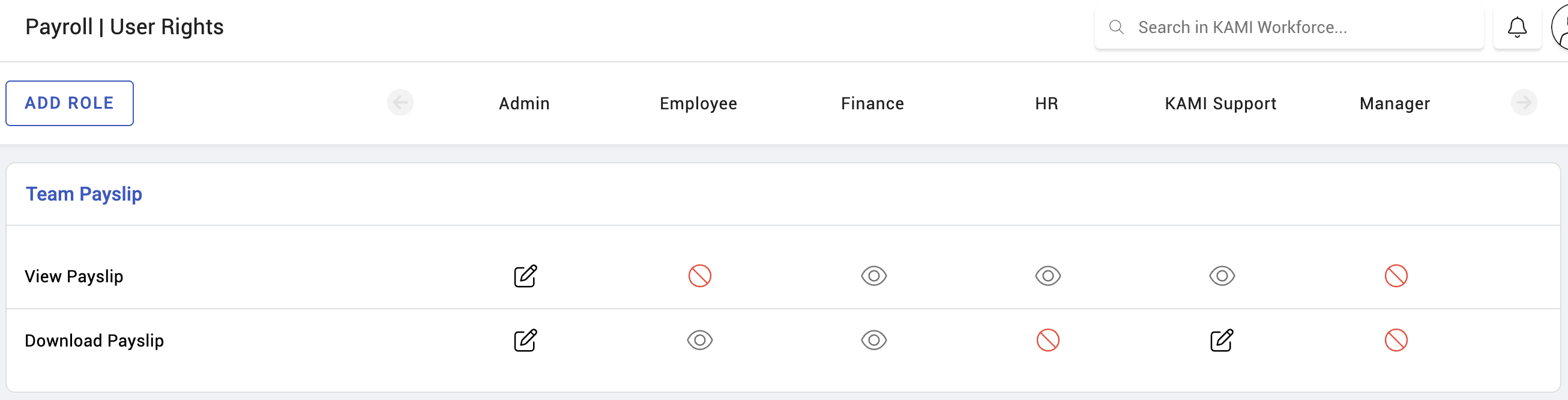
| Payslip download | Downloading payslips |
| Employee payslips | Seeing payslips on an employee's record |
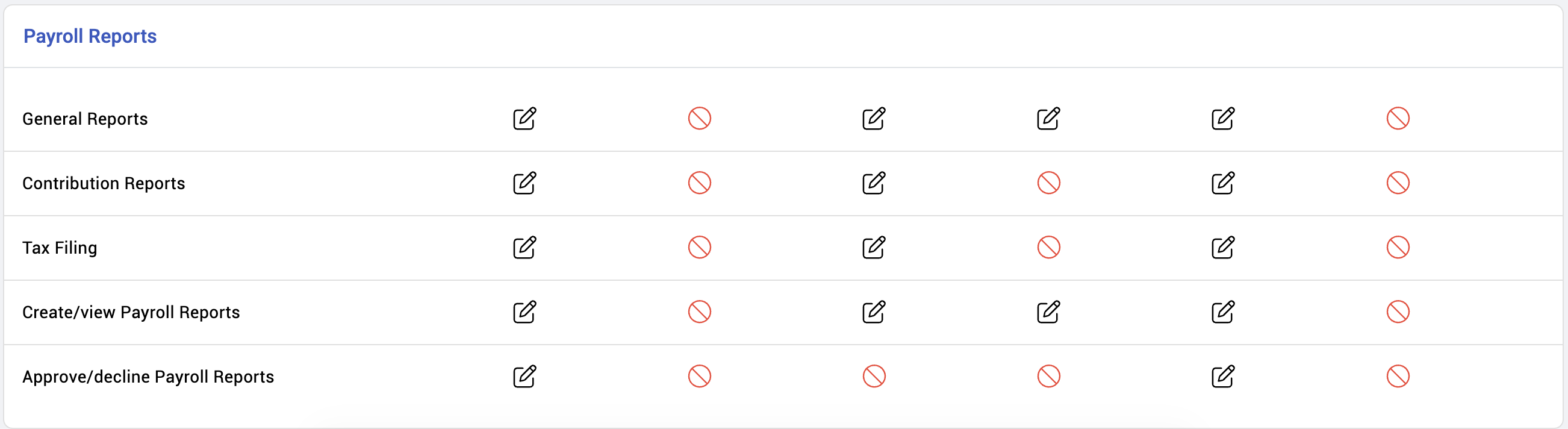
| Payroll reports | Running payroll reports |
| Contributions reports | Running contribution reports |
| Taxes reports | Running tax reports |
| Report preferences | Creating and updating report templates |
| Report approval | Approving or declining report preferences |
The separation that matters
Processor and payer should not be the same person. One prepares the figures, the other releases the money. That split is the basic control over payroll fraud and over honest mistakes, and it costs nothing to implement.
Batch access is separate from role. Someone can be a processor and still only see the cycles they are assigned to. This is how a multi-entity or multi-country company keeps one payroll team out of another's data.
⚠️ Payroll user rights is the right that grants rights. Anyone holding it can give themselves everything else. Treat it as the most sensitive permission in the module and give it to as few people as possible.
How to grant payroll rights
- Open Payroll › User rights.
- Select the person.
- Grant the roles they need — processor, payer, settings, reports.
- Assign the batch cycles they should reach.
- Save, and have them confirm they can see what they should and nothing more.
What Happens Next
- Rights apply immediately; the person may need to reload.
- Batch access limits what they see everywhere in payroll, including reports.
- Removing a right does not alter anything they did while they held it — the payslip history keeps its record.
Tips
- Split processor and payer from the first day. Retrofitting the split after an incident is a much harder conversation.
- Give batch access narrowly. Most people need one cycle, not all of them, and payroll data is the most sensitive in the system.
- Review payroll rights when anyone changes role, not annually. Payroll access outlives job changes more than any other permission.
- Keep at least two approvers per cycle. One person on leave should not stop payday.
- Audit who holds the user-rights permission regularly, and keep the list to one or two people.
Troubleshooting / FAQ
Q: Someone cannot see a payroll run. They lack access to that batch cycle. Role alone is not enough.
Q: Someone can prepare payroll but not pay it. Correct, if they have processor and not payer. That is the intended separation.
Q: A manager can see their team's payslips unexpectedly. Check the employee-payslips right. It is separate from general team access.
Q: Reports are empty for one user. Their batch access excludes the cycles the report covers.
Q: Can someone grant themselves rights? Only if they hold the payroll user rights permission. That is why it should be tightly held.
Screenshots
These screenshots came from our previous help centre and may show an earlier version of the interface.