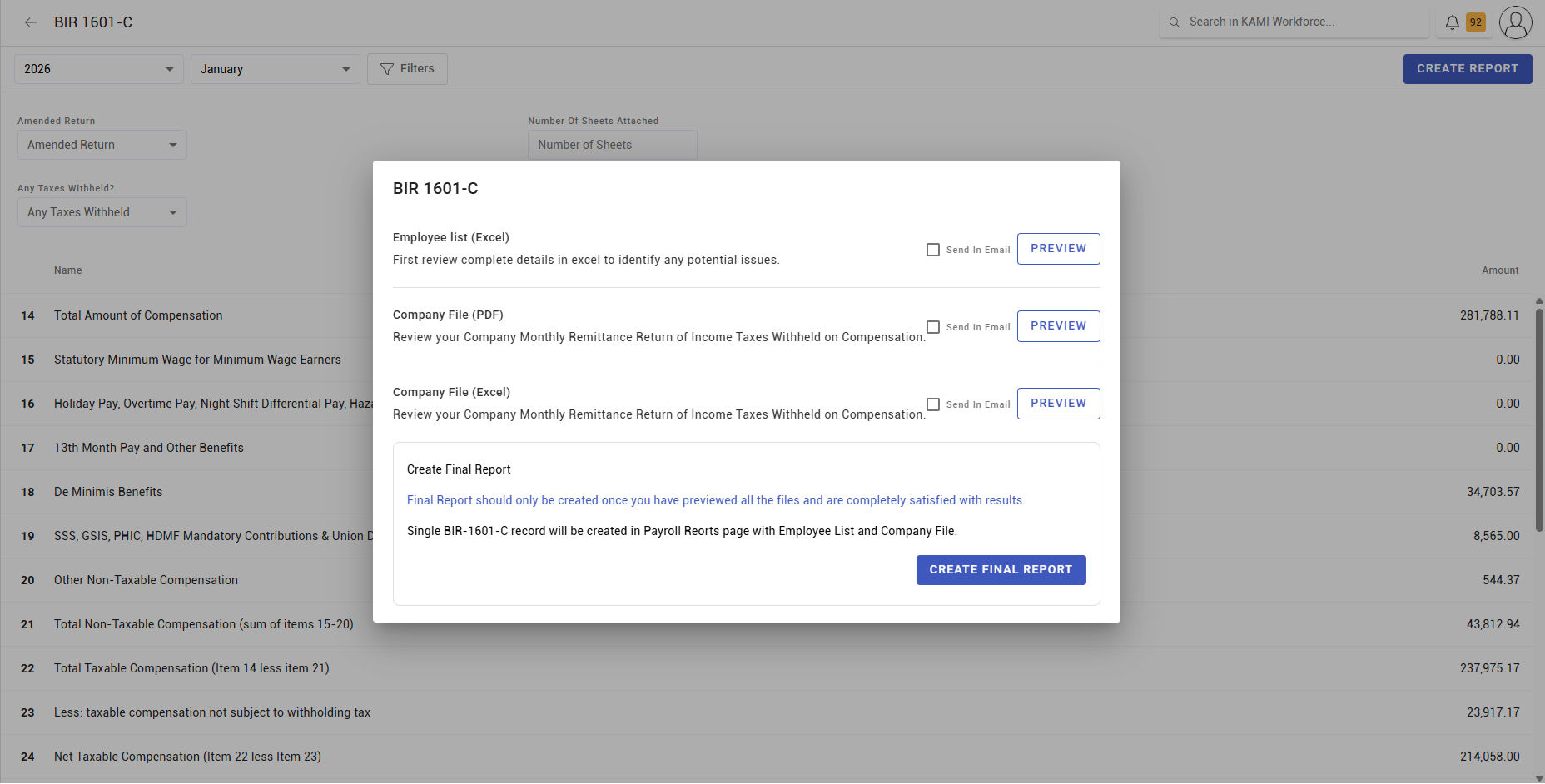
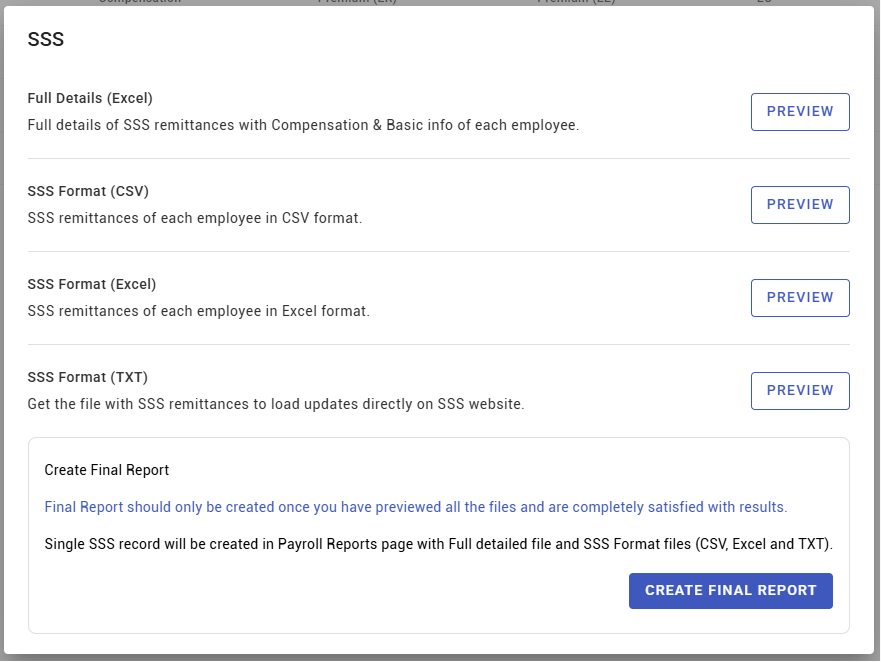
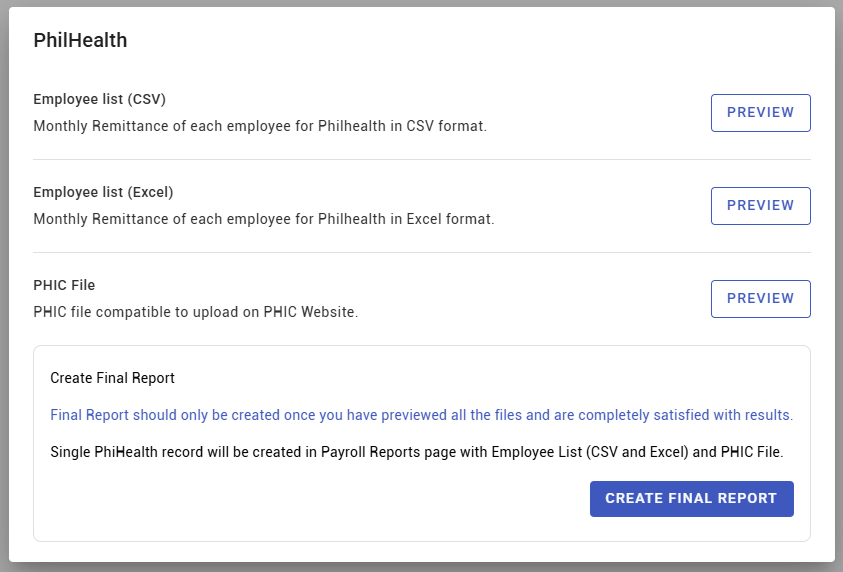
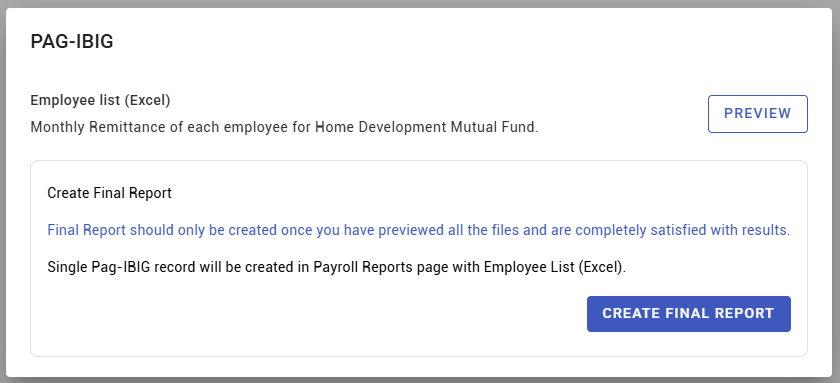
Monthly tax and contribution reports
Every period you owe two things to the authorities: what you withheld in tax, and what you and your employees contributed. These reports produce those figures from the payslips, so the filing matches what was actually paid.
Where: Payroll › Reports › Contributions, and Reports › Taxes You need: payroll rights for the batch cycles being reported
Before You Start
Finish the runs first. A report is only as final as the payslips behind it. Filing from a run that is still being corrected means filing twice.
Use a settled payslip status. Report on Paid or Closed & Paid. Pending figures are drafts and will move — see Payroll reports.
Know your deadlines. KAMI produces the figures; it does not know when your filing is due.
What each report gives you
| Report | Contains |
|---|---|
| Contributions | Employee and employer contributions, per contribution type |
| Taxes | Tax withheld across the period |
Employee and employer portions are tracked separately, because they are remitted and reported differently.
How to produce the monthly filing figures
- Confirm every payroll run for the period is closed and paid.
- Open Payroll › Reports and choose Contributions or Taxes.
- Select the period and the batch cycles — all of them, if you run more than one.
- Set the payslip status to Paid or Closed & Paid.
- Generate and export.
- Reconcile before filing — see below.
Reconcile before you file
Three checks, and they take minutes:
- Report total against the payroll run totals for the same period. A gap means a batch is missing from the selection or a payslip is in an excluded status.
- Contribution totals against the authority's own schedule for a sample of employees at different brackets. This catches a stale rate or a rounding mismatch.
- Headcount against the number of employees you expect to be remitting for. A missing employee is easier to see as a count than as an amount.
⚠️ If you run more than one batch cycle — weekly and monthly, or by entity — make sure the report covers all of them. Filing from one cycle when you operate two is a straightforward under-remittance.
What Happens Next
- The exported figures are what you file. KAMI does not submit on your behalf.
- Corrections made to payslips after you file will not match what you filed; keep the export as the record of what was reported.
- The same underlying figures feed the year-end reporting, so an error here reappears in December.
Tips
- Export and keep every filing. "What did we report in March" is a question that gets asked a year later.
- Reconcile the same three ways every month. A consistent check catches drift; an ad-hoc one catches nothing.
- Watch the month a rate changes. The period spanning a statutory rate change is the one most likely to be wrong, and the one an auditor will look at.
- Check leavers are included. A final payslip in the period carries contributions and tax like any other.
- Do not adjust the report to match an expectation. If the figures look wrong, find out why — the payslips are the source of truth, and if they are wrong the filing is not the place to fix it.
Troubleshooting / FAQ
Q: The report total does not match our payroll run. Check the batch selection and the payslip status filter first — that accounts for nearly all differences.
Q: An employee is missing. Their payslip is in a status the filter excludes, or their batch cycle was not selected.
Q: Contributions do not match the authority's table. Check the rate, the wage cap and the rounding on the contribution type — see Contribution types.
Q: We already filed and then corrected a payslip. The report will no longer match your filing. Keep the original export and handle the difference through the authority's amendment process.
Screenshots
These screenshots came from our previous help centre and may show an earlier version of the interface.