Offline and remote check-ins
Not every check-in happens at the office with a working connection. KAMI records both cases, flags them so a manager can see the circumstances, and — where you want it — holds them for approval rather than accepting them silently.
Where: Calendar › Events and Approvals to review; enabled per employee You need: the attendance rights to review and approve
Which is which
They sound similar and are answers to different problems:
| Offline check-in | Remote check-in | |
|---|---|---|
| The problem | No connection at the moment of the tap | Not at a branch location |
| What happens | Stored on the device, syncs later | Recorded with a reason |
| The risk it creates | Times recorded without a live server | Attendance without a known location |
| The control | Approval on sync | Approval, plus a required reason |
An employee can be both at once — working at a remote site with no signal.
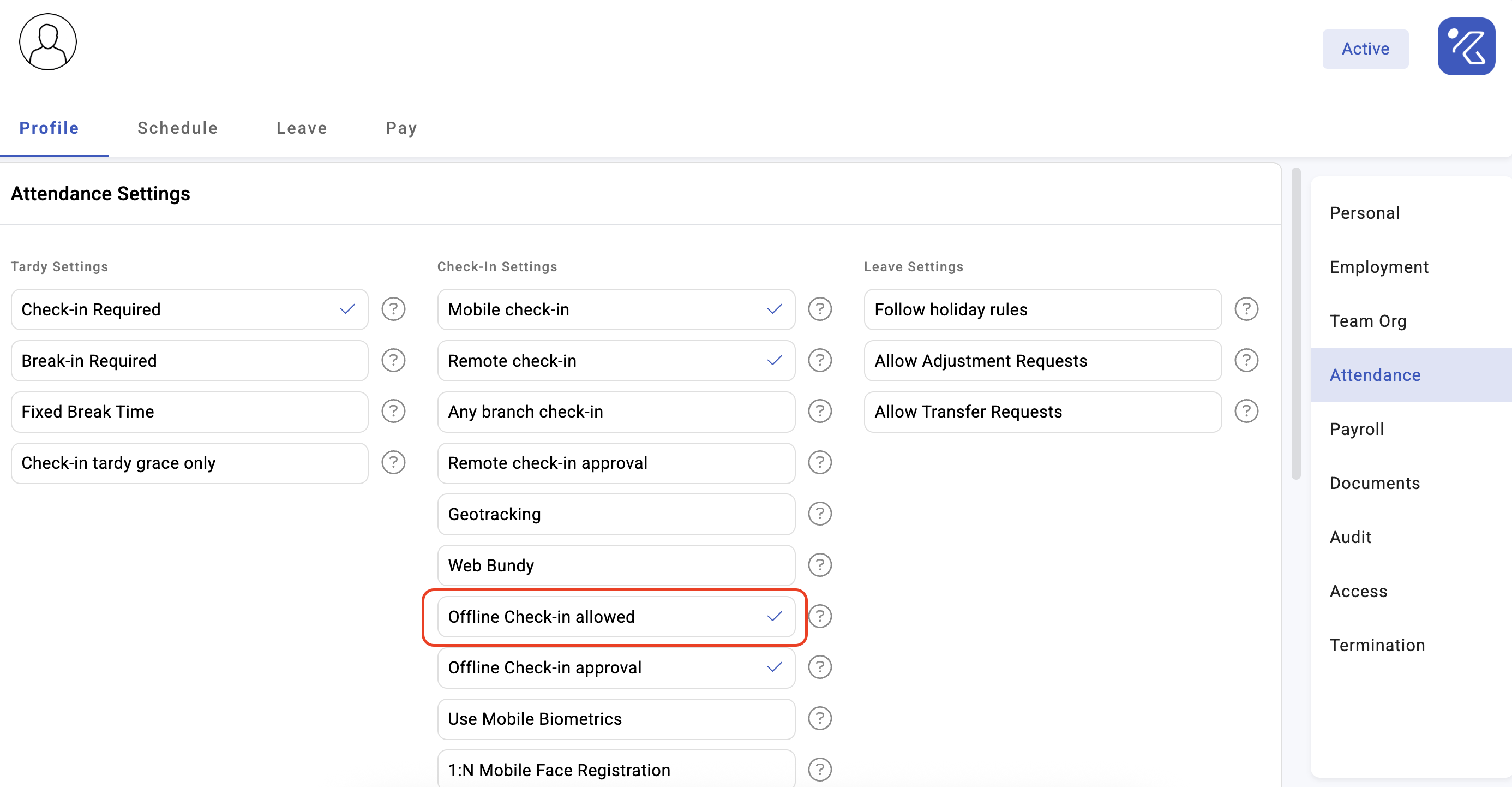
Offline check-ins
When the connection drops, taps are stored on the device and sent when it returns. KAMI records when the offline punches last reached the server, so the gap between the tap and its arrival is visible rather than hidden.
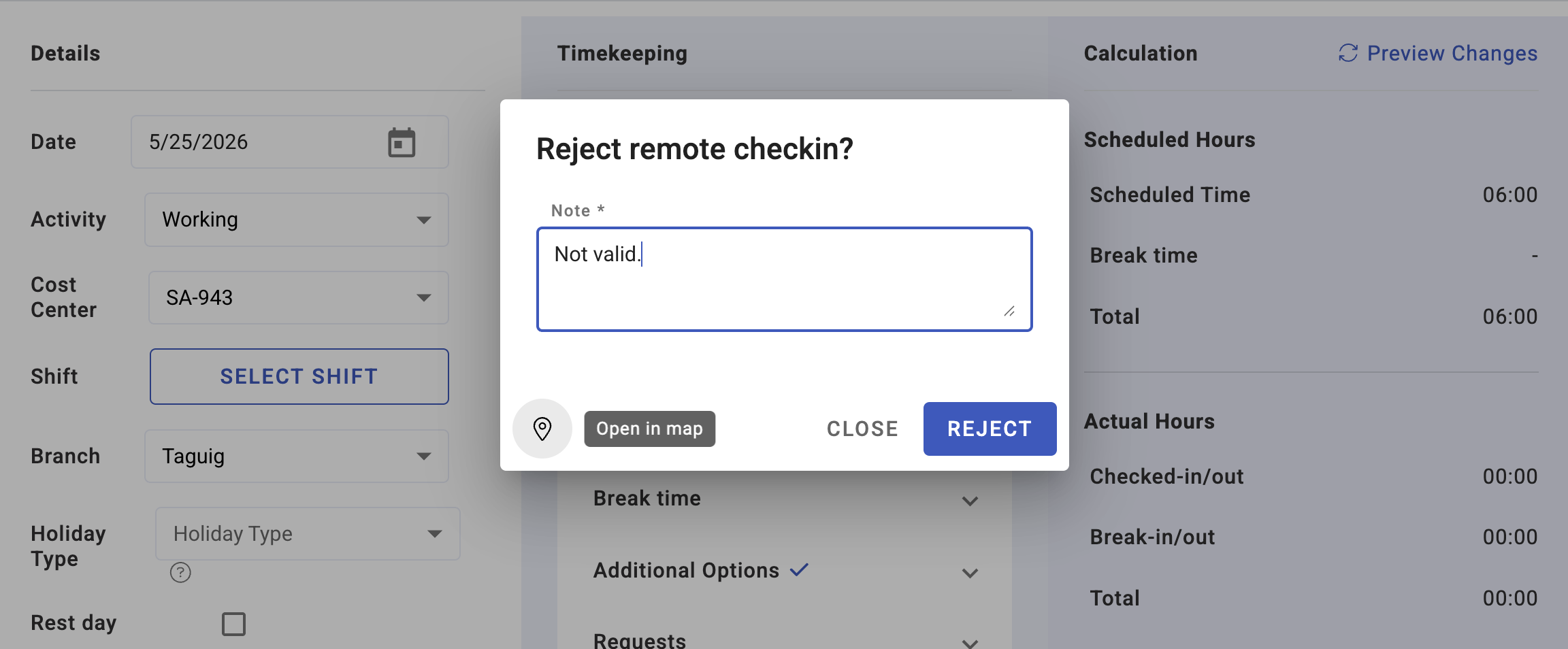
Every offline punch is marked as offline on the event. You can review them, and reject ones that do not stand up — a rejected offline check-in does not become an attendance record.
The reason this needs review at all: an offline tap is a time the device asserts, recorded without the server present. Most are entirely genuine. The review exists so that the small number that are not can be caught, and so that a device syncing days late is noticed.
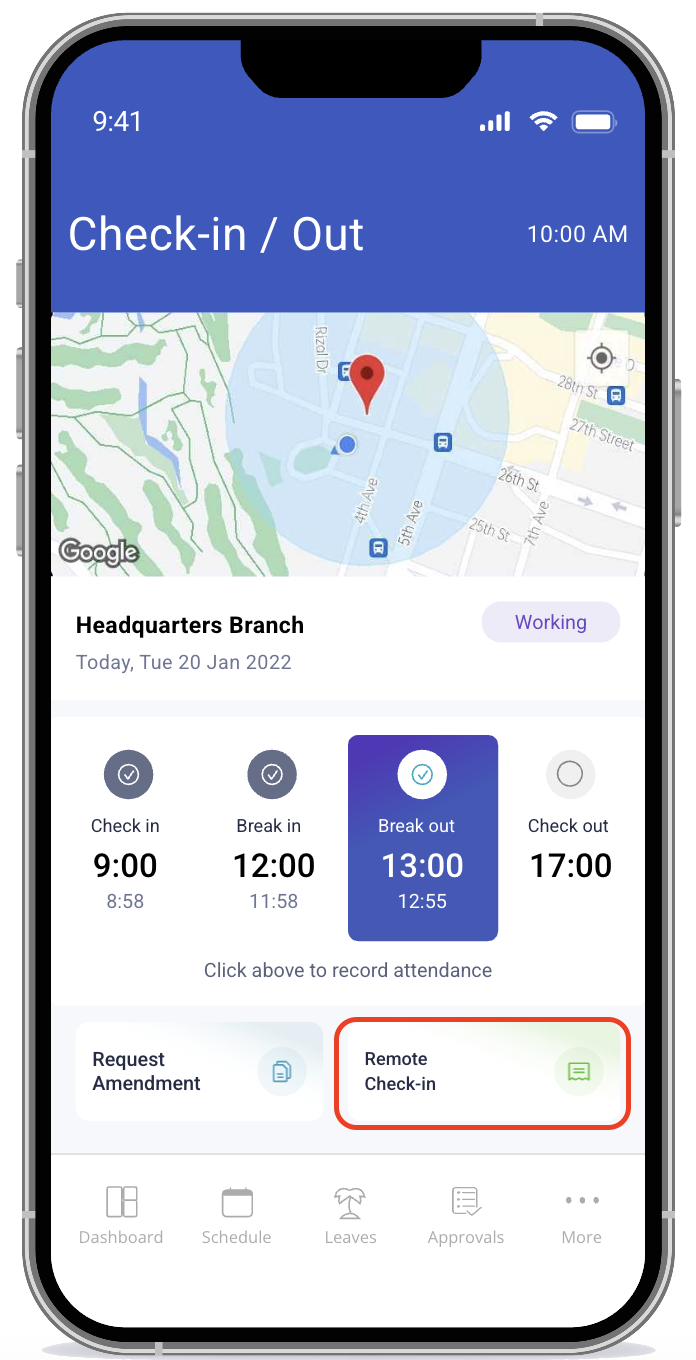
Remote check-ins
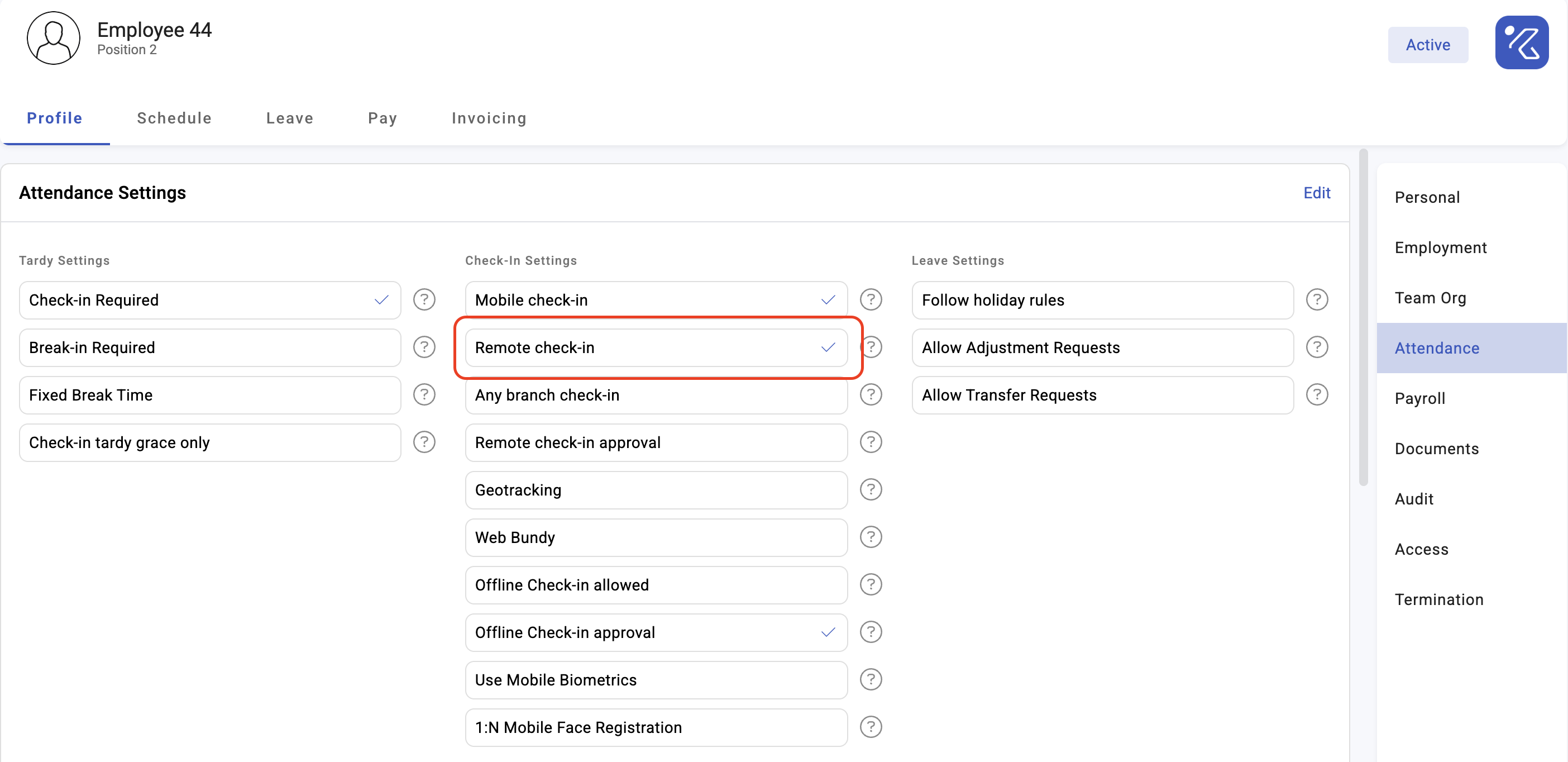
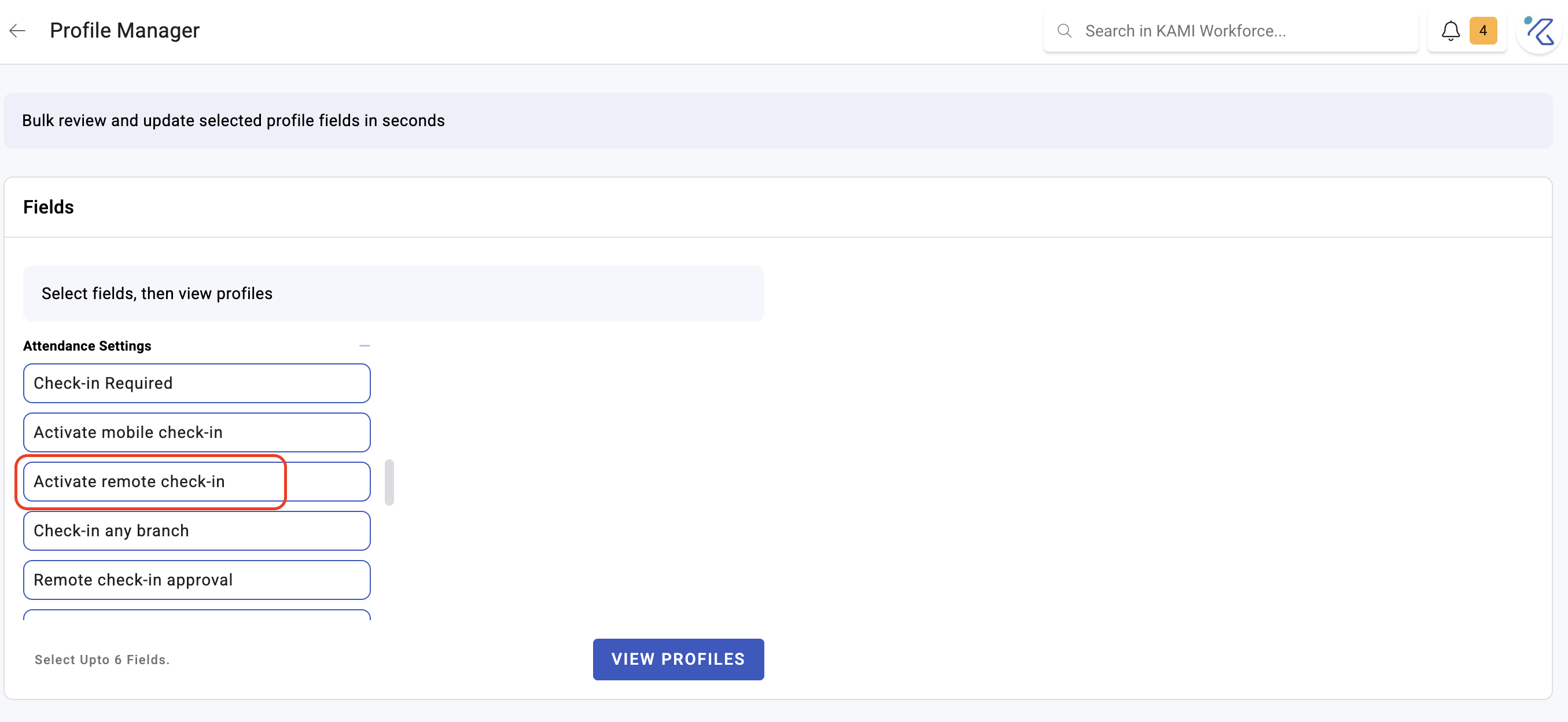
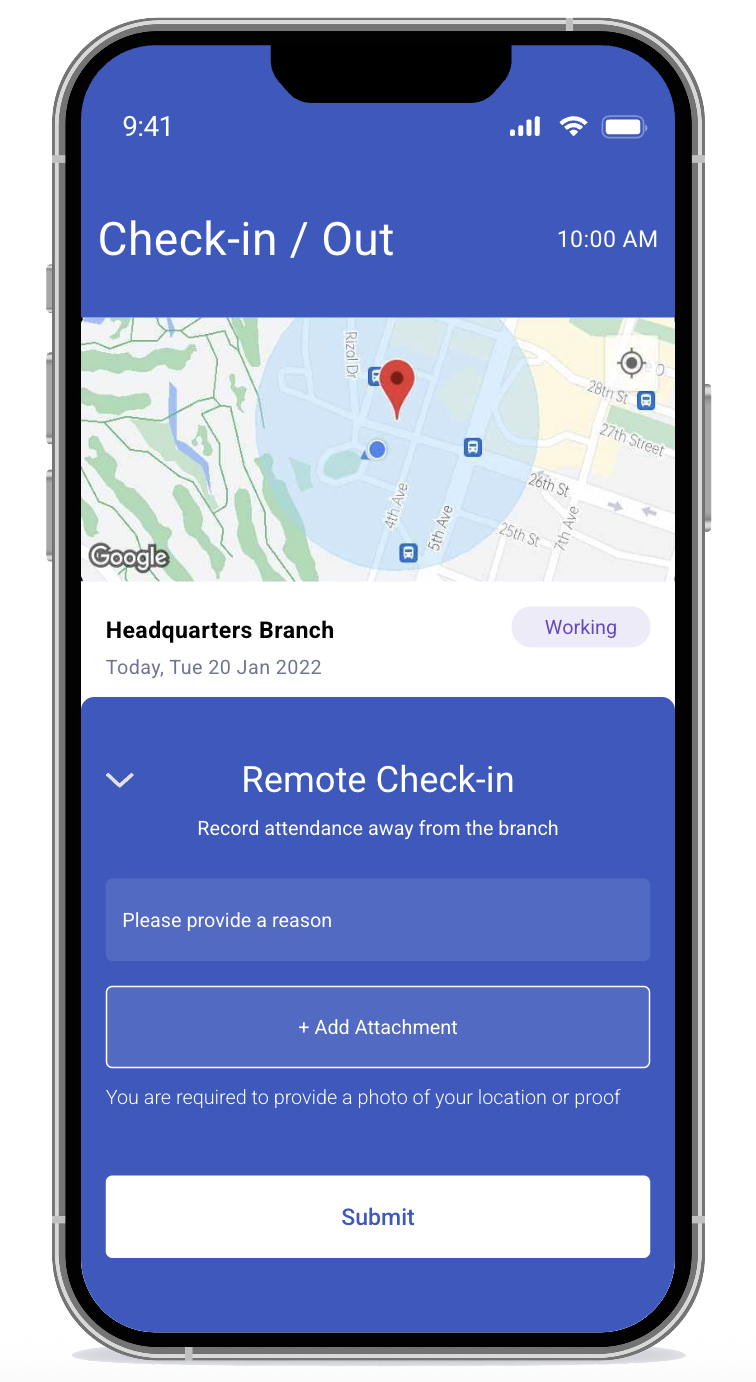
Remote check-in is enabled per employee — it is a permission, not a global setting, which is what stops office staff quietly checking in from home.
When an employee checks in remotely they give a reason, and KAMI records one separately for each action: check-in, check-out, break start and break end. Each carries its own remote flag, so a day that started at the office and continued from home is visible as exactly that.
Remote check-ins can be reviewed and rejected in the same way as offline ones.
What Happens Next
- Approved check-ins become ordinary attendance and flow into the timesheet and payroll.
- Rejected ones do not, which leaves the day incomplete — usually missed start or missed end — so it needs a correction. See Correcting attendance.
- Both flags stay on the record permanently, so the pattern is visible in reports later.
- Where location tracking is in use, remote check-ins carry position data — see Checkpoints and geo-tracking.
Tips
- Enable remote check-in only for roles that need it. It is a per-employee permission for a reason; granting it broadly removes the meaning of the flag.
- Review offline check-ins promptly. They arrive in batches after an outage, and reviewing a fortnight later means reconstructing what happened rather than remembering it.
- Investigate the device, not the person, when offline check-ins cluster. A tablet that regularly loses connection produces dozens of offline punches; the fix is the tablet. Check the device error reports in Attendance reports.
- Require useful reasons. "Remote" as a reason tells you nothing. "Client site — Makati" tells the next reader everything.
- Rejecting is not the end. A rejected check-in leaves a broken day. Tell the employee to raise a correction, or the record simply stays wrong.
Troubleshooting / FAQ
Q: An employee says they checked in but there is no record. If they were offline, the punch arrives when the device reconnects. Check the offline sync time before treating it as a missed tap.
Q: Remote check-in is not available to an employee who needs it. It is enabled per employee. Someone with the attendance rights needs to turn it on for them.
Q: I rejected a check-in and now the day shows as missed start. Correct — rejecting removes the punch, leaving the day incomplete. Raise an amendment to set the right time.
Screenshots
These screenshots came from our previous help centre and may show an earlier version of the interface.
Set Up and Review Remote Check-in
Set Up and Approve Offline Check-ins