Managing and approving expense claims
Approving expenses is a control, not an administrative step. The approver is usually the only person who will ever look at the evidence, and once a claim is paid it is effectively final.
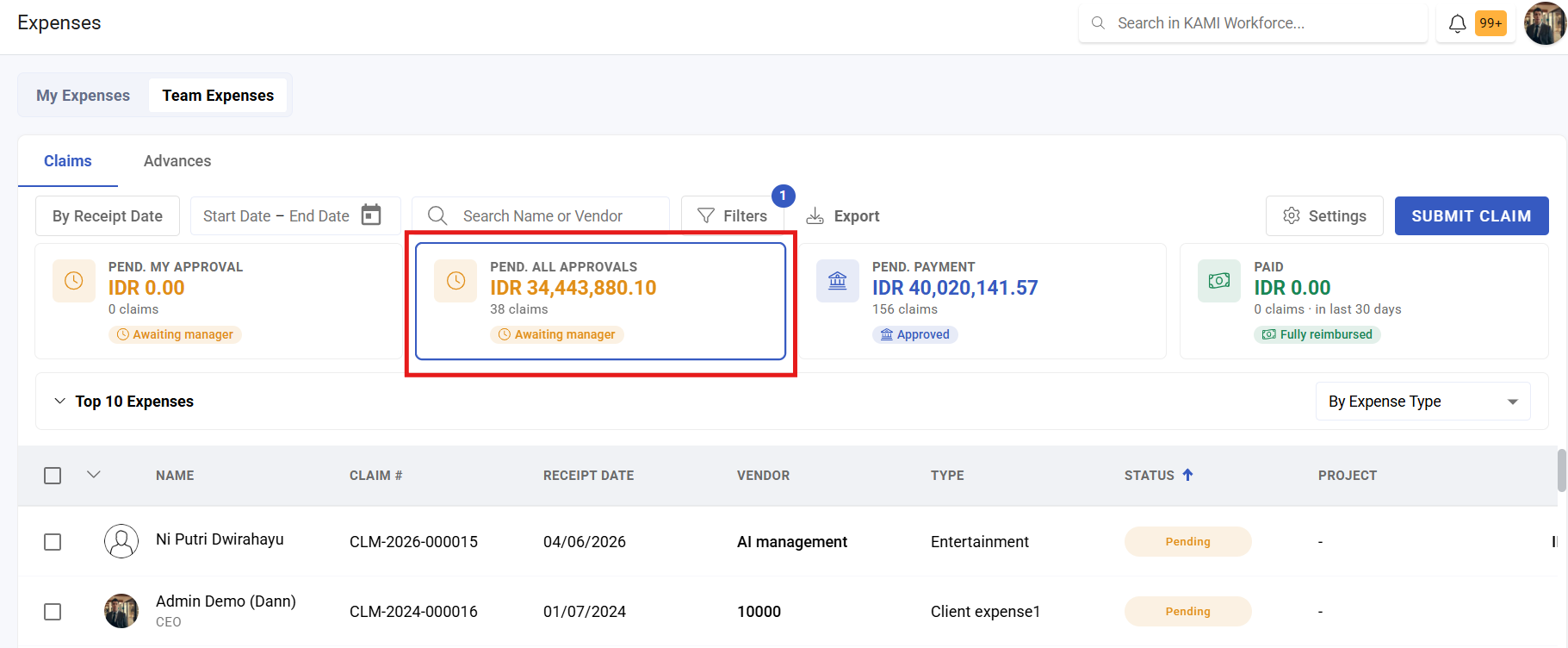
Where: Expenses › Claims
You need: expense rights covering the claimants
The statuses
| Status | Means |
|---|---|
| Requested | Submitted, not yet in the approval queue |
| Pending | Awaiting your decision |
| Approved | Agreed, awaiting payment |
| Declined | Refused |
| Paid | Reimbursed |
Advances add advanced and pending liquidation — see Managing advances.
What to actually check
The system enforces limits, required fields and eligibility before the claim reaches you. What it cannot judge is whether the spending was legitimate. So your review is narrower than it looks, and should concentrate on:
- Does the receipt match the claim? Amount, date, supplier.
- Is the business purpose clear? If you cannot tell from the description why this was spent, ask now rather than after payment.
- Is it the right type? A claim in the wrong category is charged to the wrong account and may bypass a limit that should have applied.
- Is this a pattern? One taxi is a taxi. Twenty taxis is a policy question.
💡 Do not spend your review re-checking limits and receipt requirements — the expense type already enforced those. Spend it on the judgement the system cannot make.
How to approve
- Open Expenses › Claims and filter to pending.
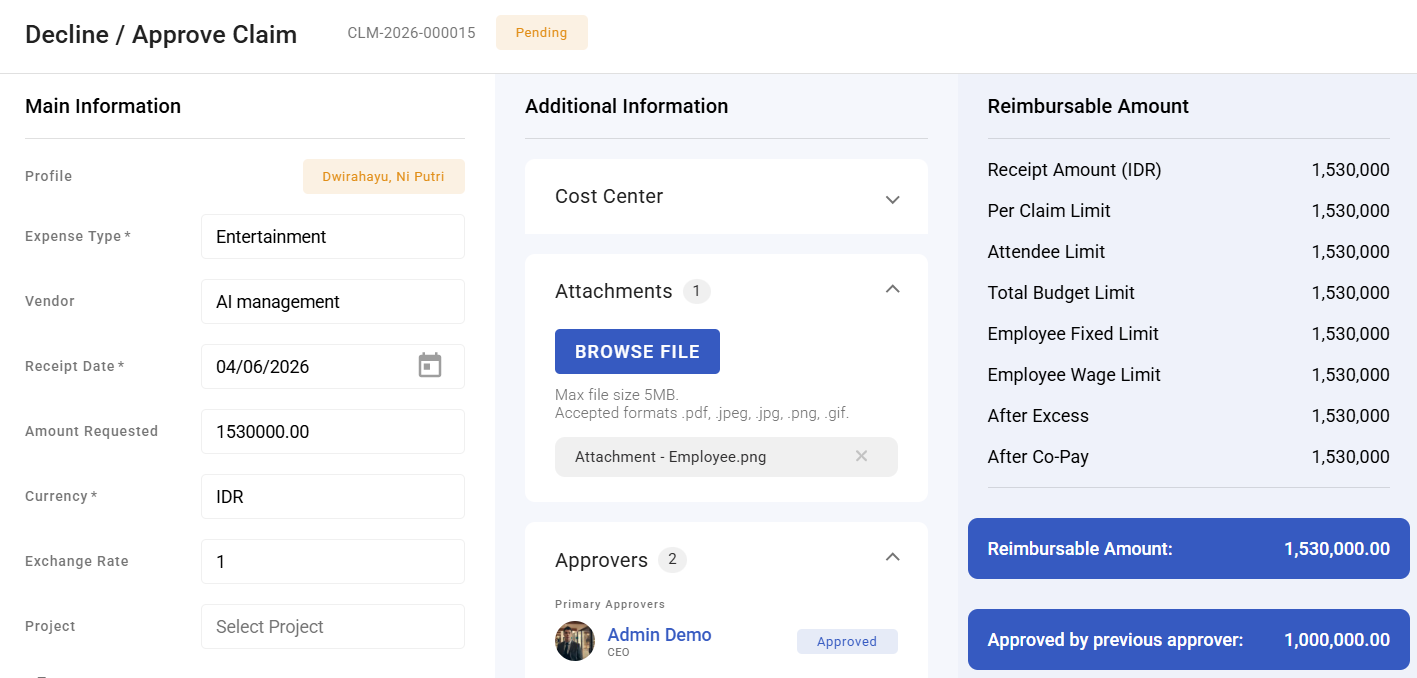
- Open the claim and view the receipt.
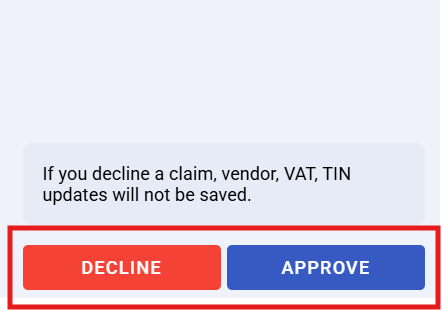
- Approve or decline. If declining, say why — a bare rejection produces a resubmission of the same claim.
- Approved claims move to payment — see Reimbursement and payment.
What Happens Next
- Approved claims become payable by the configured method, including through payroll.
- Declined claims return to the employee, who can correct and resubmit.
- Claims carry their classification and cost centre into your accounts.
- Once paid, treat a claim as final; corrections are handled as new transactions.
Tips
- Clear the pending queue on a fixed day each week. Expenses are money employees have already spent from their own pocket, and slow reimbursement is felt personally.
- Always give a reason when declining. It is the difference between a corrected resubmission and a repeat of the same claim.
- Look at the claimant's history when something seems unusual, not just the claim in front of you.
- Do not approve your own claims, and make sure the approval route makes that impossible rather than relying on restraint.
- Escalate policy problems as policy, not as rejections. If several people are claiming the same disallowed thing, the policy or the expense type needs changing.
Troubleshooting / FAQ
Q: A claim I expected is not in my queue. Check the approval route for that expense type — types can override the normal approvers.
Q: An employee says their claim was approved but not paid. Approved and paid are separate steps. Check the payment method and whether the payment run has happened.
Q: Can I approve part of a claim? Decline it with a reason and ask for a corrected claim. A partly approved claim leaves the record disagreeing with the receipt.
Q: The claim looks legitimate but exceeds the limit. The limit is the policy. If the policy is wrong, change the expense type; do not work around it on an individual claim.
Q: An employee is claiming through the wrong type. Decline with an explanation. The type determines both the rules and the accounting.