Leave conversion and encashment
Leave conversion turns unused leave into something else — most often money, sometimes another leave type. It is how "use it or lose it" becomes "use it, bank it, or be paid for it", and because the output is usually a payment, it is one of the few attendance settings that writes directly into payroll.
Where: Settings › Calendar › Transfer rules You need: the calendar settings right
When to use this, and when not to
| You want to | Use |
|---|---|
| Pay employees for leave they did not take | A conversion rule, here |
| Move unused days into next year | Carry over on the leave type — see Leave types and policies |
| Pay out a leaver's remaining balance | Termination pay — see Deactivating, terminating and rehiring employees |
| Give someone extra days as a one-off | A balance adjustment — see Leave balances and accrual |
Conversion and carry over solve the same problem in opposite directions, and most companies need both: carry a limited number of days, convert some of the remainder, expire the rest.
How conversion is calculated
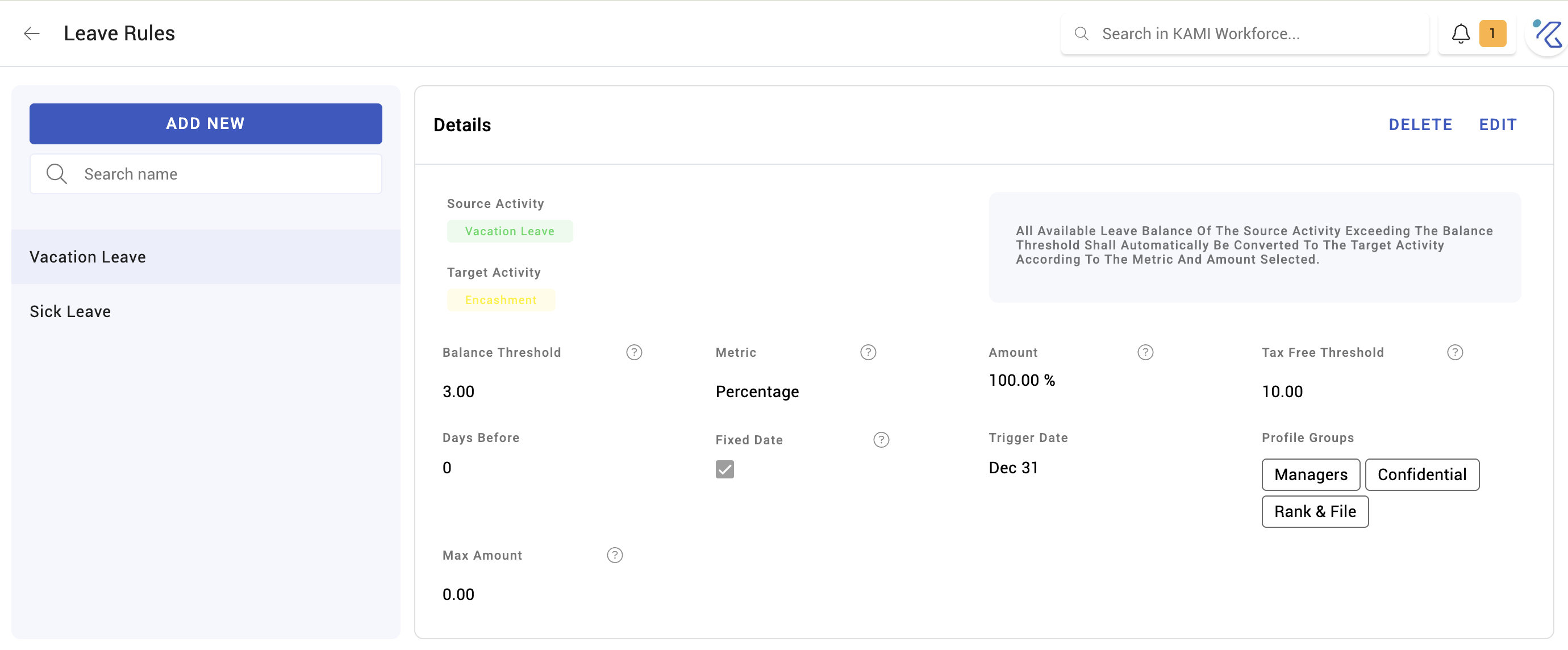
A rule converts from a source leave type at a rate expressed either as a percentage or a fixed amount:
- Percentage — a proportion of the day's value. Encashing at 100% pays a full day's wage per day; at 50%, half. The wage used is the leave type's own wage basis, so whether "a day" means basic or gross daily wage is decided on the leave activity, not here.
- Fixed — a set amount per day, regardless of the employee's wage. Simpler to budget, but it pays a senior and a junior employee the same for the same day.
Rules also carry a days to use setting. Manually converted balances that are not taken from the days transfer expire automatically — the conversion is an offer with a deadline, not a permanent alternative.
How to set up a rule
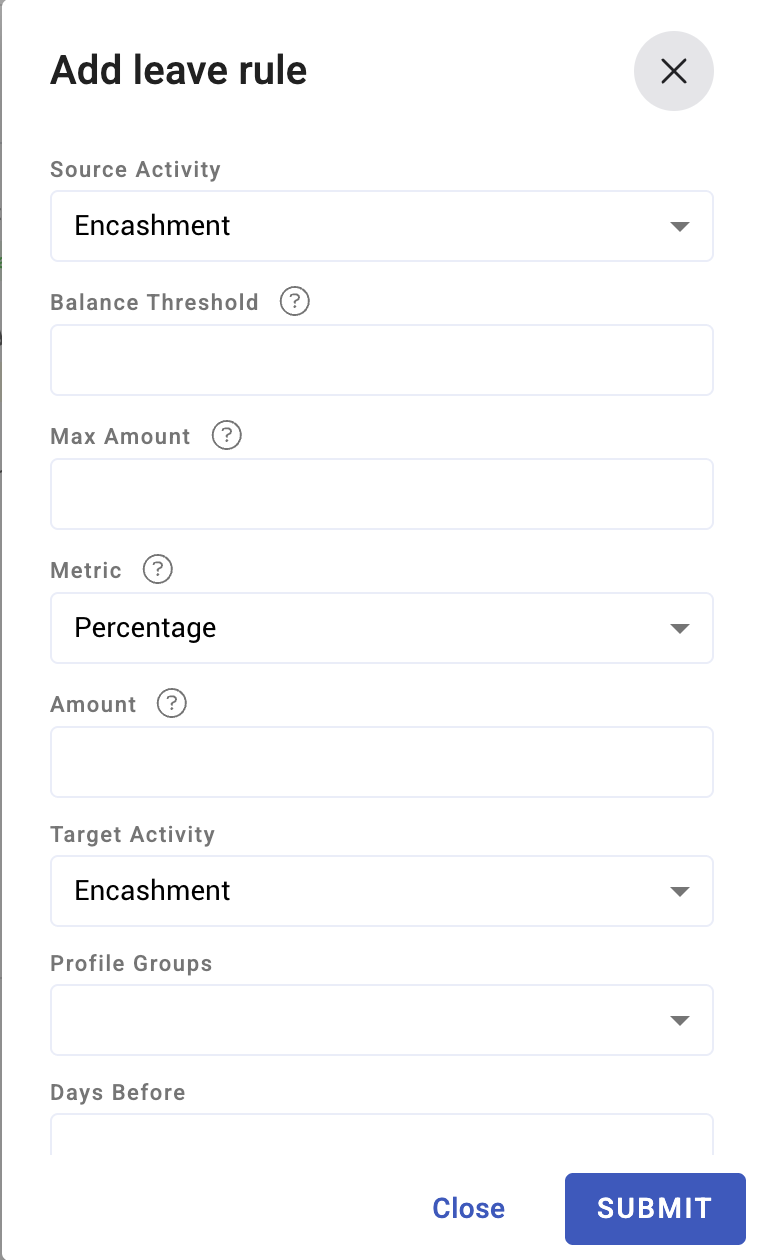
- Open Settings › Calendar › Transfer rules and add a rule.
- Choose the source activity — the leave type being converted.
- Set the metric: percentage or fixed, and the rate.
- Set days to use, after which unconverted balance expires.
- Activate the rule.
Rules can be active or inactive, so a conversion offered once a year can be switched on for the window and off again.
What Happens Next
- Converted leave leaves the employee's balance and becomes a payroll item.
- The payment appears in the payroll run for the period, under the activity's tag — see Activities and how they pay.
- Balances that were eligible but not converted expire once the days-to-use window closes.
- Nothing is retrospective: conversion applies to balance at the time it runs.
⚠️ Encashment is a payroll transaction. Test a rule on one employee and check the resulting payslip line before applying it to the company — a wrong percentage pays everybody wrongly, in one run, and is recovered one apologetic conversation at a time.
Tips
- Decide the policy before the rule. How many days may be encashed, by whom, and how often is a management decision; the rule only implements it. Setting up conversion without a stated policy invites the question "why did they get more than me".
- Run conversion before the anniversary, not after. Once carry over and expiry have applied at the anniversary, the days you meant to convert may no longer exist.
- Watch the interaction with carry over. Days can be carried and eligible for conversion; decide which takes precedence, or you will pay for days that also rolled forward.
- Check the leave type's wage basis. Percentage conversion multiplies it. Basic versus gross is often a 20–30% difference in what encashment costs.
Troubleshooting / FAQ
Q: Conversion paid less than expected. Check the percentage, then the leave type's wage basis — a 100% conversion of a basic-daily-wage leave type pays basic, not gross.
Q: Balance disappeared without being paid. It expired. Either the days-to-use window closed on a manual conversion, or carry-over expiry lapsed the days first.
Q: Nothing appeared on the payslip. Conversion writes into a payroll run. If the run for that period has already been processed, the item lands in the next one.
Screenshots
These screenshots came from our previous help centre and may show an earlier version of the interface.