Scheduling payroll reports
A scheduled report generates and arrives on its own, on a cadence you set. It removes the monthly ritual of remembering to run something, and it removes the risk that the person who normally runs it is on leave.
Where: Payroll › Reports › the report's schedule You need: payroll rights for the batch cycles the report covers
When to schedule, and when not to
| The report is | Do |
|---|---|
| The same shape every period, for the same people | Schedule it |
| Needed once, or shaped differently each time | Run it manually |
| Feeding a statutory deadline | Schedule it, and diary the deadline separately |
Scheduling suits reports whose value is regularity: a monthly contributions file, a payroll summary for finance, a standing export.
Before You Start
Save a template first. A schedule runs a template, so the columns and shape need to exist before there is anything to schedule.
Decide the payslip status. A report scheduled on Pending will produce draft figures every time it runs. For anything that leaves the building, schedule on Paid or Closed & Paid — see Payroll reports.
Decide the timing against your payroll calendar, not the calendar month. A report scheduled for the 1st will not include a run that is paid on the 3rd.
How to schedule a report
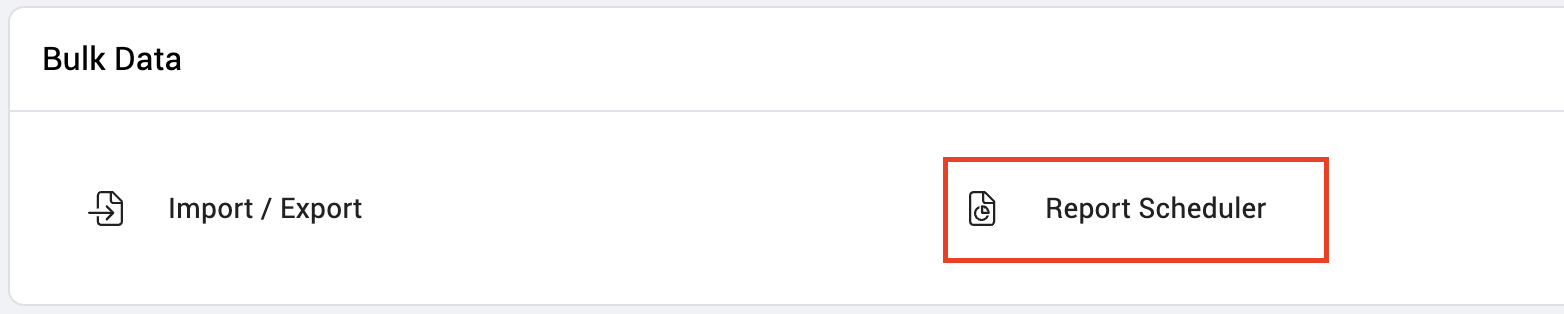
- Open Payroll › Reports and select the template.
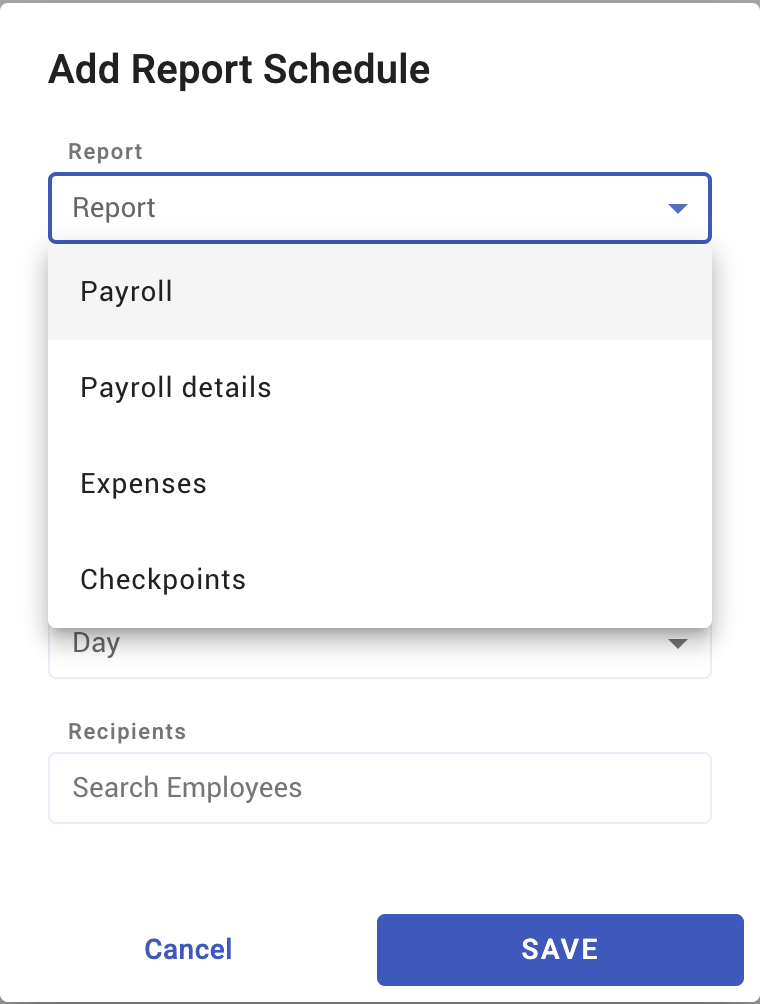
- Set the schedule — how often, and when.
- Set the payslip status filter the schedule should use.
- Confirm who receives it.
- Check the first delivery against a manual run of the same report.
What Happens Next
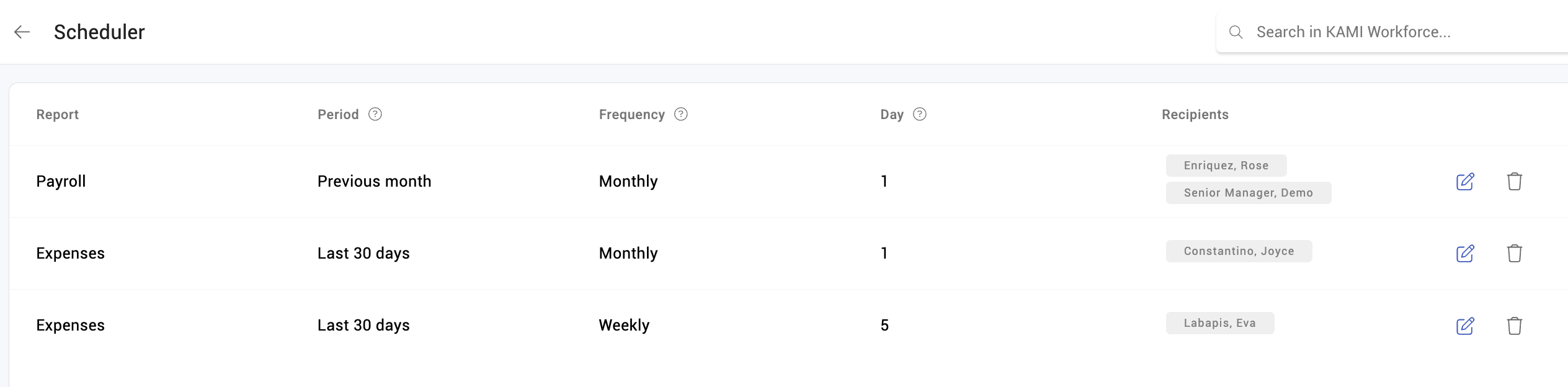
- The report generates on its cadence and is delivered to the recipients you set.
- Each generated report keeps the columns it was produced with, so a template change does not alter past deliveries.
- A schedule keeps running until it is turned off — including after the person who created it has left.
Tips
- Check the first two deliveries against a manual run. After that, trust it; before that, do not.
- Schedule relative to your pay date, not the month. The commonest scheduling error is a report that runs before the payroll it is meant to describe.
- Send to a distribution list, not an individual. A schedule addressed to one person becomes invisible when they change role.
- Review scheduled reports annually. Reports outlive their purpose quietly, and nobody unsubscribes from something they assume is important.
- Do not schedule a report onto a statutory deadline without a reminder as well. If the schedule silently fails, the deadline does not move.
Troubleshooting / FAQ
Q: The scheduled report has different figures from my manual run. Compare the payslip status filter and the batch selection on each. The schedule uses what it was configured with.
Q: The report arrived empty. It ran before any payslip reached the status it filters on. Check the timing against your pay date.
Q: It stopped arriving. Check the schedule is still active and that the recipients are still valid.
Q: Can different people get different versions? Yes — schedule the templates separately. Do not try to serve two audiences from one report.
Screenshots
These screenshots came from our previous help centre and may show an earlier version of the interface.