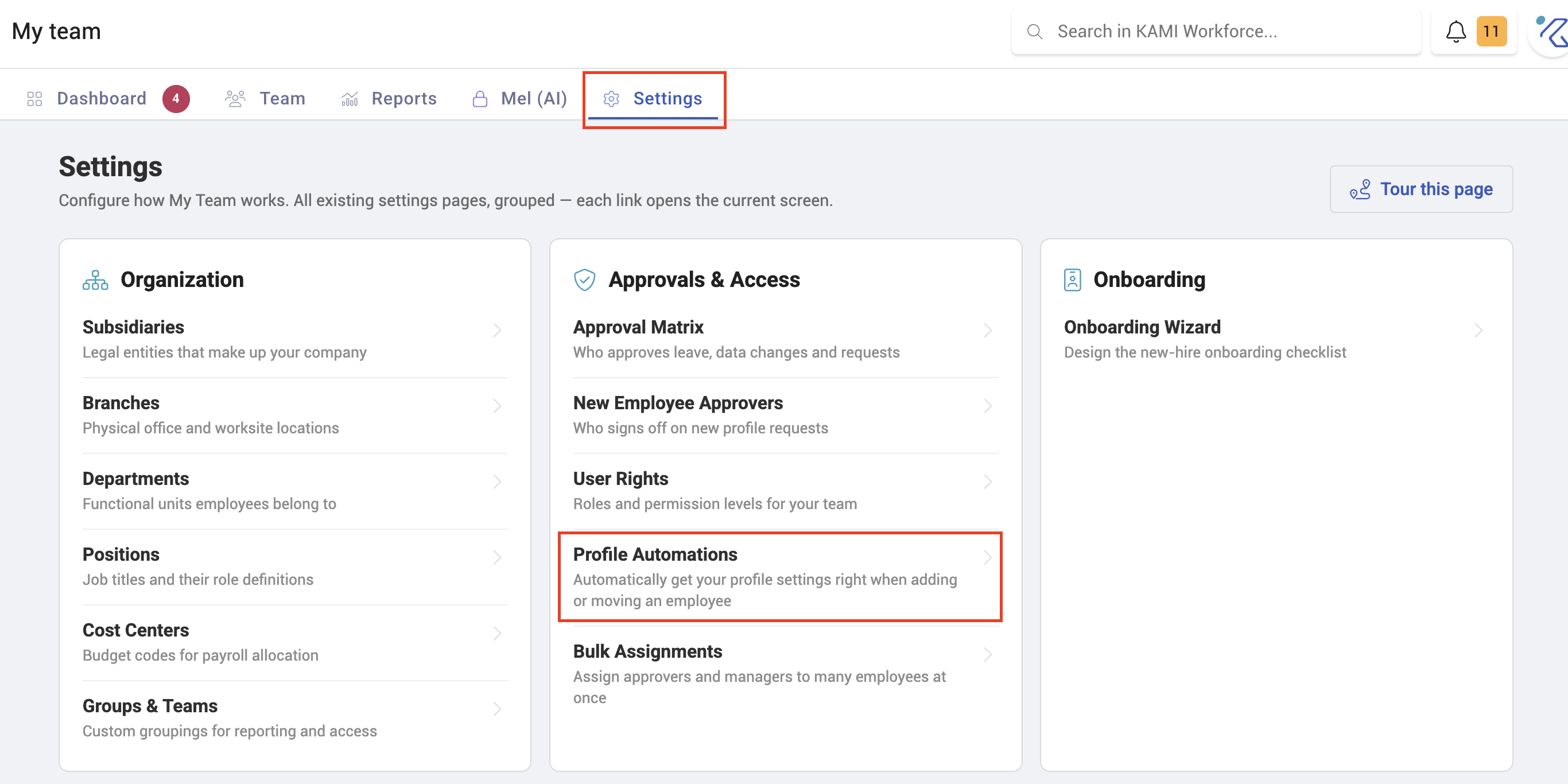
Profile Automations
Profile automations apply settings to an employee based on where they sit — their department, position, group, subsidiary or employment type. Place someone correctly and their access, schedule, cost centre and payroll settings follow automatically.
Where: My Team › Settings › Automations You need: the rights to manage team automations
Why this is the setting that saves the most work
Everything else in onboarding is a form somebody fills in. Automations are the alternative: instead of setting a new joiner's module access, approval matrix, schedule, cost centre and payroll fields by hand — and getting one of them wrong occasionally — you describe the rule once and placement does the rest.
The payoff is not the minutes saved per joiner. It is that the hundredth employee is configured exactly like the first, and that nobody has to remember what "the usual setup for a warehouse supervisor" is.
What can be automated
| Automation | Sets |
|---|---|
| Module | Which modules the employee can use |
| Access control | Their user rights |
| Approval matrix | Who approves their requests |
| Standard schedule | Their working schedule |
| Cost centre | Where their labour cost is charged |
| Batch cycle | Which payroll run they belong to |
| Payroll details | Wage period, wage basis and work week |
How a rule matches
A rule can match on any combination of:
- Department
- Subsidiary
- Position
- Group
- Employment type
A criterion you leave blank means "any". A rule that specifies only a department applies to everyone in that department, whatever their position or employment type. That is what makes rules concise — you state only what matters.
⚠️ A rule with every criterion left blank does nothing at all. It is treated as invalid and silently skipped, not applied to everyone. If you want a company-wide default, you must still give the rule at least one criterion — for example the employment type that covers your staff. This is the commonest reason an automation "does not work".
When several rules match
All matching rules are applied, and there is no precedence between them. That is fine when rules cover different things — one setting the schedule, another the cost centre.
It is not fine when two rules set the same thing for the same person. Nothing decides which wins, so the result is not reliably predictable.
Keep rules non-overlapping for any given setting. If you need an exception, make the exception's criteria specific enough that the general rule does not also match.
How to create an automation
- Open My Team › Settings › Automations.
- Choose the automation type.
- Set the matching criteria — at least one.
- Set the values it should apply.
- Save.
- Check a real employee who should match, and one who should not.
What Happens Next
- The rule applies to employees whose placement matches it.
- It changes settings, not history. Payroll already calculated, approvals already routed and schedules already worked are unaffected — see Payroll automation rules for the payroll consequences.
- Changing someone's department, position or group can move them in or out of a rule's scope.
- Changes are recorded in the audit trail, so a setting that changed on its own can be traced to the rule that changed it.
Tips
- Automate placement-driven settings first — access, approvals, schedule. They are the ones most often wrong on a new joiner and the most annoying to discover later.
- Give every rule at least one criterion, or it will never fire.
- Keep one rule per setting per population. Overlapping rules that set the same field have no defined winner.
- Test with two employees: one who should match and one who should not. Scope errors are the usual failure, and they are invisible until someone is configured wrongly.
- Re-check your rules after any reorganisation. Renaming departments or moving positions changes who matches what, silently.
- Do not automate the wage amount. Automate how pay is expressed and derived; what someone is paid should be a deliberate act.
Troubleshooting / FAQ
Q: My rule is not applying to anyone. Check it has at least one matching criterion. A rule with all criteria blank is skipped entirely.
Q: A setting changed on its own. An automation matched the employee. The audit trail records which rule.
Q: Two rules apply to the same person and set the same field. There is no precedence, so the outcome is unpredictable. Narrow one of them.
Q: An employee moved department and lost some settings. They moved out of one rule's scope and possibly into another's. That is the intended behaviour of placement-driven automation.
Q: Do automations change past payroll? No. They change settings; payslips already calculated keep what they were calculated with.
Q: Can a rule set someone's salary? Payroll details automation covers wage period, wage basis and work week — not the amount.