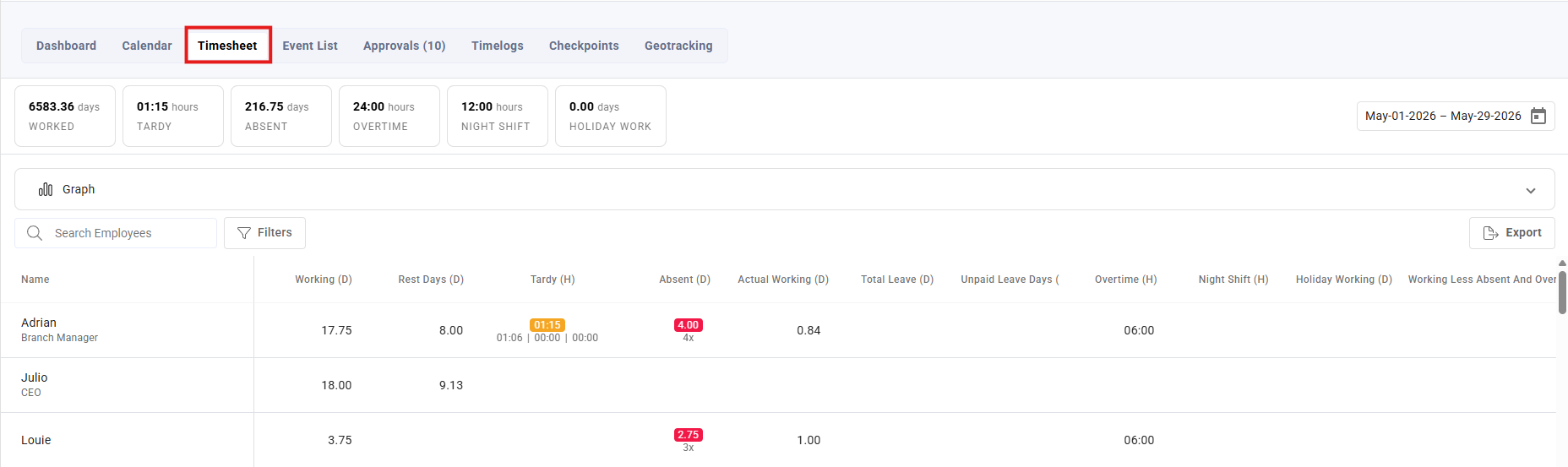
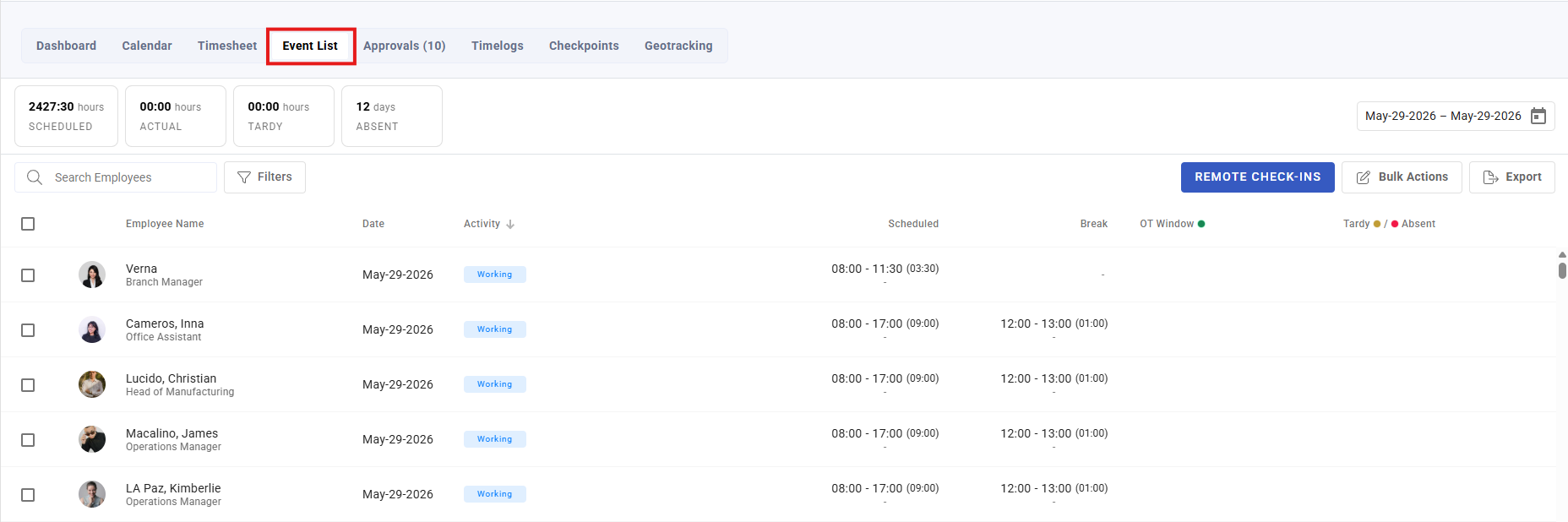
Timesheet
The timesheet is the period's hours per person — scheduled against actual, with the deductions and premiums that make up a payslip. It is the handover point between Attendance and payroll, and the last place an attendance problem is still cheap to fix.
Where: Calendar › Timesheet You need: the team attendance rights
When to use this, and when not to
| The question | Where to go |
|---|---|
| What are we about to pay this period? | Timesheet — here |
| Why is this specific day wrong? | Events |
| What were the raw taps? | Time logs |
| How much time went where, across the company? | Attendance reports and the event tracker |
The timesheet answers a payroll question. Reach for it when you are signing off a period, not when you are investigating one day.
What it shows
Per employee, per period: actual working hours against what was scheduled, plus the things that change pay — tardy, break tardy, absent days, and failed check-in/out where a tap never registered.
Filter by branch, department, cost centre, group and the usual dimensions, and set the date range to your payroll period.
Exports
The timesheet exports for payroll and for the record, including DTR Form 48 (.pdf) — the Philippine daily time record format — alongside the general spreadsheet exports. Export what you are looking at: the current filters and period carry into the file.
The pre-payroll check
Read the timesheet before payroll runs, not after. Once payroll has run, fixing a figure means correcting someone's pay, which is slower, more visible, and harder to explain.
Four things to scan, in this order:
- Failed check-in/out. Every one is an unfinished record that will short-change or over-pay someone.
- Absences you did not expect. Remember KAMI marks a day absent when hours fall below the shift's threshold, even when the person checked in and out. An unexpected absence is often a threshold question rather than a no-show — see Shifts.
- Zeroes and blanks. A person with no hours either did not work, or has no schedule. The second is a data problem that repeats every period until fixed.
- Anything that changed since last period without a reason. A department whose overtime doubled is either a business event or a settings error, and you want to know which before paying it.
⚠️ If you changed a shift, activity or rule after events existed, the timesheet will not reflect it until those events are refreshed — they were calculated under the old settings and keep their own copy. See Events.
What Happens Next
- The figures here become the attendance input to payroll for the period.
- Once the attendance lock closes the period, the underlying days can no longer be amended — so corrections must happen before it, not after.
- Exports are a point-in-time snapshot; re-export after any correction rather than editing the file.
Tips
- Give yourself a gap between the lock and payroll. If the lock closes the same day payroll runs, nobody has time to act on what the timesheet shows.
- Check the same four things every period, in the same order. A repeatable check catches drift; an ad-hoc glance catches only the obvious.
- Investigate by exception, not by row. On a large team, scan for zeroes, failures and outliers rather than reading every line.
- Keep the export you paid from. When someone queries a payslip three months later, the timesheet as it stood is the answer.
Troubleshooting / FAQ
Q: The timesheet disagrees with what I know the person worked. Start at the time logs. If the taps are right and the total is wrong, the event is stale or a threshold is doing something you did not intend.
Q: Someone shows zero hours. Either no schedule, or no taps. The Events page distinguishes the two.
Q: A correction was approved but the timesheet has not changed. Refresh the affected events, then re-read.
Screenshots
These screenshots came from our previous help centre and may show an earlier version of the interface.