Bulk-editing employees with Profile Manager
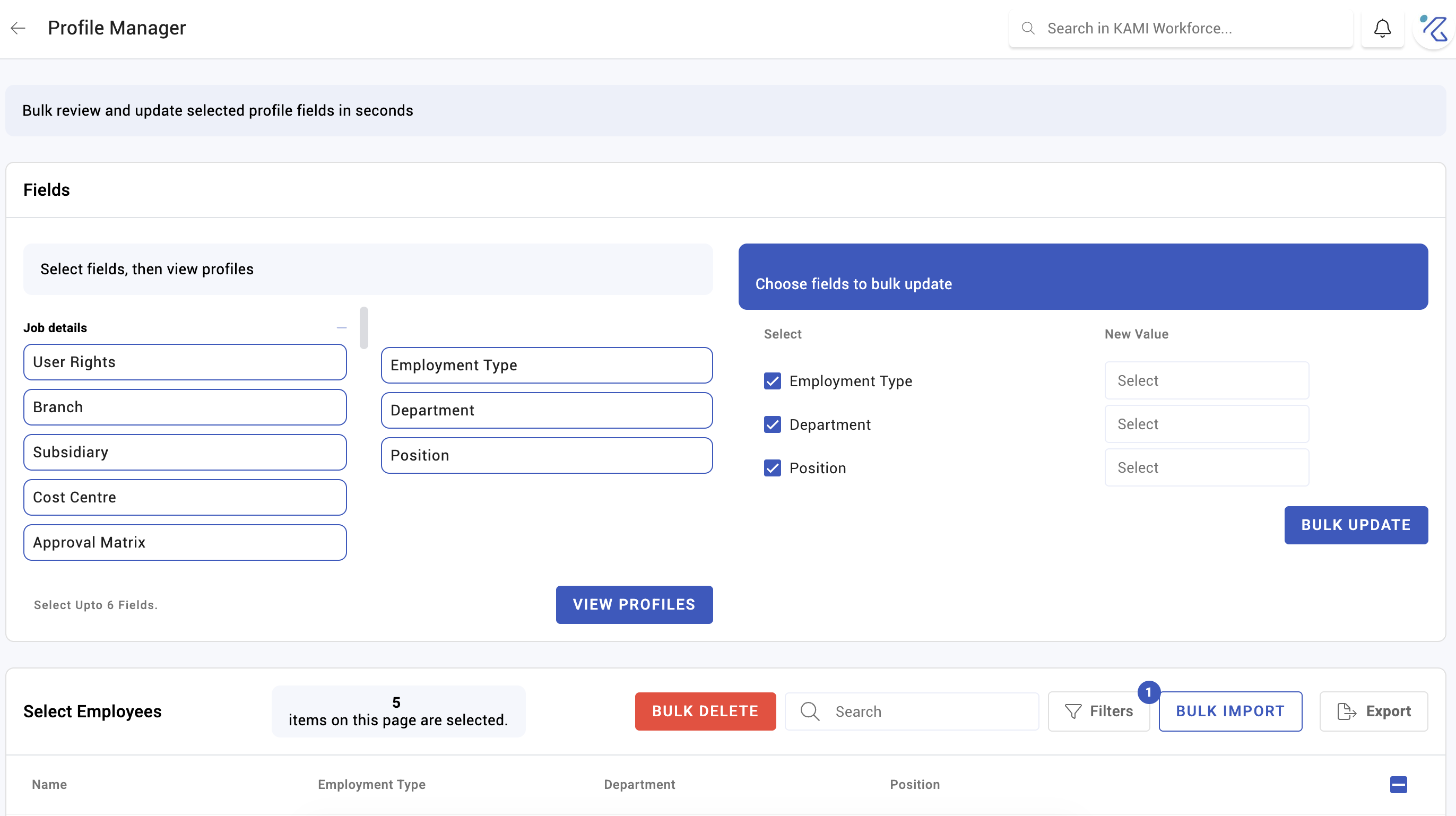
Profile Manager edits the same field across many employees at once. It is the tool for the changes that are miserable one profile at a time — a department restructure, a shift pattern change, a new approver for forty people.
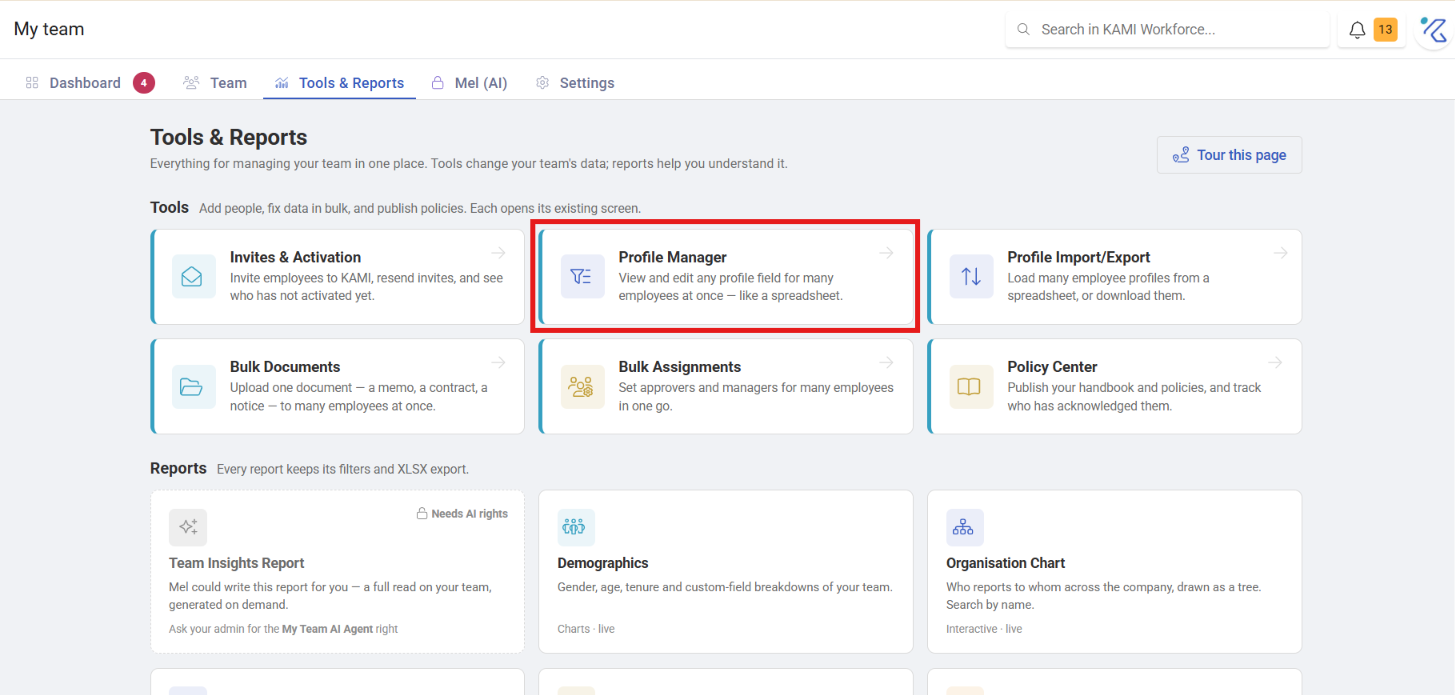
Where: My Team › Tools & Reports › Profile Manager
You need: the write right for each field group you want to edit
Which bulk tool, when
KAMI has three ways to change many people at once, and they are not interchangeable:
| You want to | Use |
|---|---|
| Change a few fields across a filtered set of employees | Profile Manager |
| Load or replace a lot of data from a spreadsheet | Bulk data import |
| Move people between groups | Bulk Assignments |
| Have settings apply automatically on placement | Profile Automations |
Profile Manager is for edits you make on screen, to people you can see. Import is for volume and for data you already hold elsewhere. If you find yourself doing the same Profile Manager edit every time someone joins a department, that is an automation waiting to be written.
How to use it
- Filter to the employees you want — branch, department, position, cost centre, group.
- Choose the fields to edit. You can select up to six fields at a time.
- Set the values and apply.
The six-field cap is deliberate: a bulk edit touching everything at once is very hard to check before you commit it.
What you can edit, and what gates it
Fields are grouped, and each group needs its own right:
| Field group | Right required |
|---|---|
| Job details | Employment info — details |
| Salary | Employment info — payroll |
| Standard Schedule | Employment info — schedule |
| Attendance Settings | Employment info — attendance |
| App Access | Employment info — access |
If a group is missing from your view, that is the right, not a fault. This granularity is the point: someone who should reorganise departments does not automatically get to change salaries.
Changing your own access
If your edit includes yourself and touches app access, KAMI warns you before applying — your access will be changed. Read it. Removing your own access mid-edit is recoverable only by someone else with the rights.
What Happens Next
- Changes apply immediately to every selected employee and are recorded per profile in the Audit Trail, with your name on them.
- There is no undo. Reversing a bulk edit means another bulk edit.
- Downstream effects follow the fields: a changed schedule alters attendance expectations, a changed department can re-route approvals and trigger Profile Automations.
- Payroll-affecting fields reach the next payroll run — check it.
Tips
- Check the filter count before applying. "47 employees selected" is the number to read twice. Almost every bulk-edit accident is a filter that was wider than the person thought.
- Do a single-person rehearsal for anything payroll-affecting. Apply to one employee, check the result, then do the rest.
- Edit one field group at a time for significant changes, even though you can select six. Easier to verify, easier to reverse.
- Do it before payroll cut-off, not after. A schedule or salary change discovered after the run is a pay correction rather than an edit.
- Note why somewhere durable. The audit trail records what changed and who did it, not why.
Troubleshooting / FAQ
Q: A field group I need is not showing. You lack the right for that group. They are granted separately — see User rights and access control.
Q: I applied a change to the wrong people. Re-filter to exactly those people and apply the correct value. There is no undo, and the audit trail will show both changes.
Q: The change did not take effect in attendance. Attendance events keep the settings they were calculated with. See How timekeeping is calculated.
Screenshots
These screenshots came from our previous help centre and may show an earlier version of the interface.