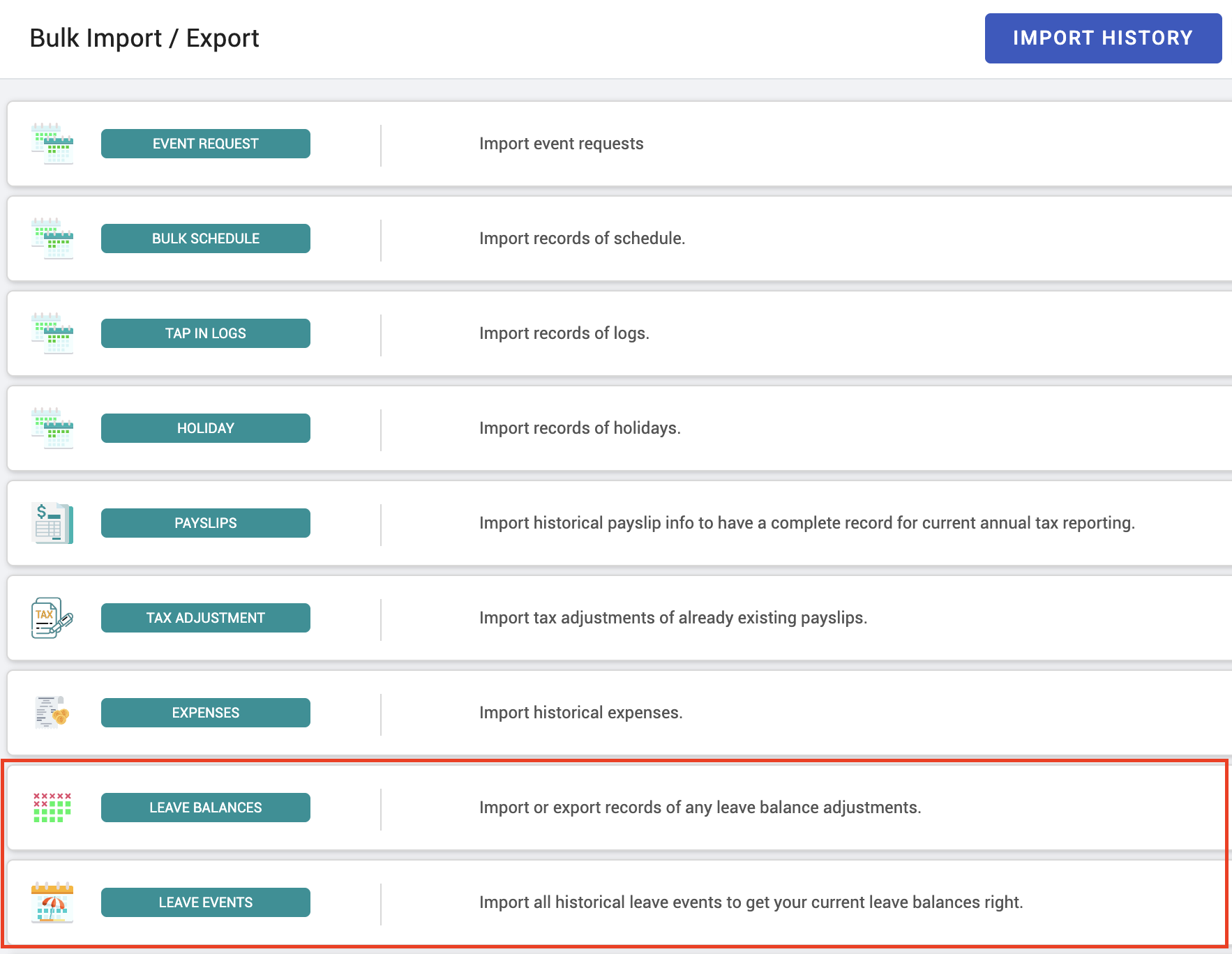
Importing leave data
When you move to KAMI mid-year, people arrive with leave already earned and leave already taken. Importing brings both across, so balances are right from day one rather than starting everyone at zero and reconstructing by hand.
Where: My Team › Tools › Bulk Data You need: the bulk data import rights
Two different imports
They are separate, and most migrations need both:
| Import | What it loads | Why |
|---|---|---|
| Leave balances | Where each person's balance stands today | So entitlement is right immediately |
| Leave events | Leave already taken, with dates | So history, reports and calendars are complete |
Import balances only, and the numbers are right but nobody's calendar shows the leave they took in March. Import events only, and the balances will be wrong unless the events happen to reconstruct them exactly. For a clean migration, do both — events first, then reconcile balances.
Before You Start
Get these right before importing, because fixing them afterwards is far more work:
- Create the leave types first. An import can only load leave into a type that exists. See Leave types and policies.
- Agree the as-at date. Balances are a snapshot; everyone involved needs to agree which date they are a snapshot of.
- Decide how accrual interacts. KAMI will keep accruing from the imported figure. If your old system had already accrued this month and KAMI accrues again, that month is counted twice.
- Check employee identifiers. The import matches on an identifier — rows that do not match are skipped.
How to import
- Open My Team › Tools › Bulk Data.
- Download the template for the import you want — balances or events.
- Fill it in, following the template's columns exactly.
- Upload, and choose the import mode.
- Review the import results before assuming it worked.
⚠️ Overwrite mode treats a blank cell as "delete this value". If a column is empty in your sheet, the existing data is wiped on the matching employees. Use Append unless you specifically intend to clear fields. See Bulk data import.
What Happens Next
- Imported balances appear immediately in the Time Off Balances report and in employees' own leave views.
- Accrual continues from the imported figure, at the policy's interval.
- Imported leave events appear on the team calendar and in attendance history like any other leave.
- Imported events do not re-derive balances. If both are imported, reconcile them: check a sample of employees where you know the correct answer.
Tips
- Import into a small group first. Ten people you can verify by hand will surface a template or identifier problem that four hundred will only hide.
- Reconcile a sample deliberately. Pick five employees — a long-serving one, a new joiner, someone mid-probation, someone who has taken a lot of leave, someone who has taken none — and check each against your old system. Those five catch most classes of error.
- Do it before the first payroll run in KAMI, not after. Leave affects pay, and a wrong balance discovered after a payslip is a correction rather than an edit.
- Keep the source file. When someone disputes a balance eighteen months later, the import sheet is the only record of where the opening number came from.
- Watch the double-accrual trap. It is the most common migration error: the old system accrued for the month, you imported that balance, and KAMI accrued again at month end.
Troubleshooting / FAQ
Q: The import ran but some employees have no balance. Their identifier did not match, so their rows were skipped. Compare the result count against the rows in your file rather than assuming success.
Q: Balances are all slightly too high. Almost certainly double accrual — the imported figure already included a period that KAMI then accrued again. Adjust and change the as-at date for the next import.
Q: Imported leave does not show on the calendar. You imported balances, not events. They are separate imports.
Screenshots
These screenshots came from our previous help centre and may show an earlier version of the interface.