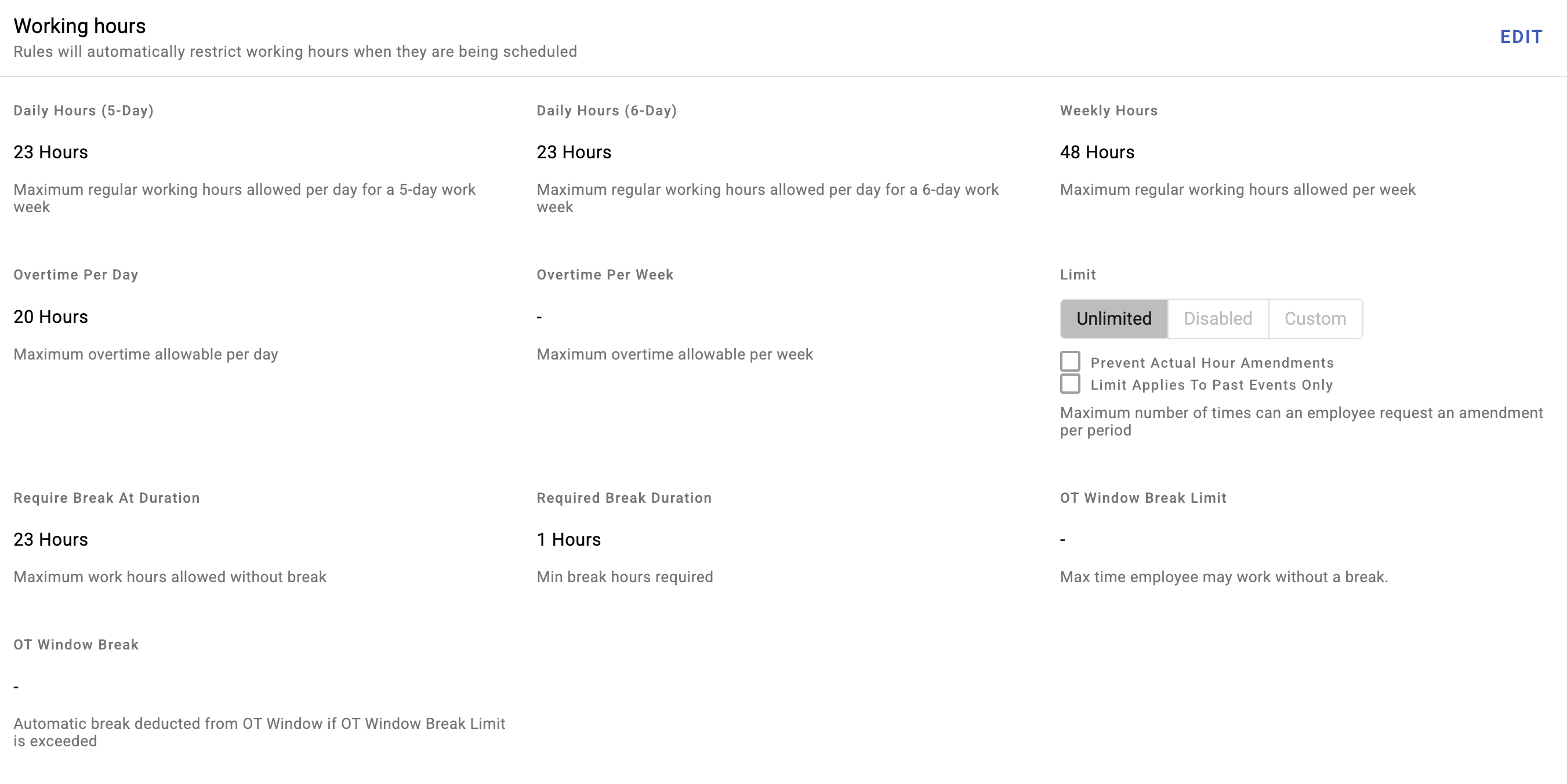
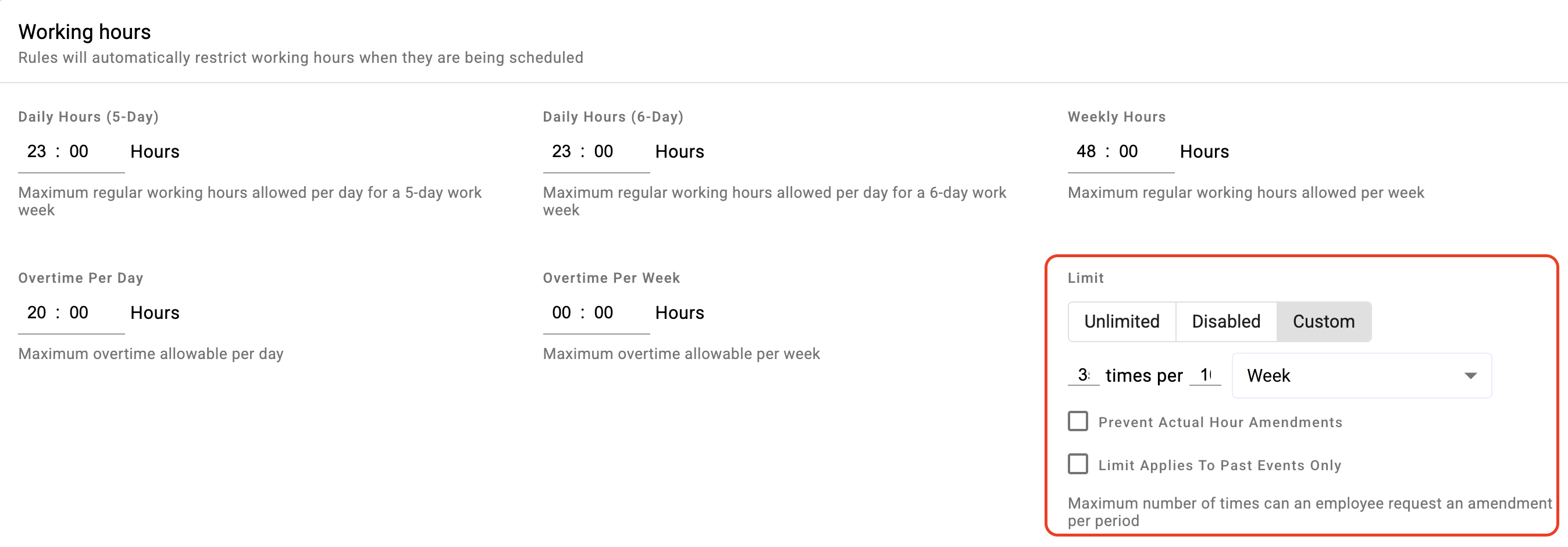
Calendar rules and the attendance lock
Calendar rules are the company-wide behaviours of Attendance: how long the past stays editable, what kinds of correction people may raise, and how shifts and leave behave. Small settings with a wide blast radius — unlike shifts and activities, which are scoped, these apply to everybody.
Where: Settings › Calendar › Calendar rules You need: the calendar settings right
When to use this, and when not to
| You want to change | Set it |
|---|---|
| How long the past stays editable | Here — the attendance lock |
| Whether people may raise corrections at all | Here |
| A working pattern's timings or thresholds | On the shift |
| What a kind of time pays | On the activity |
| One person's expected hours | On their profile |
If a change should apply to one team, this is the wrong page. Everything here lands on the whole company.
The attendance lock
The most consequential setting in Attendance configuration: specify period to lock new events and event amendments for dates prior to the lock period.
Once a date falls behind the lock, nobody can create or amend an event for it. That is the point — payroll cannot run on a period that keeps moving. Alongside it sit:
- Correction days — how long a given day stays fixable
- A day of month anchor for the cycle
Set the lock to close after your payroll cut-off, not before. Closing it first means people cannot fix the very days payroll is about to pay, which produces corrections that arrive too late to matter and a queue of requests nobody can action.
Leave a gap between the lock and the payroll run. If they are the same day, the timesheet has no window in which anyone can act on what it shows.
What corrections people may raise
- Disabled amendment request — turn corrections off entirely
- Custom amendment request — use your own flow rather than the standard one
- Allow free entry reason — let people type a reason, or require structured ones
Structured reasons are worth the small friction. Free text tells you that a day was corrected; structured reasons tell you why corrections keep happening, which is the question that actually reduces them.
Leave and shift behaviour
- Allow partial leave request — whether half-days and part-days may be requested, or leave must be whole days
- AM shift and PM shift definitions, which is what lets the team calendar split a day into morning and afternoon coverage
- Activation settings governing when rules take effect
What Happens Next
- The lock takes effect on the schedule you set, and from then on past dates close on a rolling basis.
- Employees lose the ability to raise corrections for closed dates — with no warning beyond being unable to.
- Pending requests for a date that closes can no longer be actioned, so a backlog in Approvals becomes permanently unresolvable rather than merely late.
- Changing the lock does not reopen already-locked dates in any way you should rely on. Treat a closed period as closed.
Tips
- Tell your team the window exists, and how long it is. The most common Attendance complaint is a correction raised too late — which is a communication failure, not a system one.
- Review the queue before each lock closes. Anything unactioned becomes unfixable.
- Set correction days to something people can actually meet. Three days sounds disciplined and produces a permanent backlog of legitimate corrections that expired over a weekend.
- Change these rules between payroll periods, never mid-period. A lock that moves during a period changes what people can fix halfway through.
Troubleshooting / FAQ
Q: An employee cannot correct a day from two weeks ago. The lock or the correction-days window has closed it. Both are set here.
Q: Approvals are sitting in the queue and now cannot be approved. The period locked while they were pending. There is no way to action them; the underlying days stand as recorded.
Q: We changed the lock and old dates are still closed. Expected. Do not rely on reopening closed periods.
Screenshots
These screenshots came from our previous help centre and may show an earlier version of the interface.