Generating a document for an employee
Generate a letter, certificate or contract from a template, with the employee's details already in it. You read the finished document before anything is sent, and you can change the wording. You can also fill in anything missing from their profile, and add a personal note to the email.
Where: Employee profile › Profile › Documents › Generate document You need: the right to add documents to the employee's profile, and access to Document Templates
Which way to add a document
| You want to… | Use |
|---|---|
| Send an employee a letter or contract written from a template | Generate document (this article) |
| Have them sign it | Generate document with [first name] signs it on, then send it for signature |
| File a document you already have, such as a scanned form | Upload file |
| Upload signed files for many employees at once | Bulk Documents |
| Let employees get their own certificate of employment | Nothing: they generate it themselves |
💡 Before HR writes a certificate of employment by hand, check whether the employee can generate it themselves. A public certificate template lets them do it in a minute, without asking you.
How to generate a document
1. Choose a template
- Open the employee's profile and go to Profile › Documents.
- Click Generate document.
- Choose a template. They're grouped by document type. Type in Search templates to narrow the list.
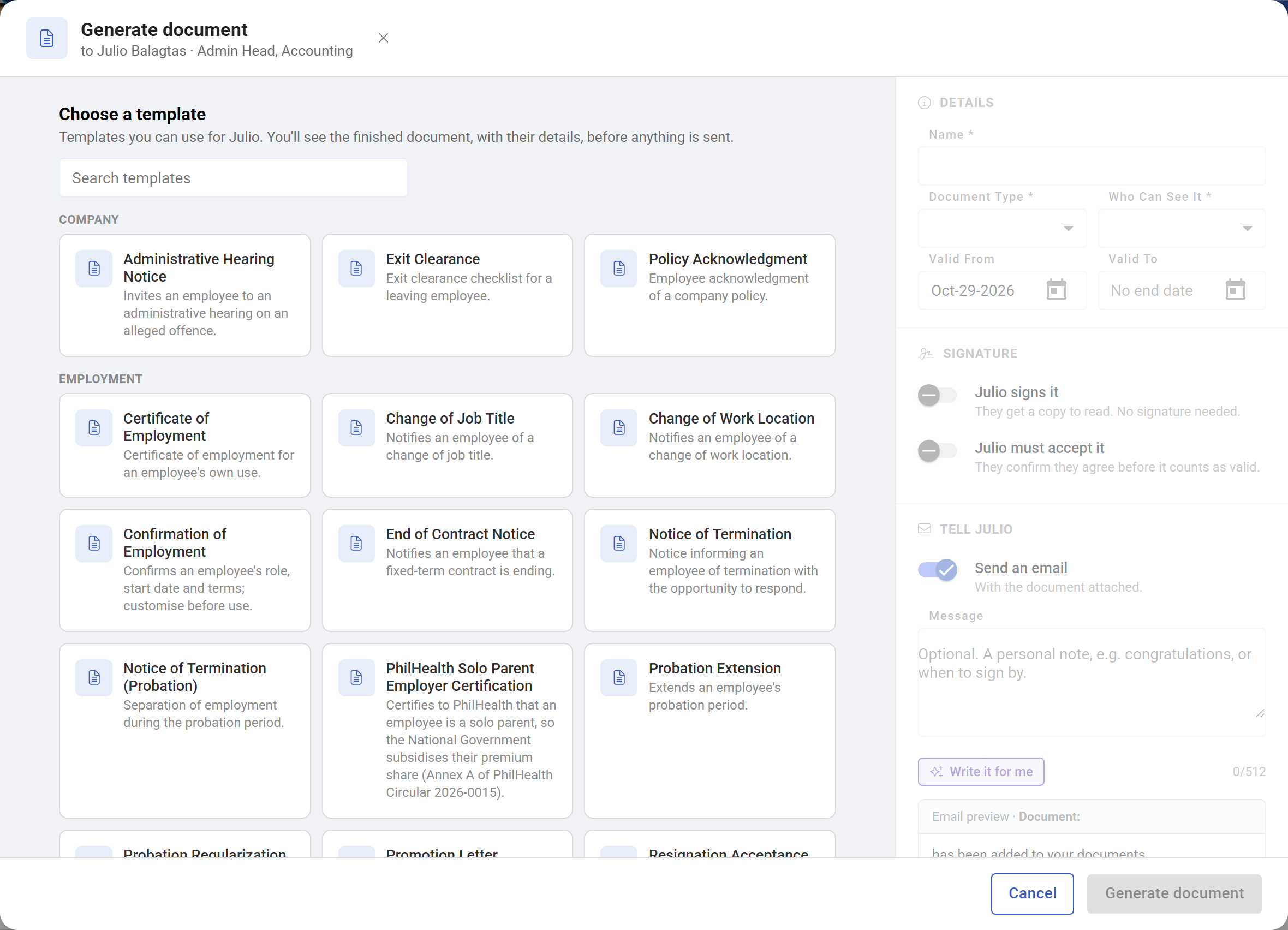
You see only the templates you're allowed to use for this employee. If one is missing, check Who can use it on the template in Document Templates.
2. Read the document and fill any gaps
KAMI fills in the template with the employee's details and shows the finished document. Details from their profile are highlighted. Click As [first name] sees it to see the document without the highlights.
If the profile is missing something the template needs, a panel at the top lists each missing detail, for example PhilHealth number or Middle name. You can't generate the document until each one has a value. Either:
- Type each value into its box, or
- Tell the AI what you know in one line, for example "PhilHealth 12-345678901-2, middle name Reyes", and click Fill in. The details it fills in turn purple. Check each one.
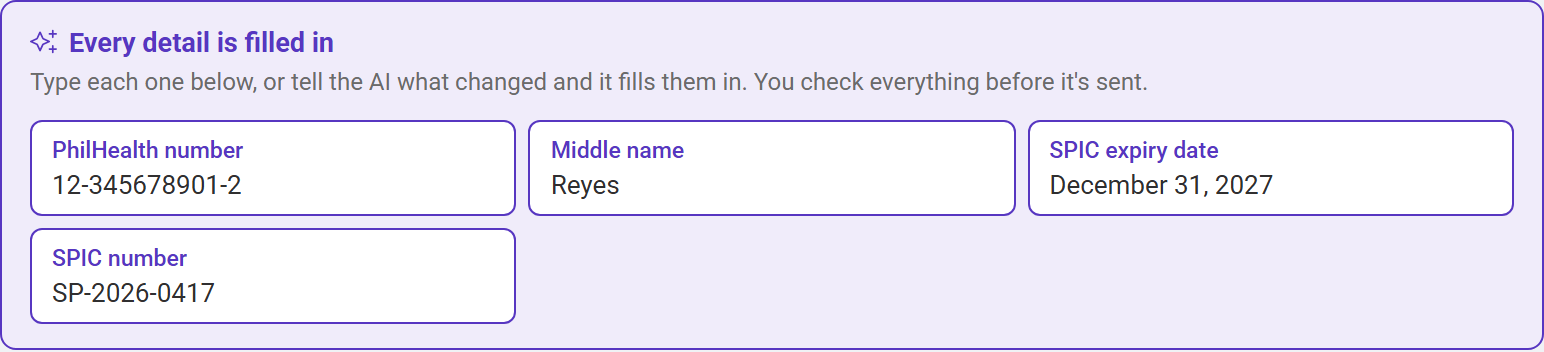
⚠️ A value you type here goes into this document only. It isn't saved to the profile. Add it to the profile as well, or it will be missing again next time.
3. Change the wording if you need to
Click anywhere on the document and type. You can reword a sentence, add a paragraph or delete one, for this employee only. The template doesn't change.
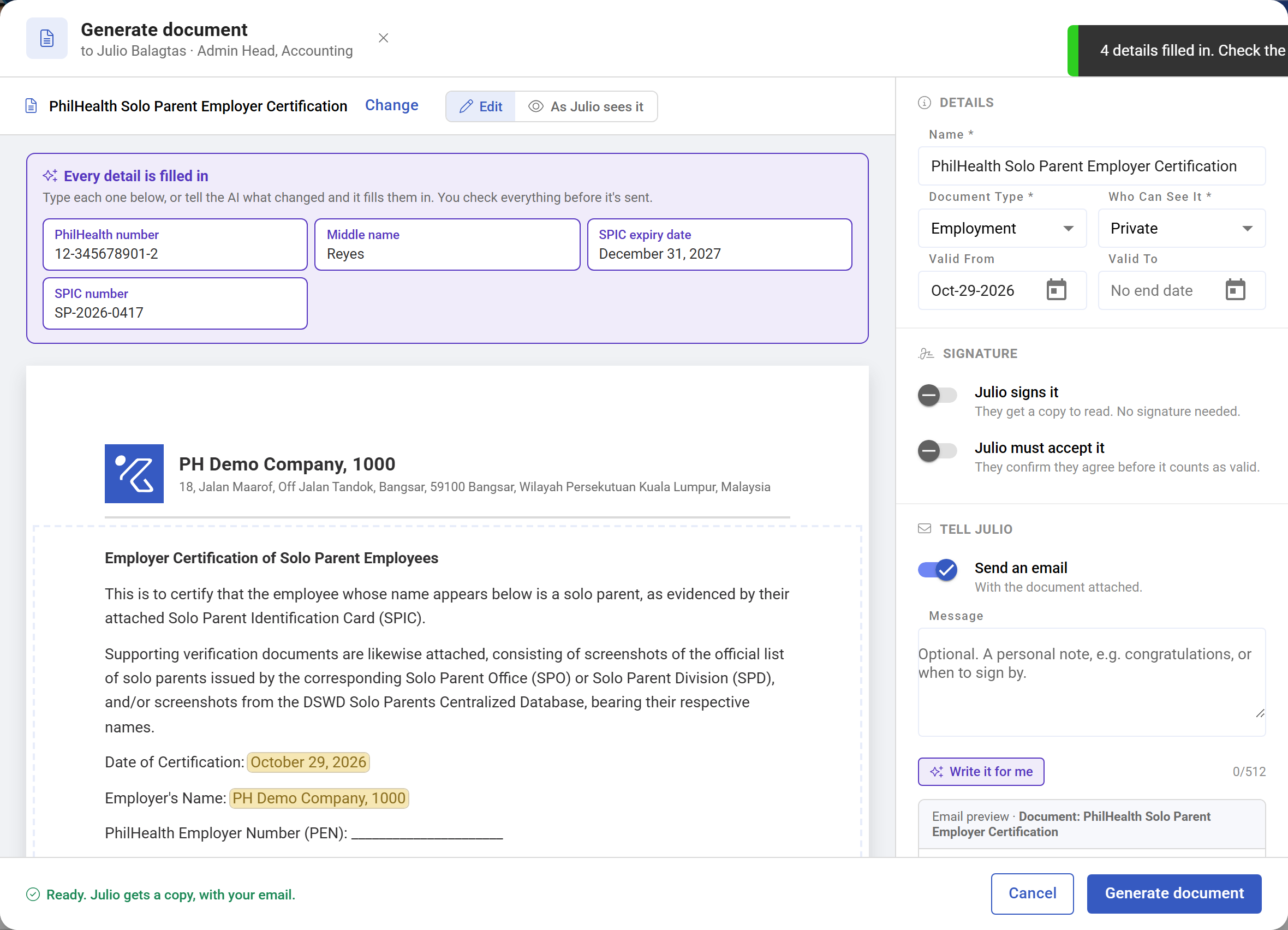
Word templates can't be edited here. You see the PDF that will be issued instead.
4. Check the details
On the right:
- Name and Document Type come from the template. Rename the document if you want it to show differently in the employee's list.
- Who Can See It starts as Private, or Public if the template is public.
- Valid From is today. Leave Valid To empty unless the document really expires, such as a fixed-term contract.
5. Choose signature and acceptance
- [first name] signs it: turn on for anything the employee must sign. It starts on when the template has an employee signing box.
- [first name] must accept it: the employee confirms they agree before the document counts as valid. Use it for policies and acknowledgements that need no signature.
6. Write the email
Under Tell [first name], Send an email is on. The employee gets the document as an attachment.
- Add an optional Message, such as congratulations or when you need it back. It's limited to 512 characters.
- Write it for me drafts a message from the document, if AI is available for your company. Edit it before you send.
- The Email preview below shows the subject and what the employee will read.
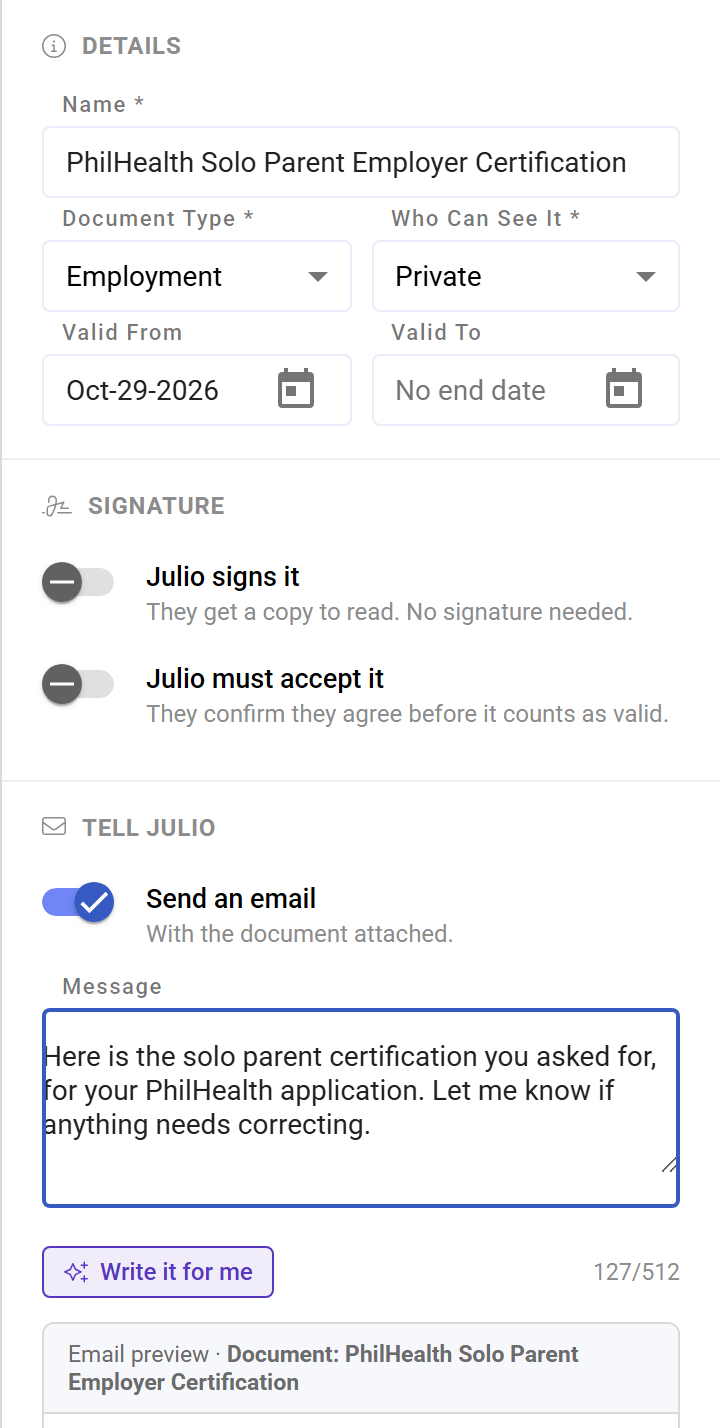
When [first name] signs it is on, there's no separate email. Your message goes out with the request to sign instead.
7. Generate it
The footer tells you what happens next. For example, Ready. [first name] gets a copy, with your email.
- Click Generate document. The document is saved to the employee's profile, and your email goes out if Send an email is on.
- If signing is on, click Generate and send for signature. You then choose the signers and check the signature boxes. See Sending a document for signature.
What Happens Next
- The document appears in the employee's Documents list straight away. The employee can open it from their own Documents tab.
- The PDF keeps your edits. Download, the employee's copy, the email attachment and the copy that gets signed are all the document as you generated it.
- It's a snapshot. Editing the template or the profile later doesn't change it. To correct it, generate it again.
- The letterhead prints on the first page if the template uses it. See Document Templates.
Tips
- Fix the profile, not just the document. If a detail is missing for one employee, it's probably missing for others. The Missing Data report finds them all.
- Give the AI facts, not instructions. "Promoted to Finance Manager from 1 November" fills gaps better than "fill in the promotion details".
- Read it as the employee sees it before you send anything sensitive, such as a termination or disciplinary letter.
- Reword in the template if you reword every time. An edit here is for this employee only. If you keep making the same change, fix the template instead.
- Keep the message short and personal. Say what the document is and what you need back. The document says the rest.
Troubleshooting / FAQ
I don't see Generate document, only Upload file. You need access to Document Templates as well as the right to add documents. Ask an administrator.
Generate document stays greyed out. The footer says why: a missing detail still has no value, or the name, type or who can see it is empty.
The AI filled in nothing. Your line didn't contain those details. Add more, or type the values yourself.
There's no Write it for me or Fill in button. AI isn't available for your company. Type the values and message yourself.
Can I take a generated document back? Delete it from the employee's Documents list, then generate a corrected one. An email that has gone out can't be recalled.