Offboarding an employee
Offboarding is the checklist that takes someone from "they're leaving" to "everything is closed": notices, the last day, access, handover, property, an exit survey, final pay and their documents. Every leaver gets the same list, so nothing depends on who in HR happens to handle it.
The one rule the rest depends on: nothing starts until HR saves the separation reason and dates. Until then you can serve notices, but the employee isn't told and their access is untouched. The moment you save, the employee is emailed and a checklist opens on their dashboard, so only start once you have spoken to them.
Where: the employee's profile › Offboarding tab. To see everyone at once: My Team › Tools & Reports › Offboarding. You need: the Terminate Employee right. Final pay also needs Termination Pay. You can't offboard yourself: on your own profile the tab is view only.
Which one, when
| You want to | Use | Not |
|---|---|---|
| Record that someone is leaving and run everything that follows | Offboarding tab on their profile | Deactivating them, which only stops the login |
| See every leaver and what is still open | The Offboarding page | Opening profiles one by one |
| Decide who is reminded about offboardings, and when | Offboarding reminders | Chasing by email |
| Set the steps, letters and tasks every leaver gets | Offboarding process settings | Changing things leaver by leaver |
| Write a Notice to Explain | Writing a Notice to Explain | A blank Word document |
| Warn someone who is staying | Disciplinary actions | A Notice to Explain, which is part of a possible separation |
| Compute and pay final pay | Final pay on termination | Adding termination lines to a payslip by hand |
The steps
| Section | Step | What it covers |
|---|---|---|
| Separation | Notices | Notice to Explain, Notice of Decision, Notice of Termination, Notice of Resignation |
| Separation | Separation reason & dates | Why they're leaving, the notice date and the separation date. Saving it starts the offboarding |
| Separation | Access & deactivation | When their login stops, and the leaver link |
| Prepare | Successions & Authority | Their reports and approvals move to someone else |
| Prepare | Handover | Work they pass on. On the leaver's own checklist |
| Prepare | Team notification | An announcement to the team, sent on the separation date |
| Prepare | Assets | Company property returned. On the leaver's own checklist |
| Exit | Exit survey | Your questions, answered by the leaver |
| Exit | Final pay | Their last pay, in a payroll batch |
| Close out | Documents to leaver | COE, quitclaim, final payslip and BIR 2316 |
| Close out | Records & rehire | Would you hire them again, and why |
Exit survey, Documents to leaver, Records & rehire and your own steps can be switched off in Offboarding process settings, for new offboardings.
How to serve notices
Notices work before the offboarding starts. A possible dismissal begins with a Notice to Explain, and you may still keep the employee.
- Open the profile › Offboarding › Notices.
- For a Notice to Explain, click Create. It opens the full-page letter editor, where Kita writes the letter from your description and the employee's records. See Writing a Notice to Explain.
- For the other notices, click Create to draft the letter from your template, download it, then Upload the letter you actually sent. Or Upload a letter you wrote elsewhere.
- For the other notices, set Served on to the day the employee received it. A Notice to Explain gets its date when you finalise it in the editor.
Every letter is saved in the employee's Document Center. Only the Notice to Explain has an Answer due date and a reminder: the other notices just record when they were served.
⚠️ A Notice to Explain must give the employee at least 5 days to answer. KAMI won't accept fewer, and a dismissal served on a shorter window is open to challenge.
How to start the offboarding
- Open Separation reason & dates.
- Choose the Separation reason. If the reason is chosen per employee, pick the Reason for termination too.
- Set the Notice date and the Separation date, the employee's last day.
- Read the yellow box. It lists who is told the moment you save.
- Click Save & start offboarding, then Start offboarding to confirm.
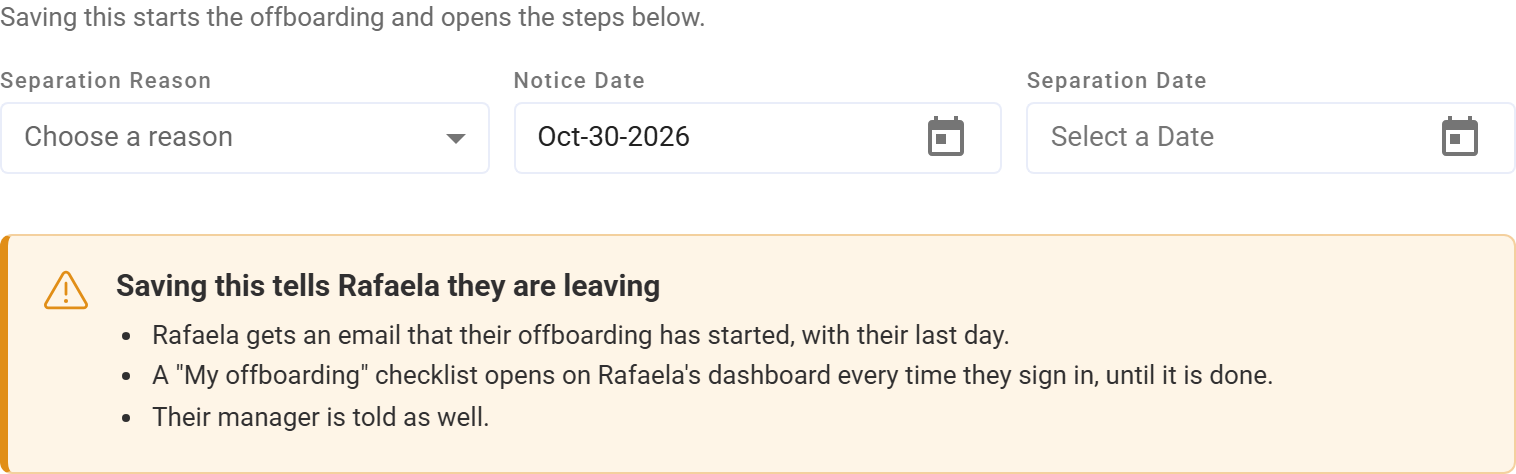
KAMI then emails the employee with their last day, opens My offboarding on their dashboard until it's done, tells their manager, adds your default handover tasks, own steps and survey questions, and writes the separation date to the profile for payroll.
If the dates move, change them here and click Save changes. There's no confirmation the second time, and steps already done stay done.
How to work through the steps
Click a step on the left. Most steps close themselves when the thing they track happens; the rest you tick off with Mark complete or Not needed.
- Access & deactivation. The login stops the day after the separation date. Deactivate Now stops it today. Records stay; only the login stops. Turn on Send leaver link on the separation date so documents reach their personal email.
- Successions & Authority. Move their reports and approval roles before they go.
- Handover. Tasks to pass on. HR, the manager or the leaver can add them; the leaver ticks them off.
- Team notification. Pick who is told and edit the message. It goes out on the separation date, or Send now.
- Assets. Their company property. When it is back, click Mark returned.
- Exit survey. The leaver answers on My offboarding. You see their answers here.
- Final pay. See Final pay on termination.
- Documents to leaver. Generate the COE and quitclaim from your templates, or Upload your own. The final payslip and BIR 2316 are filed when final pay is paid. Tick Include for each one the leaver gets.
- Records & rehire. Eligible, eligible with conditions, or not eligible, with the reason.
Made a document from the wrong template?
On Documents to leaver, a COE or quitclaim made here has a bin button. Click it and confirm Remove: it is deleted from the offboarding and from the employee's documents, and Generate comes back. Change the template in Settings › Offboarding Process first, then generate again.
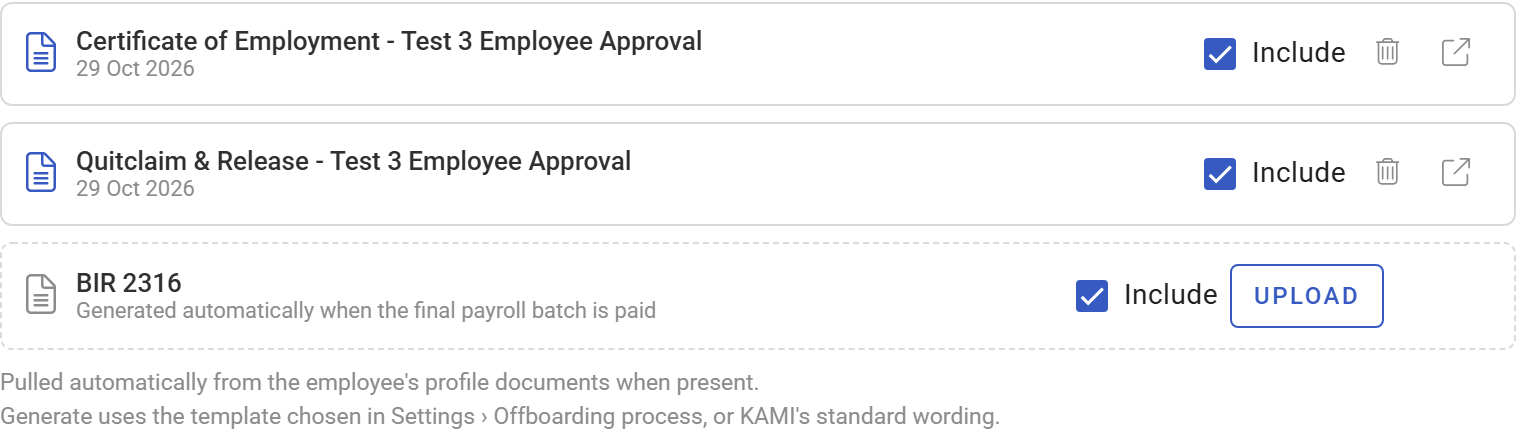
A signed document can't be removed: it's the record of what the leaver signed. A document found among the employee's own documents (marked From profile documents) is removed from their Documents tab instead.
How to complete the offboarding
When every step is done or not needed, click Complete offboarding. The profile becomes Inactive and the record read only.
If things are still open, you can still complete it. Many leavers never finish their checklist, and you shouldn't have to wait for them.
- Click Complete offboarding on the Offboarding tab, or the tick on their row on the Offboarding page.
- Check Steps still open, and choose whether to mark them Done or Not needed.
- Check Not done by the employee: their handover tasks, property and survey. These are recorded as closed by HR, not as done by them.
- Add a Note if it helps, for example "Stopped responding after their last day".
- Click Complete offboarding.
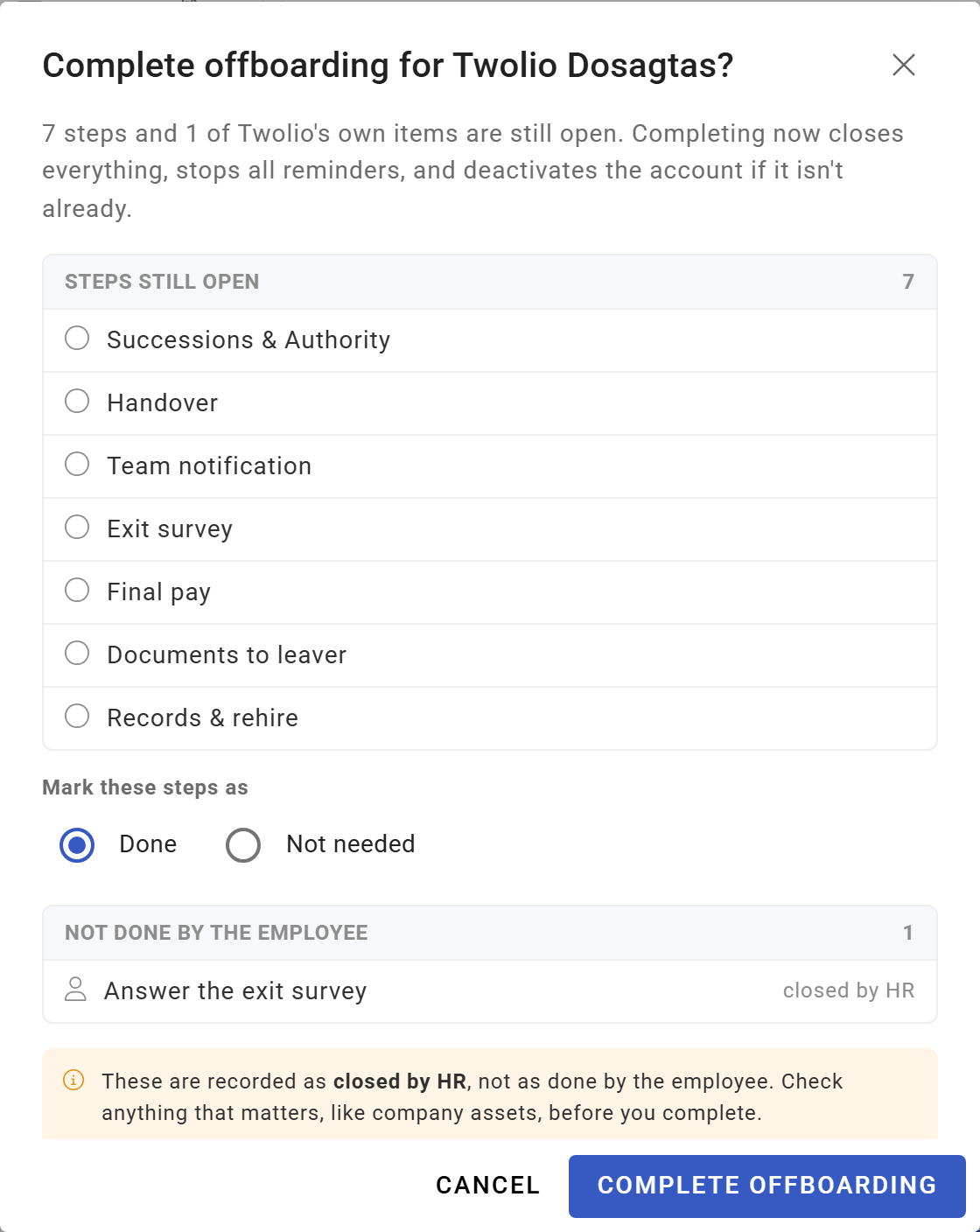
Every reminder stops, the account is deactivated if it isn't already, and the person moves to Completed on the Offboarding page, tagged Closed by HR · N not done.
⚠️ Completing closes Final pay too, even if nothing has been paid, and an unreturned laptop stays assigned to them in Assets. Check final pay and property before you complete with items open.
To correct a completed record later, click Reopen and give a reason. It goes on the profile's Audit tab.
What the leaver sees
My offboarding opens on their dashboard while they have things to do: handover tasks, company property with I've returned it, your own steps set to HR or the employee, and the exit survey. They never see notices, HR's notes or the rehire decision.
After their last day the login has stopped, so documents go to their personal email as a private link, valid three months. Add the personal email before the last day.
Tips
- Talk to them first, then start. Saving the reason and dates emails the employee straight away.
- Serve notices from the Offboarding tab even if you might keep them. They're dated, on record, and nothing else starts.
- Do successions first. It's the step most often forgotten, and the symptom, requests stuck with nobody, appears days later.
- Use the Offboarding page, not memory. It shows every leaver whose last day is near or past with steps still open.
- Don't wait on the checklist to pay. Final pay isn't blocked by unreturned property; deduct anything owed on the final payslip.
Frequently asked questions
Someone resigned. Why hasn't their offboarding started? A resignation never starts it. Upload their letter as the Notice of Resignation, then save the separation reason and dates.
Can I serve a Notice to Explain without starting an offboarding? Yes. If you decide to keep the employee, nothing else happens.
Why can't I write a letter or start an offboarding on my own profile? Nobody can change their own offboarding. Ask another HR admin.
How do I cancel an offboarding? Cancel offboarding clears the separation date and reason and resets the steps. Notices and filed documents stay.