Generating your own certificates and forms
Need a certificate of employment for a bank loan, a visa or a rental? Generate it yourself in KAMI, with your details already filled in. You don't need to ask HR or wait for approval. You can also download your company's blank forms and policies in the same place.
Where: your profile › Profile › Documents › Generate my documents You need: nothing extra. Every employee can use it.
What you'll find there
The window lists everything HR has shared with you, in three groups:
| Group | What it is | What you get |
|---|---|---|
| Ready with your details | Certificates and letters, such as a Certificate of Employment | A PDF with your details filled in, saved to your documents |
| Blank forms | Forms to fill in by hand | A form to print, fill in and hand to HR |
| Company policies | Handbooks and policies | A copy to read or keep |
You see only what HR has made public for you. If a document isn't there, HR hasn't shared it, and you still need to ask them for it.
How to generate a certificate
- Go to your profile and open Profile › Documents.
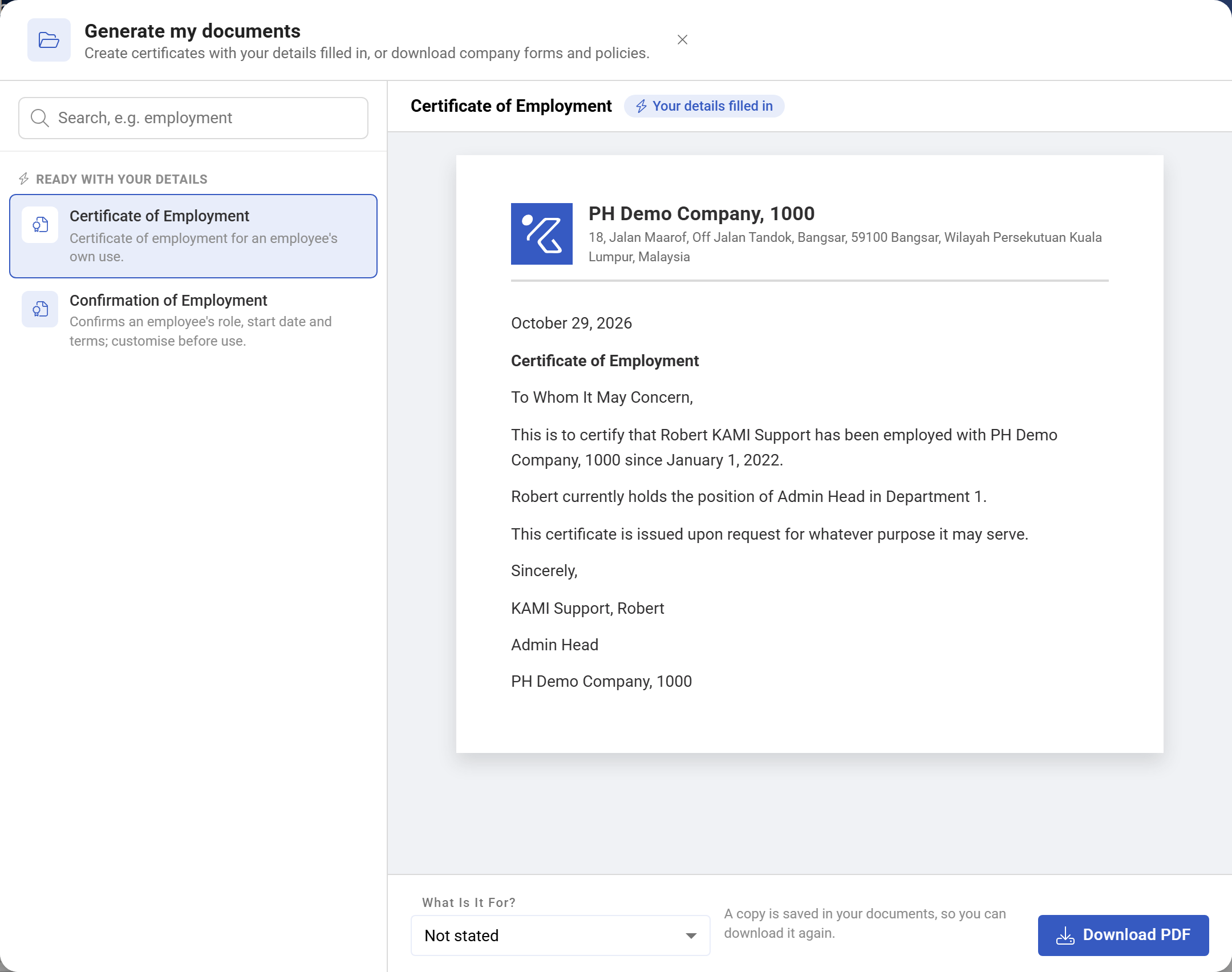
- In the Need a certificate or a form? card, click Generate my documents. To go straight to a certificate, click it under Popular instead.

- Choose the document on the left. Type in the search box to find it, for example "employment".
- Read the preview on the right. It's the document exactly as it will download, with your details filled in.
- Under What is it for?, choose the reason if you want to, such as Bank loan or Visa or travel. It's kept with your copy. It isn't printed on the document.
- Click Download PDF.
Your document downloads, and Your document is ready confirms it. Click Done to close the window, or Back to preview to choose another document.
How to download a blank form or policy
- Open Generate my documents as above.
- Choose the form or policy. You'll see a preview where one is available.
- Click Download form or Download.
Fill in a blank form by hand and hand it to HR, as your company asks.
What Happens Next
- A copy of each certificate is saved in your documents, marked Created by you. You can download it again from your Documents list at any time.
- HR can see that you created it. On your profile it shows as Created by employee. The reason you chose is saved with it.
- Nothing goes for approval. The document is valid as soon as it downloads.
- Blank forms and policies aren't saved to your documents. Download them again whenever you need them.
Tips
- Check your profile first. The certificate prints what's on your profile: your name, position, department and start date. If something there is wrong, ask HR to correct it before you generate.
- Generate a fresh copy each time. A certificate shows today's date. Banks and embassies often want a recent one.
- Choose the reason. It helps HR see what certificates are used for, and it costs you one click.
Troubleshooting / FAQ
It says something is missing from my profile. The document needs a detail your profile doesn't have, such as your middle name or a government ID number. Add it on your profile if you can, or ask HR to. You can generate the document once it's there.
I can't find the document I need. HR hasn't made it available to generate yourself. Some letters need HR to prepare or check them first. Ask HR for it.
The window says HR hasn't shared any documents yet. Your company hasn't made any documents public yet. Ask HR.
Can my manager see the certificate I generated? It's saved as a private document on your profile. HR and anyone with access to your private documents can see it.