Writing a Notice to Explain
A Notice to Explain (NTE) asks an employee to answer, in writing, for something that could lead to their dismissal. It is the first step of due process, so it has to be specific: what happened, when, and the proof. KAMI's letter editor writes it on your company letterhead, with Kita pulling the matching late days, absences and past warnings from the employee's records and attaching them as annexes. You check every word, get colleagues to review it, and save the final PDF to the employee's file.
Where: the employee's profile › Offboarding › Notices › Notice to Explain › Create. You need: the Terminate Employee right. You can't write an NTE on your own profile.
Which one, when
| You want to | Use |
|---|---|
| Ask an employee to explain something that could end in dismissal | Notice to Explain, this article |
| Record the decision after their answer | Notice of Decision on the same Notices step |
| Warn someone you're keeping | Disciplinary actions |
| Use a letter you already wrote | Upload on the Notice to Explain card instead of Create |
An NTE doesn't start the offboarding. If the employee's answer is accepted, nothing else happens.
Before you start
- Letterhead. Set it once in Document Templates. The editor puts it on page 1.
- NTE template. Pick your Notice to Explain template in My Team › Settings › Offboarding Process › Notices. Kita writes from it, so your company's wording and rules are kept. Without one, Kita uses KAMI's standard wording.
- Records. Kita can only cite what is in KAMI: attendance, and past disciplinary actions. Make sure past warnings are recorded there, with their signed letters.
How to write the letter
- On the Notice to Explain card, click Create. The editor opens full page.
- Under What is this notice about?, pick the Grounds that apply, such as Habitual tardiness or Absence without leave.
- Under What happened, in your words, describe it plainly, with dates where you have them. For example: "Keeps coming in late since August, even after his final warning. Didn't show up on 9 and 10 Oct without telling anyone."
- Set Answer within. 5 days is the legal minimum in the Philippines, and KAMI won't accept fewer.
- If there will be a hearing, set its date and time under Hearing. Otherwise leave No hearing.
- Click Write the letter with Kita. In a few seconds the letter appears on the page.
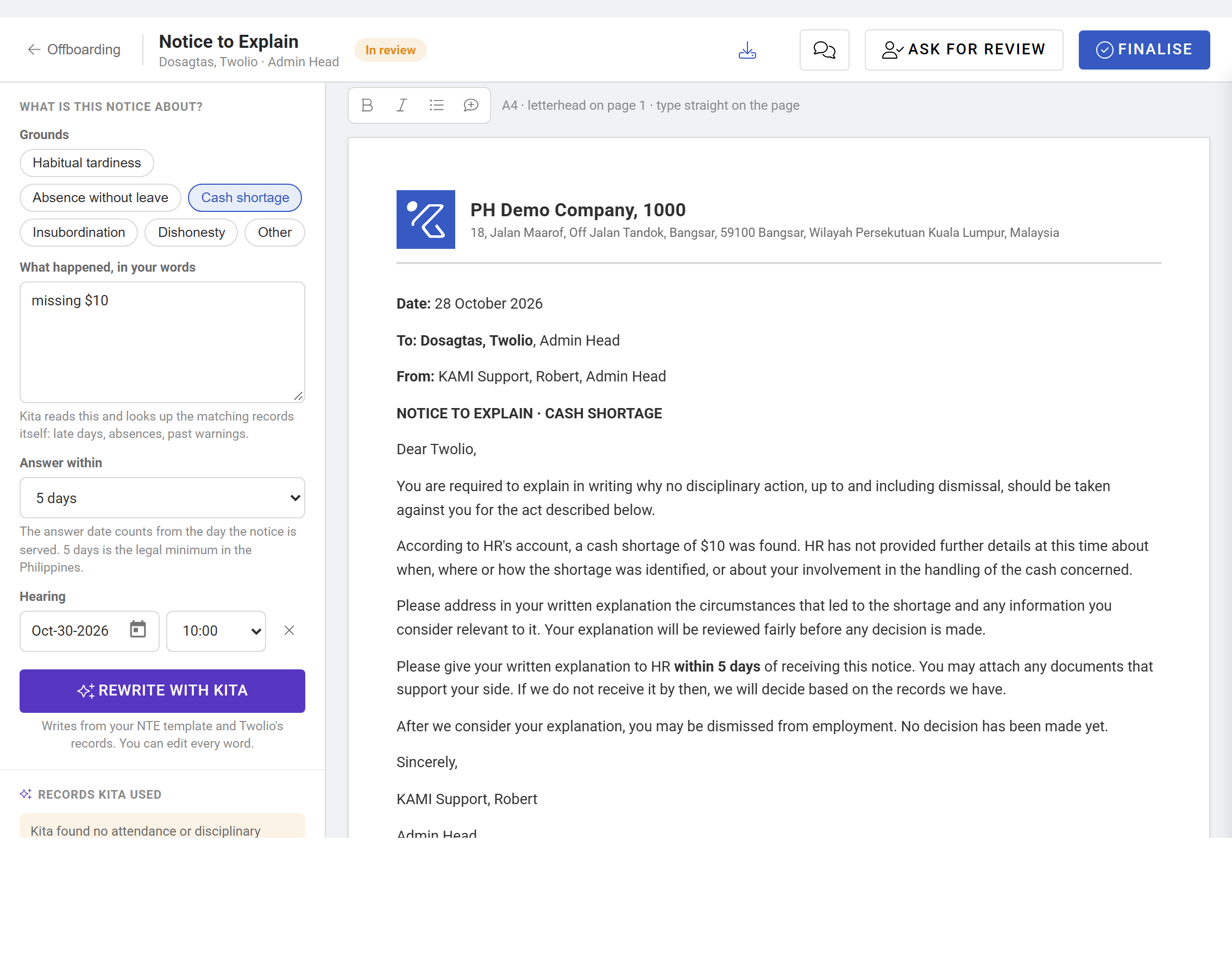
Kita reads your description and looks up the matching records itself. They're listed under Records Kita used, grouped as Late arrivals, Absences without leave and Past disciplinary actions, and added to the letter as annexes. If your description mentions something KAMI has no record of, such as a cash shortage, Kita says so: your words stay in the letter and you attach that proof yourself.
How to check and edit it
- Check every record. Open each group under Records Kita used. Untick a group to leave it out of the letter; tick it to put it back.
- Edit the letter directly. Type on the page, as in a word processor. It saves as you go and shows Saved with the time.
- Rewrite with Kita starts again from your description. It replaces your edits, so KAMI asks first.
- Word downloads the letter as a .docx if you'd rather finish it outside KAMI.
💡 Kita writes only from what you give it and what KAMI holds. The letter goes out in your company's name: read it as if you wrote it.
How to get it reviewed
- Click Ask for review.
- Add the Reviewers: usually the manager, Legal or the HR head.
- Optionally set Review by, and choose what Finalising needs: Everyone's "Looks good", or Nothing (advice only).
- Add a Note to reviewers if useful, then Send.
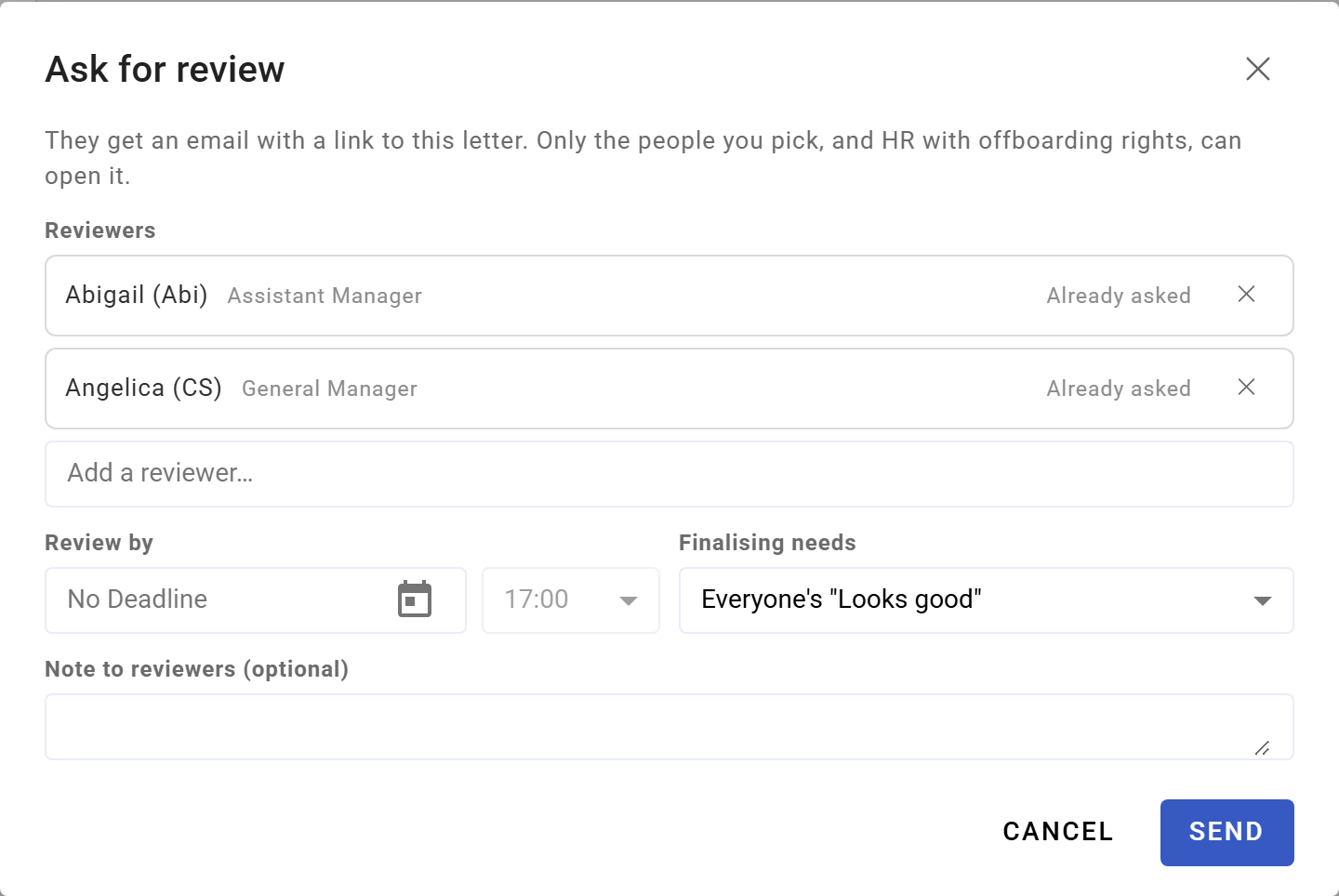
Reviewers get an email with a link. Only they, and HR with offboarding rights, can open the letter. They comment on the text and say Looks good or ask for changes. You see their comments and decisions in the Review pane, with a Remind button for anyone who hasn't answered.
To take someone off the review, open Ask for review again and click Remove next to their name.
How to finalise and serve it
- Click Finalise. If you required everyone's "Looks good" and someone hasn't said it yet, you can't finalise until they do.
- Deliver the letter to the employee yourself, by hand or however your company serves notices. KAMI doesn't send it.
- Enter Delivered on, the date the employee received it. KAMI shows the Answer due date it works out.
- Confirm.
What happens next
- The letter locks. It is saved as a PDF on your letterhead in the employee's Document Center, with the annexes, and the card shows Served.
- The answer date is set. It counts from Delivered on, using your Answer within days, and shows on the Notice to Explain card.
- HR is reminded on the answer date. See Offboarding reminders.
- File their answer. When it comes in, upload it under Employee's answer on the card.
- Then decide. Record the outcome with a Notice of Decision. Only start the offboarding if the decision is to dismiss.
Tips
- Be specific in your description. "Late 14 times since August" gives Kita more to match than "always late".
- Record past warnings properly first. A warning that isn't in Disciplinary Actions can't appear as an annex, and an NTE without its history is weaker.
- Ask the manager to review. They know whether the facts are right; HR knows whether the process is.
- Use "Everyone's Looks good" for anything likely to be challenged. It stops a letter going out before Legal has seen it.
- Enter the real delivery date. The answer deadline counts from it, and a deadline counted from the wrong day is a procedural error.
Frequently asked questions
Does the employee see the letter in KAMI? No. KAMI saves it for your records; you deliver it to them.
Can I write the other notices this way? Not yet. The editor is for the Notice to Explain. For the other notices, Create drafts a letter from your template that you download, send and upload.
Kita didn't find a record I know exists. Check it's in KAMI and dated where you described it, then click Rewrite with Kita. If it still doesn't appear, keep it in the letter's text and attach the proof yourself.
Can I change the letter after finalising? No. It's the record of what was served. If it was wrong, serve a corrected notice.