Sending a document for signature
Send an employee a contract, agreement or letter to sign in KAMI, instead of printing it, chasing it and scanning it back. When everyone has signed, the signed copy is the one kept on the employee's profile.
Where: Employee profile › Profile › Documents › Generate document or Upload file You need: the right to add documents to employee profiles, at the access level you choose for the document
Which way to send a document
| You want to… | Use |
|---|---|
| Have one employee sign a letter or contract from a template | Generate document with [first name] signs it on (this article) |
| Have them sign a PDF you already have | Upload file with Require execution on |
| Have the employee accept a document without signing it | Generate document with [first name] must accept it on |
| File a document that is already signed, or needs no signature | Upload file |
| Upload signed files for many employees at once | Bulk Documents |
The fastest way is a template built in KAMI. KAMI fills in the employee's details and places their signature box for you. With an uploaded PDF, you place every box yourself.
Before You Start
- Only PDFs can be signed. Templates built in KAMI always produce a PDF. An uploaded file must be a PDF.
- Starting signing saves the document straight away. The setup steps that follow can't be restarted later. Have your signatories ready first.
- Each signatory needs a KAMI profile. You can add up to five signatories, and up to five people to notify.
How to send a document for signature
1. Generate the document
- Open the employee's profile, go to Profile › Documents and click Generate document.
- Choose the template, read the document, and fill any missing details. See Generating a document for an employee.
- Check that [first name] signs it is on. It starts on when the template has an employee signing box.
- Write the Message the signers will see, such as when you need it back.
- Click Generate and send for signature. KAMI saves the document and moves you to Signatories, Email, and Reminder.
For a PDF you already have: click Upload file, upload the PDF, fill in Name, Type and Access, and turn on Require execution under Electronic Execution.
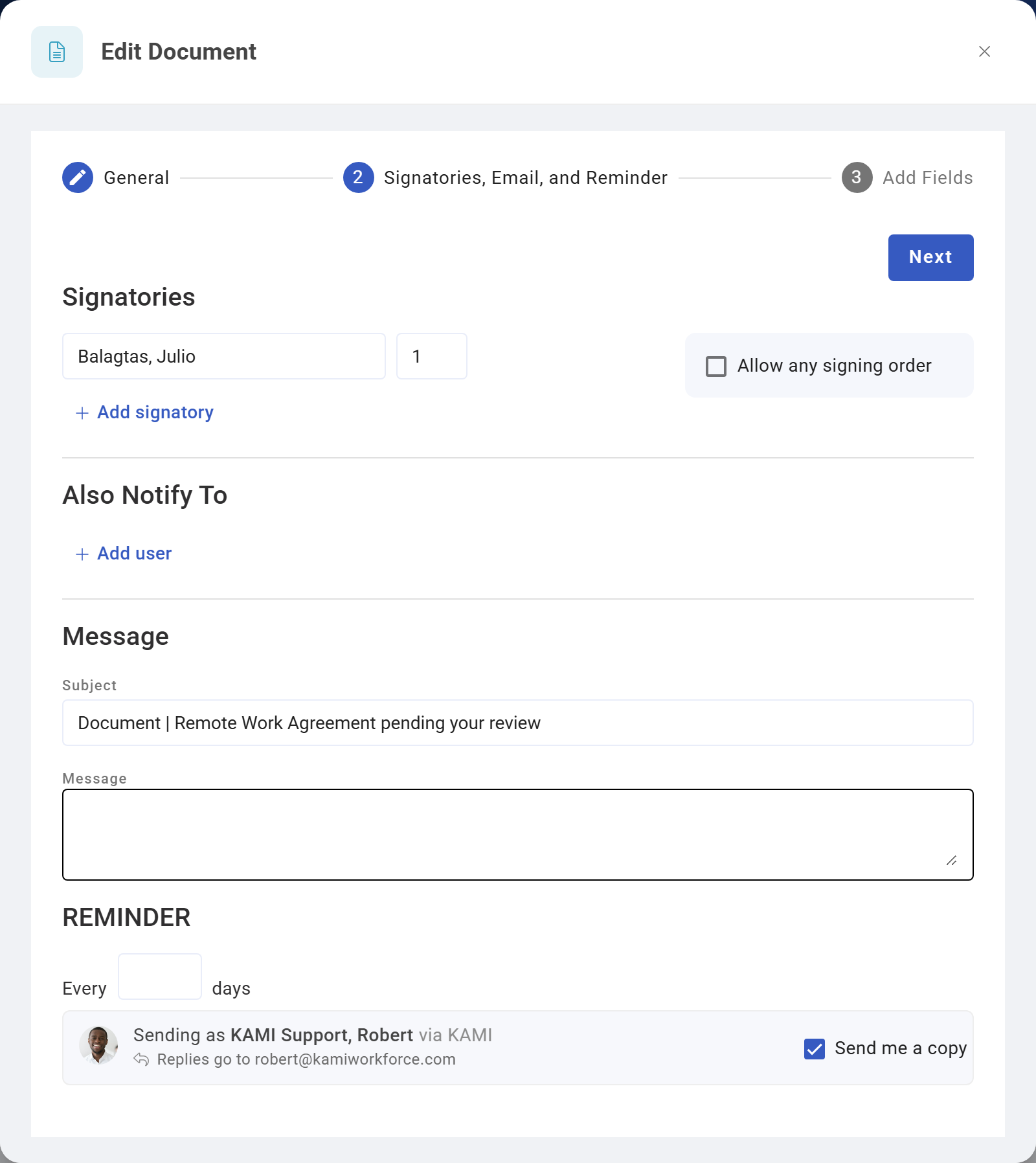
2. Choose who signs, and in what order
- Signatories starts with the employee. Click Add signatory for anyone else who must sign, such as their manager or an HR officer.
- The number beside each name is their signing order. Signatory 2 is asked only once signatory 1 has signed.
- Tick Allow any signing order if order doesn't matter. Everyone is then asked at once.
- Under Also Notify To, click Add user for anyone who should hear about it without signing. For each, choose At every State or On Completion.
- Under Message, the Subject is filled in for you, and the Message is the one you wrote when you generated the document. Change it if you need to.
- Under Reminder, enter a number of days to send reminders that often until it's signed.
- The strip at the bottom shows who the email comes from. Replies go to you. Untick Send me a copy if you don't want one.
- Click Next.
3. Check the signature boxes
Add Fields shows the document with a box for each thing a signatory fills in.
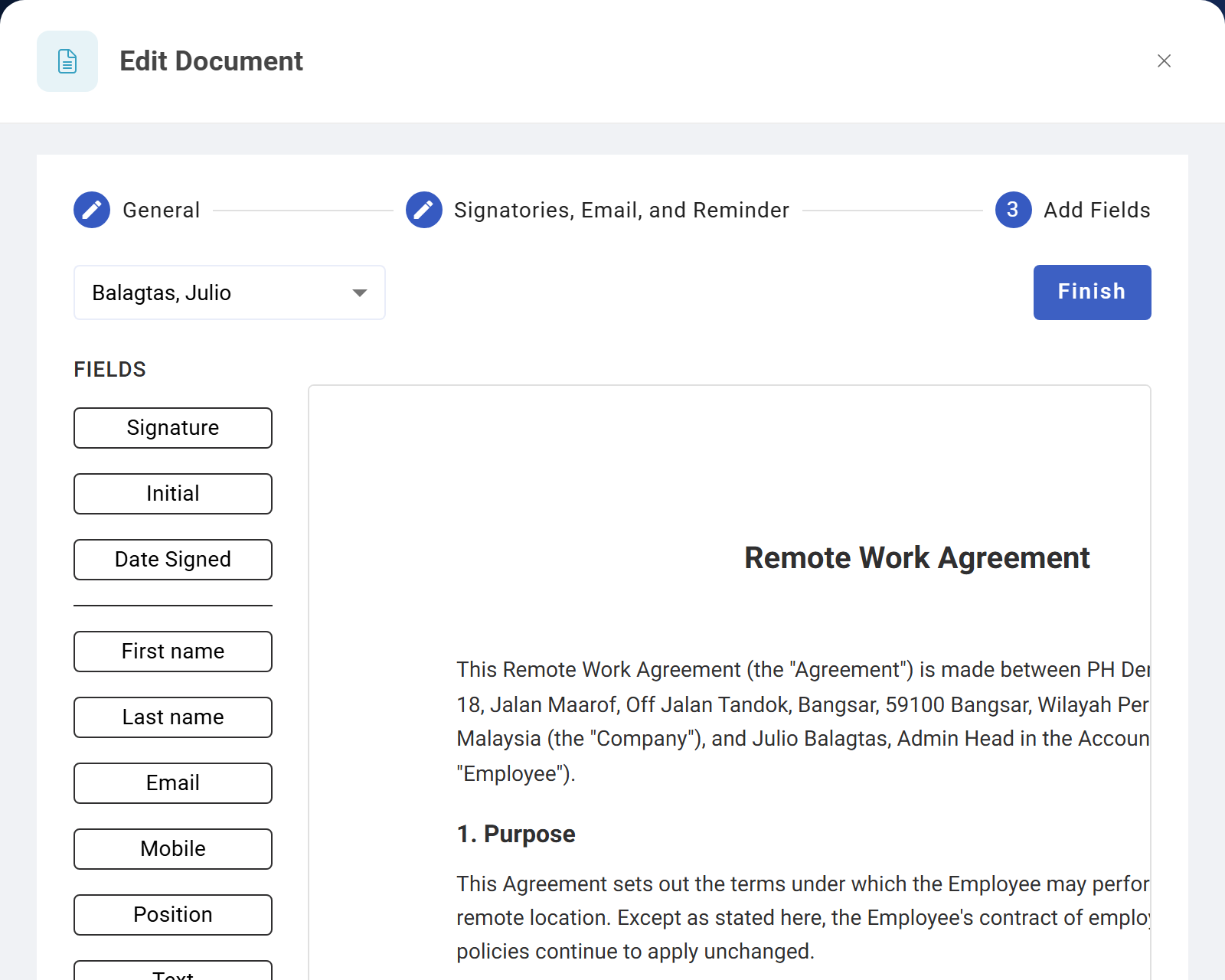
If you generated it from a template built in KAMI, the employee's Signature box is already on the Employee Signature line. A Date Signed box is also placed if the template prints the signing date. Check where it sits and move it if you need to.
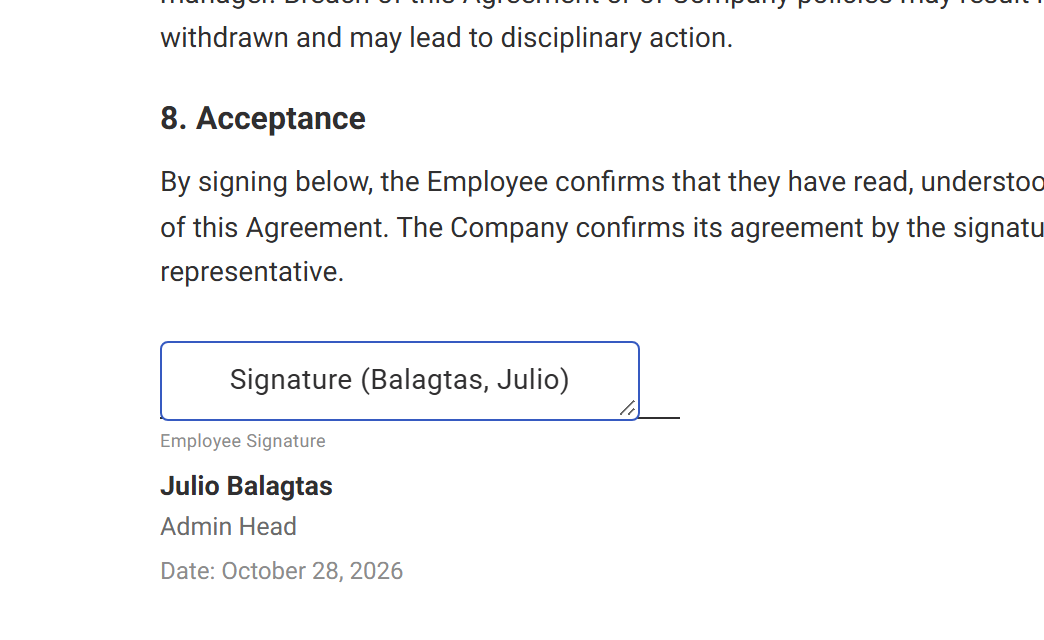
For every other signatory, and for any uploaded PDF:
- Choose the signatory in the drop-down above Fields.
- Click a field to add it: Signature, Initial, Date Signed, or a detail such as Position or Text.
- Drag the box to where it belongs, and resize it from the corner.
A box turns red, and Finish stays greyed out, while it crosses a page break or touches another box. Move it until the red clears.
4. Send it
Click Finish. The document is sent, each signatory in turn gets an email, and the document shows Pending Execute or To Execute on the profile.
What the employee does
- The employee opens the email link, or the Docs to execute card on their dashboard. Both open their Documents list filtered to what they need to sign.
- They open the document and read it. The footer says what to do next.
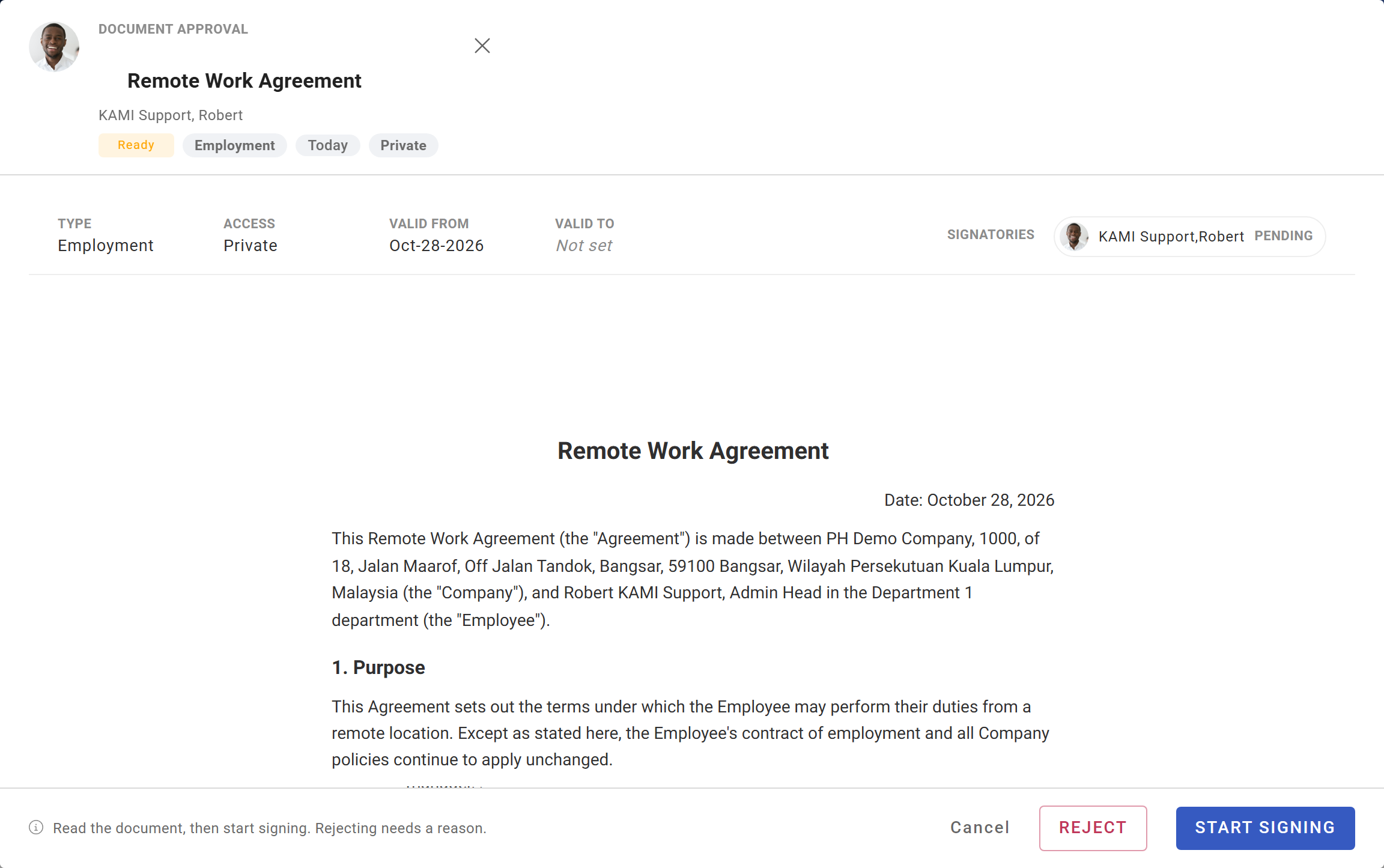
- They click Start signing, then click their Signature box.
- In Apply Signature, they either apply the ready-made signature in their name, or upload an image of their own signature, and click Apply.
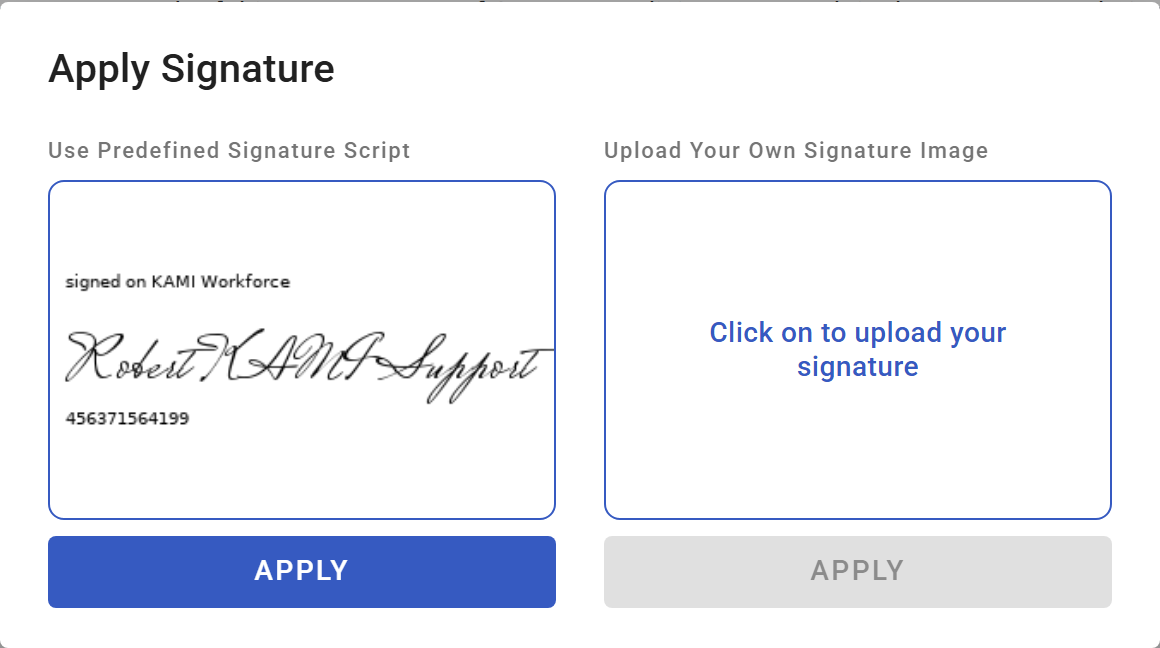
- The signature drops into the box. They fill in any other boxes, then click Finish.
If something in the document is wrong, they click Reject and give a reason. Rejecting ends signing for every signatory, so the document has to be sent again as a new one.
What Happens Next
When the last signatory finishes:
- The signed PDF replaces the unsigned one. It's what downloads from the document and what stays on the employee's profile.
- Every signatory is emailed the signed PDF as an attachment. People under Also Notify To are told at every step or only at the end, as you chose.
- The status changes to Completed.
- Automations can run. A workflow automation with the Document Signed trigger runs now. It can be limited to one document type, such as Employment.
Document statuses
| Status | Meaning |
|---|---|
| To Execute | It's your turn to sign |
| Pending Execute | Waiting for another signatory to sign |
| Pending Approval/Execution | Still waiting on both signatures and approval |
| To Consent | Waiting for the employee to accept it (must accept it was on) |
| Completed | Everyone has signed, and any approval is done |
| Rejected by Signatory | A signatory rejected it and signing stopped |
| Declined by Approver | An approver declined the document |
💡 Signing doesn't replace approval. If the document also goes through My Team approval, it stays open until both are done.
Tips
- Build anything you send more than once as a template in KAMI. The signature box is then placed for you every time.
- Leave Valid To empty unless the document really expires. (On an upload it's called End Date.) The document expires on that date. Set one only for something like a fixed-term contract or a time-limited policy.
- Put the employee first, and the company signatory last. The employee then reads and signs before anyone countersigns. Tick Allow any signing order only when the order really doesn't matter.
- Set a reminder. Most unsigned documents are simply forgotten. Every 2 or 3 days is enough to get them signed without nagging.
- Write the message for the employee, not for HR. The subject and message are the first thing they see. Say what the document is and when you need it back.
⚠️ Don't close the dialog halfway through setting up signing. Once signing has started, closing before Finish means this document can't be sent for signing again. KAMI asks whether to keep or delete it. Delete it and start again.
Troubleshooting / FAQ
The Require execution switch won't turn on for my upload. The file isn't a PDF, or a required field (Name, Type, Access, File) is empty. Save a Word file as PDF and upload it again.
There's no signature box on the document when I reach Add Fields. Boxes are placed automatically only for templates built in KAMI that have an employee signature block. For uploaded PDFs, Word templates, and signatories other than the employee, add the boxes yourself.
Finish is greyed out. A box is red: it crosses a page break or touches another box. Move it until it's clear.
The employee rejected the document. Can I send it again? Not the same one. A rejected document can't be signed. Fix what was wrong, then generate it again as a new document.
Who gets the signed copy? Every signatory gets it by email. It's also kept on the employee's profile under Documents, as the document's file.