Offboarding process settings
Offboarding Process is where you decide what every leaver's offboarding contains: which steps are used, the letters KAMI writes, the handover tasks and exit survey questions every leaver starts with, and any steps of your own. Set it once and every new offboarding arrives ready, instead of HR building each one by hand.
The rule to know first: settings apply to new offboardings only. An offboarding already in progress keeps the steps, tasks and questions it started with.
Where: My Team › Settings › Onboarding & Offboarding › Offboarding Process. You need: the Separation Types right to change anything. People with the Terminate Employee right can open the page and read it.
Which one, when
| You want to change | Where |
|---|---|
| The steps every leaver gets, letters, default tasks, survey questions, your own steps | Offboarding Process, this article |
| Who is reminded about offboardings, and when | My Team › Tools & Reports › Offboarding › Reminders. See Offboarding reminders |
| The kinds of exit, and the final pay each one carries | Separation Types, and Termination settings |
| The letterhead and the letter templates themselves | Document Templates |
| Something for one leaver only | Their profile › Offboarding tab. See Offboarding an employee |
How the page works
The left side lists every step in its section: Separation, Prepare, Exit and Close out. Click a step to see what it does and its settings on the right. Changes save as you make them.
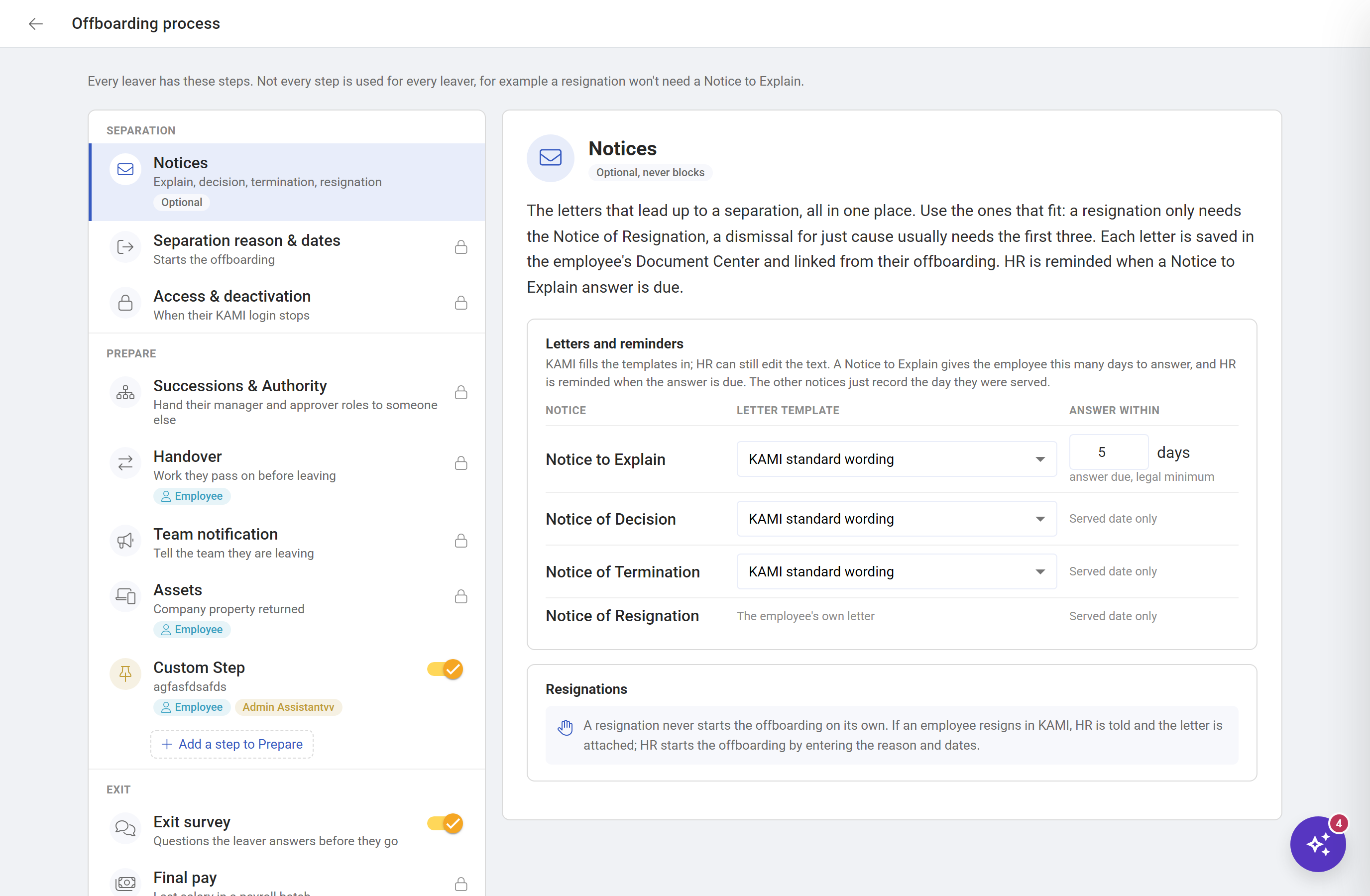
Each step is one of three kinds:
| Kind | Steps | Can you switch it off? |
|---|---|---|
| Always included | Separation reason & dates, Access & deactivation, Successions & Authority, Handover, Team notification, Assets, Final pay | No. A lock shows instead of a switch |
| Optional | Exit survey, Documents to leaver, Records & rehire | Yes, with its switch |
| Your step | Steps you add | Yes, or remove it |
Notices is always there but each notice is optional: use the ones that apply. A step that is switched off is tagged Off, and new offboardings skip it.
Steps marked On the employee's checklist also appear on the leaver's own My offboarding page.
How to set up the letters
Click Notices. Under Letters and reminders:
- For the Notice to Explain, Notice of Decision and Notice of Termination, choose a Letter template from your Document Templates, or KAMI standard wording. When HR clicks Create on a notice, KAMI writes from this template and fills in the employee's details. HR can still edit the text.
- For the Notice to Explain, set Answer within: the days the employee gets to answer. It can't be less than 5, the legal minimum in the Philippines. HR can change it on each letter, and is reminded when the answer is due.
The other notices show Served date only: they record the day they were served, with no deadline and no reminder. The Notice of Resignation is the employee's own letter, so it has no template.
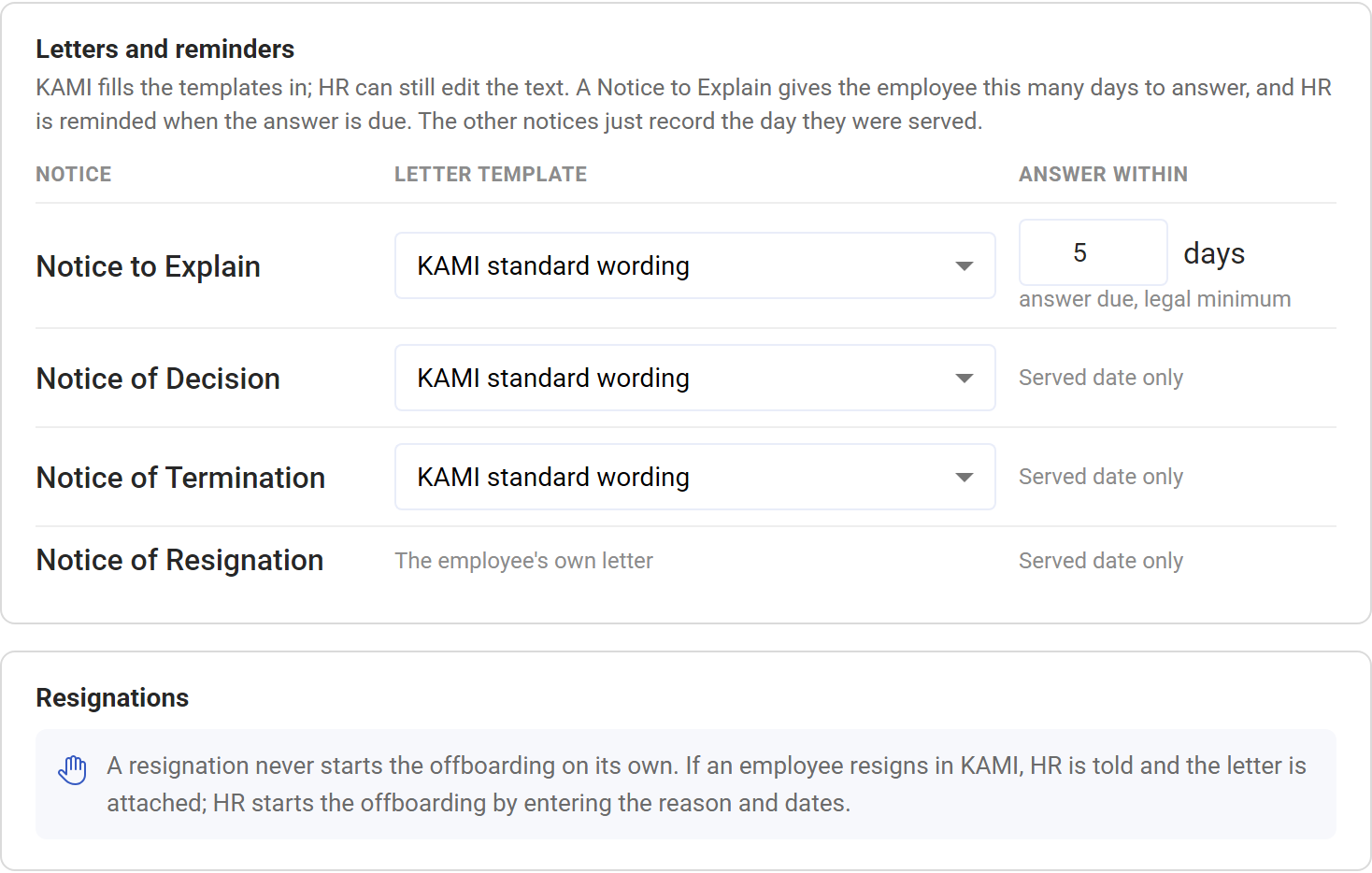
A resignation never starts an offboarding on its own. HR starts it by entering the separation reason and dates.
How to set default handover tasks
Click Handover. Under Default tasks:
- Type a task, such as "Hand over open client accounts", and click Add.
- To give it only to some leavers, click + Position and pick one or more positions. A task with no positions goes to every leaver.
When an offboarding starts, the tasks that fit the leaver are added to it. HR, the manager or the leaver can add more on the offboarding itself.
How to set the exit survey
Click Exit survey. Under Survey questions:
- Type a question and choose its Type: Long answer, Short answer, Rating 1 to 5 or Yes / No.
- Click Add.
- Drag questions to put them in order.
The leaver answers on My offboarding before they go, and only HR sees the answers. With no questions, the leaver gets no survey.
How to set the leaver's documents
Click Documents to leaver. Under Templates, choose the template for the Certificate of Employment and the Quitclaim & Release, or KAMI standard wording. Generate on each offboarding fills in these templates.
Turn on Send leaver link on the separation date to email the leaver a private link to their final payslip, COE, BIR 2316 and quitclaim. It goes to their personal email, because their login has stopped, and stays valid for 3 months.
💡 If you change a template after documents were generated, the old ones don't update. On the offboarding, remove the old document with its bin button, then generate it again.
How to add your own step
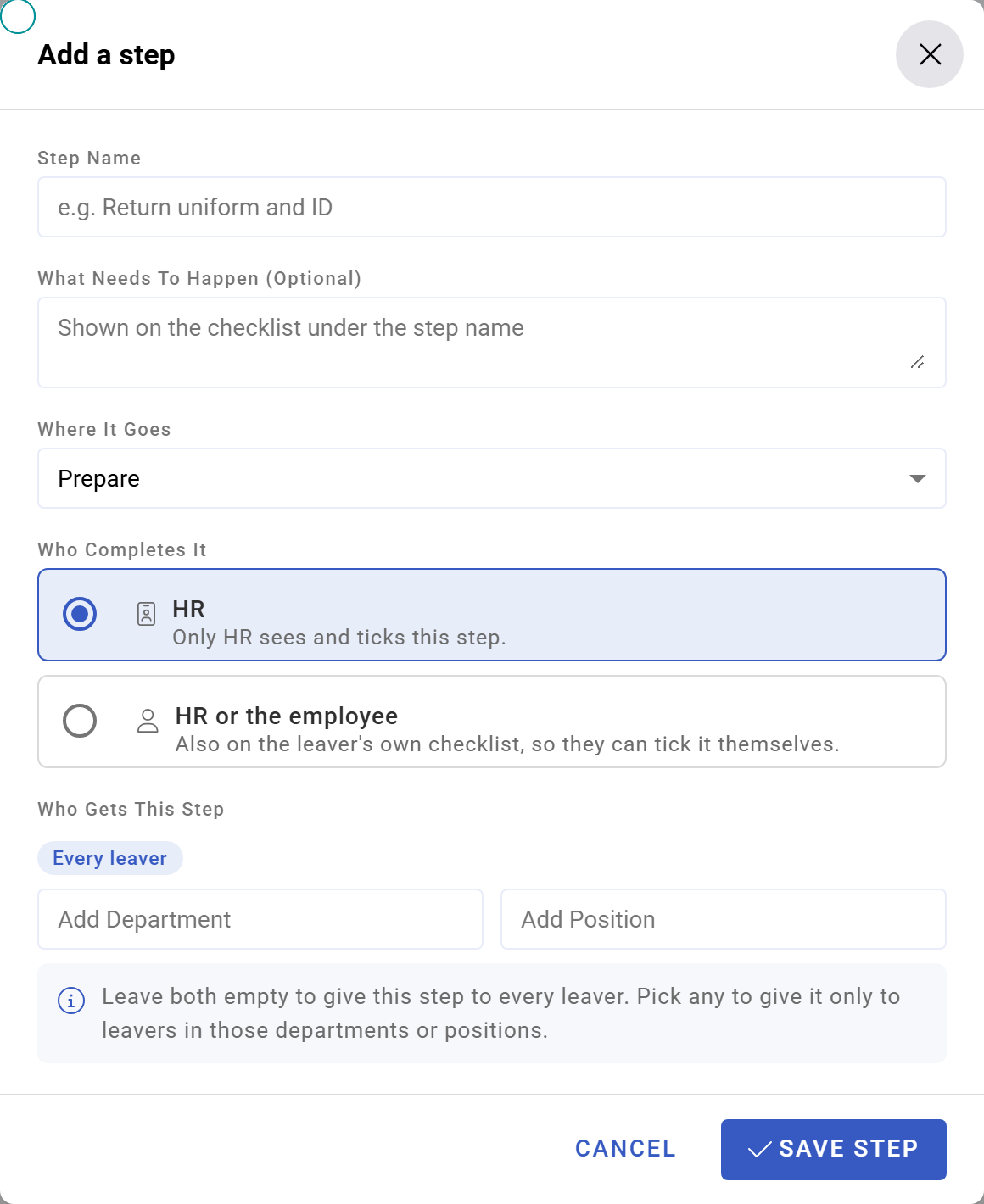
- Click Add a step to Prepare, Exit or Close out. Your steps can't go in Separation.
- Enter a Step name, such as "Return uniform and ID", and optionally What needs to happen, shown under the name on the checklist.
- Choose Who completes it:
- HR: only HR sees and ticks it. - HR or the employee: it's also on the leaver's own checklist, so they can tick it themselves.
- Under Who gets this step, click Add Department or Add Position to give it only to leavers in those departments or positions. Leave both empty for every leaver.
- Click Save step.
To change it later, use Edit step. Remove step deletes it for new offboardings; ones already in progress keep it.
What happens next
- New offboardings use your settings from the moment they start: their steps, default tasks, your steps and survey questions are copied in then.
- Offboardings in progress don't change. Switching a step off or editing a task doesn't touch them.
- Templates are read when a letter or document is created. Change one and the next letter uses it; letters already written stay as they are.
- Some steps have nothing to set here. Separation reason & dates, Team notification and Final pay are filled in on each leaver's offboarding.
Tips
- Set the letter templates before your first Notice to Explain. A notice written from a reviewed template is safer than one written fresh each time.
- Use positions for handover tasks. A cashier counts the till; a sales executive hands over accounts. Keep generic tasks for everyone and specific ones by position.
- Keep the exit survey short. Five questions get answered; fifteen get abandoned.
- Make a step "HR or the employee" only if the employee can really do it. Returning a uniform, yes. Clearing payroll, no.
- Turn on the leaver link, and make sure HR records a personal email before each leaver's last day.
Frequently asked questions
I switched a step off, but it still shows on someone's offboarding. Their offboarding started before you switched it off. Mark it Not needed there.
Why can't I switch off Assets or Final pay? They're always included. A step with nothing to do closes itself: Assets with no assets is done on the first day.
Where did the reminder days for the other notices go? Only the Notice to Explain has a deadline, so only it has a reminder. The other notices just record the day they were served. Who is reminded about offboardings is set on the Reminders tab of the Offboarding page.
Can I have different processes for different branches? There's one process per company. Use Who gets this step to give steps and tasks to certain departments or positions.