Registered phone only ties each employee's mobile attendance actions to one phone, so nobody can log in on a colleague's phone and check in for them. When you turn it on, mobile check-in, check-out, breaks, overtime and other mobile timekeeping actions only work from the phone each employee is registered to.
This article is for HR admins who set up Attendance rules and manage employee attendance settings.
Before You Start
- Where the company rule lives: Attendance > Tools > Attendance Rules, in the Check-in & check-out section.
- Where the per-employee settings live: the employee's profile > Attendance > Check-in settings > Identity verification.
- The rule is Off by default and applies to everyone in the company.
- Phones are only registered, and only restricted, while the rule is On. With the rule Off, employees can check in and out from any phone.
- If you do not see Attendance Rules or an employee's Attendance page, check with your KAMI admin about your access.
How a phone becomes the registered phone
You do not register phones yourself. Once the rule is on, a phone becomes an employee's registered phone the first time they check in or check out on it, and KAMI never replaces it afterwards. Logging in on a phone does not register it.
Employees can log in on as many phones as they like. Only after they check in or check out on one phone does that phone become their registered phone. From then on, they can still log in on other phones, but they cannot check in or check out on them.
For example, an employee logs in on phone A but does not check in, then logs in on phone B and checks in. Phone B is now their registered phone. They can still log in on phone A, but they cannot check out from it. They have to check out from phone B.
Because the first check-in or check-out wins, ask employees to use their own phone for it. An employee who has no registered phone yet can check in from any phone, and that phone becomes registered.
Turning the rule on
- Go to Attendance > Tools > Attendance Rules.
- In the Check-in & check-out section, select Edit.
- Turn on Registered phone only, then save your changes.
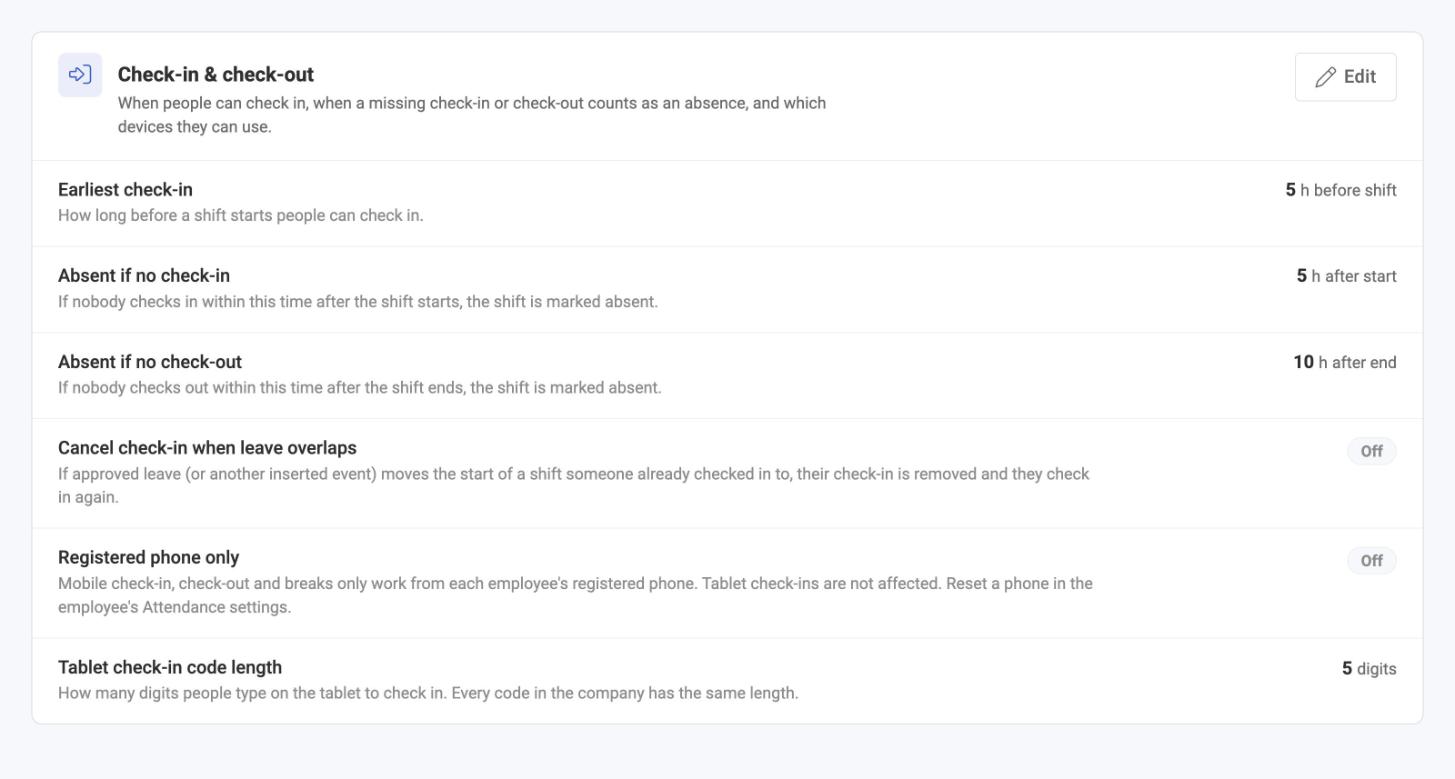
Tell your employees before you switch it on. From then on, each employee's first check-in or check-out registers their phone, and mobile attendance actions only work from that phone.
If you turn the rule off, the restriction stops working and employees can log in and check in on any phone. Checking in on a different phone while the rule is off does not change the registered phone on the employee's profile. Turning the rule off does not remove or reset anyone's registered phone either, so when you turn it back on, KAMI uses the last registered phone again.
What employees see
Employees can still log in on any phone, request leave and view payslips. Only mobile attendance actions are limited to the registered phone: check-in, check-out, breaks, overtime and the like. Offline check-ins uploaded from another phone are refused too.
If an employee tries to check in from a phone that is not their registered one, they see:
You can only check in from your registered phone. Ask HR to reset it if you changed phones.
If the app does not send a phone ID, for example because it needs an update, they see:
Update the app to check in from this phone.
Telpo tablets and web check-in are not affected by this rule.
Checking and resetting an employee's phone
- Open the employee's profile and select Attendance.
- Scroll to Check-in settings, then Identity verification.
- Read the Registered phone line. It shows Registered on followed by the date, or No phone registered yet. It does not show the phone itself.
- To change it, select Edit on the Check-in settings card, then select Reset Phone.
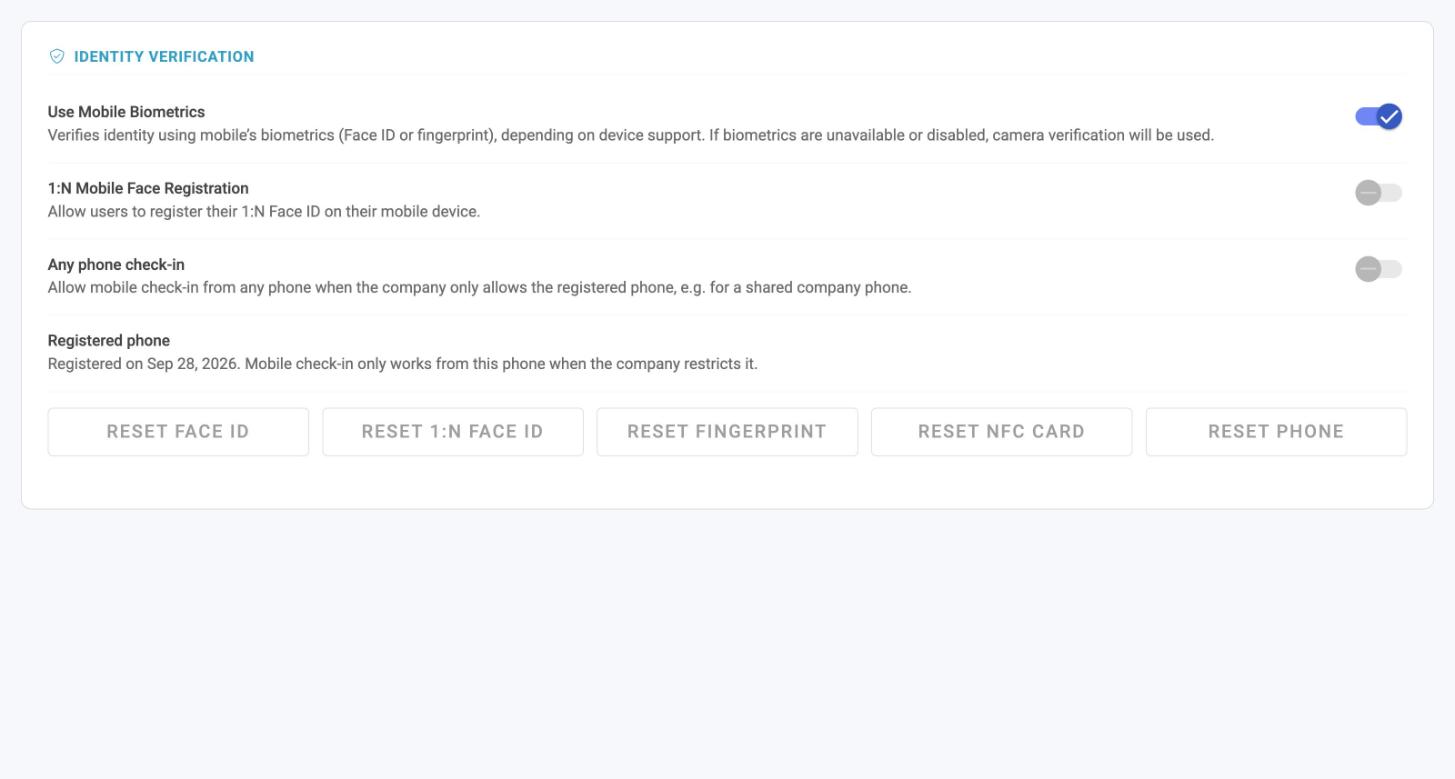
After a reset, the next phone the employee checks in or checks out on becomes their registered phone. Reset a phone when an employee has changed phones.
Note: Reinstalling the app also affects the registered phone, and it depends on the phone. On an iPhone, the registration survives a reinstall. On Android, a reinstall wipes the phone ID, so the employee needs a Reset Phone before they can check in again.
Employees who share a phone
Some employees check in from a shared company phone. For each of them, turn on Any phone check-in in Identity verification. That employee is then exempt from the company rule and can check in from any phone, while everyone else stays restricted.
Following up on refused check-ins
Refused check-ins appear in Attendance > Tools > Mobile Check-in Errors, where the report shows each failure with its reason. Check it after you switch the rule on to see who needs a reset or an app update.
Resetting a phone and changing Any phone check-in are recorded in the employee's audit trail under Attendance.
What Happens Next
Once the rule is on, every refusal is a mobile attendance action, such as a check-in, check-out, break or overtime, that came from a phone other than the employee's registered one. Nothing changes for tablets, web check-in, leave requests or payslips. The employee is not locked out of the app, so a refusal is a prompt to use their own phone or to ask HR for a reset.
Tips
- Announce it first. The rule takes effect for everyone the moment you save it. Each employee's first check-in or check-out afterwards registers their phone, and they are refused only when they later use a different one.
- Ask employees to use their own phone for their first check-in or check-out. The first phone an employee checks in or out on is the one that is kept, so a borrowed phone used for a first check-in becomes their registered phone until you reset it.
- Turn on Any phone check-in before the employee's first check-in. For employees who need to use more than one phone, such as a shared company phone, set the exemption first so they are not refused on their second phone.
- Check Mobile Check-in Errors in the first week. It shows which employees were refused and why, so you can reset phones in one pass.
- Keep resets with HR. Because a reset lets the next phone register, a free-for-all reset would let someone check in for a colleague and switch back. That is why it is an HR action.
Troubleshooting / FAQ
An employee says they were refused on their own phone. Check the Registered phone line on their profile. If the date is recent or they changed phones, use Reset Phone, then ask them to check in or out on the phone they want to use.
An employee can log in on a second phone but cannot check in or out. That is expected. Their registered phone is the one they first checked in or out on. They need to use that phone, or HR can reset the phone.
Phones are not being registered and anyone can check in from any phone. Check that Registered phone only is turned on in Attendance Rules. Phones are only registered and restricted while it is on.
An employee on a shared phone is refused. Turn on Any phone check-in for that employee in Identity verification.
An employee sees the message asking them to update the app. Ask them to update the KAMI mobile app and log in again.
Can employees reset their own phone? No. Only HR can reset a registered phone.