Auto-schedule: filling shifts from staffing requirements
Auto-schedule builds a week's rota for you. You tell KAMI how many people each shift needs at each branch, and it fills those shifts with people who can legally work them. Nothing reaches employees until you have reviewed the draft and published it.
Where: Attendance › Calendar › week view › Auto-schedule. Its set-up is under Attendance › Settings › Auto-schedule. You need: Run Auto-schedule to build drafts and Publish Auto-schedule to publish them. Setting it up needs Staffing Requirements and Scheduling Rules. All four are in the Auto-schedule group of user rights.
When to use this, and when not to
| You want to | Use |
|---|---|
| Fill a week or a month of shifts against a headcount, without breaking rest rules | Auto-schedule, which this article covers |
| Give someone the same weekly pattern for good | A standard schedule |
| Place a few shifts by hand | The team calendar |
| Let people volunteer for optional or extra work | Open shifts |
| Load a rota someone already planned in a spreadsheet | Bulk import. See Standard and dynamic schedules |
Auto-schedule earns its place where the rota changes week to week and the work is covering a headcount: shift work, retail floors, warehouses and plants. If a team works the same hours every week, a standard schedule is simpler and needs no review.
How it works
Auto-schedule works from three things, all set once and reused every week:
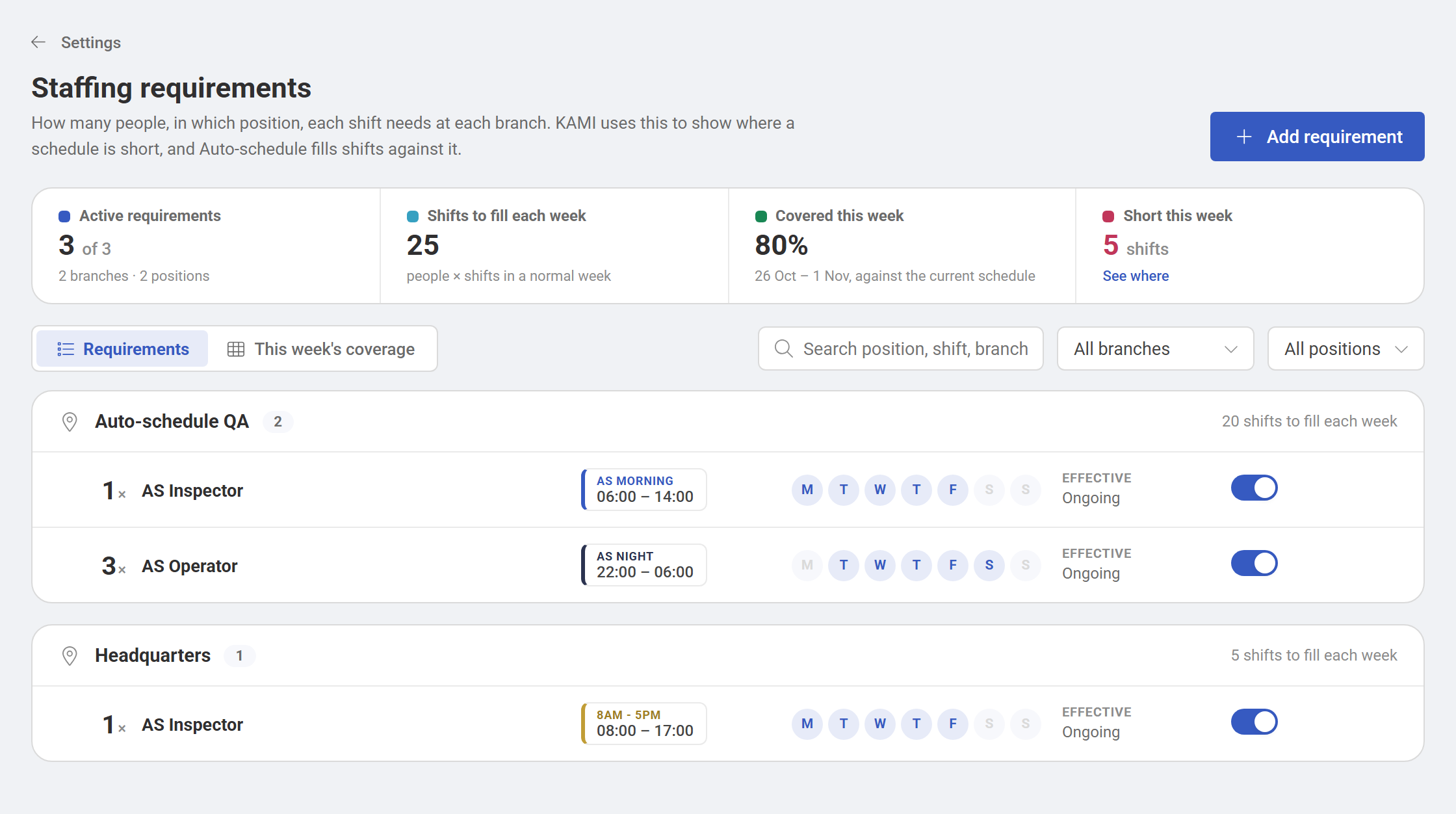
- Staffing requirements. These say how many people, in which position, each shift needs at each branch, and on which days. For example: 2 × Machine Operator on Morning 06:00 – 14:00, Monday to Saturday, at Calamba Plant.
- Scheduling rules. These are the limits it never breaks: minimum rest between shifts, most days in a row and most night shifts in a row. Weekly hours come from your attendance rules.
- The calendar as it is. This covers rest days, approved leave, public holidays and who is already scheduled.
It schedules by branch and position. Department plays no part, so anyone at the branch in the right position can fill a shift, whichever department or line they belong to.
⚠️ A shift only counts when its hours match the requirement's shift exactly. Coverage counts a person who is at the requirement's branch, in its position, and on an event that starts and ends at the shift's hours. Someone in the right place but on 07:00 – 15:00 does not count towards a 06:00 – 14:00 requirement, and the shift shows as short. Build rotas from the same shift templates your requirements use.
Before you start
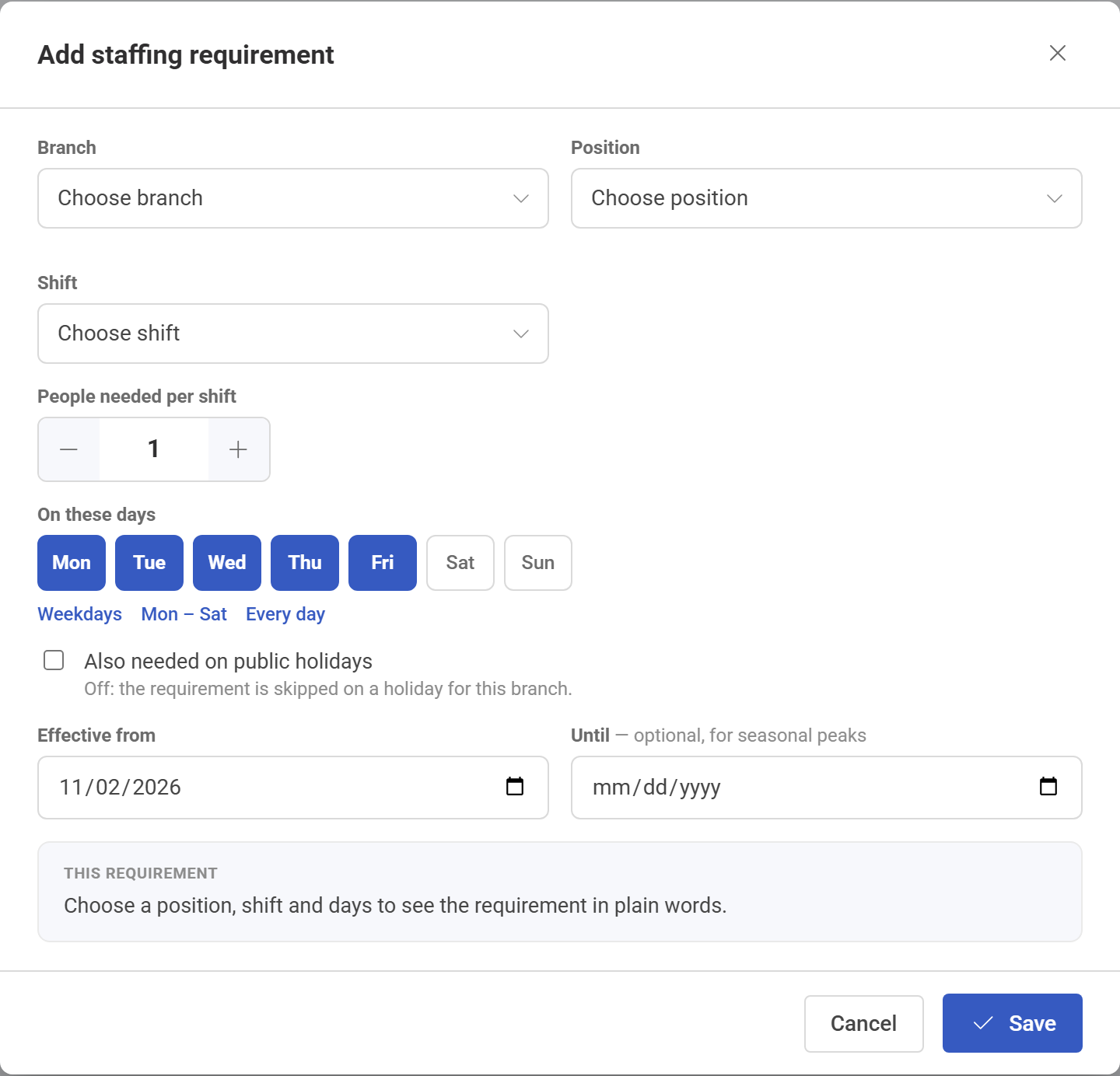
- Add your staffing requirements. Go to Attendance › Settings › Auto-schedule › Staffing requirements and click Add requirement. Choose the Branch, the position and the shift. Then set People needed per shift, the days, and Effective from. The form shows the requirement as a sentence, so you can check it reads right.
- Turn on Also needed on public holidays only where the branch genuinely works holidays. With it off, the requirement is skipped on a holiday at that branch. - Set an Until date for a seasonal peak, so the extra headcount ends by itself. - With no requirements yet, Start from the last 4 weeks of schedules suggests them for you. A shift is suggested only when it was staffed on at least three of the last four weeks. Review every suggestion before relying on it.
- Check the scheduling rules. Go to Attendance › Settings › Auto-schedule › Scheduling rules. Set Minimum rest between shifts, Most days in a row and Most night shifts in a row. These apply to every branch.
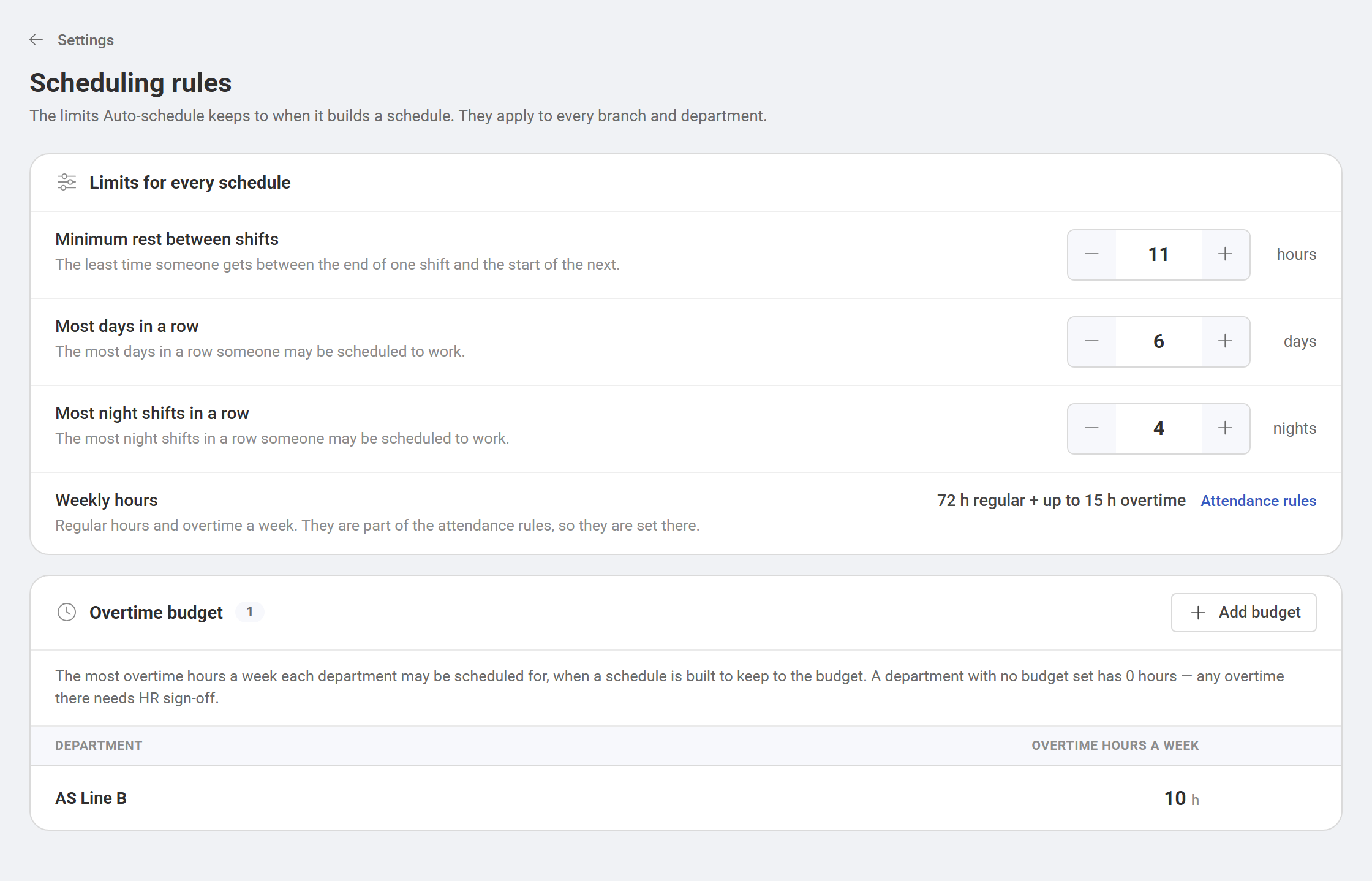
- Set overtime budgets, if you use them. Under Overtime budget, set the most overtime hours a week each department may be scheduled for. A department with no budget has 0 hours, so any overtime there needs HR sign-off.
- Make sure positions are right on profiles. Auto-schedule only offers a shift to people whose position matches the requirement. A wrong position on a profile means that person is never scheduled.
How to build a draft
- Open the calendar in week view on the first week you want to schedule, and click Auto-schedule.
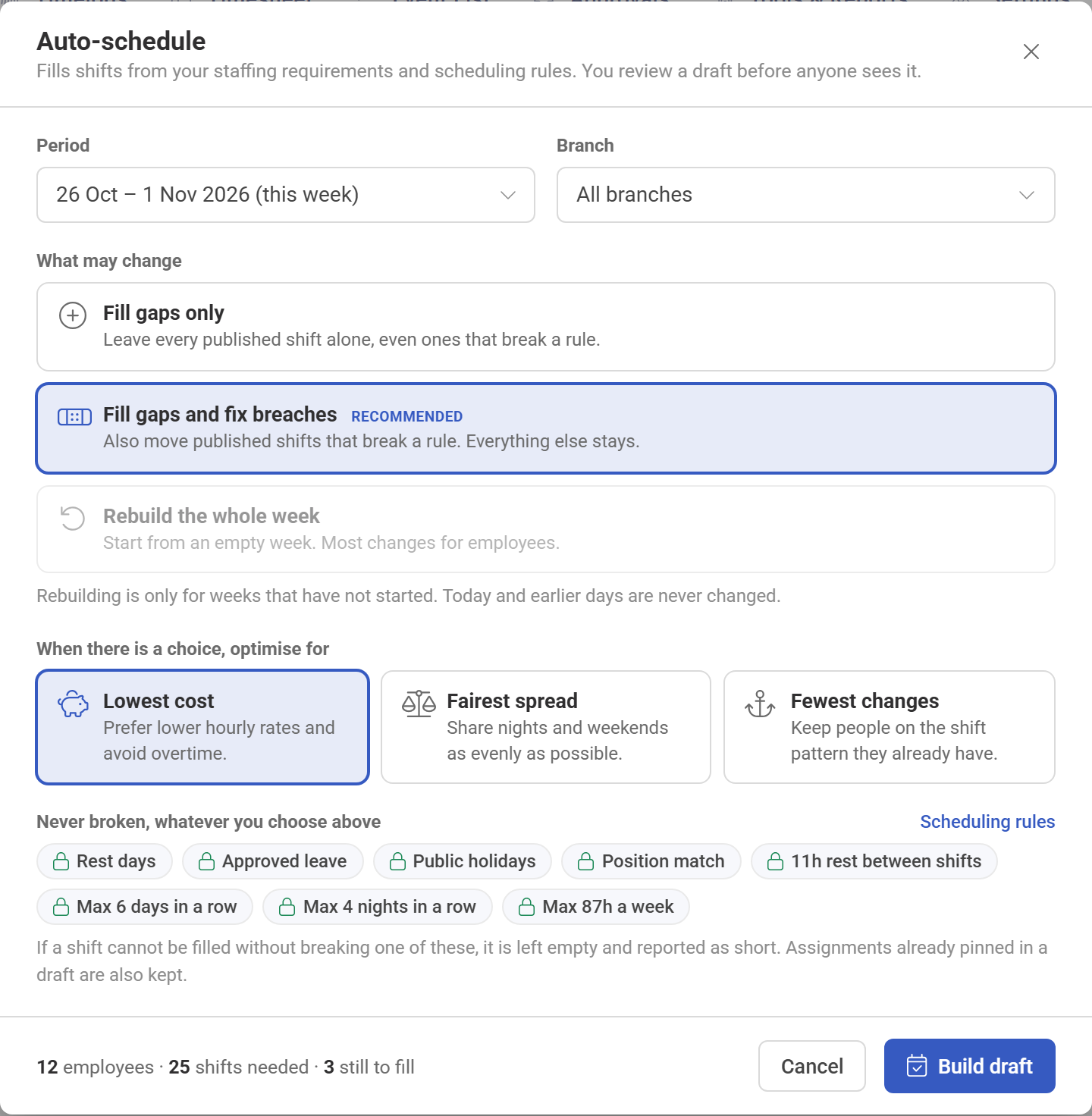
- Choose the Period. You can pick the week in view, the four weeks starting from it, or the week after.
- Choose one or more branches from Branch. Search the list when you have many branches. Each branch gets its own draft.
- Choose What may change:
| Option | What it does | Use it when |
|---|---|---|
| Fill gaps only | Leaves every published shift alone, even ones that break a rule | The rota is mostly done and you only want the holes filled |
| Fill gaps and fix breaches (recommended) | Also moves published shifts that break a rule. Everything else stays | Most weeks |
| Rebuild the whole week | Starts from an empty week | Planning ahead, before anyone has seen the week. This makes the most changes for employees |
Rebuild the whole week is greyed out once the period has started. Today and earlier days are never changed by any option.
- Choose what to optimise for when several schedules are equally good: Lowest cost, Fairest spread of nights and weekends, or Fewest changes to people's existing patterns.
- Click Build draft. You can close the window while it works, and KAMI notifies you when the draft is ready.
Auto-schedule first fills as many shifts as the rules allow. Then it compares the equally good schedules against your goal. If a shift cannot be filled without breaking a rule, it is left empty and reported as short. Auto-schedule never breaks a rule to fill a shift.
Reviewing the draft
The draft opens on the calendar with a Draft schedule bar across the top. Employees cannot see any of it.
- The figures. The bar shows Shifts filled, shifts that Cannot be filled, Changes to review (added, changed, removed), Rule breaches and Overtime against the budget.
- One draft per branch. When you built several branches, a tab for each sits in the bar with its fill status, so you can move between them.
- Who is shown. The grid lists only people in the positions the branch's requirements ask for.
- Coverage. The Coverage against staffing requirements panel stays pinned at the bottom of the grid. A red cell is short, and clicking it explains why.
- Ask why. Click any shift to see why that person was chosen or why a shift is short. The Rules check is calculated from your rules, not by AI. From there you can pin the assignment, give it to someone else and pin it, or post the gap as an open shift.
- Pin and regenerate. A pinned assignment is kept when you click Regenerate. Pin what you are happy with, then regenerate to rework the rest.
- Filter. Use Show to see only Added, Changed or Pinned shifts.
Publishing
- Click Review & publish.
- Check the summary of who gets a new or changed schedule and how many shifts stay unfilled. You can tick Post them as open shifts to offer the gaps to anyone suitable.
- Edit the Message to affected employees. Kita drafts it for you, and you can change it or leave it empty to send the standard message. The standard message asks people to tell their supervisor about a problem by the day before the period starts.
- Keep Notify the affected employees on to send a push notification and an email. Employees whose schedule did not change are not contacted.
- Click Publish. Employees see the schedule straight away.
Over the overtime budget. When a draft schedules more overtime than the budget allows, HR must sign it off.
- HR confirms I approve … of overtime above budget when publishing. The approval is recorded against their name in the audit log.
- A manager limited to their own team sees Request HR sign-off instead. The request goes to their approvers in turn, and the draft waits. When the last approver approves, it is published. Declining sends it back with a reason. The manager can Withdraw request to change the draft again.
What happens next
- The shifts become calendar events. Publishing writes them to the calendar in one go, and they feed timekeeping and payroll like any other scheduled shift.
- Coverage updates. The staffing requirements page and the calendar coverage panel now count the published shifts.
- A stale draft is refused. If someone changes the calendar or the shifts for those days after the draft was built, KAMI will not publish it. That rule stops a draft overwriting a shift someone has just edited. Click Regenerate and publish the new version.
- One open draft per branch. Building a new draft for a branch throws away its current unpublished draft, along with its pins. A draft waiting for HR sign-off is kept until its request is withdrawn.
- Discarding is safe. Discard throws away the draft and its pins. The published schedule is never changed.
Tips
- Start with Fill gaps and fix breaches. It fixes rule breaches in the rota you already have without disturbing anyone else.
- Rebuild only weeks nobody has seen yet. A rebuild can move many people, and each one is notified.
- Pin before you regenerate. Pin the assignments you have agreed with people, so a re-run cannot move them.
- Build every branch at once on a busy week. Tick several branches, then work through the tabs in the draft bar.
- Fix the cause of a recurring gap, not the week. If the same shift is short every week, the explanation usually names the cause: too few people in that position, rest rules that are too tight, or a requirement that asks for too much.
Troubleshooting
"Set your staffing requirements first" appears when I click Auto-schedule. The branch has no active requirements. Add them under Attendance › Settings › Auto-schedule › Staffing requirements. A paused requirement does not count.
Every shift in the draft is short. Nobody at that branch is in a position its requirements ask for. Check the positions on employee profiles, and check the requirement's position.
Coverage says short, but someone is working that shift. Their event's hours do not match the requirement's shift, or they are at another branch or in another position. Coverage counts exact shift hours only.
Why is Rebuild the whole week greyed out? The period has already started. A rebuild is only possible for weeks whose first day is still to come.
Publishing says the schedule changed after the draft was built. Someone edited the calendar or the shifts for those days. Click Regenerate, then publish.
I cannot see the Auto-schedule button. You need the Run Auto-schedule right. Ask an administrator.