Tracking offboardings
The Offboarding page is HR's to-do list for everyone who is leaving. It shows each leaver, how far their offboarding has got, and who needs attention because their last day is close or already past with steps still open. Without it, an unfinished offboarding sits unnoticed until someone opens that profile.
Where: My Team › Tools & Reports › Offboarding. Also as a card on the My Team Dashboard, and on the home Team dashboard. You need: the Terminate Employee right. Without it you don't see the page or the cards.
Which one, when
| You want to | Use |
|---|---|
| See everyone leaving and what is still open | Offboarding › In progress |
| Work through one person's steps | Their profile › Offboarding tab. Click their row here to get there |
| Find an offboarding you finished recently | Offboarding › Completed |
| Decide who is reminded, and when | Offboarding › Reminders. See Offboarding reminders |
| Report on people who have already left | Turnover report |
How to read the In progress list
The list shows every offboarding that has started and isn't complete, sorted by last day, earliest first. That puts the overdue ones at the top.
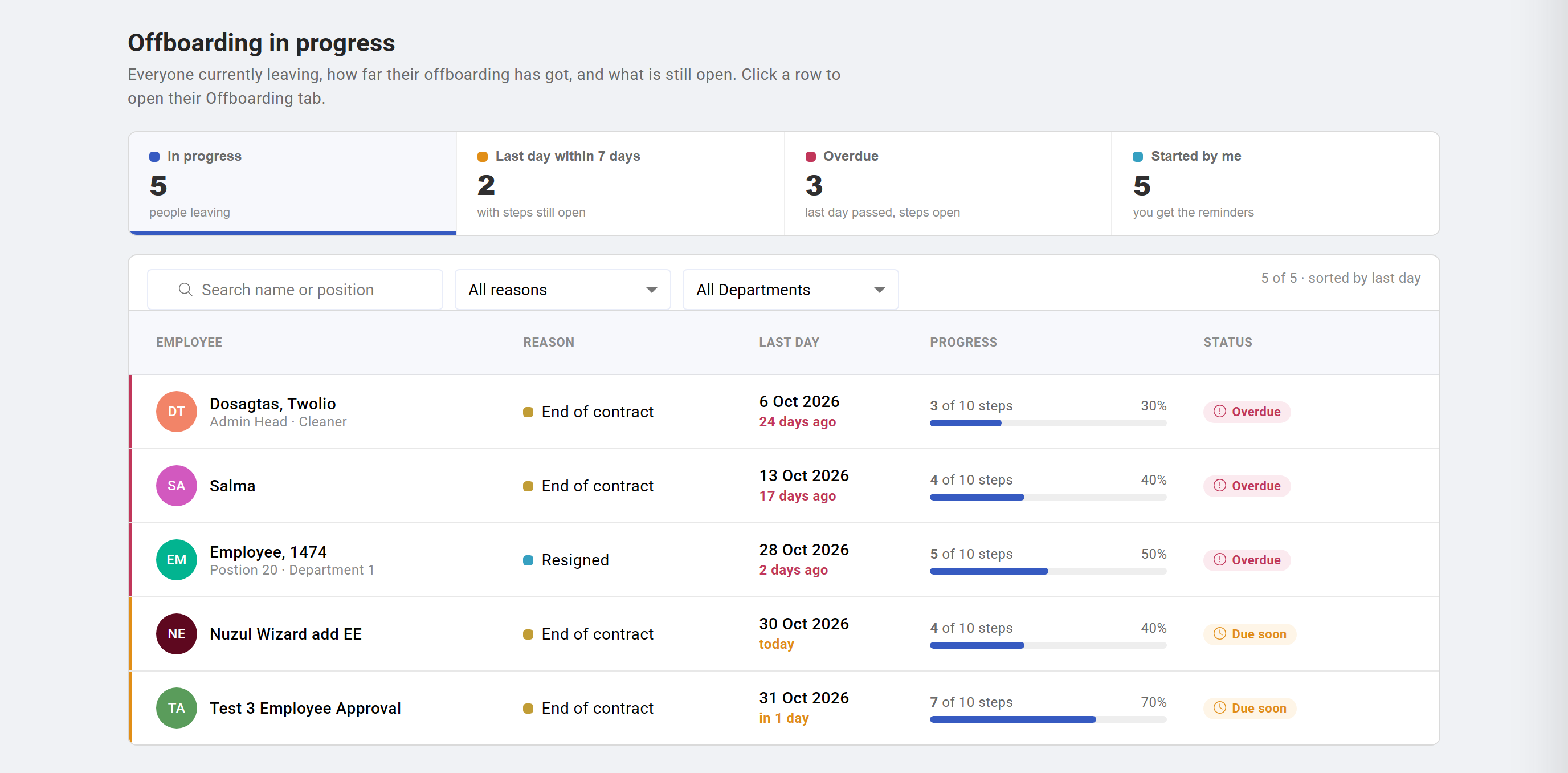
At the top are four numbers. Click one to show only those people; click it again to show everyone.
| Number | Who it counts |
|---|---|
| In progress | Everyone being offboarded |
| Last day within 7 days | Last day is today or within the next 7 days |
| Overdue | Last day has passed and the offboarding isn't complete |
| Started by me | Offboardings you started. You get their reminders |
Each row shows:
- Employee, with position and department.
- Reason, the separation reason.
- Last day, with how far off it is, for example "in 2 days" or "23 days ago".
- Progress, for example "7 of 10 steps". Steps marked Not needed count as done.
- Status: On track, Due soon (last day within 7 days) or Overdue (last day passed). Due soon and Overdue rows also have a coloured edge, so they stand out in a long list.
Use the search box to find someone by name or position, and the All reasons and All Departments filters to narrow the list.
How to act on a row
- Click the row to open that person's Offboarding tab, where you work through the steps.
- Click the tick at the end of the row to complete the offboarding from here. If every step is done, you confirm and it closes. If things are still open, the Complete offboarding dialog lists them and lets you close them all at once. See Offboarding an employee.
When you complete an offboarding, the person leaves this list and moves to Completed.
The Completed tab
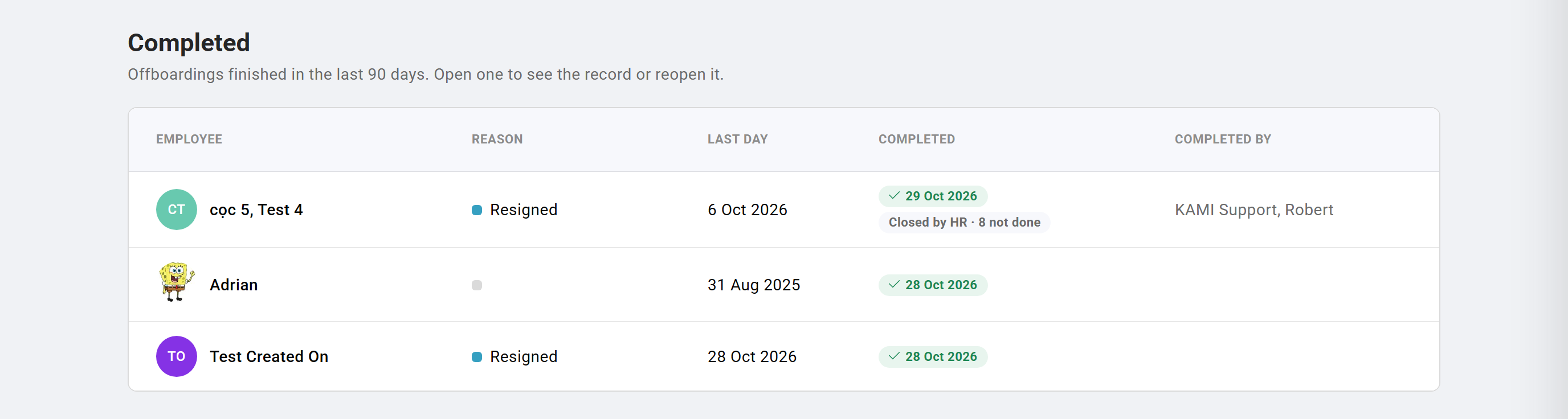
Completed lists offboardings finished in the last 90 days, newest first, with who completed them. An offboarding closed with things still open is tagged Closed by HR · N not done, so you can tell it apart from one where everything was finished properly. Click a row to see the record, or to Reopen it if something needs correcting.
The dashboard cards
The same information sits on two dashboards, so HR sees it without opening the page:
- My Team › Dashboard, at the top of the right-hand column.
- The home dashboard's Team dashboard view.
The card lists up to five people who need attention, with how many steps are open and their last day, and a red N need attention count. Click a name to open their Offboarding tab, or View all to open the full page. When nobody needs attention it says Nothing needs attention.
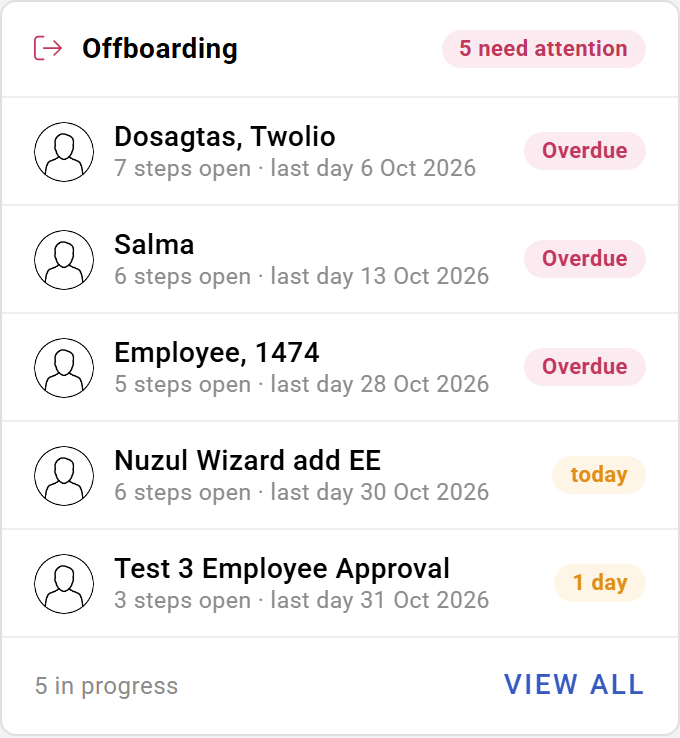
The Offboarding entry on My Team › Tools & Reports also carries a red count when people need attention.
What happens next
- Starting an offboarding adds the person to In progress straight away.
- Their status changes by itself as their last day approaches and passes. Nothing to update.
- Completing moves them to Completed and stops every reminder about them.
- Old offboardings stay listed until you close them. Offboardings that ended before reminders were switched on show here as Overdue but are never reminded. See Offboarding reminders.
Tips
- Check the Overdue number weekly. Anything there is a person who has gone with something still open: unpaid final pay, documents not sent, property not back.
- Clear out stale offboardings when you start using this page. Older records often show as Overdue only because nobody closed them. Open each, mark steps that no longer apply as Not needed, then complete it.
- Use Started by me to see your own work. You're the one reminded about those offboardings.
- Don't complete just to clear the list. Completing closes Final pay too. Check the employee was actually paid first.
Frequently asked questions
Someone is leaving but isn't on the list. The offboarding hasn't started. Open their profile › Offboarding and save the separation reason and dates.
Why is someone Overdue when they left months ago? Their last day has passed and the offboarding was never completed. Open it, close what's left, and complete it.
Why don't I see the Offboarding page? It needs the Terminate Employee right. Ask your administrator.
Does the list include people in every branch? It includes everyone whose profile you're allowed to see.