Offboarding reminders
Offboarding reminders keep an offboarding moving without anyone chasing by hand. They tell HR when steps are still open as the last day nears or passes, remind the leaving employee to finish their checklist, and let the right people know when someone starts leaving. You decide which go out, when, and to whom, once for the whole company.
Reminders only go out while something is still open. They stop as soon as the offboarding is complete, including when HR completes it with items still open.
Where: My Team › Tools & Reports › Offboarding › Reminders. You need: the Terminate Employee right.
The reminders
Each reminder can be switched on or off. These are the defaults:
| Reminder | When it goes out | To | Default |
|---|---|---|---|
| Steps still open before the last day | Once, 3 days before the last day, if steps are open | Who started the offboarding | On |
| Last day has passed with steps open | Every week after the last day, stopping 30 days after it | Who started the offboarding, HR admins | On |
| Weekly summary | Every Monday. One email listing every offboarding in progress. Skipped when there are none | HR admins | Off |
| An offboarding is started | As soon as the first step is saved | Employee's manager, Payroll admins | On |
| Notice to Explain answer is due | On the answer due date set on the notice | Who started the offboarding | On |
| Employee: finish your checklist | From 5 days before the last day, every day until they finish | The employee | On |
| Manager: handover not finished | Once, 5 days before the last day, if handover tasks are open | Employee's manager | Off |
Who started the offboarding is the HR person who saved its first step, Separation reason & dates.
Who the roles reach
| Role | Who it means |
|---|---|
| Who started the offboarding | The HR person who started it. For a Notice to Explain served before the offboarding started, whoever served it |
| HR admins | Everyone with the Terminate Employee right |
| Payroll admins | Everyone who can process payroll |
| IT admins | Everyone who can change user rights |
| Employee's manager | The manager on the leaver's profile |
| Employee's department head | The head of the leaver's reporting line |
| The employee | The leaver. Only on their own checklist reminder |
The leaver is never sent HR's reminders about themselves, and deactivated people are skipped. A person who fits two roles gets one email.
How to change a reminder
- Open Offboarding › Reminders.
- Use the switch on a reminder to turn it on or off. When it's off, it reads Off. Nobody is reminded.
- Under When, set the days or how often it repeats: Every day, Every 2 days or Every week. The weekly summary takes a weekday.
- Under Send to, click Add role or Add a person, or remove one with its cross. The employee's checklist reminder always goes to the employee.
- Under How, choose Email, KAMI notification, or both. At least one has to stay ticked.
- Click Preview email to see what recipients get, with sample details.
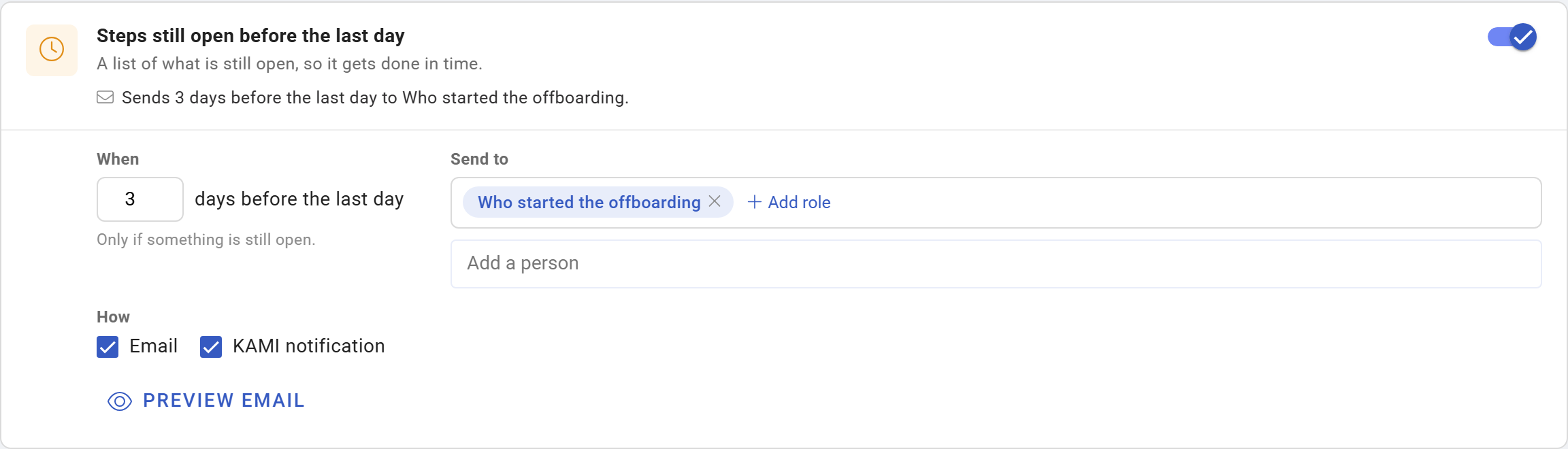
Each change saves straight away and shows Saved. The line under each title sums up the result, for example "Sends 3 days before the last day to Who started the offboarding."
A reminder that is on needs at least one person to send to. If you remove everyone, it says Add at least one person, or switch this reminder off, and nothing is saved until you do one or the other.
What happens next
- Reminders are sent once a day. A change you make today applies from the next send.
- They follow each offboarding's dates. Moving the separation date moves the reminders with it.
- Each one stops on its own. The open-steps reminders stop when the steps are done or marked Not needed. The employee's reminder stops when their checklist is done. The overdue and employee reminders stop 30 days after the last day at the latest. Completing the offboarding stops all of them.
- KAMI notifications appear in the bell. HR's open the leaver's Offboarding tab; the employee's opens their dashboard, where My offboarding pops up.
Offboardings from before reminders were switched on
Offboardings whose last day was before reminders went live for your company are never reminded. Without this, switching reminders on would email you about every old offboarding nobody ever closed. Those offboardings still show on the Offboarding page as Overdue, so you can close them with Complete offboarding.
Tips
- Keep the overdue reminder weekly. Every day quickly becomes noise; weekly gets read.
- Turn on the weekly summary for the HR lead. One email on Monday shows every open offboarding, which is easier than a reminder per person.
- Add Payroll admins to "An offboarding is started" if payroll isn't already on it. Final pay is the step most often late.
- Turn on the manager's handover reminder in teams where knowledge walks out of the door: sales accounts, client projects, systems access.
- Use roles rather than names. A named person keeps getting reminders after they change jobs; a role follows whoever holds it.
Frequently asked questions
Why didn't the employee get their checklist reminder? They need a KAMI login to act on it. Once their access stops after the last day, they're no longer reminded. Their documents still reach them through the leaver link.
Can I set different reminders for different departments? No. Reminders apply to every offboarding in the company. Use Add a person for anyone who should always hear.
Why does the Notice to Explain have a reminder but the other notices don't? Only the Notice to Explain has a deadline, the employee's answer. The other notices just record when they were served.
We've just switched reminders on and have lots of old open offboardings. Will we be flooded? No. Offboardings that ended before reminders went live are never reminded. Close them from the Offboarding page when you have time.