Leave policies: setting leave allowances
A leave policy sets how many leave days people get each year. Use it to set leave allowances, for example to give employees 15 days vacation leave a year. You choose who the policy applies to and the days per year for each leave type. Without a policy, no one earns leave days, even if the leave type exists.
Where: Settings › Calendar › Leave Policy
You need: the Attendance Settings right
Before You Start
The leave type must already exist. See Leave types and policies. That is also where you set whether days arrive all at once or a bit at a time.
Only a leave type with Yearly awards accrued turned on takes a number of days. Any other leave type shows No limit.
How to create a leave policy
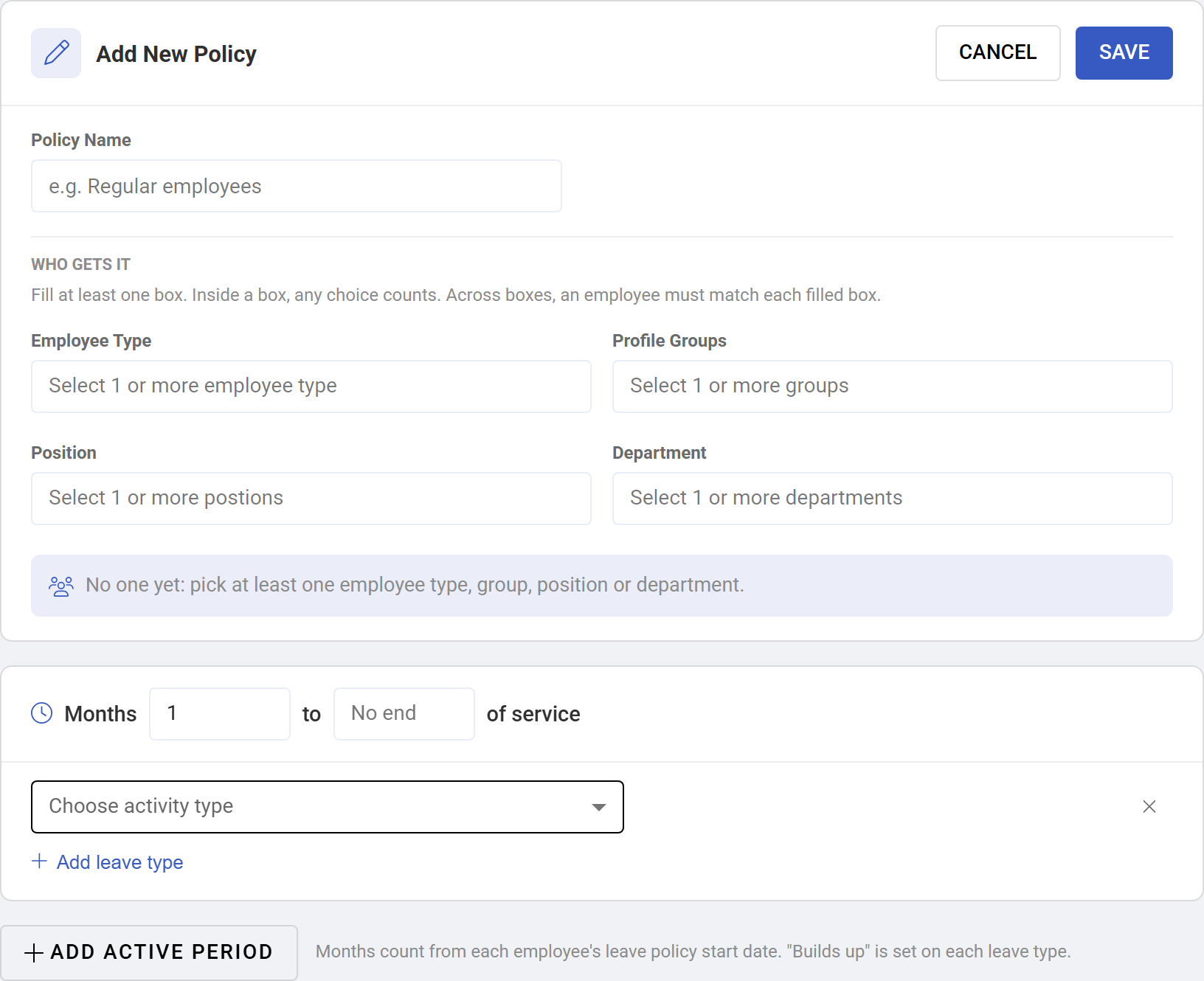
This example gives regular employees 15 days vacation leave a year.
- Open Settings › Calendar › Leave Policy.
- Select Add new leave policy.
- Enter a Policy Name, for example "Regular employees".
- Under Who gets it, fill at least one box. For this example, choose Regular under Employee Type.
- Check the sentence below the boxes. It says in words who gets the policy.
- Leave the months at 1 to No end so the days apply from the first month of service.
- Select Add leave type.
- Under Choose activity type, select Vacation Leave.
- Enter 15 in the box beside days a year.
- To add another leave type, such as sick leave, repeat steps 7 to 9.
- Select Save.
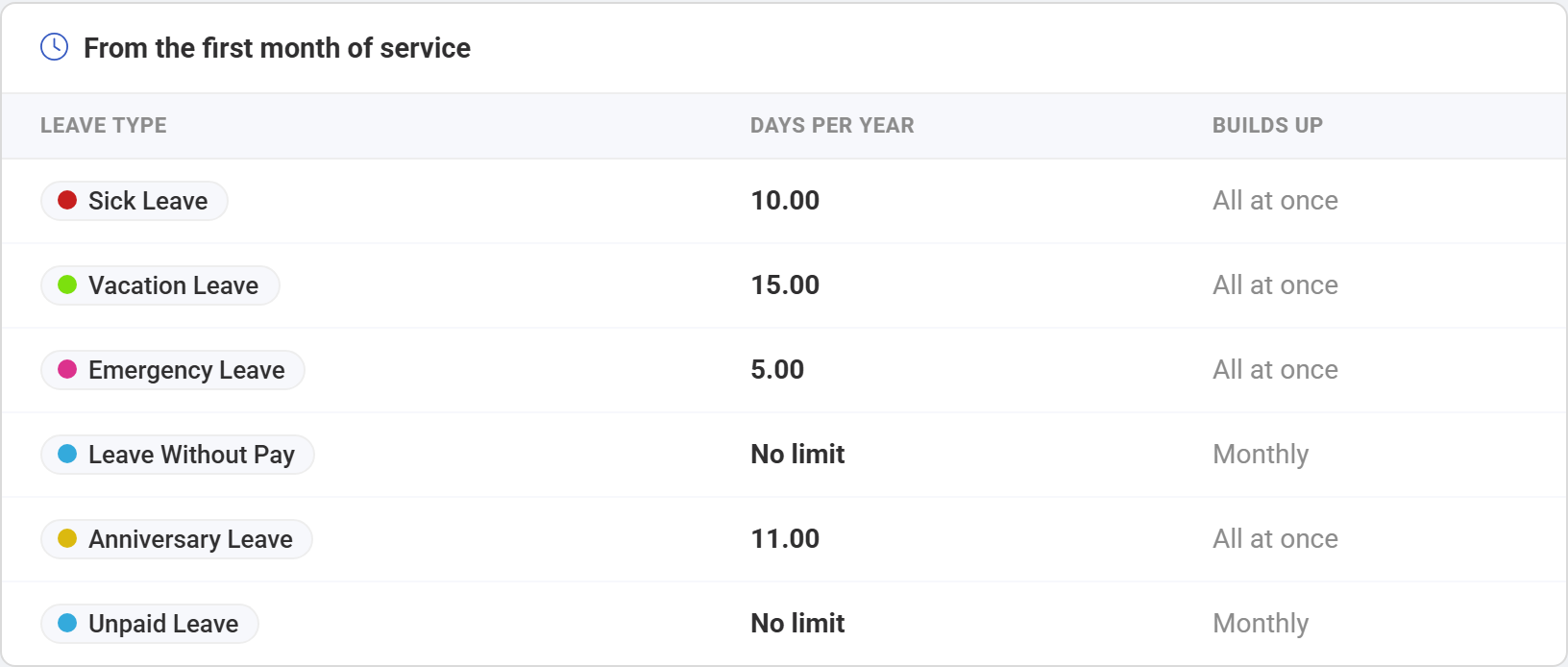
The page then shows each leave type with its Days per year and how it Builds up.
How to give long-serving staff more days
Do this inside the same form, using service periods.
- Change the first period's end, for example Months 1 to 12.
- Select Add Active Period.
- Enter the new period's start, for example 13, and leave the end empty.
- Select Add leave type, choose the leave type and enter the higher number of days.
- Save the policy.
Periods cannot overlap, and both ends count. "1 to 12" followed by "12 onwards" is refused. Use "1 to 12", then "13 onwards". Months count from each employee's Leave Policy Start Date.
How to change a policy
- Open Settings › Calendar › Leave Policy.
- Select the policy in the list on the left.
- Select Edit.
- Change the days, who gets it or the service periods.
- Read the warning below the form, then select Save.

⚠️ Saving also changes balances already earned. Balances are worked out again from each employee's start date. If you lower the days, some balances can go negative.
To remove a policy, select it and select Delete. Employees covered by it lose the days it gives them, including days already earned. Leave already taken stays on record.
Who a policy applies to
There are four boxes: Employee Type, Profile Groups, Position and Department.
- Inside a box, any choice counts. Choosing two departments covers people in either one.
- Across boxes, an employee must match each filled box. Regular plus the Sales department means regular employees in Sales, not everyone who is one or the other.
- An empty box does not limit anyone. It shows as Any. At least one box must be filled.
The employee and the leave type can still rule someone out. If a leave type has a Gender set, only that gender gets it. A leave type with a Birthday anniversary needs the employee's birth date. Employees also need a hire date.
To see which policies someone has, open their profile, select Leave and look at the Leave Policy card.
To give one person extra days on top of their policies, use Custom Leave Policy on their profile, under Profile › Attendance.
What happens when two policies overlap
An employee gets every policy that matches them, and the days add up. There is no priority between policies, and one never replaces another.
For example, one policy gives all regular employees 15 days of Vacation Leave, and another gives the Sales department 5 days of Vacation Leave. A regular employee in Sales gets 20 days.
To give a group a higher total, either make the second policy give only the extra days, or set up the boxes so the two groups do not overlap.
When days take effect
- Straight away. There is nothing to run after saving. Balances reflect the policy as soon as it is saved.
- Counted from the Leave Policy Automation Date. This date on each employee's profile is when policy awards start. A new policy is not limited to today onwards: it counts back to that date, so existing employees can receive days for earlier months.
- Delivered as the leave type says. Accrual Interval and Accrual basis on the leave type decide when days arrive. With 15 days a year, Annually gives all 15 together and Monthly gives 1.25 each month. The Builds up column shows which applies.
- Probation can delay them. With Probation accrual off, counting starts after probation. With Probation period block on, nothing is awarded during probation, and everything due arrives when it ends.
Check the result in the Time Off Balances report. See Leave balances and accrual.
Tips
- Check one person after any change. Note their balance before you save, then compare it afterwards.
- Name policies after who gets them, such as "Regular employees". The list on the left is all you see when choosing one to edit.
- Before adding a policy, check what already matches those people, because matching policies add up.
Troubleshooting / FAQ
Q: How do I give employees 15 days vacation leave a year? Create a leave policy, choose who it is for, add Vacation Leave and enter 15 beside days a year. The numbered steps are under "How to create a leave policy" above.
Q: Where do I set leave allowances? On Settings › Calendar › Leave Policy. The leave type itself holds no number of days.
Q: An employee has no leave days. Check the Who gets it boxes against their employee type, group, position and department. An employee must match every filled box. Then check the leave type's Gender and probation settings, and their Leave Policy Automation Date.
Q: An employee has more days than the policy says. Another policy probably matches them too, and the days add up. Check the Leave Policy card on their Leave tab. Also check Custom Leave Policy on their profile.
Q: A balance went negative after I changed a policy. Lowering the days reworks balances already earned, so leave already taken can exceed the new total.
Q: Can I give one person different days? Yes, with Custom Leave Policy on their profile. It adds to their other policies.