Seeing your schedule
Use this to see your schedule: what shift you work, what time you start, and your rest days this week or this month. It also shows holidays, leave, and what you actually clocked. You do not set your schedule. Your company assigns it, and you can ask for changes.
Where: My schedule, under Dashboard in the sidebar
You need: nothing extra to see your own.
How to see your schedule
- Under Dashboard in the sidebar, select My schedule. My Calendar opens on this week.
- Choose Weekly to see each day hour by hour, or Monthly to see the whole month.
- Use the arrows to move to another week or month. Select This Week or This Month to come back.
- Select a shift to see its details, such as your scheduled and actual times.
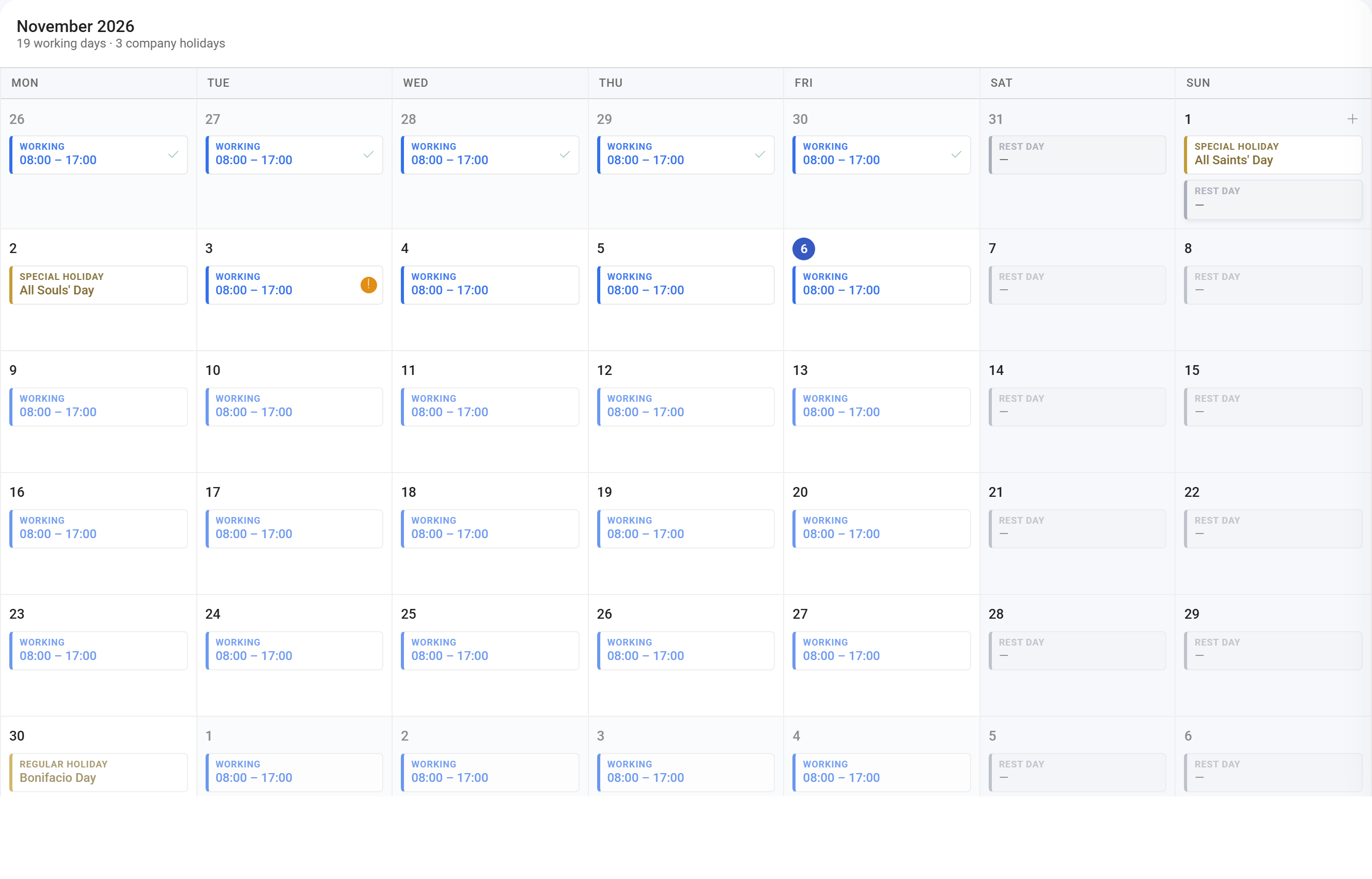
Reading it
- The strip at the top: in the weekly view, your scheduled hours, hours logged so far, approved overtime, leave taken and your next rest day.
- A shift: its activity and times, with any problem such as Late or No time out.
- The All day row, weekly view: rest days, holidays and full-day leave.
- A banner at the top: a day that can't be paid until it is fixed. See Correcting attendance.
The other tabs are Events, your days as a table, My requests, the requests you have sent, and Time Logs if you have access.

Times are in your branch's local time.
How to ask for a change
Select Request Event to ask for a shift or a day. It goes to your approver. See Correcting attendance. To take time off, request leave.
Troubleshooting / FAQ
Q: What is my schedule today? It shows under Today's Schedule on your Dashboard, and on My schedule.
Q: My schedule is empty. No shifts have been scheduled for you in that period. Ask your manager.
Q: Can I change my own schedule? Not directly. Select Request Event, or ask your manager.