Turning on Ad Hoc check-in for an employee
Ad Hoc check-in lets an employee clock in from the KAMI mobile app for work outside their scheduled shift, such as overtime or broken hours. They start a timer, stop it when the work is done, and submit it for approval. Use this article to turn it on for one employee or many, and to see what happens to the entries they submit.
Where: the employee's profile › Attendance › Check-in Settings › Where they can check in › Ad Hoc check-in
You need: the Attendance right on the employee's profile data
Before You Start
- It is per employee, and off for everyone until you turn it on. There is no company-wide switch.
- Set up the activities first. The employee picks an activity when they start, such as Overtime or Working. Only work activities that require check-in are offered. If there are none, the app says there are no activities to choose from. See Activities and how they pay.
- Check the approvers. Each Ad Hoc is submitted as an event request, so it goes to the employee's event approvers like any other request.
How to turn on Ad Hoc check-in for one employee
- Open the employee's profile and select Attendance.
- On Check-in Settings, select Edit.
- Under Where they can check in, switch on Ad Hoc check-in: Allow this employee to clock in for Ad Hoc work (overtime or broken hours) from the mobile app.
- To let them start and stop Ad Hoc without a connection, also switch on Offline Ad Hoc allowed, under Offline & missed check-outs.
- Select Save.
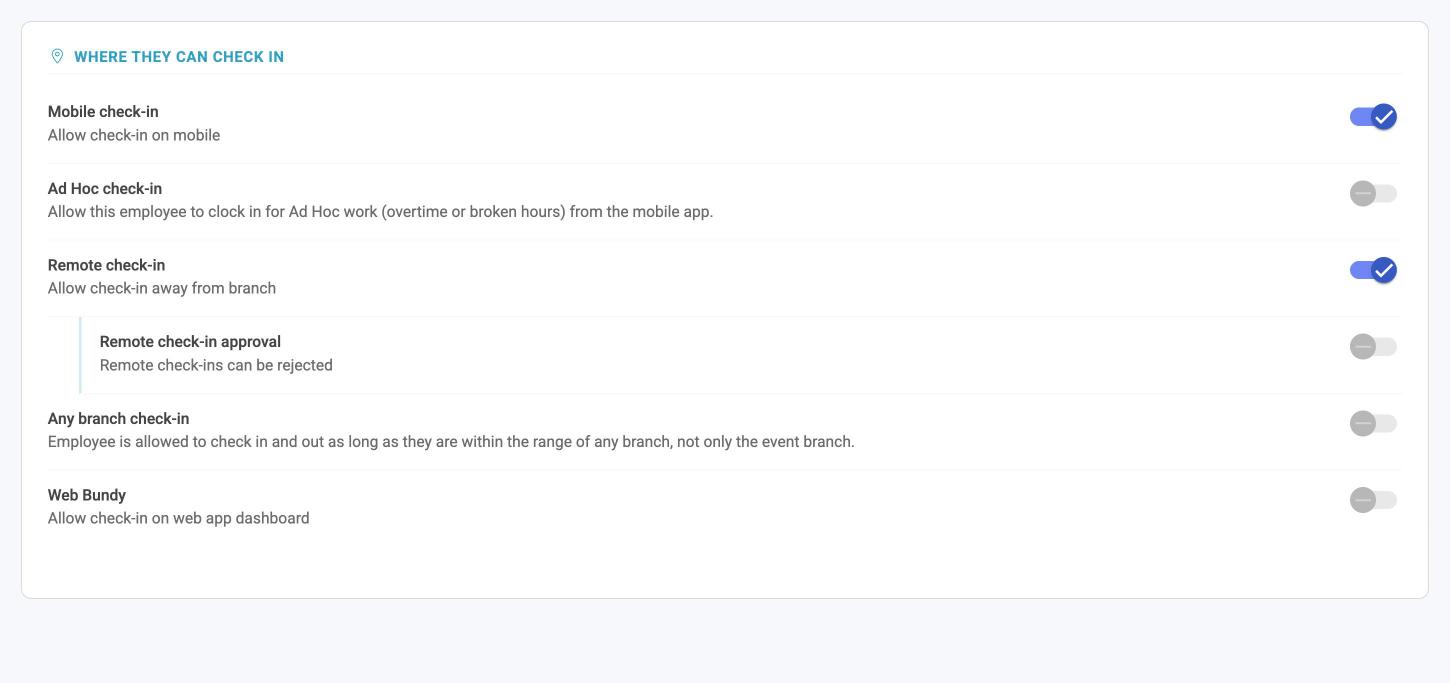
To turn it off, repeat the steps and switch it off.
How to turn it on for many employees
- In Profile Manager, the field is Activate Ad Hoc check-in. See Bulk-editing employees with Profile Manager.
- In the employee import and export, the column is Activate Ad Hoc Check-In. See Bulk data import and export.
What the employee does
Once it is on, an Ad Hoc shortcut appears on the employee's mobile Dashboard. It stays hidden while the setting is off.
- They open Ad Hoc, pick an activity and start the timer. Starting needs the same identity check and location as a normal check-in.
- While it runs, the Ad Hoc shows on the Dashboard, and they can stop it from there.
- When they stop, they add a comment, can attach a photo, and submit it for approval. They can also discard it, and nothing is sent.
They can start an Ad Hoc whether or not they have checked in for the day.
What Happens Next
Each submitted Ad Hoc arrives in Approvals as an event request, with the start and end times, the coordinates and whether the employee was inside the branch zone. Working outside the zone is allowed; the request only records it.
When it is approved, the Ad Hoc becomes an event on the calendar. If it overlaps a rostered event, approval adjusts that event to make room. Until then the rostered event stays as it is. Leave and other pending requests still block an overlapping Ad Hoc.
Ad Hoc requests differ from other requests in a few ways:
- The activity's Minimum request duration does not apply, so a short Ad Hoc is accepted. An Ad Hoc minimum by custom field on the activity still applies.
- The company's Require a break rule does not apply, so a long Ad Hoc does not need a break.
- The request keeps the branch where the work was done, even when that is not the employee's own branch.
- Rounding: if the activity rounds requested times, the start rounds up and the end rounds down. Only the scheduled times change; the recorded actual times stay as they are.
- Locked days still apply. An Ad Hoc for a past date inside the attendance lock is refused.
Tips
- Turn it on only for the people who need it. Each employee with it on can file Ad Hoc entries at any time.
- The activity sets the pay. Make sure Overtime and any other activity you want them to use are set up correctly before you switch the setting on.
- Test with one employee. Have them file an Ad Hoc and approve it, then check the event and the timesheet before rolling it out in bulk.
Troubleshooting / FAQ
The employee cannot see Ad Hoc on their phone. Check Ad Hoc check-in is on and saved on their profile, then ask them to reopen the app.
The employee sees no activities. Only work activities that require check-in are offered. Add or adjust one in Activities and how they pay.
The Ad Hoc cannot be submitted because it overlaps something. Leave and other pending requests block it. Approve, decline or cancel the other request first.
A short Ad Hoc was rejected. The activity has an Ad Hoc minimum by custom field for the employee's category. Check it on the activity.