Creating document templates with AI
Use AI to write a new letter or contract template from a short description, or to turn a Word template you already have into one you can edit in KAMI. Either way, the employee's details go in as fields, so every document issued from the template fills in correctly.
Where: My Team › Settings, under Documents & Compliance › Document Templates › Draft with AI (in the template editor)
You need: edit access to the Document Templates right
Templates themselves are covered in Document Templates.
Which tool, when
| You want to… | Use |
|---|---|
| Make a letter you've never had | Draft with AI › Describe |
| Move an existing Word template into KAMI | Draft with AI › Convert Word file, or Convert with AI on a Word template |
| Write a letter yourself | The editor, without AI |
What the AI will and won't do
- It never types in employee details. Names, dates and salaries are always fields, filled in from KAMI when the document is issued.
- It only uses fields that exist. Anything it can't match is flagged for you to fix.
- It suggests a name and a type for a described letter, but only when those boxes are empty. A converted file takes its name from the file name.
- It replaces what's on the page. If the page isn't empty, KAMI asks first: "Replace what's on the page with the AI draft?"
- Nothing is saved until you click Save. You are responsible for the wording, not the AI.
How to draft a letter from a description
- Click Add new template. Choose the Type first if you know it.
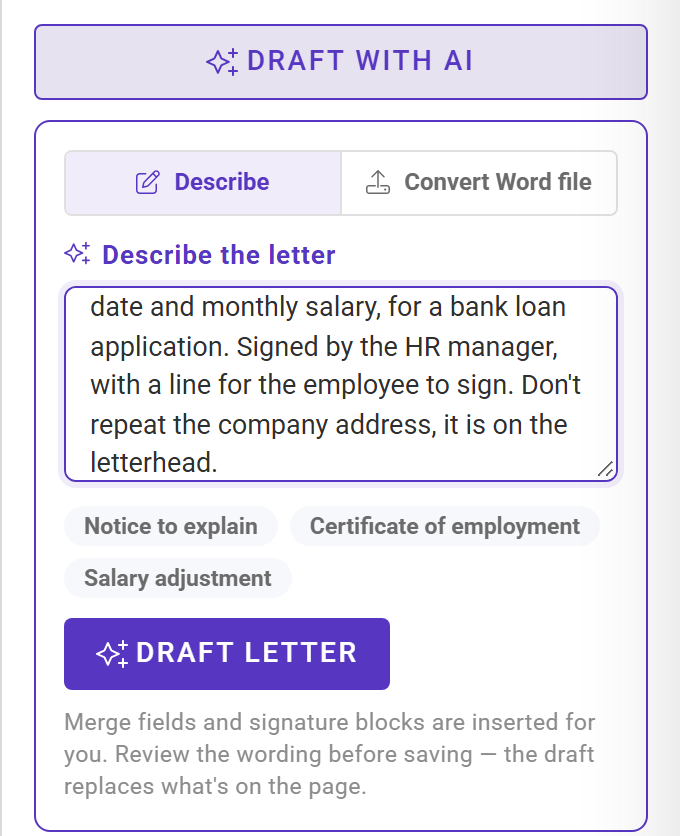
- Click Draft with AI. The panel opens on Describe, under Describe the letter.
- Describe the letter in two or three sentences, or start from a shortcut: Notice to explain, Certificate of employment or Salary adjustment.
- Click Draft letter, and wait for the draft to appear.
- Read the draft, Preview it with a real employee, and Save.
Write a good description
Tell it:
- what the letter is for, such as "a certificate of employment for a bank loan";
- the details it must state, such as "position, department, hire date and monthly salary";
- who signs for the company, such as "signed by the HR manager";
- whether the employee signs, such as "with a line for the employee to sign";
- what to leave out, such as "don't repeat the company address; it's on the letterhead".
For example, this description:
Certificate of employment confirming the employee's position, department, hire date and monthly salary, for a bank loan application. Signed by the HR manager, with a line for the employee to sign. Don't repeat the company address, it is on the letterhead.
produced this draft:
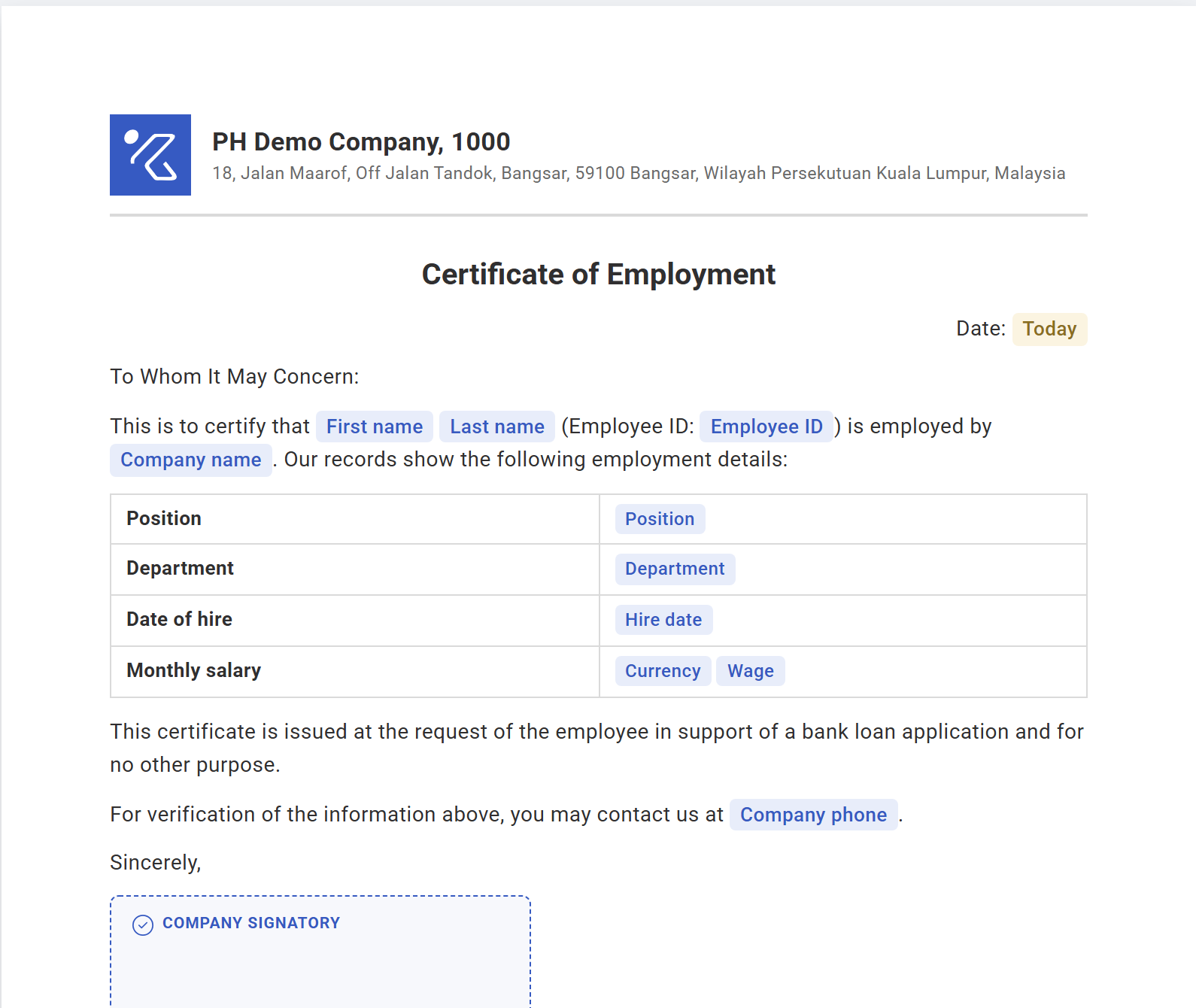
⚠️ If you don't say the employee signs, the AI usually leaves out the signing box, and then documents from the template can't be e-signed. The footer tells you whether a signing box is included.
Check the draft before saving
- The wording says what you mean. This matters most for disciplinary, legal and pay letters.
- The right fields are used. For example, a monthly salary should be Wage, not Annual wage.
- The company signatory is the right person, and the signature shows. If it's blank, delete it and insert the right one from Signatures.
- The signing box is there, if the employee must sign.
Not right? Change the description and click Draft letter again.
How to convert a Word template
- Open the template you want to convert:
- If it's already a Word template in KAMI, open it and click Convert with AI. - If it's a file on your computer, click Draft with AI, choose Convert Word file, and drop the .docx in.
- Choose the options:
- Turn typed tags into fields and place signing boxes is on by default. It doesn't use AI: tags become fields, and the first "Employee Signature" line becomes the signing box. - Tidy layout and headings is on by default and uses AI. - Improve the wording (keeps meaning, fixes tone and grammar) rewrites sentences. Leave it off for contracts and legal letters.
- Click Convert, then read the report.
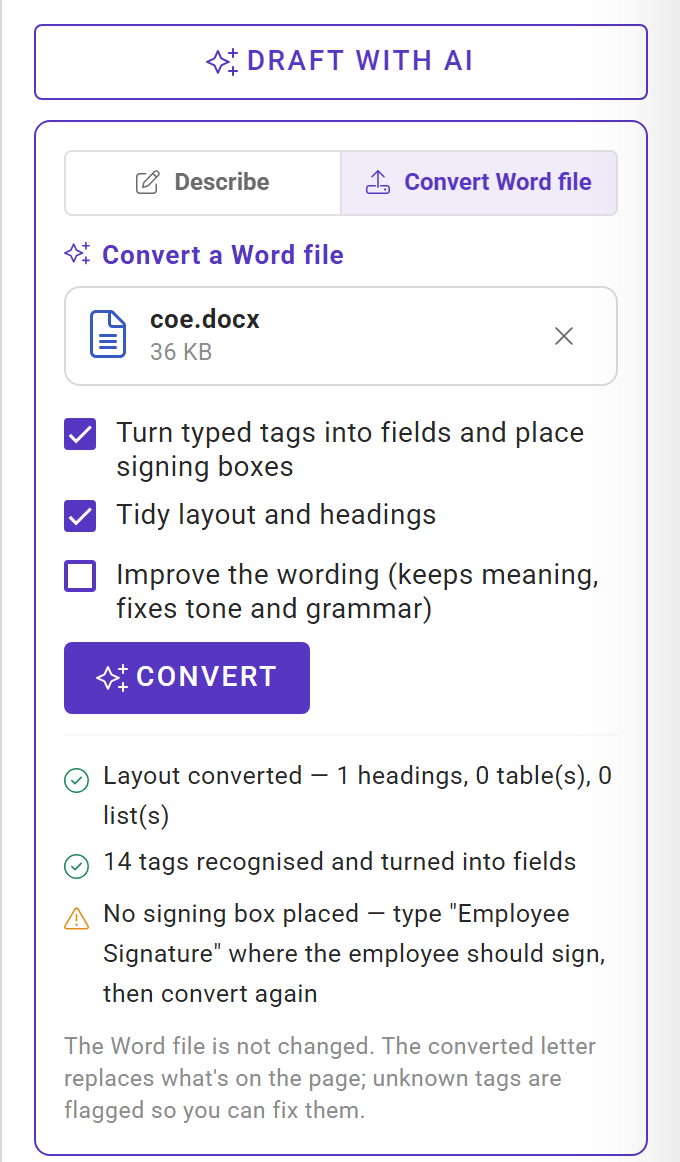
| Report says | Do this |
|---|---|
| Layout converted, with the number of headings, tables and lists | Check the layout on the page |
| N tags recognised and turned into fields | Nothing. The count includes any unknown tags flagged below |
| No signing box placed | Type "Employee Signature" where the employee signs and convert again, or add one from Signatures |
| N unknown tag(s) flagged | Click each highlighted tag and pick the right field. You can't save until they're fixed |
Only the body of the Word file converts. Headers and footers are left out (the letterhead replaces them), and so are images, fonts and colours. Table cells come across as plain text. Your Word file isn't changed.
Troubleshooting / FAQ
I don't see Draft with AI. AI drafting isn't switched on, you have view access only, or the template is a Word file (use Convert with AI instead). The editor works without it.
"Couldn't reach the AI assistant — try again." Your page is unchanged. Try again in a moment.
The company signature on the draft is blank. The AI chose a signatory with no signature image. Insert the right one from Signatures.
Does drafting use AI credit? Yes. Each draft or conversion counts towards your company's AI usage.