Setting Up the Weekly Digest Email
The weekly digest is one email, sent every Monday, that gathers what needs a person's attention: approvals waiting on them, last week's team attendance, new hires and work anniversaries, open payrolls and company announcements. As an HR admin, you decide whether it goes out by default, and you can work out why someone is or is not receiving it.
Where: My Team › Settings › Communication › Notifications
You need: the Company Notifications right. Employees need nothing extra to change their own setting on their profile's Notifications tab.
The page calls it Weekly Summary, described on screen as "The weekly manager digest email". Email is its only channel.
How to turn the digest on or off for the company
- Open My Team › Settings.
- Under Communication, select Notifications.
- Find the Weekly Summary row in the General section.
- Tick or untick Email.
- Select Save changes in the bar at the bottom.
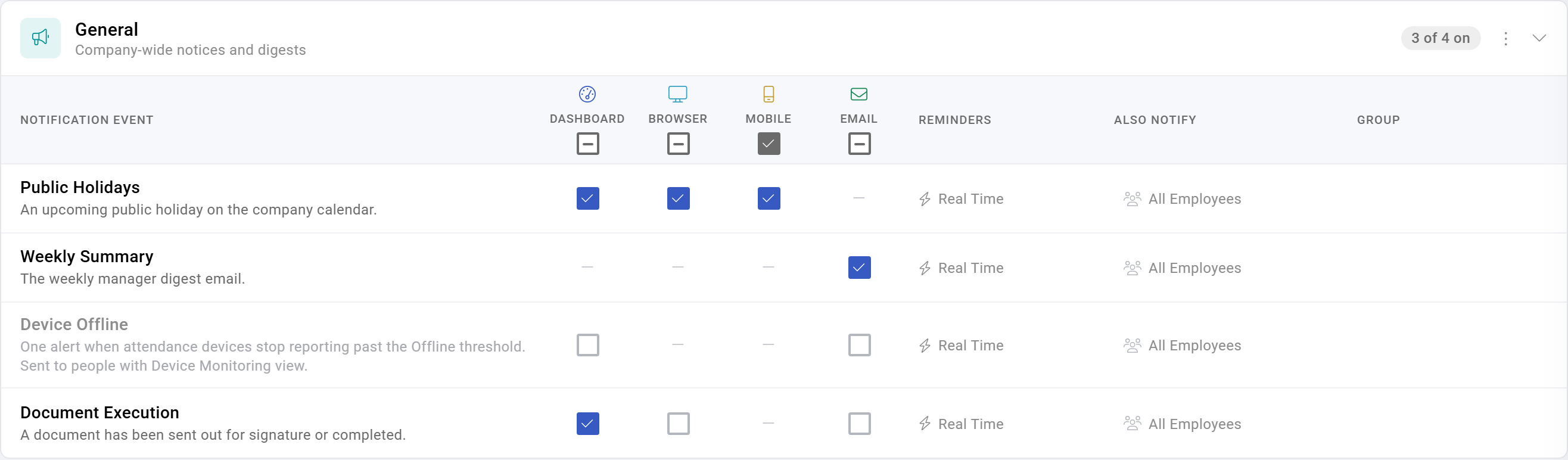
This is the company default. Employees can override it on their own profile, so the default decides the outcome only for people who never change it. The page has no option to change the day, the time or the sections of the email.
How employees turn it off for themselves
- Open the profile menu in the top right corner and select My Profile.
- Select Notifications.
- Find the Weekly Summary row in the General section and untick Email.
- Select Save changes.
Who Receives It
Despite the name "manager digest", the email is not limited to managers. KAMI sends it to anyone who meets all of these:
- They are an active employee.
- They have access to the Attendance module.
- The Weekly Summary email setting is on for them, either from your company default or from their own choice.
- There is something to show them. If every section would be empty, KAMI skips their email.
This means an employee with no direct reports can still receive it. An approval waiting on them, or a current announcement that applies to them, is enough to trigger it.
What Recipients See
The email is titled Weekly Digest: HR Summary (week of followed by the date. It has up to five sections:
- Pending Approvals: the number of items waiting for that person's decision, with a breakdown into Employee Data, Documents, Calendar and Expenses, and a Review & Approve button. The total also counts loan approvals, which have no box of their own.
- Team Attendance: last week, for people who report directly to the recipient: Tardy, Absences, Leave Requests (pending approval) and Event Requests (timekeeping amendments), with a View Team Attendance button.
- My Team: direct reports hired or celebrating a work anniversary that week, up to three of each. It appears only when there is someone to show.
- Open Payrolls: payrolls that are not yet closed or paid, with the attendance period and the number of pending payslips, up to 10. Each person only sees the payrolls where they are an approver for that payroll's batch cycle.
- Announcements: current company announcements that apply to them, newest first, up to five. An announcement applies to someone if they fall within the departments, branches, positions, subsidiaries or groups it was sent to.
The sample below, from a demo company, shows the first three of these: Pending Approvals, Team Attendance and Open Payrolls.
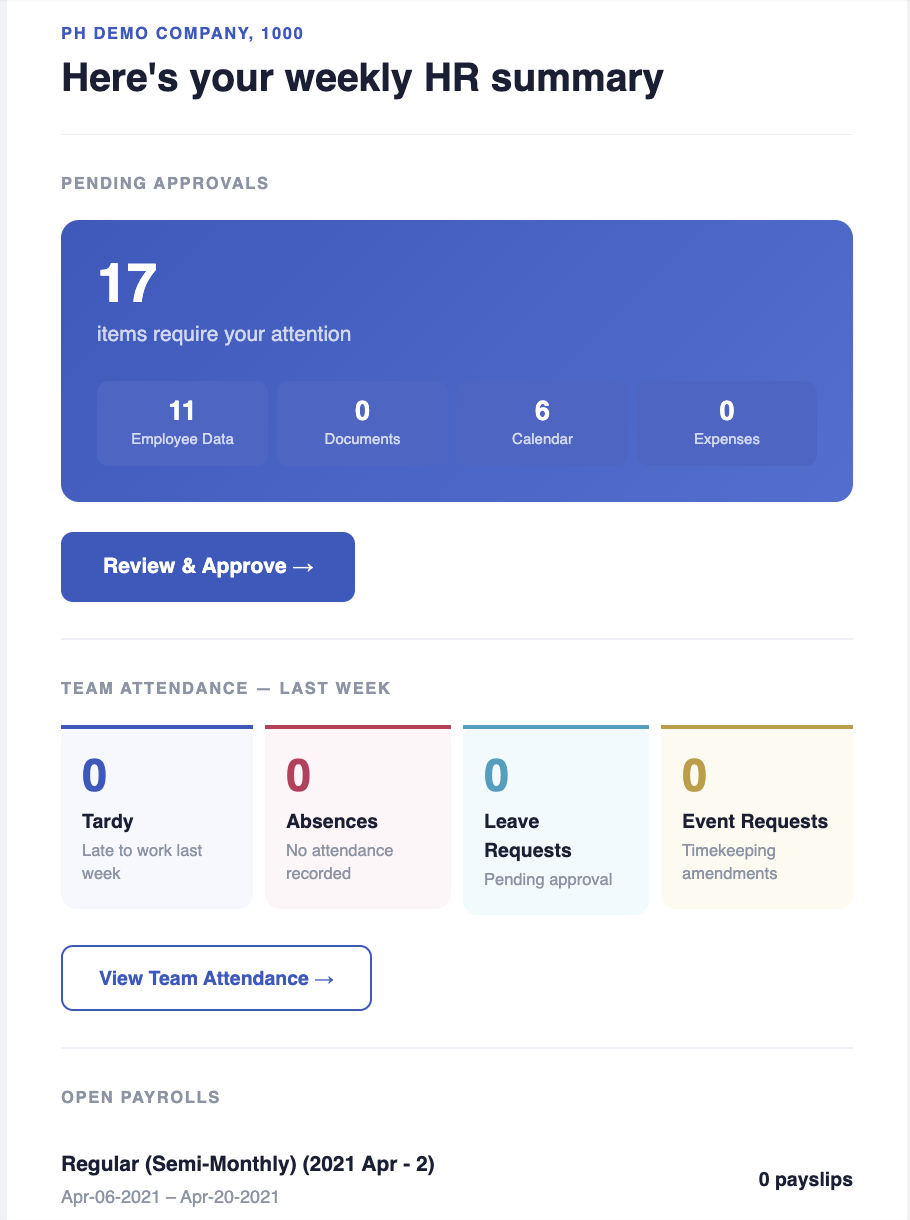
The counts depend on who is set up as each person's manager and approver. A gap in the approval matrix shows up as missing items in someone's digest.
What Happens Next
The digest goes out every Monday at 7:00 AM UTC, which is 3:00 PM in the Philippines, and covers the seven days before it is sent. A change to the company default applies from the next Monday, not to a digest already sent. Turning the digest off stops only this email. Approvals and other notifications are unaffected, because they use their own settings.
Tips
- Decide the default before you roll it out. Most people never open their notification settings, so your default decides who gets the digest.
- Remember that announcements can trigger the email. An employee with nothing else to report still gets a digest while a current announcement applies to them. If that surprises people, check your announcement targeting.
- Check the approval matrix when someone says their numbers look low. The digest only counts requests where the person is a current approver.
- Do not confuse it with the weekly check-in report. That is a separate Monday email under Timekeeping Health on the same page, listing employees who failed to check in on three or more days. It goes to people who can reset Face ID.
Troubleshooting / FAQ
Q: A manager says they never get the digest. Check four things: their Weekly Summary email setting is on (their own override counts), they have access to the Attendance module, their status is active, and there was something to report that week. The digest is not sent on a quiet week.
Q: Why does the total not match the four boxes? The total also counts loan approvals, which do not have a box.
Q: Why does someone not see the Open Payrolls section? It only shows payrolls that are still open, and only to approvers of that payroll's batch cycle.
Q: Can we send it on a different day, or to the dashboard or mobile? Not from settings. It is sent by email on Mondays only.